
Account Preferences & Personalisation
Set up your account: profile, timezone, application language, live chat translation and signature message — every Account page field and which to set first.
What you'll do: fill in your Account page — profile, timezone, language, live chat translation and signature message — in the order that matters.
Time: 10 minutes.
Set the timezone first. It decides when every scheduled broadcast and sequence sends.
1. Open your Account page
Click your avatar at the top right.
Choose Account from the profile menu. (The menu also lists Billing, Security, Renew / Upgrade, Affiliate Program, Rate Us, API Developer and Logout. Affiliate Program opens an Affiliate Request form if you'd like to refer other businesses.)
Control Panel → Settings & Integration is a different screen (workspace security), not your account.
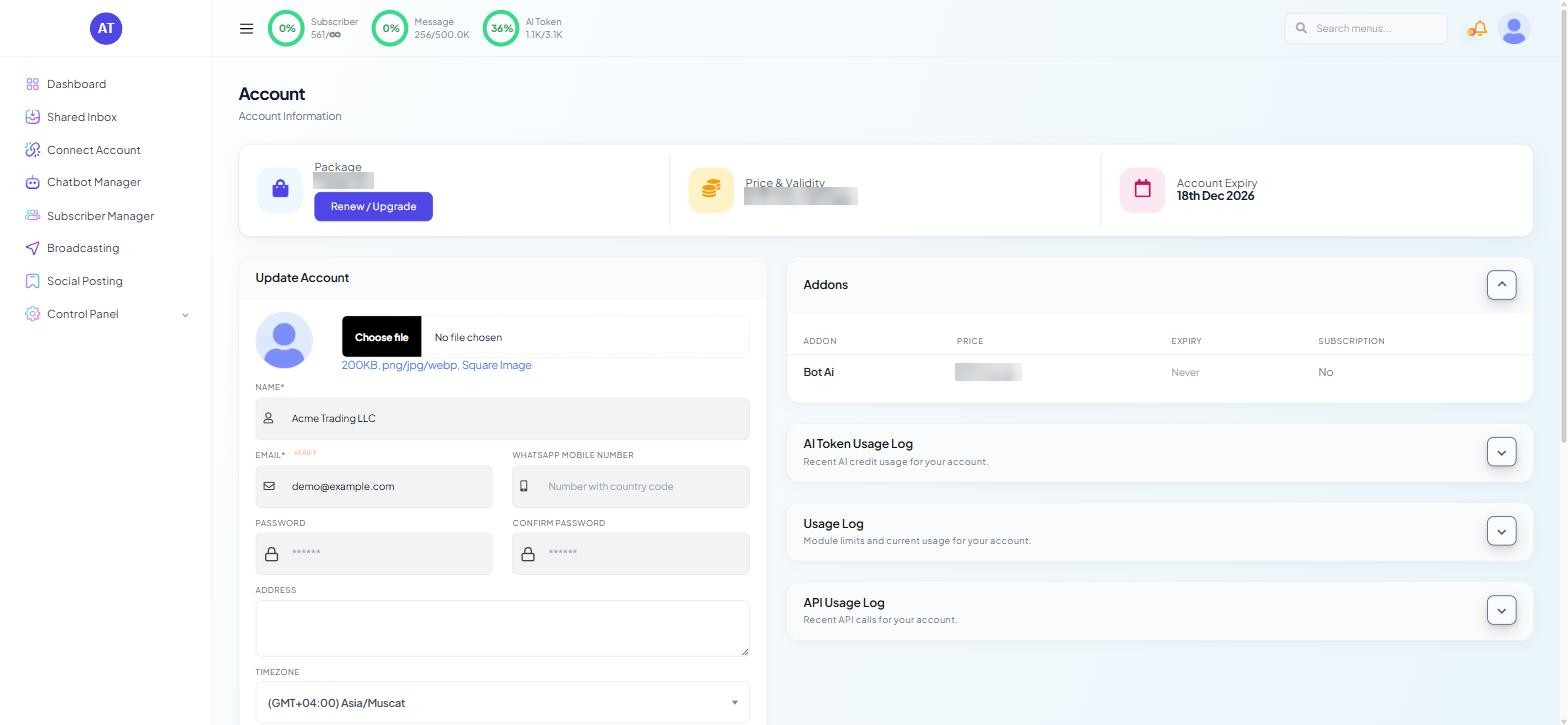
2. Fill in the Update Account form
The Update Account form is in the left column. Do these in this order:
TIMEZONE: the setting that matters most. Scheduled broadcasts, sequence timings and business hours all follow it. Set it to where your customers are if that differs from where you are.
EMAIL *: check it is right. If your email is not yet verified, click the VERIFY link beside the field, or notifications will not arrive. It is needed for alerts and account recovery.
NAME * and Profile picture, so teammates can tell who replied to a customer.
SIGNATURE MESSAGE, before your first live chat. Keep it short: a first name and a role, such as "— Sam, Acme Trading support".
Any other fields you need (see Reference for every field).
Click Update.
Nothing on this form saves on its own. Click Update.
3. Enable 2FA
Once the rest is done, turn on two-factor authentication from the 2FA card at the top of the page (Enable 2FA). Account Security: 2FA, Passwords & Email Verification covers this.
✅ Done when…
☐ TIMEZONE is set
☐ Your email is verified
☐ Your name, profile picture and signature message are saved
☐ 2FA is on
If something doesn't work
Scheduling looks an hour out. Check the timezone after a seasonal clock change.
Notifications don't arrive. Your email is not verified. Use the VERIFY link.
The translate icon is missing. It only appears if your role has LIVE CHAT - TRANSLATOR on (Control Panel → User Permission).
My changes are gone. You did not click Update.
Reference
What the page shows
Along the top: three cards — Package with its name, Account Expiry, and Billing with a Go to Billing button. Price & Validity and your addons are on the Billing page.
Beneath them: the two-factor authentication card. Until you turn it on it shows "2FA Disabled — Two-Factor Authentication is not enabled on your account." with an Enable 2FA button.
Left column: the Update Account form.
Right column: three collapsible panels — Usage Log, AI Token Usage Log and API Usage Log — showing what your plan allows and what you have used. Billing, Plan Limits & the Usage Log covers those.
At the bottom: Delete Your Account, with a Delete Account button.
Delete Account does what it says.
Every field on the Update Account form
In order:
Field | What it is |
|---|---|
Profile picture | A Choose file control. The requirement is shown beneath it: 200KB, png/jpg/webp, Square Image. A non-square image is cropped to a square. This picture identifies you to teammates in the Shared Inbox. |
NAME * | Your display name. |
EMAIL * | The address that receives alerts and the one you recover the account with. A VERIFY link sits beside the field. |
WHATSAPP MOBILE NUMBER | Enter it with the country code, for example |
PASSWORD and CONFIRM PASSWORD | Leave them alone unless you are changing your password. Account Security: 2FA, Passwords & Email Verification covers this. |
ADDRESS | Your business address. Optional. |
TIMEZONE | Scheduled broadcasts, sequence timings and business hours all follow it. |
APPLICATION LANGUAGE | The language of the Scope Wiser interface for your login. It is per user, so a teammate can work in a different language. |
LIVECHAT TRANSLATION LANGUAGE | The language incoming chats are translated into for you. |
SIGNATURE MESSAGE | A default sign-off for live chat replies. |
Things worth revisiting
Check the timezone after a seasonal clock change if scheduling looks an hour out.
Keep the email and mobile number current. They are your recovery path.
Update the signature when someone joins or leaves the team.
What to do next
Account Security: 2FA, Passwords & Email Verification covers the security controls on this page. If you are setting up for a team, Adding Team Members & Access Control explains how to give colleagues their own logins instead of sharing this one.
Next: Account Security: 2FA, Passwords & Email Verification