
Build Your First Chatbot in 5 Minutes
Quickstart for any channel: create a keyword reply, set trigger keywords, add a message and buttons, then test on WhatsApp, Messenger, Instagram or Webchat.
What you'll do: build a bot that answers one keyword with one reply. The steps are the same on WhatsApp, Facebook Messenger, Instagram and Webchat. Where a step differs by channel, the channel is named.
Time: 5 minutes.
Before you start
☐ One connected channel. Nothing else: no developer, no code, no template approval. If Chatbot Manager shows at least one bot with an Active badge, you are ready. If not, connect a channel first: How to Connect WhatsApp to Scope Wiser: Complete Setup Guide covers the most common route.
☐ A phone or account you can message from. Testing a bot with the same account that owns it does not work.
1. Open the bot you want to build on
Click Chatbot Manager in the sidebar.
In the left panel, Bots / Accounts, click the bot. If you have several, use "Search by name or number..." or the channel filter chips.
You should now see the bot's name, number or handle and an Active badge in the header, next to Bot Settings and Options.
Everything you do from here applies to this bot only. A flow built on a WhatsApp bot does not appear on your Facebook Page.
2. Create a keyword reply
Open the Automation tab.
Open the Keyword Replies sub-tab.
Click + Create.
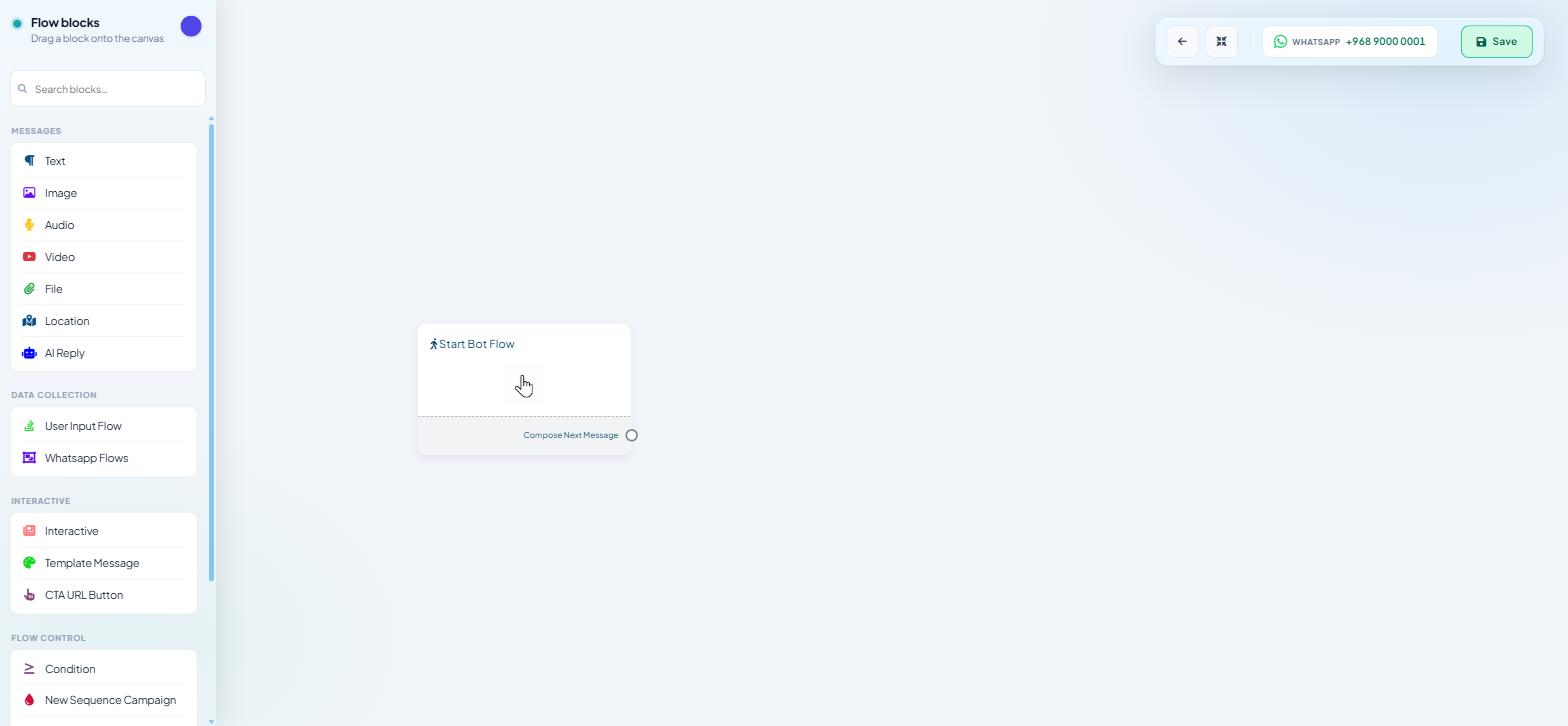
You should now see the Flow Builder, in a new browser tab: a canvas with one node, Start Bot Flow, with a single outlet labelled Compose Next Message. On the left is the palette, headed "Flow blocks — Drag a block onto the canvas".
3. Tell the bot what to listen for
Double-click Start Bot Flow. A panel headed "Configure Reference" slides in from the left.
In the box Write down the keywords for which the bot will be triggered, type the words that start this flow, separated by commas, for example Hello, Hi, Start. Include the misspellings people actually send.
In Keyword matching type, choose Exact keyword match rather than String match for a first bot (see the Reference below for the difference).
In Title *, type a name for what the flow does: Opening hours enquiry, not Flow 1. This is required, up to 200 characters, and it is the REFERENCE NAME you will see in the list later.
Skip the optional sections below (Automation Actions (Optional) — add or remove labels and lists, or assign the conversation to a group or user — and Data & Integrations) for now.
Click Save Changes.
You should now see your title, the keywords and the matching type on the node.
4. Add the reply
Drag from the Compose Next Message outlet into empty canvas and let go. A picker opens listing the blocks you can add next.
Choose Text.
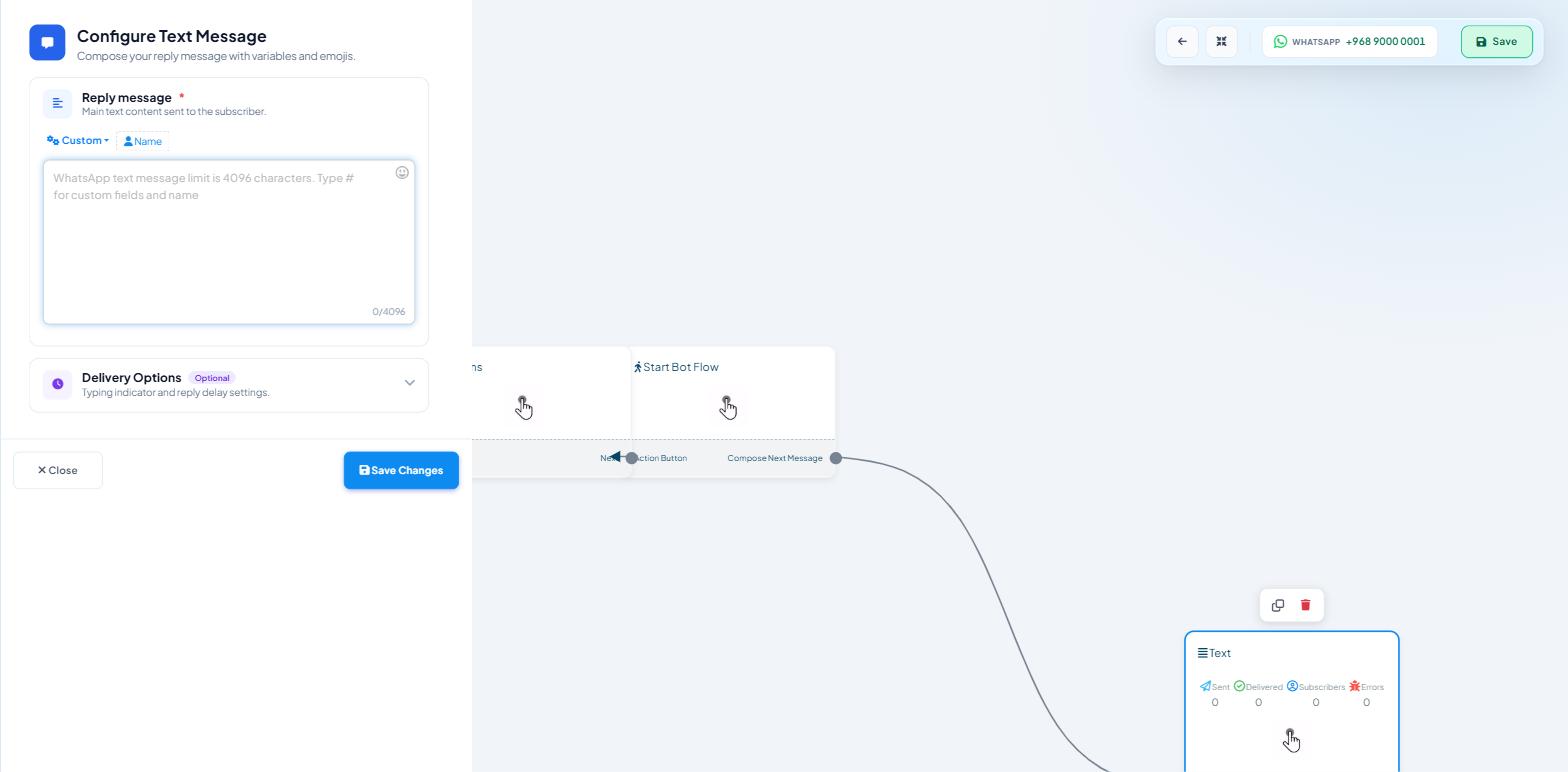
Double-click the new node. The panel reads "Configure Text Message".
Type your reply in Reply message. This is the only required field, up to 4,096 characters. Write the answer a real customer wants.
To greet the customer by first name, click Name above the text box.
Optional: under Delivery Options, set Delay in reply and switch on Typing on display. A two-second delay with the typing indicator on reads less robotic. Anything longer feels broken.
Click Save Changes.
Tip: click inside the Reply message box before you start typing. A block left empty gets a red outline, and the top-right Save warns "Some component(s) have no data."
5. Give people something to press (optional)
A single text reply works, but a button turns a dead end into a conversation. The block to use depends on the channel:
WhatsApp: use Interactive from the INTERACTIVE group in the palette. It is the block that produces buttons.
Facebook, Instagram and Webchat: use Generic Template or Carousel from the MESSAGES group.
The Reference below lists which blocks exist on which channel.
6. Save the flow
Click Save at the top right of the canvas, next to the channel chip that shows which bot you are editing.
Saving puts the flow live. There is no separate publish step for flows. (Publish Changes belongs to the Bot Settings panel, which is a different screen.)
7. Test it from the outside
Message the bot the way a customer would, from an account that is not yours:
WhatsApp: send the trigger keyword to the connected number.
Facebook / Instagram: message the connected Page or account.
Webchat: open the widget on your site and type the keyword.
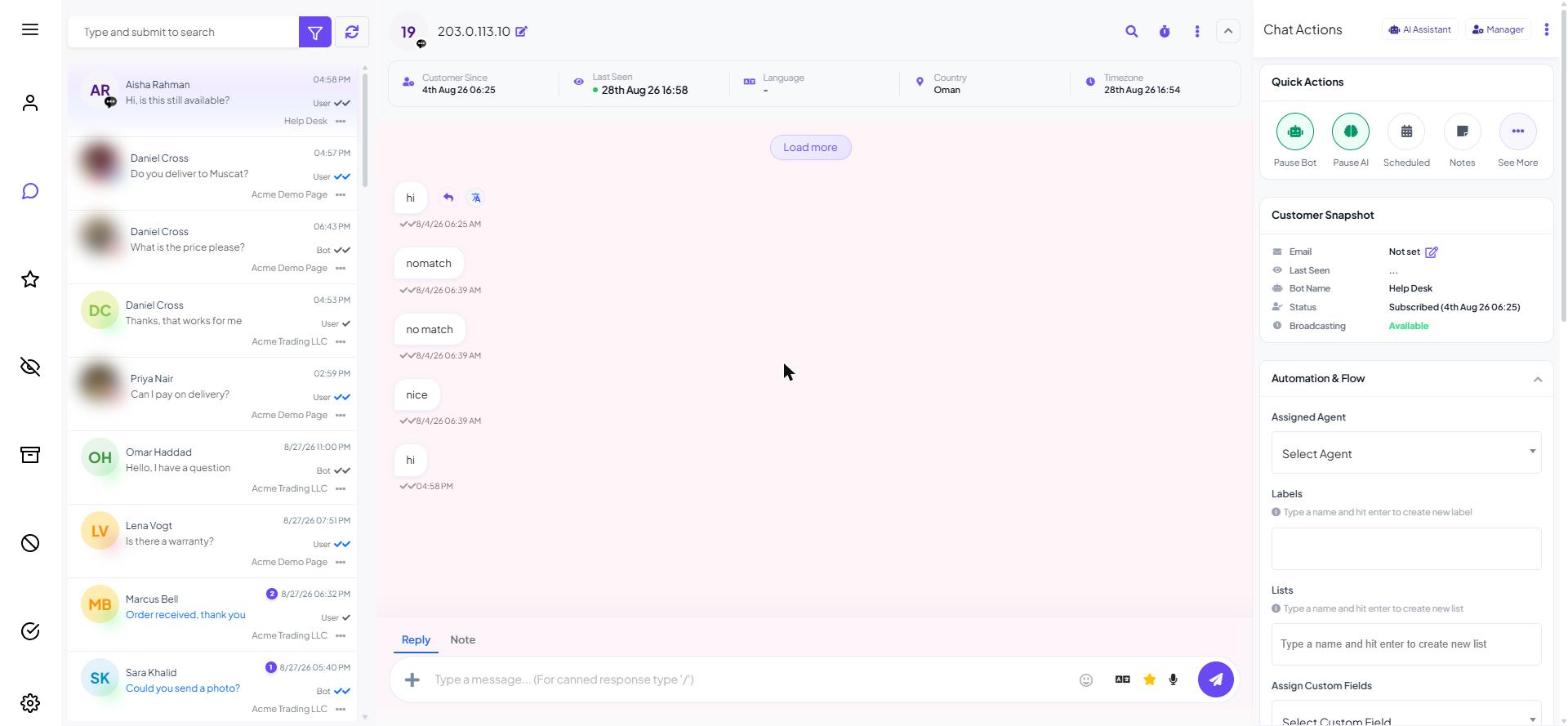
Open Shared Inbox.
You should now see the conversation, with the reply tagged Bot.
Each message block in the Flow Builder also shows Sent / Delivered counts once the flow has run. Wait a few minutes before reading them.
If you would rather test against a contact you control, Subscriber Manager › Export/Import › Add a Subscriber creates one manually.
✅ Done when…
☐ Sending your keyword from another account gets your reply
☐ The conversation appears in Shared Inbox with the reply tagged Bot
If something doesn't work
Check these in order. Don't rebuild the flow first.
Is the channel still connected?
Did the flow save? Click Save at the top right of the canvas. If it warns "Some component(s) have no data.", fill in the block with the red outline.
Does the keyword match exactly what you sent?
Is another flow already using that keyword?
Why Your WhatsApp Bot Isn't Responding walks through each check.
Reference
Keyword matching types
Exact keyword match: fires only on the exact word.
String match: fires when the keyword appears inside a longer message. It catches more messages but can clash with other flows.
Button blocks by channel
On WhatsApp, the INTERACTIVE group in the palette offers three blocks:
Interactive: the block that produces buttons. There is no separate Quick Reply block.
Template Message: sends a pre-approved WhatsApp template. Needed only when you are messaging someone outside the 24-hour window.
CTA URL Button: a single button that opens a link.
On Facebook, Instagram and Webchat, use Generic Template or Carousel from the MESSAGES group instead. Those channels do not have Interactive, Template Message or CTA URL Button, and WhatsApp does not have Generic Template or Carousel.
What to do next
Read Introduction to Flow Builder: How Scope Wiser Flows Are Built for the rest of the palette: conditions, media, user input flows and API calls. When you want the first reply to do more than answer, Quick Replies, Buttons & CTA URLs covers the button blocks per channel.
Next: Introduction to Flow Builder: How Scope Wiser Flows Are Built