
Billing, Plan Limits & the Usage Log
Read your plan, allowances and usage: the Account page cards and usage logs, the top-bar meters, and addons and payments on Billing.
What you'll do: find your plan, your usage and your payments — they are in three different places — and check the numbers that matter before a campaign.
Time: 5 minutes.
1. Check your plan and expiry date
Click your avatar at the top right and choose Account. (Workspace security lives elsewhere, under Control Panel → Settings & Integration.)
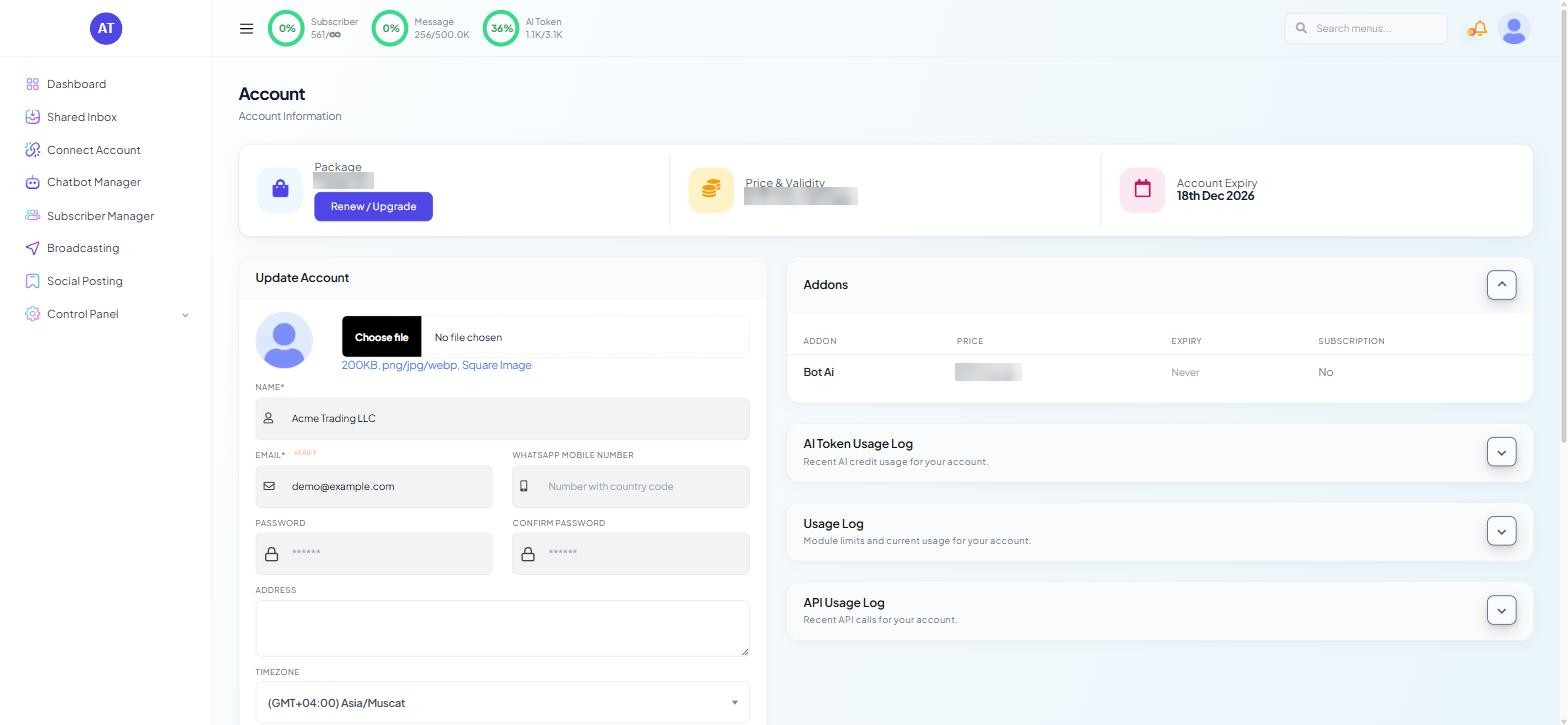
You should now see three cards across the top:
Package — the plan you are on
Account Expiry — the date it lapses
Billing — with a Go to Billing button that opens the Billing page (step 4)
Read Account Expiry first, and put the date in your own calendar.
An expired account means bots that stop replying to customers.
2. Check your usage
Three collapsible panels stack down the right-hand column of the Account page.
Expand Usage Log — "Module limits and current usage for your account." It shows each module your plan covers, what you are allowed, and what you have used. Open it when you want to know whether you can do something.
If you use AI, expand AI Token Usage Log — "Recent AI credit usage for your account." Use the filter to pick a feature (All features, Bot Reply, Doc Assistant, FAQ Generation, Image Validation, Inbox Analyzer, Intent Detection, Rewrite). Each row shows USED FOR, TOKENS USED and DATE.
API Usage Log only matters if a developer has connected other software to your account.
Tip: Replies from an AI agent show up as AI Agent Planner. In our tests each AI agent reply used about 4,000 tokens. The AI Token meter in the top bar can lag behind this log, so trust the log for recent activity.
3. Watch the top-bar meters
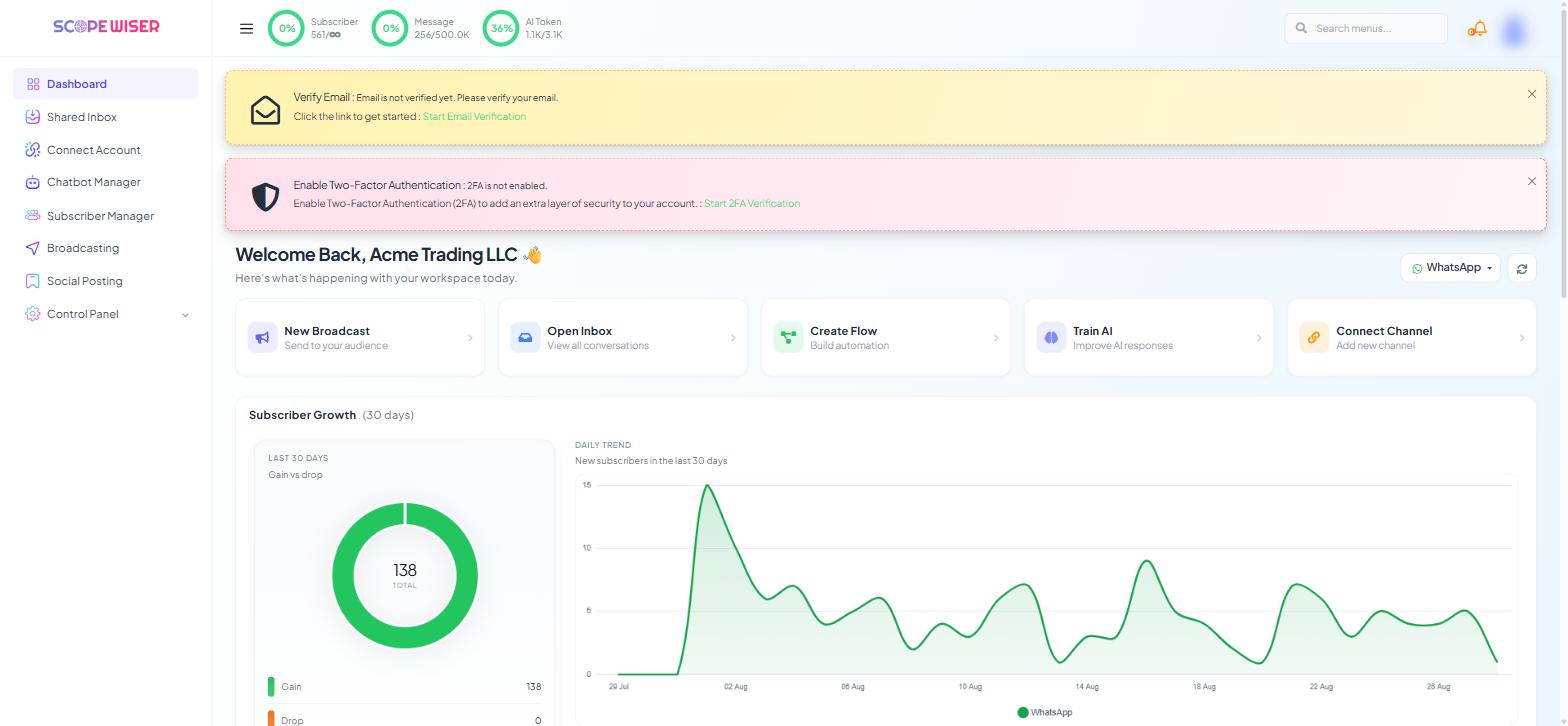
Three ring meters — Subscriber, Message and AI Token — sit in the top bar on every screen and show usage against your allowance. Message Credits & AI Tokens: Tracking and Optimising explains how to read them.
Check them at these moments (put them in a recurring calendar reminder):
Before a large broadcast, check the Message meter. A campaign that stops halfway because credits ran out leaves half your audience without the message.
Before turning on AI replies, check AI Token. AI use grows with conversation volume, so it can move faster than you expect after a launch.
After a large import, check the Subscriber figure. Imports are the fastest way to reach a subscriber cap.
Monthly, read the Usage Log against your calendar. A spike almost always maps to a specific campaign.
4. Check your addons and payment record
Billing — "Plan, addons, and payment history" — holds your plan price, your addons and your payments. Open it from the profile menu, from Go to Billing on the Account page, or from Control Panel → Billing for roles that include it.
You should now see three cards: Package (with Renew / Upgrade), Price & Validity (what the plan costs and the term it runs for) and Account Expiry.
Below them, the Addons table lists ADDON, PRICE, EXPIRY and SUBSCRIPTION. AI token packs appear here as an addon. Check the EXPIRY column at the same time as your account expiry.
Further down, switch between Transaction Log and Manual Transactions. Recent Transactions has a Date Filter and shows EMAIL, METHOD, AMOUNT, PRODUCT, TYPE, BILLING CYCLE and PAID AT.
Use it to:
confirm a renewal went through
check a charge you did not expect
find the reference a billing conversation will ask for
Addons expire separately. Addons are extras on top of your base plan and carry their own expiry dates. A base plan that renews while an addon lapses makes the feature disappear with no obvious cause.
✅ Done when…
☐ Your Account Expiry date, and any addon EXPIRY dates, are in your calendar
☐ You know which module in the Usage Log is closest to its limit
☐ You know where Billing is
If something doesn't work
The bots stopped replying. Check Account Expiry. An expired account means bots stop.
A feature disappeared with no obvious cause. An addon has lapsed. Check the EXPIRY column of the Addons table on the Billing page.
A campaign stopped halfway. The Message meter is full.
The AI Token meter hasn't moved after AI replies. The meter can lag. Check AI Token Usage Log on the Account page instead.
A subscriber figure looks wrong, not merely high. Subscriber Metrics & Recounts explains which of the subscriber numbers to trust.
Reference
Where each item lives
Item | Page | What it shows |
|---|---|---|
Package, Account Expiry | Account and Billing | Your plan and the date it lapses |
Price & Validity | Billing | What the plan costs and the term it runs for |
Addons | Billing | A table of ADDON, PRICE, EXPIRY and SUBSCRIPTION |
Transaction Log / Manual Transactions | Billing | Your payments, with a Date Filter |
Usage Log | Account | "Module limits and current usage for your account." |
AI Token Usage Log | Account | "Recent AI credit usage for your account." AI tokens go down whenever your bot uses an AI reply or an AI agent, independently of message volume. |
API Usage Log | Account | Only relevant if a developer has connected other software to your account |
Upgrading and renewing
Renew / Upgrade appears on the Package card and in the profile menu, and leads to the pricing options for your account. Before you click:
Upgrade for the limit you keep hitting, not the largest number on offer. The Usage Log shows which module is constraining you.
Addons can be cheaper than a plan step. If one feature or one allowance is the problem, look at the Addons table on the Billing page before moving the whole plan up a tier.
Removing Scope Wiser branding
Click Remove Branding on the WhatsApp Integration page. It opens the paid add-on on the Pricing page.
Where else billing appears
The profile menu carries Renew / Upgrade and Billing directly. Billing appears again under Control Panel for roles that include it.
What to do next
Message Credits & AI Tokens: Tracking and Optimising goes deeper into the two resources that move fastest, including the habits that keep both allowances down. If a subscriber figure looks wrong, not merely high, Subscriber Metrics & Recounts explains which of the subscriber numbers to trust.
Next: Message Credits & AI Tokens: Tracking and Optimising