
Fixing WooCommerce API Errors
Fix WooCommerce connection errors, checkout HTTP 406 errors, and order messages that fail with a missing text value or never arrive.
What you'll do: find out why your WooCommerce store will not connect, fix it, and get order messages flowing.
Time: 15–30 minutes.
A WooCommerce connection fails in one of four places: the store address is wrong, WordPress is not serving its REST API (the part of WordPress that lets other software talk to your store), the API keys are wrong, or something on the site is blocking outside access.
Check them in this order. Regenerating keys first fixes only one of the four.
Before you start
The integration needs three conditions, all of which you can test from a browser:
☐ A store URL that works, exactly as WordPress knows it, over HTTPS.
☐ A live WordPress REST API at
/wp-json.☐ An approved store connection: the store URL entered at Connect Account → WooCommerce → Manage and API access approved on the WooCommerce side, which generates the API keys automatically.
Order notifications and cash-on-delivery verification are built on top of that connection, so none of them can work until all three are true. You also need admin access to WordPress.
Not sure where to start? See Symptom to cause under Reference.
1. Confirm the store URL
An incorrect store address is a frequent cause and the quickest to rule out.
Open your store in a browser and copy the address from the address bar, rather than typing it from memory.
Check the protocol. If the site uses SSL, the URL must start
https://, nothttp://.Check the subdomain.
https://www.example.comandhttps://example.comare different addresses. Use whichever WordPress itself is configured with: the value under Settings › General in WordPress admin is the authoritative one.Check for stray characters. A trailing slash, a doubled slash, or a space picked up when pasting will break the request.
2. Test the REST API
WooCommerce's API rides on the WordPress REST API. If that is off, nothing else matters.
Open
https://example.com/wp-jsonin a private browsing window, substituting your own domain.You should now see a page of code-like text. That means the store's API is working.
If you see an error, a blank page or your homepage instead, it is not working. Go to section 3.
3. Fix permalinks
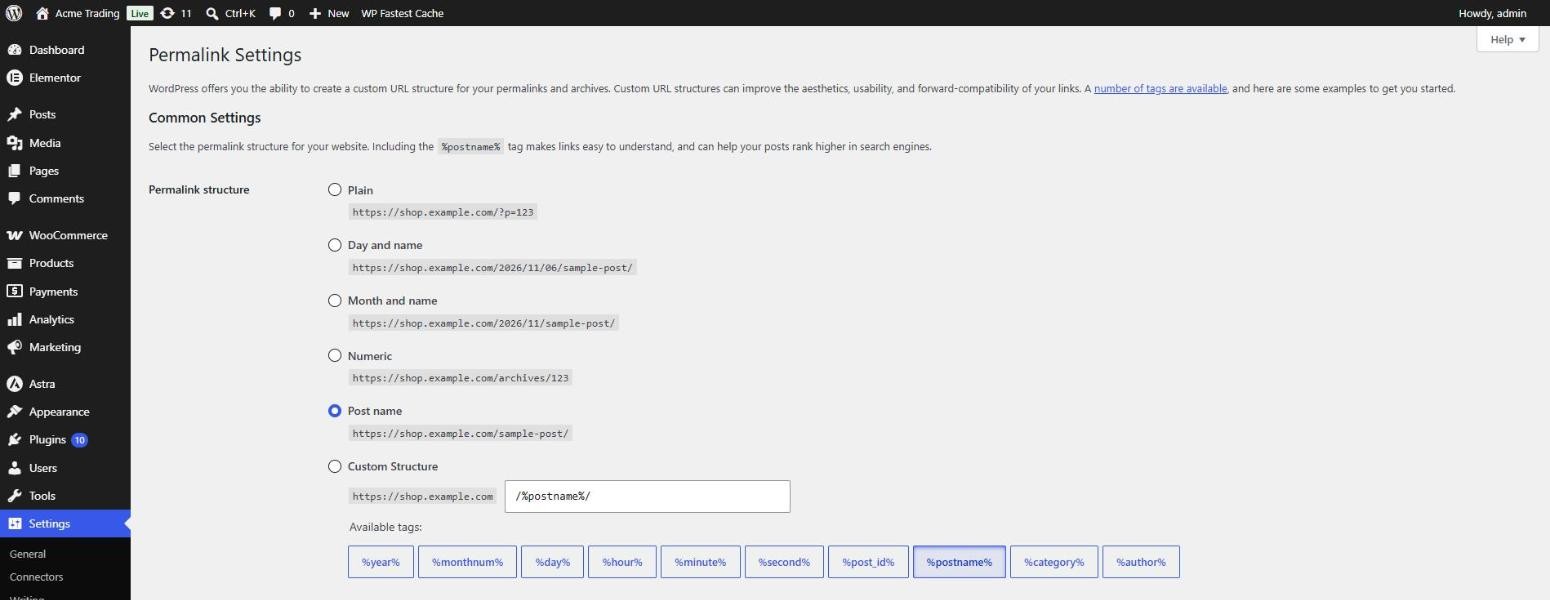
The usual reason the REST API is unavailable is the Plain permalink structure, which does not expose the routes the API needs.
Log in to WordPress admin at
https://example.com/wp-admin.Go to Settings › Permalinks.
Select Post name: the structure that produces
https://example.com/sample-post/. Anything other than Plain will work; Post name is also the better choice for search.Click Save Changes. Saving rewrites the site's rules even if the structure has not changed, which is why re-saving sometimes fixes this on its own.
Re-test
https://example.com/wp-json.
4. Check the keys
In WordPress admin, go to WooCommerce › Settings › Advanced › REST API. Each key entry shows a description, the user it belongs to and its permissions.
Check permissions include write access if the integration needs to update orders rather than only read them. Read-only keys connect and then fail on the first write.
Check the owning user is an administrator. A key generated under a low-privilege account returns permission errors that look like login failures.
If in doubt, delete the key in WooCommerce, then go to Connect Account → WooCommerce → Manage and click Reconnect on the store's row. A fresh key is created automatically — no manual consumer key required.
5. Look for something blocking the request
If the URL is right, the test in section 2 works, and fresh administrator keys still fail, something on the site is refusing the request before WooCommerce answers it.
Ask your web host or developer whether a security plugin, firewall, maintenance-mode plugin or password protection is blocking outside access to your store.
Checkout fails with "There was an error processing your order"
The same kind of firewall can block your own checkout. In our test this happened only while logged in to WordPress as admin; a guest checkout worked.
Open the store in a private (incognito) window, not logged in, and place the order as a guest.
You should now see the order go through. If it does, the store and the connection are fine.
To confirm the cause, open your browser's developer tools (F12) → Network, try the checkout again while logged in, and look at the checkout request (
?wc-ajax=checkout). An HTTP 406 status means the web host's security firewall rejected it.Ask your host to check the firewall (ModSecurity) rule that blocks it and to whitelist it.
Important: no order is created when the checkout is blocked, so no WhatsApp message is sent either. Test order messages with a guest order until the host has fixed the rule.
6. Reconnect and check the campaign
Go to Connect Account, find the WooCommerce card and click Manage.
You should now see your store in Connected Stores. If its STATUS is not active, click Reconnect and approve access again in WooCommerce.
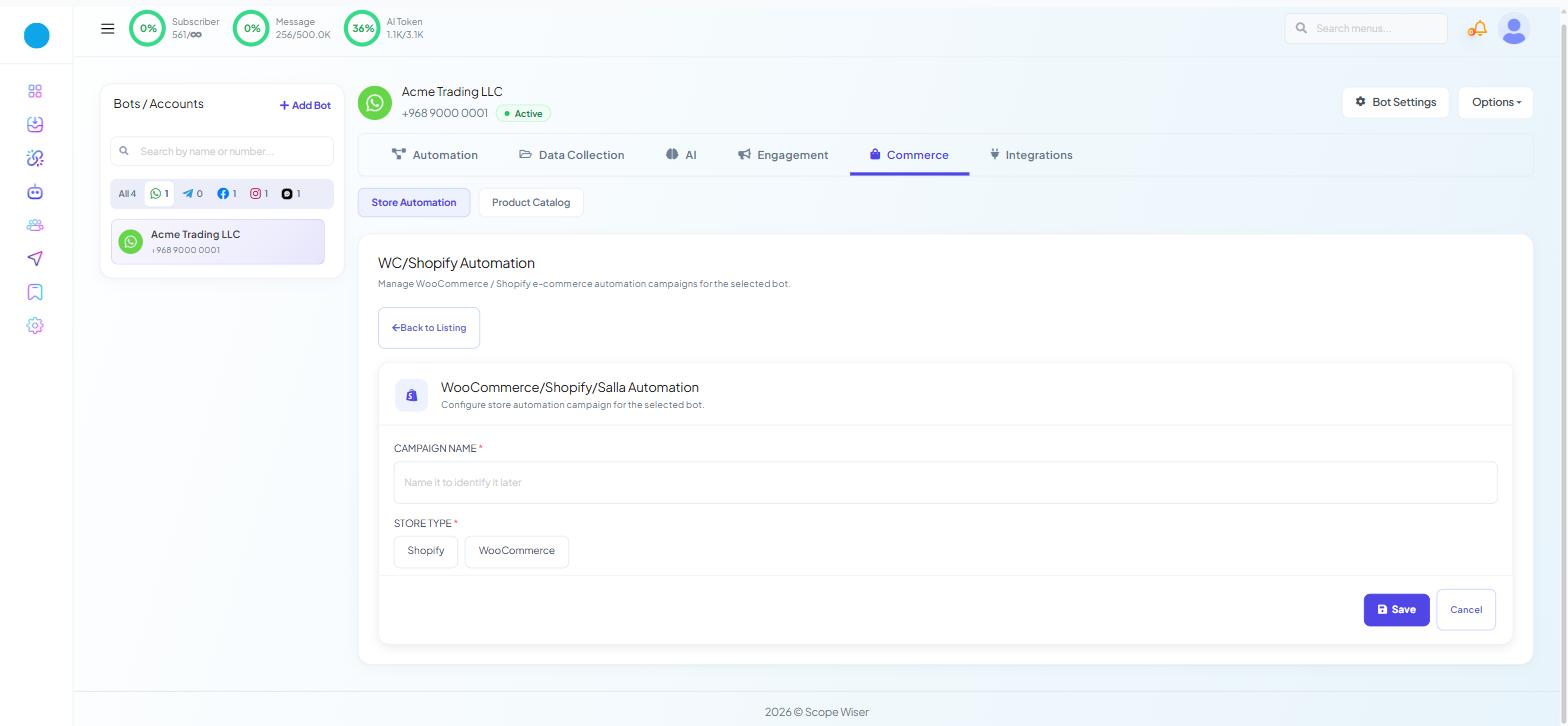
Go to Chatbot Manager, select the WhatsApp bot, then Commerce › Store Automation. The Commerce tab exists on WhatsApp only.
You should now see your campaigns (for example an order notification and a COD verification). Click Edit to check the template, the mapping and the rules. Order Notifications: WooCommerce & Shopify walks through the editor.
Important: map every message variable to a billing field (billing phone, billing first name, billing address 1), not a shipping field, and make sure phone numbers include the country code.
✅ Done when…
☐
https://example.com/wp-json(your domain) shows code-like text☐ The store shows in Connected Stores at Connect Account → WooCommerce → Manage
☐ A guest test order goes through checkout without an error
☐ A Store Automation campaign is saved with an approved template and billing-field mapping
If something doesn't work
The connection works but messages do not arrive? The problem has moved from WooCommerce to WhatsApp:
Problem | What to check |
|---|---|
Report RESPONSE says "Parameter of type text is missing text value" | A template variable is mapped to an empty order field — usually a shipping field the customer left blank ("No shipping address set"). Remap it to the billing field (for example |
Checkout shows "There was an error processing your order" and the browser's Network tab shows HTTP 406 on the checkout request | The web host's security firewall is blocking it (in our test only while logged in as admin; guest checkout worked). Ask the host to check and whitelist their firewall (ModSecurity) rule. See section 5. |
No WhatsApp message at all | The campaign rule (for example |
Many "failed" rows in the report | Expected when an order-notification campaign and a COD campaign split orders by payment method: each counts the other's orders as not sent. |
The template is not approved | Check Automation › Message Templates: a pending template cannot send. |
The template variables are not mapped | Produces error 132000 on the first attempt. Map every variable. |
The customer's number is unreachable | See WhatsApp Error Code Reference for what the delivery codes mean. |
Reference
Symptom to cause
What you see | Where to look |
|---|---|
Connection fails immediately on save | Store URL, or the keys |
| REST API disabled — check permalinks |
Connection saves, but no orders ever arrive | Store API selected in the campaign, or the campaign's message template |
Worked yesterday, fails today | Keys revoked, site moved, or a new security plugin |
Some orders trigger messages, others do not | The campaign rule, the phone number's country code, or a variable mapped to a field that is empty on those orders |
Checkout error, HTTP 406 in the Network tab | Host firewall (ModSecurity) — ask the host to whitelist the rule |
Next: Why Message Templates Get Rejected, if the store now connects but templates are the blocker. For failures that produce a numeric code rather than silence, WhatsApp Error Code Reference decodes them.