
Verifying Cash-on-Delivery Orders Over WhatsApp
Confirm COD orders before dispatch with a Store Automation campaign: Confirm/Cancel buttons, the COD rule, billing-field mapping and a test order.
What you'll do: send every cash-on-delivery (COD) customer a WhatsApp message with Confirm Order and Cancel Order buttons, so you know whether to dispatch.
Time: about 20 minutes, plus a test order.
For the wider picture of how payment works across the product — catalogue orders, manual payment, in-chat payment — read Cash on Delivery & Online Payments in Chat.
Before you start
☐ A connected store. See Connecting WooCommerce or Connecting Shopify.
☐ A WhatsApp bot selected. Commerce is a WhatsApp-only tab.
☐ The system template
system_cod_order_verification_newis approved (section 1).☐ Your checkout asks for a phone number with the country code (for example
+968 9xxx xxxx).
Where things live. The Commerce tab shows two sub-tabs: Store Automation and Product Catalog. COD verification is set up as a campaign in Store Automation.
1. Get the COD template approved
Go to Chatbot Manager → Automation → Message Templates.
Open the Create dropdown and choose Default Template. It creates the system templates, including
system_cod_order_verification_newwith Confirm Order and Cancel Order buttons.Click Sync Templates to refresh approval status from Meta.
You should now see the COD template with an approved status.
2. Rewrite the replies the buttons produce
Two system flows decide what the customer reads after tapping a button.
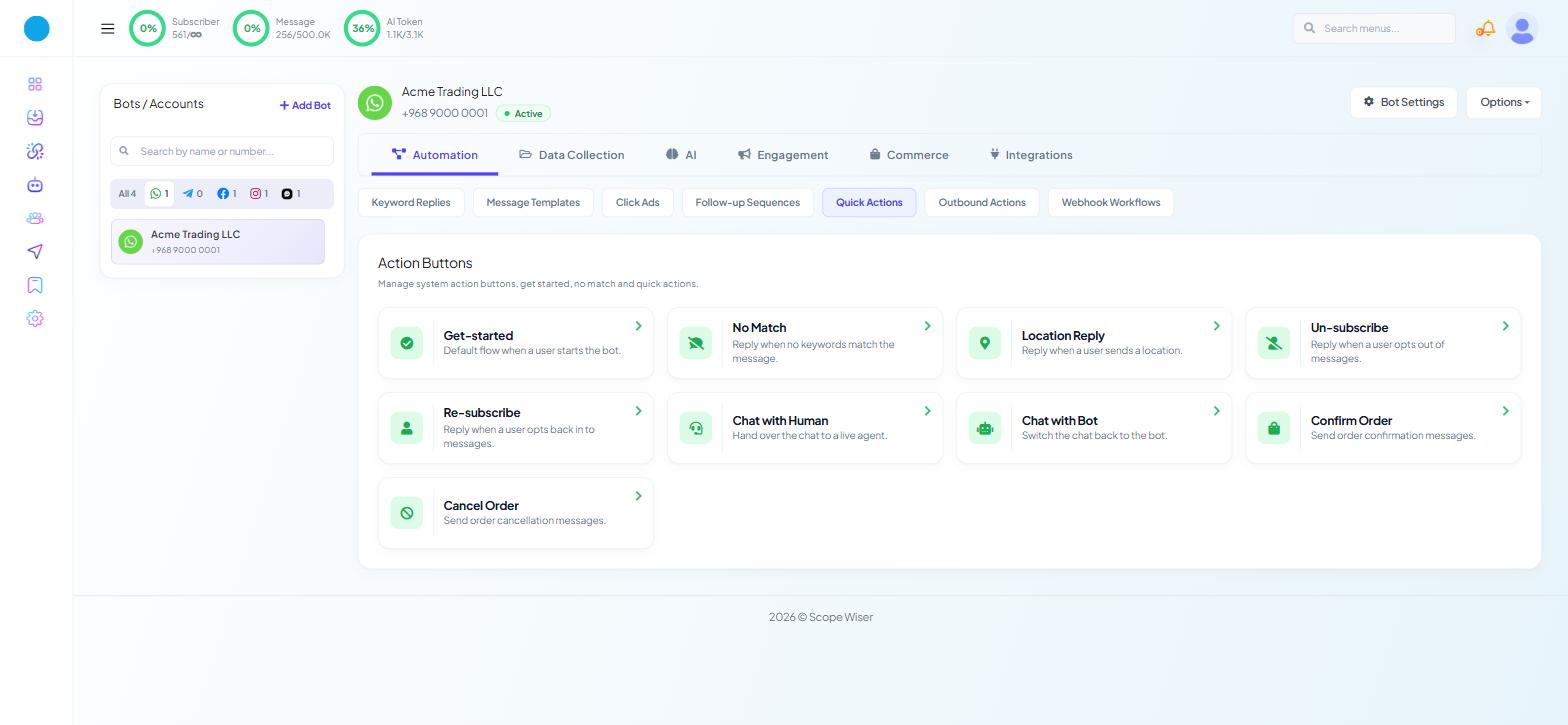
Go to Chatbot Manager → Automation → Quick Actions — a page headed Action Buttons.
Click the Confirm Order card ("Send order confirmation messages.").
You should now see a prebuilt flow with a Text node holding placeholder wording.
Rewrite the Text node and save.
Do the same for Cancel Order ("Send order cancellation messages.").
Tip: rewrite both before you launch. These are the two messages every COD customer reads.
3. Create the COD campaign
Go to Chatbot Manager, select your WhatsApp bot, then open Commerce → Store Automation.
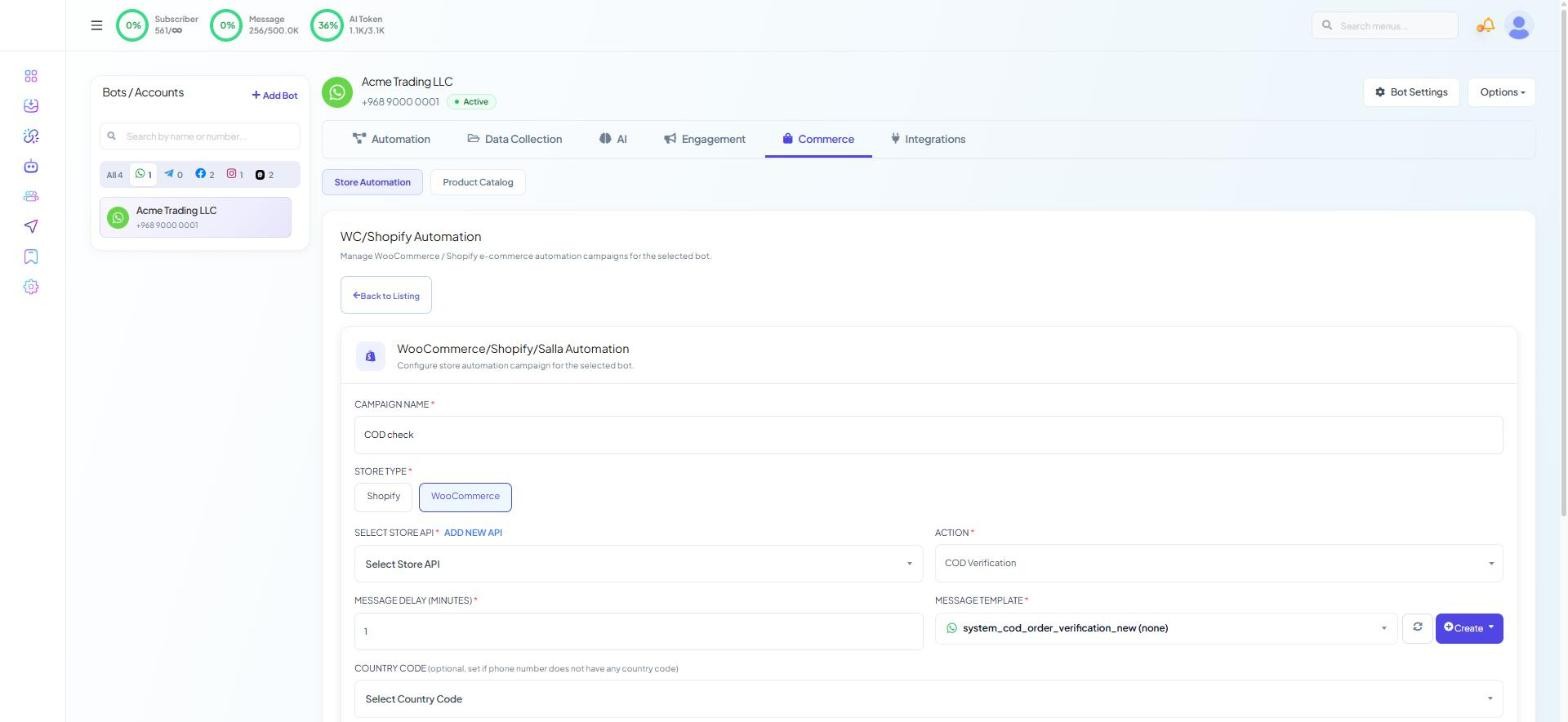
Click Create. The WooCommerce/Shopify/Salla Automation form opens.
Fill it in:
CAMPAIGN NAME *: for example
COD verification.STORE TYPE *: WooCommerce (or Shopify).
SELECT STORE API *: your connected store.
ACTION *: COD Verification.
MESSAGE DELAY (MINUTES) *:
0to send straight away.MESSAGE TEMPLATE *:
system_cod_order_verification_new.COUNTRY CODE: choose your country (for example Oman +968). It is added to phone numbers that customers type without a country code.
Click Save. The campaign appears in the list.
On the new row, click Edit. You should now see the Webhook Workflows editor, starting with Workflow Details — "Name the workflow and choose the WhatsApp message template to send". This is where you link each part of the message to an order field.
WORKFLOW NAME *: keep or change the name, for example
COD verification.MESSAGE TEMPLATE *: check it shows
system_cod_order_verification_new.Check TEMPLATE PREVIEW. You should now see the message with the Confirm Order and Cancel Order buttons.
4. Map the phone number and variables
PHONE NUMBER *: map it to
billing > phone.Map each variable:
Variable
Map it to
USER-NAME
billing > first_nameSYSTEM-CART-PRODUCT-LIST
line_items(the product list)SYSTEM-CART-TOTAL-PRICE
totalSYSTEM-SHIPPING-ADDRESS
billing > address_1SYSTEM-DELIVERY-DATE
date_created(with a days-to-add formatter for an estimate)
Important: use billing fields, not shipping fields. Many customers leave the shipping address empty — WooCommerce then shows "No shipping address set" on the order. A variable mapped to an empty field makes WhatsApp reject the message with "Parameter of type text is missing text value". Map every variable to a field that is always filled.
Important: the phone number needs the country code. Set COUNTRY CODE on the campaign, and make the checkout phone field ask for it too, for example
+968 9xxx xxxx.
5. Add the COD rule
Under "Send message only if any / all of the following rules satisfy", add:
payment_method· Equal ·cod
Without this rule, customers who paid online are asked to confirm a cash order.
6. Check what the buttons do
On the COD campaign, the buttons are already linked to store actions:
Button | What happens in WooCommerce |
|---|---|
Confirm Order | A private order note |
Cancel Order | The order is cancelled (Woocommerce Order Cancel) |
7. Choose what happens afterwards (optional)
You can assign the conversation to a group or user, Assign / Remove Label and Assign / Remove Sequence. A label such as cod-pending plus a reminder sequence helps you chase people who never tap a button.
8. Save
Click Save Workflow.
You should now see "Workflow data has been mapped and saved successfully. You will be able to see it working from next webhook call."
9. Test it
Open your store in a private (incognito) window, so you are not logged in as admin.
Place a COD order as a guest, using your own WhatsApp number with the country code.
Wait a couple of minutes. In our test the message arrived about 2 minutes after the order.
You should now see the COD message with your name, the product, the total, the address and the Confirm Order / Cancel Order buttons.
Tap Confirm Order.
In WooCommerce, open the order. You should now see a private note
order-confirmed, added within seconds.Cancel the test order in WooCommerce.
10. Read the report
In Store Automation, click View on the COD campaign.
You should now see the Automation Report: Total, Processed, Delivered and Failed, then one row per phone number with STATUS, times and RESPONSE.
Tip: why so many "failed"? If you also run an order-notification campaign with the rule
payment_methodNot equalcod, each campaign counts the other's orders as not sent. That is expected. Read RESPONSE to find the real errors.
Which setup for a COD-only shop?
If almost every order is cash on delivery:
Keep the COD campaign as your "order received" message. It already shows the order details, and it asks the customer to confirm.
The order-notification campaign only fires for non-COD orders while it has the rule
payment_methodNot equalcod. Keep it for the occasional online payment, or remove the rule if you want every customer to get both messages.
✅ Done when…
☐
system_cod_order_verification_newis approved☐ Confirm Order and Cancel Order carry your own wording
☐ The campaign has the rule
payment_methodEqualcodand billing-field mappings☐ A guest test COD order brought the message within a few minutes
☐ Tapping Confirm Order added the
order-confirmednote to the order
If something doesn't work
Problem | What to check |
|---|---|
RESPONSE says "Parameter of type text is missing text value" | A variable is mapped to an empty field, usually a shipping field. Remap it to the billing field and save. |
No WhatsApp message at all | The COD rule (is the payment method really |
Prepaid customers get the COD message | The rule |
Many rows show as failed | Normal when two campaigns split orders by payment method. See step 10. |
Tapping a button sends nothing back | The Confirm Order / Cancel Order flows under Automation → Quick Actions are empty. |
Confirming does not add the order note | Reconnect the store at Connect Account → WooCommerce → Manage → Reconnect. |
Checkout shows "There was an error processing your order" | Try again as a guest in a private window. See Fixing WooCommerce API Errors. |
Reference
Store actions the buttons can run
API Action | What it does |
|---|---|
Woocommerce Order Note Update | Adds a note to the WooCommerce order |
Woocommerce Order Cancel | Cancels the WooCommerce order |
Shopify Order Tag Update | Tags the Shopify order |
Shopify Order Cancel | Cancels the Shopify order |
Offering payment now instead
If you would rather offer the customer a way to pay now instead of on delivery, see Payment Gateways: TAP, Instamojo & Razorpay.
What to do next
Abandoned Cart Recovery is the other half of the same problem — orders that never became orders.
Next: Abandoned Cart Recovery