
Connecting WooCommerce
Connect a WooCommerce store by entering your store URL and approving access in WooCommerce — no API keys to copy.
What you'll do: connect your WooCommerce store to Scope Wiser, so you can then set up order notifications, cash-on-delivery verification and cart recovery.
Time: about 10 minutes.
Before you start
☐ Your WordPress admin login is ready
☐ You know the exact address of your store, for example
https://acme-store.com
WooCommerce will generate API keys automatically — no manual consumer key required. The store URL is the only field you fill in.
1. Open the WooCommerce connection page
In the sidebar, open Connect Account.
Under Available Connections, find the WooCommerce card and click Manage.
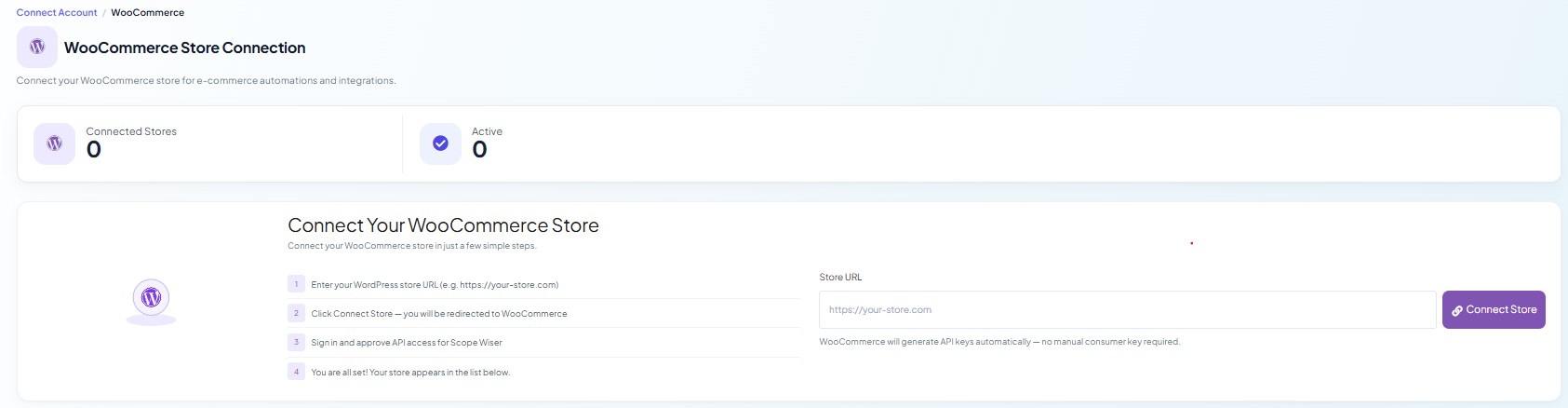
You should now see the WooCommerce Store Connection page, with a panel headed Connect Your WooCommerce Store. It lists four steps:
Enter your WordPress store URL (e.g.
https://acme-store.com)Click Connect Store — you will be redirected to WooCommerce
Sign in and approve API access for Scope Wiser
You are all set! Your store appears in the list below.
2. Enter your store URL and connect
In Store URL, type the address of the WordPress site your shop runs on, for example
https://acme-store.com.Click Connect Store. You are redirected to your WooCommerce site.
Sign in to WordPress if asked, then approve API access.
You should now see Scope Wiser again, with your store in the Connected Stores table. Its columns are STORE, STORE URL, EMAIL, STATUS, CONNECTED and ACTIONS. ACTIONS holds a Reconnect button.
Tip: you never copy a consumer key or secret. WooCommerce creates the API keys for you when you approve access.
Type the address exactly. Include
https://and nothing after the domain — not the shop page and not the admin address. A missingwww, orhttpwhere the site useshttps, makes the connection fail.
✅ Done when…
☐ Your store is listed in the Connected Stores table
☐ The counters at the top of the page show it under Connected Stores / Active
If something doesn't work
"Invalid signature" or authentication errors. The store URL does not match the site that approved the connection — for example
wwwis missing, or you typedhttpwhere the site useshttps. Connect again with the exact address.Works in a browser, fails from Scope Wiser. A security plugin or firewall on your WordPress site is blocking outside requests. Fix it on the store, not in Scope Wiser.
Everything stops weeks later. Someone revoked the key in WordPress, or the site moved to a new domain. Click Reconnect on the store's row (or connect again with the new address).
Fixing WooCommerce API Errors goes through these in more detail.
Reference
What the connection unlocks
With the store connected, open Chatbot Manager, select your WhatsApp bot and go to Commerce. It shows two sub-tabs, Store Automation and Product Catalog. Order notifications, COD verification and abandoned-cart messages are all set up as campaigns in Store Automation. Each campaign has a message template, field mapping and optional rules such as "only COD orders". Start with Order Notifications: WooCommerce & Shopify.
Abandoned carts on WooCommerce
Abandoned-cart reminders are set up in Store Automation too (system templates such as system_abandoned_cart_reminder_new). WooCommerce does not report abandoned carts by itself, so see Abandoned Cart Recovery for the plugin it needs.
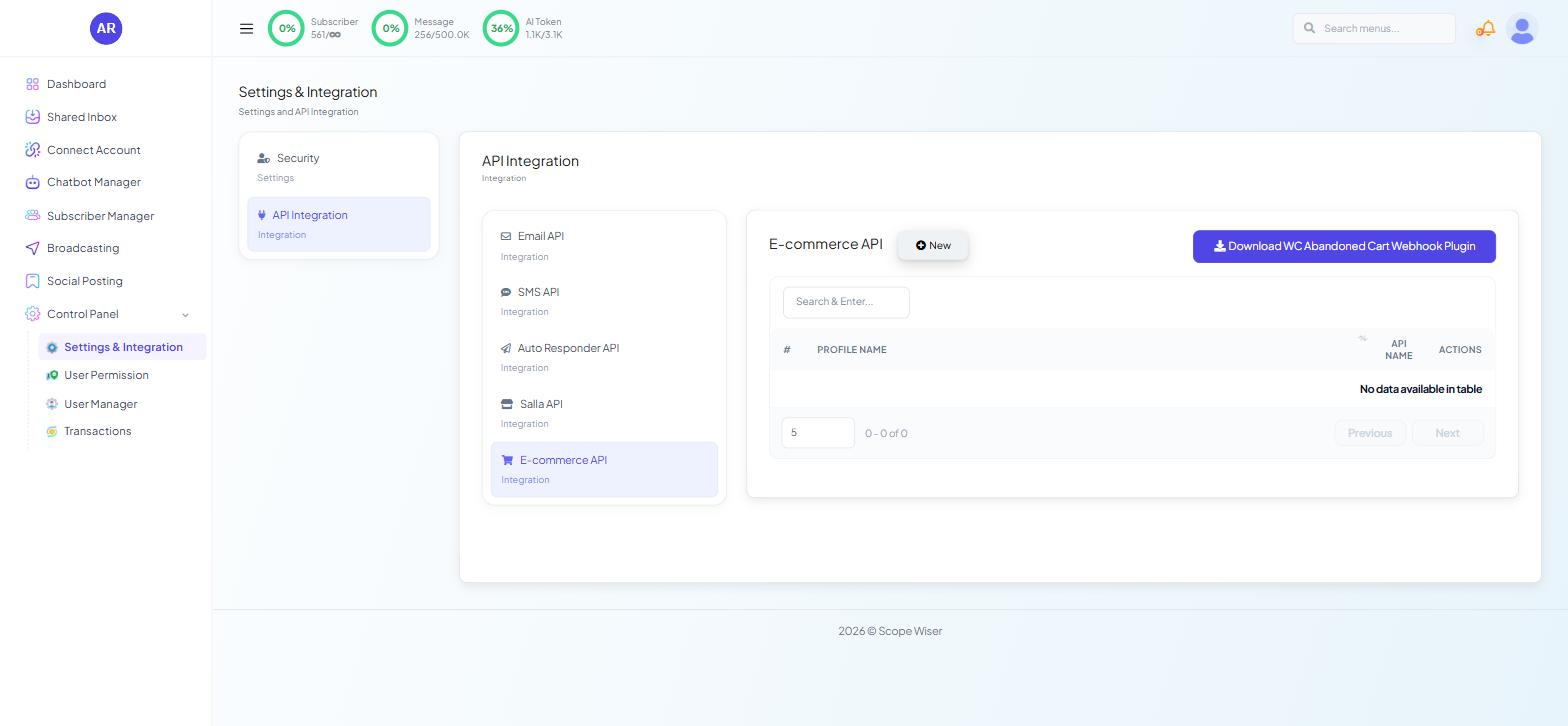
The WC Abandoned Cart Webhook Plugin download is under Control Panel → Settings & Integration → API Integration → E-commerce API.
What to do next
Build Order Notifications: WooCommerce & Shopify first. If you also run a Shopify store, see Connecting Shopify.
Next: Order Notifications: WooCommerce & Shopify