
Subscriber Metrics Explained
Where Scope Wiser reports subscriber numbers, how the usage meters, growth chart and Subscriber Manager cards differ, and what to check if a count looks wrong.
What this covers: the three places Scope Wiser shows subscriber numbers, which one to read for what, and what to check when a count looks wrong.
Where | What it tells you | Responds to filters? |
|---|---|---|
Usage meters, top bar | What you hold against your plan (billing) | No |
Dashboard growth widget | What changed in the last 30 days (movement) | No — but follows the dashboard's channel selector |
Subscriber Manager stat cards | Who your next bulk action or broadcast will reach | Yes |
1. The usage meters, top of every screen
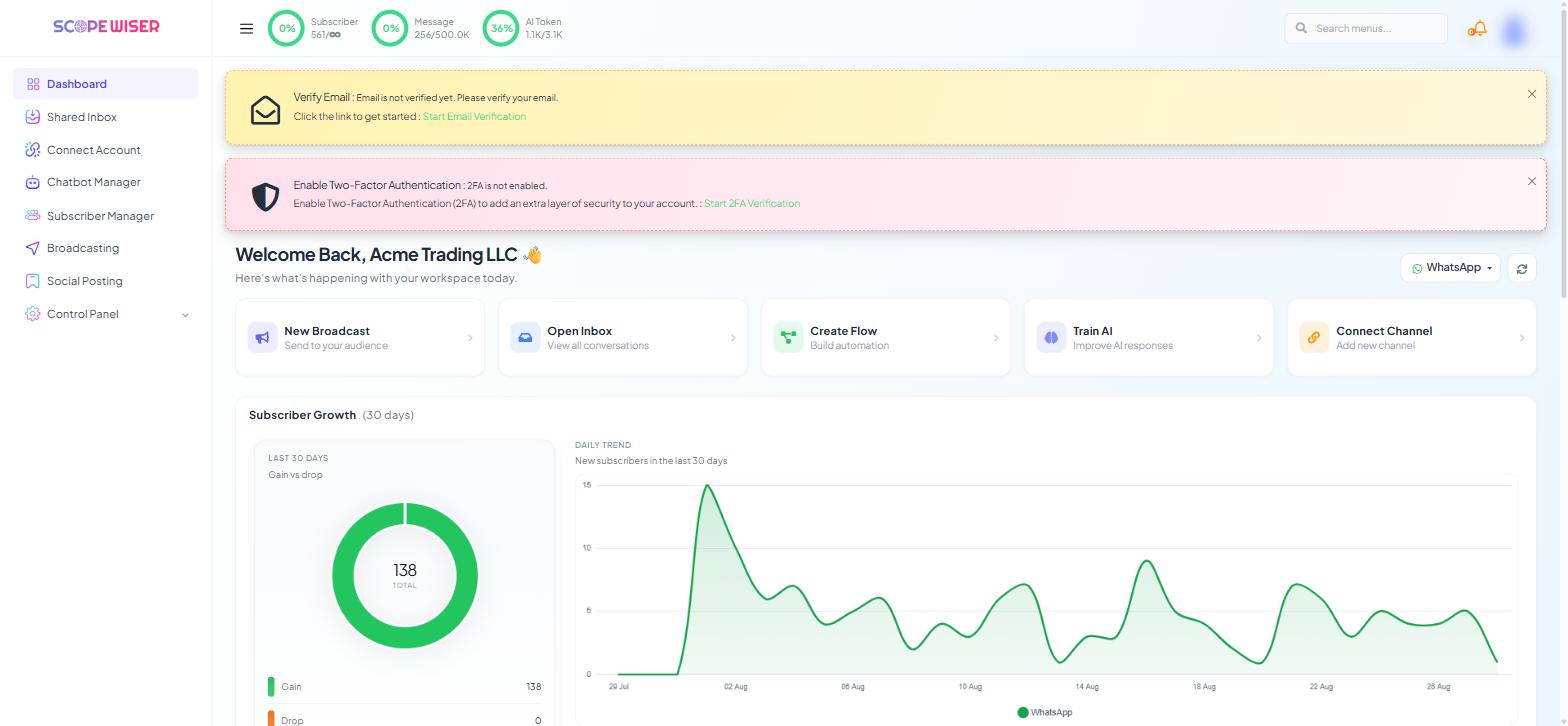
Three rings sit in the top bar — Subscriber, Message and AI Token. The number before the slash is what you have; after it is your plan limit (∞ = no limit). 557/∞ means 557 contacts with no cap; 238/500.0K on the Message meter is a real ceiling.
This is a billing number. It counts everything in your account, including unsubscribed contacts, and ignores every filter.
2. The Dashboard's growth widget
Open Dashboard.
Check the channel selector at the top right. It controls which channel the widgets show.
Find the Subscriber Growth (30 days) widget.
You should now see LAST 30 DAYS · Gain vs drop as a donut with Gain and Drop beneath it, and DAILY TREND · New subscribers in the last 30 days as a day-by-day chart.
This is a movement number. It tells you what changed, not what you hold.
Check the channel selector first before concluding that a channel has stopped producing subscribers.
3. Subscriber Manager's stat cards
Three cards sit above the list: Total Subscribers, Subscribed (as a percentage) and In Sequences (as a percentage).
These are the only figures that respond to your filters.
Open Subscriber Manager.
Set channel, bot, label and status.
Read the cards. That is the group your next bulk action or broadcast will reach.
4. Check usage against your plan
Click your avatar (top right).
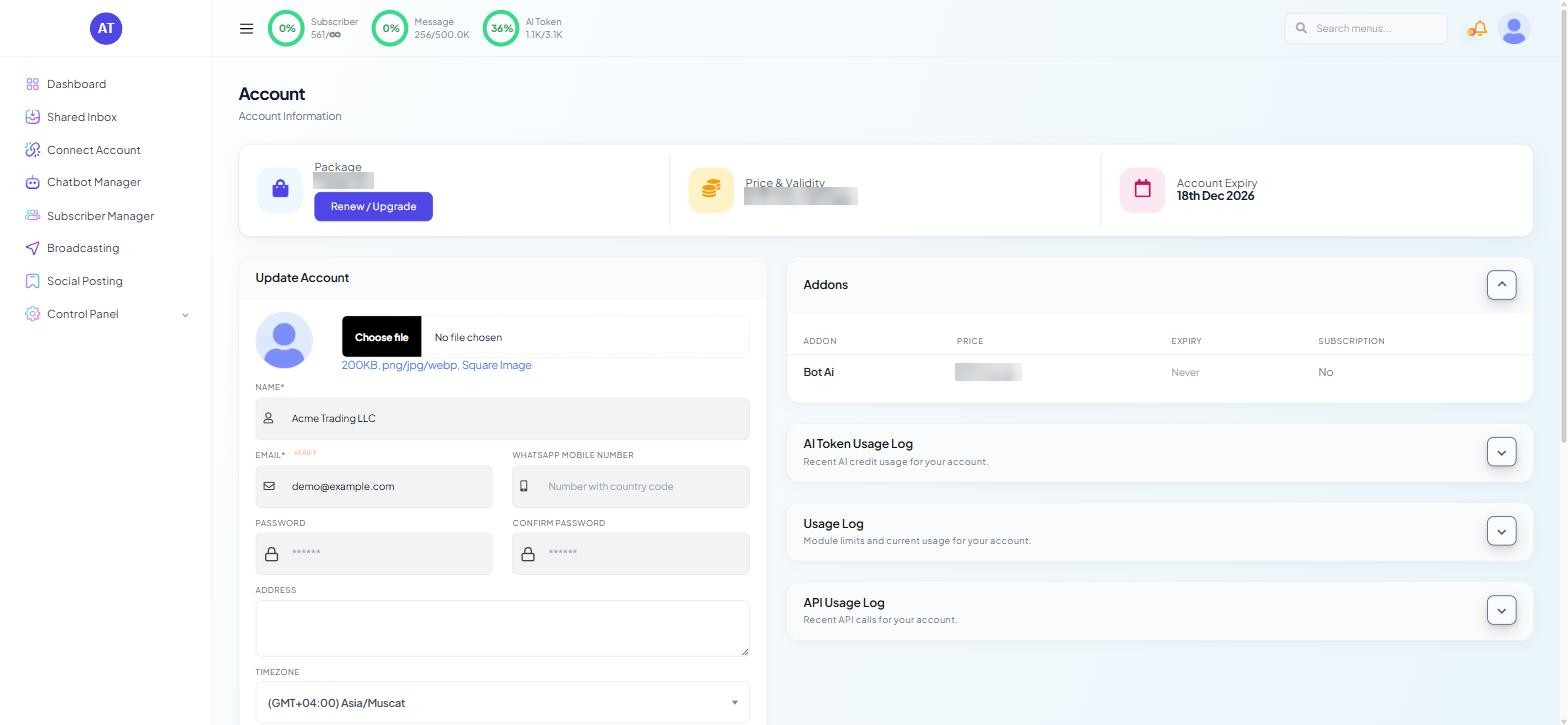
Click Account. Plan and usage live here, not under Control Panel.
In the right-hand column, expand Usage Log. It shows module limits and current usage — the breakdown behind the top-bar Subscriber meter.
The right-hand column holds three panels:
AI Token Usage Log — recent AI credit usage.
Usage Log — module limits and current usage.
API Usage Log — recent API calls.
Your addons (with price, expiry and subscription state) are on the Billing page, under Addons.
If something doesn't work
A count looks wrong. Three explanations that are not faults:
Unsubscribed contacts still count. Someone who opted out stays in the database and in the Subscriber meter until you delete the record. Filter All Status → Unsubscribed in Subscriber Manager to see the size of that group.
Channels do not merge. One person who has messaged your WhatsApp number and your Facebook Page is two subscriber records, and both count.
A filter is still applied. The Subscriber Manager cards respond to filters and the top-bar meter does not, so a difference between them usually means a chip is still active. Press Clear All and compare again.
A trend looks wrong:
Total Subscribers rising, Subscribed % falling → look at what happens shortly after people join. An aggressive first sequence is the usual cause.
Gain high, Drop high, total flat → people are leaving as fast as they arrive. Drops usually cluster on the days you broadcast; find that send and read what it said.
In Sequences near zero on an account that uses sequences → filter Subscriber Manager by the sequence (All Sequences) to confirm nobody is enrolled, then check the sequence trigger.
Gain zero for several days on every channel → check the channel connection under Connect Account before changing anything about your marketing.
You need week-on-week comparisons. There is no date-range filter in Subscriber Manager. Read the daily trend, or use Export/Import → Export all as CSV and group by date in a spreadsheet.
Labels, Lists & Segments: How Scope Wiser Groups Subscribers keeps your groups meaningful as the list grows.
Next: Viewing & Filtering Subscribers.