
Labels, Lists & Segments: How Scope Wiser Groups Subscribers
Labels and Lists are two different grouping systems, and a segment is a filter combination. What each is for, where to apply it, and how broadcasts target them.
What this covers: the three ways Scope Wiser groups subscribers, which one to use for what, and where to apply each one.
A label is a tag that describes something about a person: Hot Lead, Cart Abandoned, Webinar Attendee. Your flows can add and remove labels automatically.
A list is a named group you put a person into: October Expo, Newsletter, Wholesale Customers. Membership changes only when you, an agent or a User Input Flow changes it.
A segment is the set of filters currently applied in Subscriber Manager. It is a live view, not a saved object.
Custom fields are different again: they store a value (an email address, a budget, a city) rather than a grouping. Personalised messages read from those.
Which one? If the name says what the person did, and it's true today but might not be next week, it is a label. If it names a group they stay in until you say otherwise — an event audience, an imported batch, a subscription to one kind of content — it is a list.
1. Agree label names before the team starts
Anyone can create a label by typing a name, so agree one spelling per label first.
One spelling, decided once. Write it down where your agents will see it.
Prefix by purpose.
Stage: Qualified,Source: Expo,Interest: Wholesalesort together in a dropdown and make a stray label obvious.Labels describe behaviour, lists name a group.
Don't put values in labels. Budget over 5k breaks the first time a budget changes. Store the figure in a custom field and branch on it with a Condition block.
2. Create labels and lists
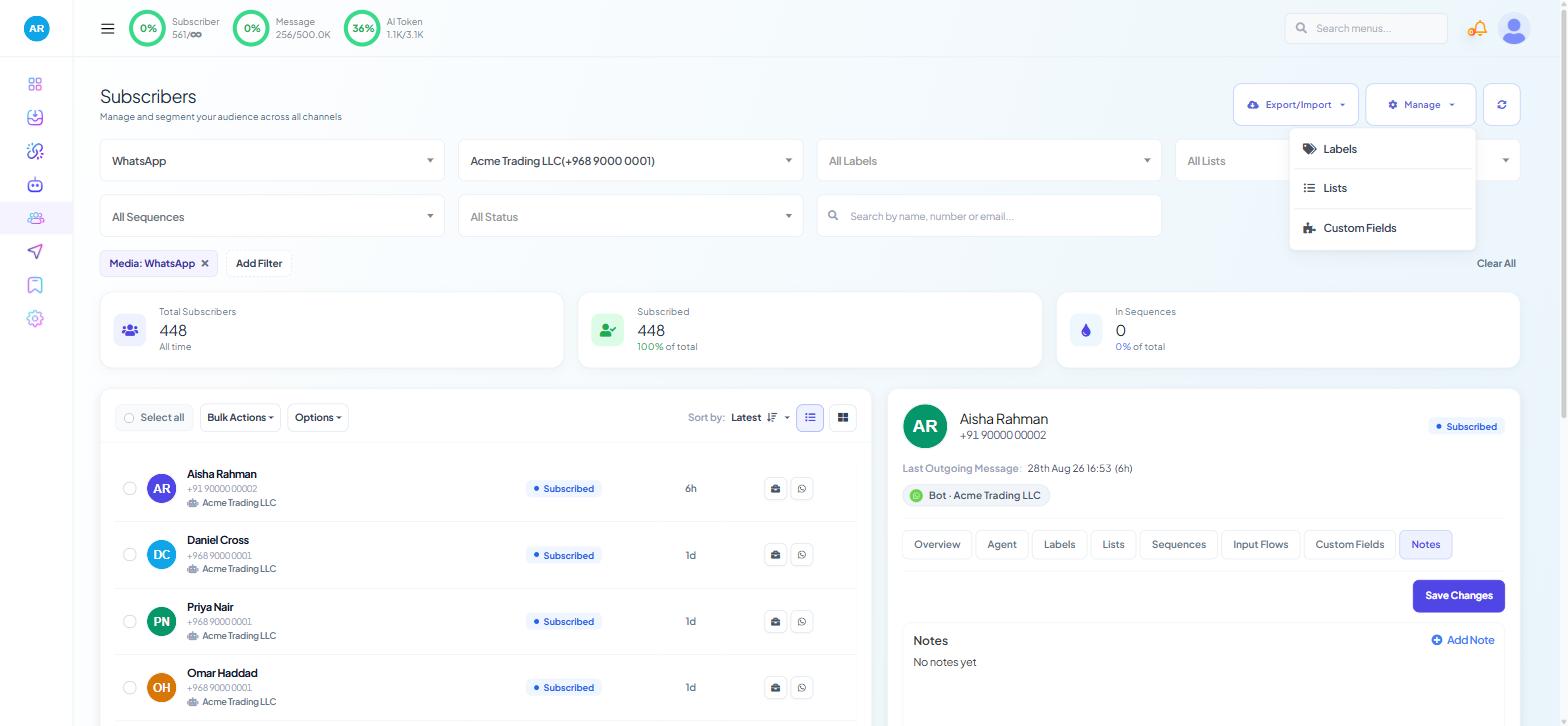
Go to Subscriber Manager → Manage.
Choose Labels or Lists. You should now see a side drawer, for example Manage Labels — "Organize your subscribers with labels", with + Create New Label, Search labels and All Labels (n). Each row shows colour, name, ID, contact count, edit and delete.
Create the ones you agreed.
Labels are shared across all channels and bots in your account. A label you create for WhatsApp is the same label on Facebook, Instagram and Webchat.
3. Apply a label
Choose the way that fits.
By hand, on one contact:
Open the subscriber in Subscriber Manager.
Open the Labels tab and add the label.
Click Save Changes.
From the Shared Inbox:
In the Chat Actions rail, type a name in the Labels field and press Enter. This also creates the label if it does not exist yet.
A small save icon appears beside the Labels heading. Click it.
You should now see the toast "Subscriber changes have been saved successfully." and a line in the conversation: "Label added: hot-lead".
Important: nothing is saved until you click the save icon. Pressing Enter alone is not enough.
In bulk:
Filter the list.
Use Bulk Actions → Assign Label to cover the whole filtered set, or tick rows and use Options → Assign Label.
To remove a label from many people, use Options → Remove Label.
Automatically, from a flow:
Flow Builder → Flow Control → Label Assign block (WhatsApp, Facebook and Instagram). Place it after the branch you care about; the label is applied the moment a subscriber takes that path.
User Input Flow drawer → Add Label(s) / Remove Label(s) fields, applied when the flow runs (any channel). A ⊕ New control creates a label on the spot.
Webchat has no Label Assign block. Use a User Input Flow instead.
Start Bot Flow → Automation Actions → Add Label(s) (any channel) labels everyone who sends that flow's keyword. The same panel has Add to List(s).
4. Add people to a list
In bulk: Bulk Actions → Add to List, or Bulk Actions → Remove from List.
From the Shared Inbox: type a name in the Lists field, press Enter, then click the save icon beside the Lists heading. The conversation shows "List added: VIP".
From a User Input Flow: the Add to List(s) and Remove from List(s) fields.
Lists also have their own filter (All Lists) and their own tab in the subscriber detail panel.
There is no list block in the Flow Builder. If a mid-conversation branch needs to write to a group, that group has to be a label.
5. Build a segment
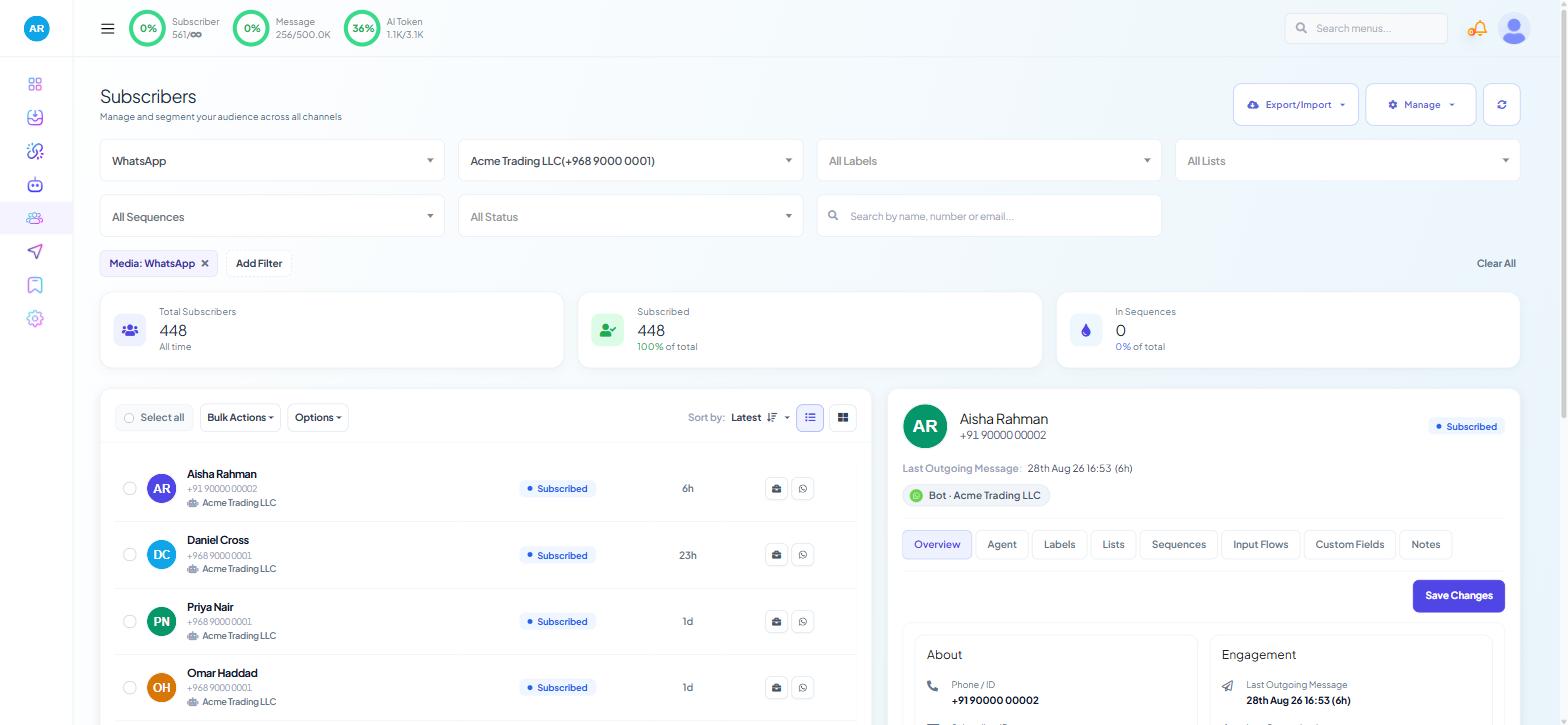
A segment is the filter row — channel, bot, All Labels, All Lists, All Sequences, All Status and search — with each applied filter shown as a chip, plus Add Filter and Clear All. Nothing in Subscriber Manager is called a segment.
Filters are not saved, and there is no "save this segment" button. Write down the filter combination if a colleague needs the same group.
For the filter combinations that do the most work, see Viewing & Filtering Subscribers.
6. Target labels and lists in a broadcast
Open Broadcasting → + Create Campaign.
In the broadcast block's audience settings, use:
Include label ids / Exclude label ids
Include Subscriber Lists / Exclude Subscriber Lists
Before you send, check the "Targeted subscribers: N" readout under the audience fields.
A typical campaign sets Include Subscriber Lists: Newsletter and Exclude label ids: Recently Purchased — the group people joined, minus the people the message is wrong for today.
7. Prune quarterly
Filter by each label in turn. Anything matching zero subscribers and used by no flow can go.
If something doesn't work
The targeted count is far below what you expected. An exclusion is removing more people than you intended.
A flow branch can't add people to a list. There is no list block in the Flow Builder. Use a label.
No Label Assign block on Webchat. Use a User Input Flow instead.
A label or list added in the Shared Inbox didn't stick. You pressed Enter but didn't click the save icon beside the heading.
Duplicate or misspelt labels. Anyone can create one by typing a name. Agree spellings and prune.
To apply labels automatically inside a flow, Conditions, Triggers & Branching Logic in Flow Builder covers placing a Label Assign block.
Next: Viewing & Filtering Subscribers.