
Viewing & Filtering Subscribers
Narrow a Scope Wiser subscriber list to exactly the people you need: every filter explained, how the chips behave, and why a filtered list comes back empty.
What you'll do: use the filter row in Subscriber Manager to find exactly the people you need — for example everyone on WhatsApp who asked about wholesale pricing and is still subscribed.
Time: 2–5 minutes.
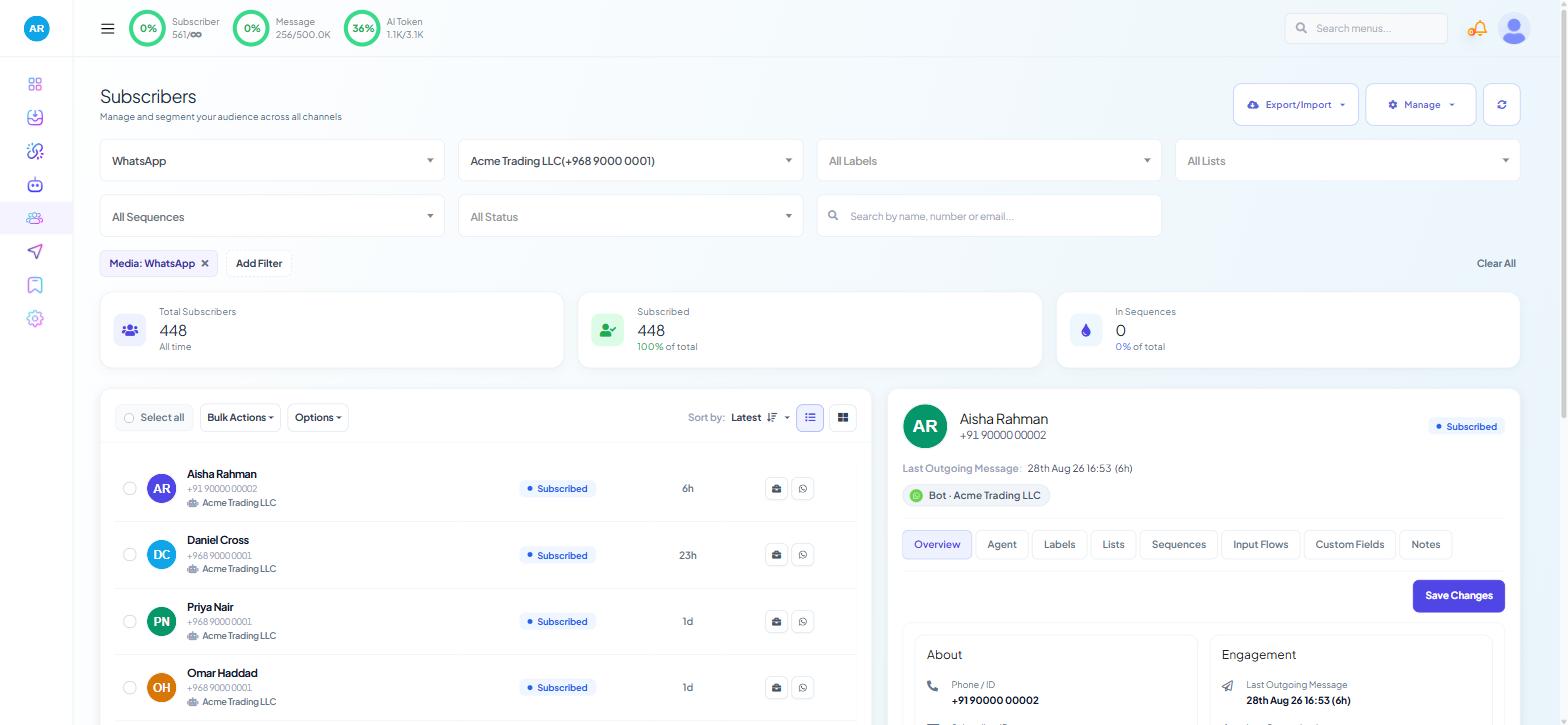
The filters sit under the page heading and combine: each one narrows what the others returned.
1. Start clean
Open Subscriber Manager from the sidebar.
Look at the chips beneath the filter row. If any are there from earlier, click Clear All.
Read the chips before you trust a count. A filter left over from earlier is the most common reason a list looks wrong.
2. Pick the channel and bot
Choose the channel: WhatsApp, Facebook, Instagram or Webchat.
If you run more than one bot, choose the bot / account next.
Labels belong to one bot. A label that exists on one bot returns nothing while another is selected. Contacts don't merge across channels either — see the Reference section.
3. Set the status
Set All Status to Subscribed before any campaign work.
Unsubscribed contacts stay in the database and count towards your subscriber limit, so an unfiltered export overstates your reachable audience.
4. Add labels, lists, sequences or a search
Add whichever you need:
All Labels — filter by label.
All Lists — filter by list membership.
All Sequences — filter by the follow-up sequence a contact is enrolled in.
Search — "Search by name, number or email...". Partial matches work: searching
+968returns every number starting that way.
Every active filter appears as a chip beneath the row, next to Add Filter and Clear All.
5. Sort and set the page size
Use Sort by to choose Latest or Oldest.
Set the page size (10, 25, 50, 100, 500 or 1,000 rows) before you tick rows.
Select all covers only the page in front of you, so raise the page size first.
6. Check the count, then act
Check the Total Subscribers card. It responds to the filters, so it tells you how many people a bulk action will reach.
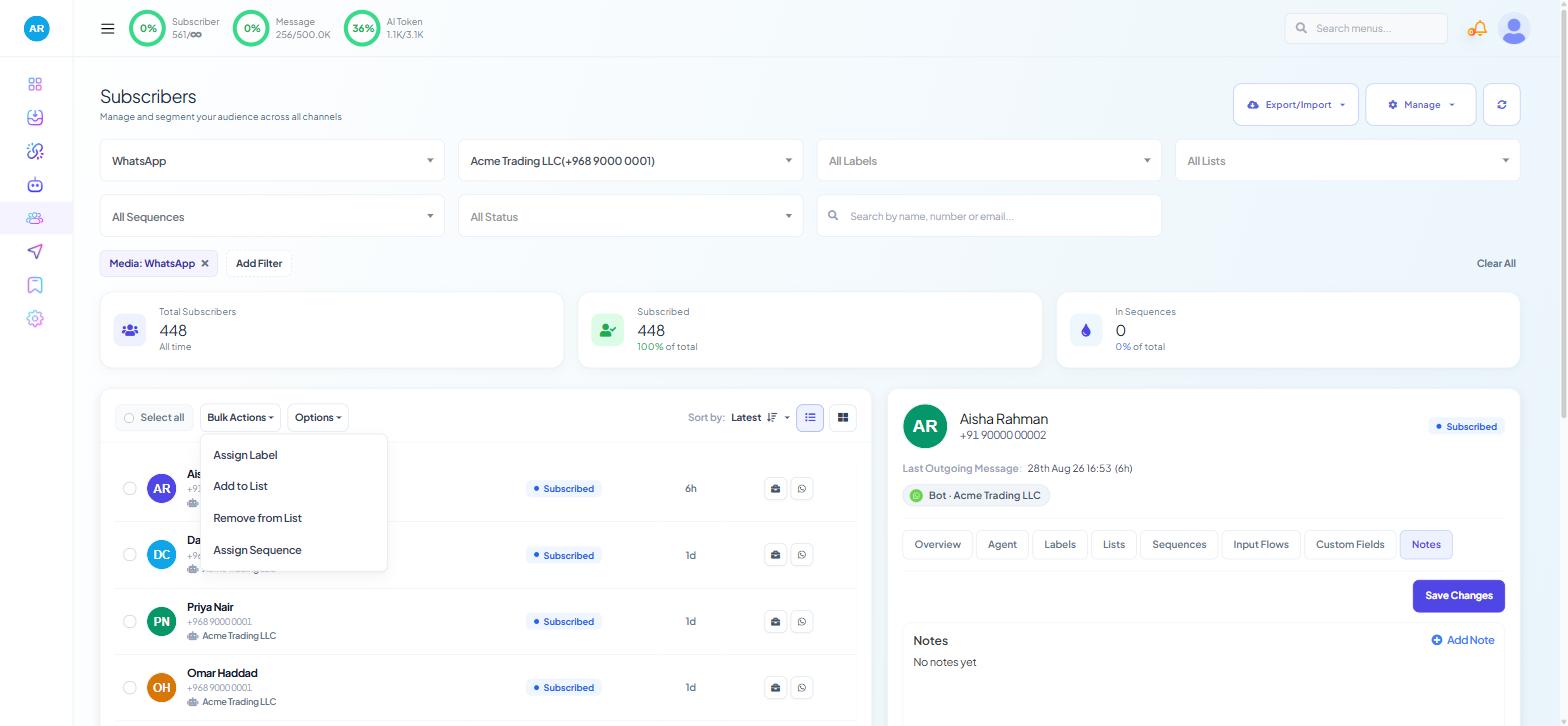
Use Bulk Actions, Options or Export/Import — see Subscriber Manager: A Complete Overview.
✅ Done when…
☐ The chips show only the filters you meant to set
☐ The Total Subscribers card shows the number of people you expected
If something doesn't work
The list comes back empty:
The wrong bot is selected. Labels, lists and sequences belong to one bot. Reset the bot selector and try again.
Status is excluding the group. Subscribed hides opted-out contacts.
Two filters do not overlap. A label applied by a WhatsApp flow never matches while the channel filter is set to Facebook.
A chip you forgot is still active. Press Clear All and rebuild the filter.
The count is right but the people look wrong: open one record and check the Labels, Lists and Sequences tabs in the detail panel to see what the filter matched.
You need a date range: there is no date-range filter. To find recent arrivals, sort by Latest and read down. For anything more precise, export and filter in a spreadsheet.
Reference
Each filter in detail
Channel. WhatsApp, Facebook, Instagram or Webchat. Contacts do not merge across channels — someone who has messaged both your WhatsApp number and your Facebook Page is two records, with separate labels and field values.
Bot / account. Narrows to one connected bot within the chosen channel.
All Labels. The dropdown opens with Unselect Label, which clears the filter.
All Lists. Opens with Unselect List. Lists and labels are different systems — see Labels, Lists & Segments: How Scope Wiser Groups Subscribers.
All Sequences. Opens with Unselect Sequence. Use it to confirm a bulk sequence assignment worked.
All Status. All Status, Subscribed or Unsubscribed.
Search. Name, number or email; partial matches work.
Filter combinations that do real work
Ready for a campaign. Channel WhatsApp + bot + status Subscribed + label High Intent. The people you can message, narrowed to those who showed interest.
Stalled in onboarding. Status Subscribed + sequence Welcome. Everyone still mid-sequence.
Ready for cleanup. Status Unsubscribed, no other filter. Export, review, then delete what you no longer need.
Event follow-up. List October Expo + status Subscribed. The group you enrolled, minus everyone who has since opted out.
Input Flow Reports & Data Export covers exporting the answers people gave rather than the contacts.
Next: Labels, Lists & Segments: How Scope Wiser Groups Subscribers.