
Importing Contacts from a CSV or Google Sheet
Bring a contact list into Subscriber Manager from a CSV or Google Sheet, map the columns, check the result, and send new subscribers to Google Contacts.
What you'll do: bring an existing contact list into Subscriber Manager from a CSV file or a Google Sheet, and optionally send new subscribers out to Google Contacts automatically.
Time: 15 minutes, plus background processing.
Imported contacts are not opted-in contacts. Importing a contact does not give you permission to message them. On WhatsApp, someone who never messaged you can only receive an approved template, and complaints lower your quality rating. Import only people who agreed to hear from you.
Before you start
☐ Every phone number has a country code.
+968 9000 0001, not9000 0001. Numbers without one cannot be matched to a channel and are the biggest cause of failed rows.☐ Header names use letters and numbers only, and each one is unique.
phone,name,city— notPhone Numberore-mail.☐ One contact per row. No merged cells, no empty header columns.
☐ Custom fields created first, if the type matters. Extra columns such as city or budget become custom fields automatically — a name it has not seen before is created for you. Creating them yourself under Subscriber Manager → Manage → Custom Fields first is still worth it when you need a specific type, such as Phone rather than plain text.
☐ A five-row test file. A mapping mistake on five contacts is easy to fix; on five thousand it means a bulk delete.
☐ Very large sheets split. Keep each import to a few thousand rows.
1. Connect your Google account (Google Sheet imports only)
Skip this step if you are importing a CSV file.
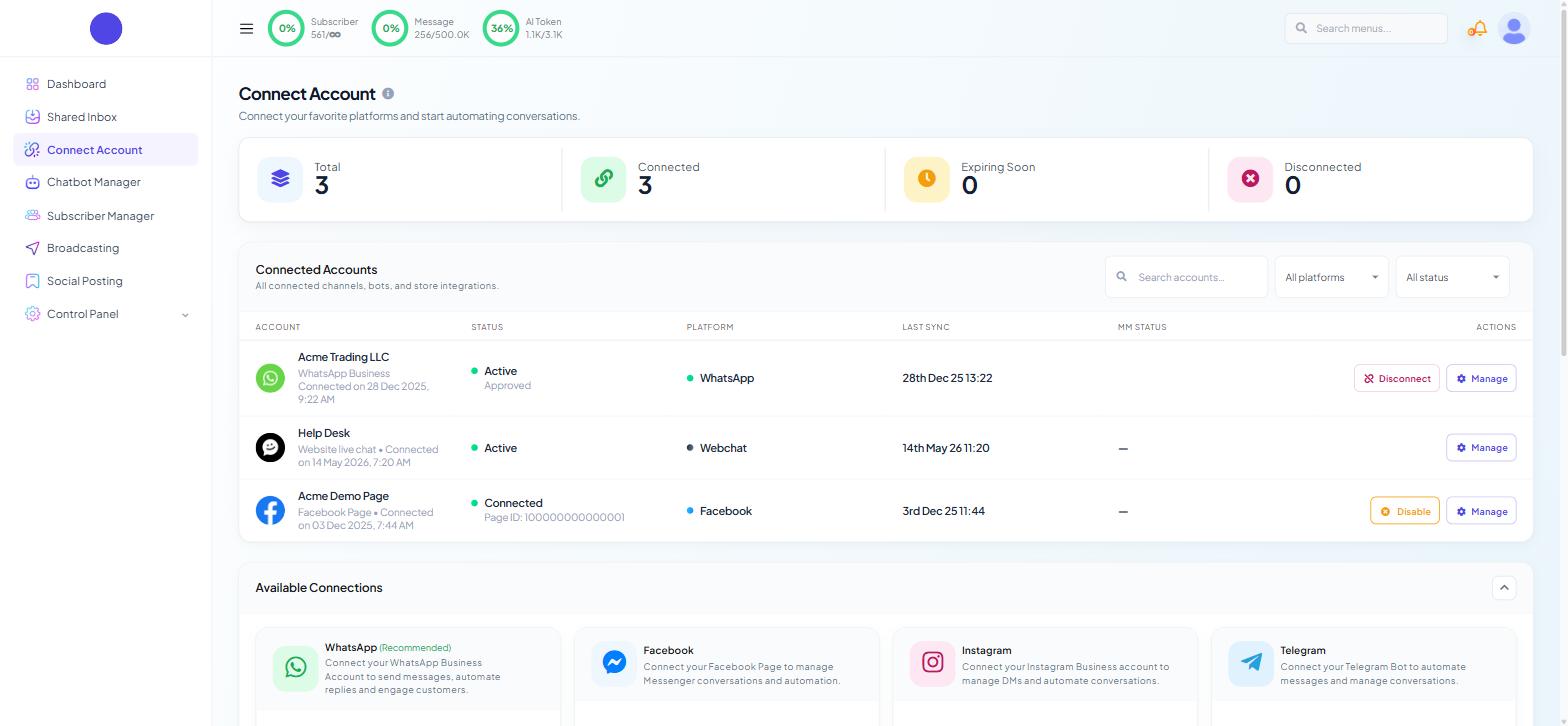
From the sidebar, open Connect Account.
Under Available Connections, choose Connect Google. You land on Google Integration.
Click Sign in with Google and choose your account.
Grant every permission Google asks for. Missing one permission is the usual reason the sheet list comes back empty.
You should now see four tiles at the top — Google Accounts, Sheets Access, Calendar Access and Limited Access — and below them the Google Sheets section listing the sheets Scope Wiser can see (#, SHEET TITLE, ACTIONS, CREATED AT, MODIFIED AT).
2. Open the import dialog
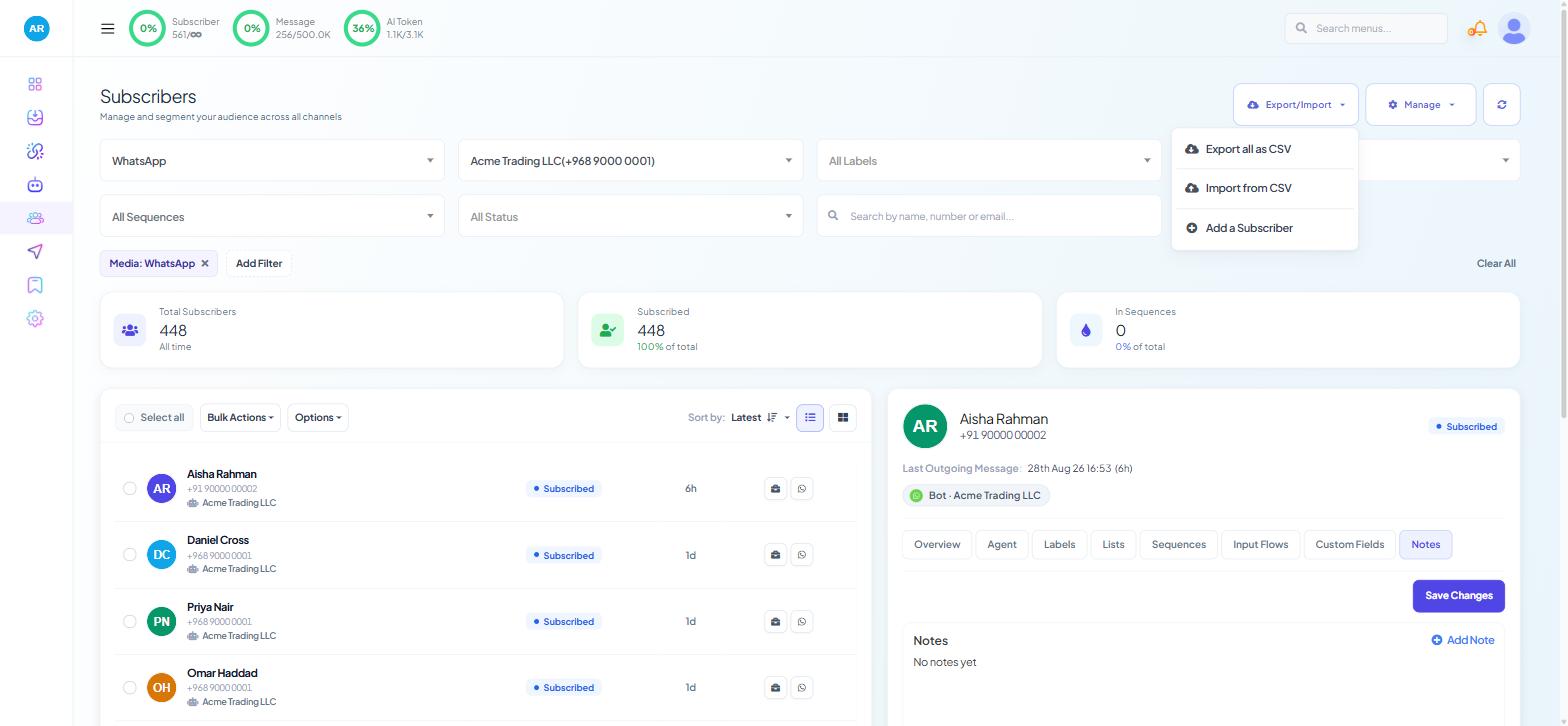
Open Subscriber Manager and set the channel at the top left.
Open the Export/Import menu at the top right and choose Import from CSV.
You should now see the Import Subscribers dialog. (To type in a single contact, use Add a Subscriber instead.)
3. Fill in the Import Subscribers dialog
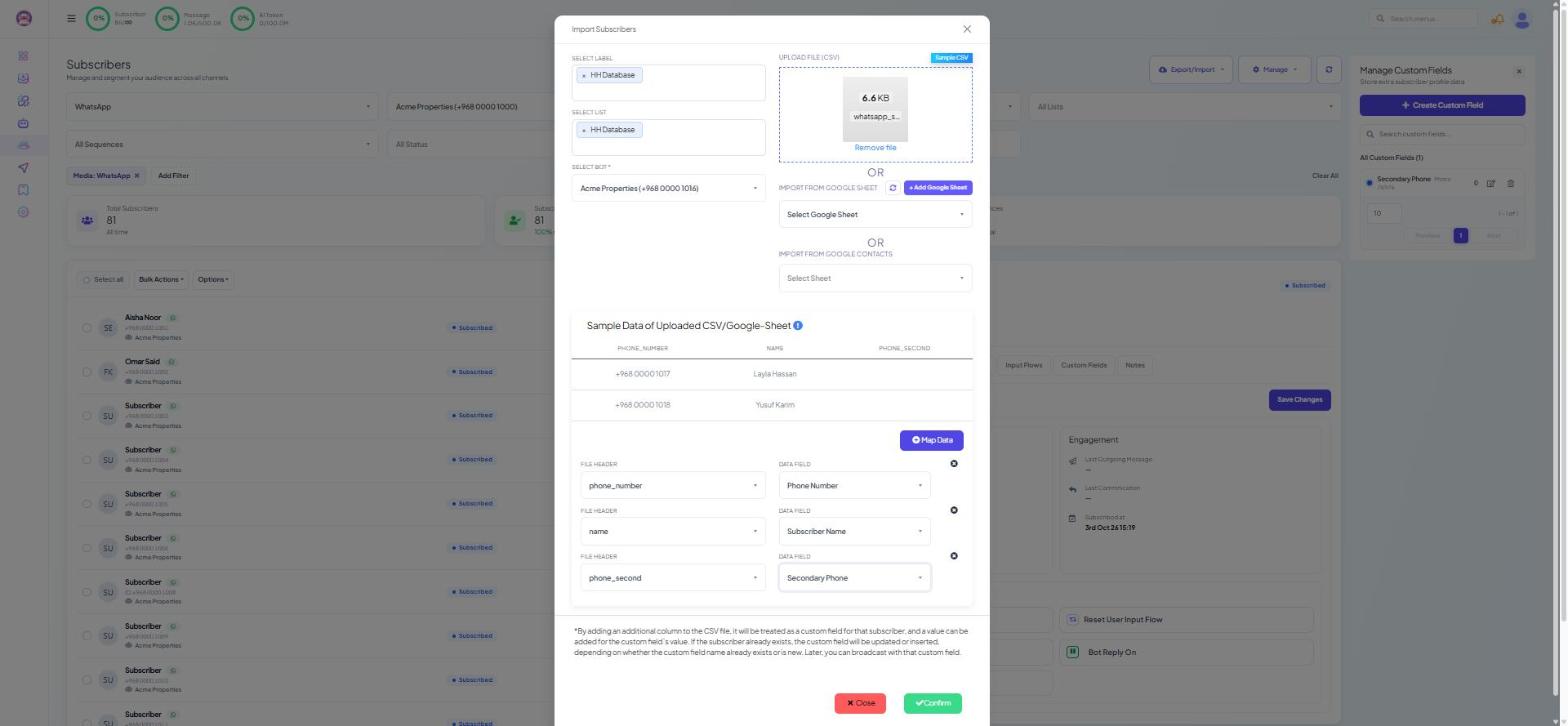
In SELECT LABEL and SELECT LIST, choose a label and a list for everyone in this file.
In SELECT BOT (required), choose the number the contacts belong to.
Choose one of three sources: UPLOAD FILE (CSV), IMPORT FROM GOOGLE SHEET, or IMPORT FROM GOOGLE CONTACTS.
Check Sample Data of Uploaded CSV/Google-Sheet. It shows the first rows, so you can confirm you picked the right file.
Click Map Data.
Match each FILE HEADER to a DATA FIELD — Phone Number, Subscriber Name, Secondary Phone and any custom fields you have.
Click Confirm.
Set the label and list now. It is the difference between an import you can broadcast to next week and a pile of untagged numbers you cannot find again.
Get the format right first. The Sample CSV button, top right of the upload box, downloads a correctly-shaped file. Match your columns to it and the mapping step takes seconds.
Column names: letters, numbers and underscores only. The first row of your CSV must use names such as phone_number, name and city. A space, dash, dot or slash in any of them stops the upload with "CSV header names may only contain letters, numbers, and underscores." For example, rename Phone Number to phone_number and First Name to first_name.
Importing people you already have? If a number in the file is already a subscriber, the name in your file replaces the saved name, and messages that greet them by name use the new one. Check the name column before you re-import an old list.
Saving from Excel? Don't choose CSV UTF-8. It adds a hidden character at the very start of the file, and the upload fails with the same message even when every name is correct. Instead, upload the sheet to Google Sheets and use File → Download → Comma-separated values (.csv). This also keeps Arabic and other non-English names intact.
Two rules on the mapping screen:
The phone number column is required. A row without one is not imported.
Only mapped columns are imported. Anything you leave unmapped is dropped.
4. Wait, then check the import
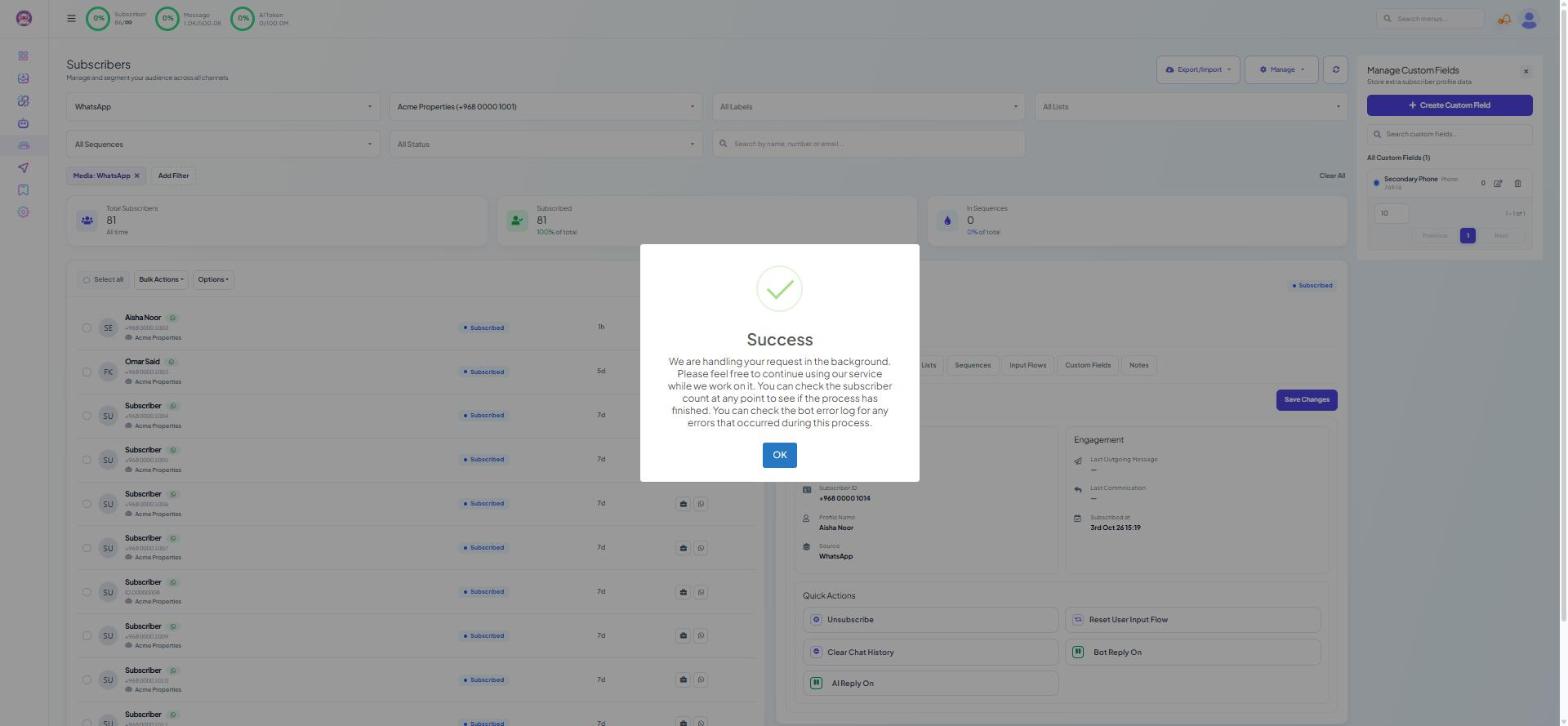
You should now see a Success message:
"We are handling your request in the background. Please feel free to continue using our service while we work on it."
This means the import has started, not finished. It runs in the background, so Total Subscribers does not jump straight away. A count that has not moved a minute later is normal — give it time and refresh before concluding anything went wrong.
Then:
Read the Total Subscribers card once it settles. If it moved by much less than the number of rows you sent, check phone formatting first.
Check the bot error log for anything that failed during the import. See Bot Error Logs and Custom Fields.
Open two or three imported records and confirm the Custom Fields tab holds the extra columns.
Filter the list by the label you set in the dialog and check the count matches what you expected.
The Success message appears whether or not individual rows later fail. Import errors surface in the bot error log, not here.
5. Optional: send new subscribers out to Google Contacts
This is the reverse direction, and it is automatic once set.
If you also want new subscribers written to a Google Sheet, first register one on Connect Account → Connect Google, using one of the two buttons above the sheet list:
Create New Sheet builds a sheet from inside Scope Wiser. Give it a title, then add a header for each column you want. Headers accept letters and numbers only. Open it in Google Sheets afterwards.
Add Existing Sheet registers a sheet you already have. Copy the long code from the sheet's web address (between /d/ and /edit) and paste it in as the Sheet ID.
Then, on the bot:
Open Chatbot Manager and select the bot.
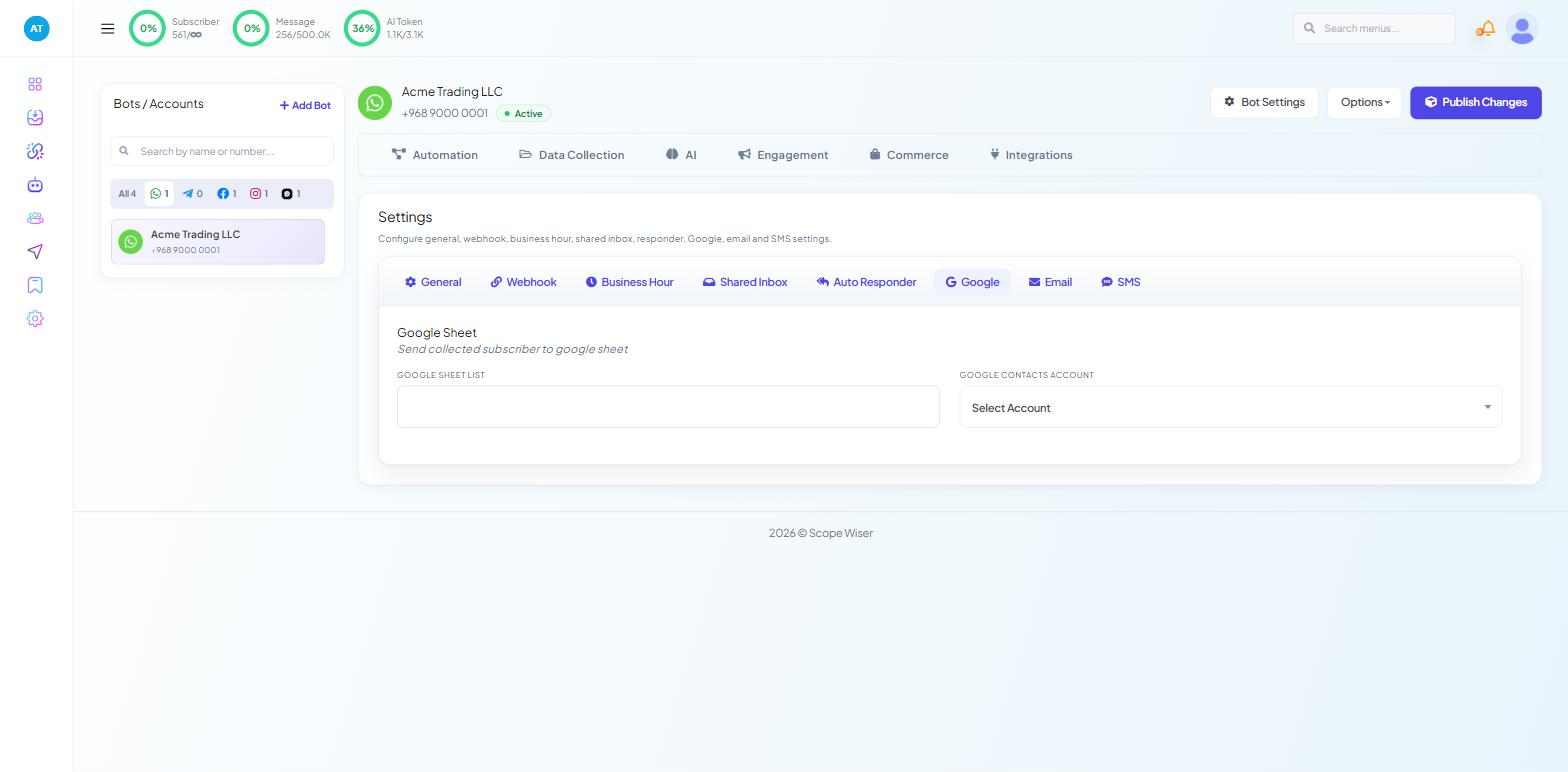
Click Bot Settings and open the Google tab. The section is headed "Google Sheet — Send collected subscriber to google sheet".
In GOOGLE SHEET LIST, pick the sheet that new subscribers should be written to.
In GOOGLE CONTACTS ACCOUNT, pick your Google account from Select Account.
Click Publish Changes.
Repeat for each bot. Settings are per bot.
From then on, new subscribers on this bot are saved to Google Contacts as they arrive, name and number together.
✅ Done when…
☐ Total Subscribers has risen by roughly the number of rows you imported
☐ Imported records show the extra columns on their Custom Fields tab
☐ Filtering by the import label returns the count you expected
If something doesn't work
The Google sheet list is empty. You missed a permission when signing in with Google.
You can't see Connect Account. Ask the owner to give your role the CONNECT ACCOUNT and GOOGLE permissions (Control Panel → User Permission).
Total Subscribers hasn't moved. The import runs in the background. Wait and refresh.
Far fewer contacts than rows. Check phone formatting first — numbers need a country code. Then check the bot error log.
A column is missing on the records. Only mapped columns are imported.
You skipped the label at import. Apply one now with Bulk Actions → Assign Label — but setting it during the import is far easier.
A contact's name or number didn't update on re-import. Import updates custom fields, not the core profile. Open the record to change those.
Reference
Extra columns become custom fields
Any column beyond phone, name and secondary phone is treated as a custom field for that subscriber. If the subscriber already exists, that custom field is updated or added. You can then use it in a broadcast — so a city or plan column in your sheet becomes something you can personalise and segment on later.
What import does not do
It does not refresh an existing contact's name or number. Custom fields are updated on re-import; the core profile is not.
There is no live sync. The import is a one-time copy. Changing the sheet afterwards changes nothing in Scope Wiser.
A different Google Sheets feature
Chatbot Manager → Integrations → Google Sheets lets a flow read from a sheet mid-conversation (order lookups, stock checks). It does not import contacts. To push what your flows collect out to a spreadsheet continuously, see Exporting Flow Data to Google Sheets.
Next: Labels, Lists & Segments: How Scope Wiser Groups Subscribers.