
What Follow-up Sequences Are
A Follow-up Sequence sends planned messages over hours or days after an opt-in: where they live, which channels have them, how they differ from broadcasts.
What this covers: what a Follow-up Sequence is, where to find it, which channels have it, and how it differs from a broadcast.
A chatbot conversation happens now. A Follow-up Sequence happens later: a planned series of messages that reaches a subscriber an hour after they opted in, then the next day, then the day after, without anybody having to remember to send them.
Welcome today. Reminder tomorrow. Offer next week. You set it up once, and it runs for every person who joins from then on.
Where to find them
Click Chatbot Manager in the left menu.
Select a bot.
Stay on the Automation tab and click Follow-up Sequences.
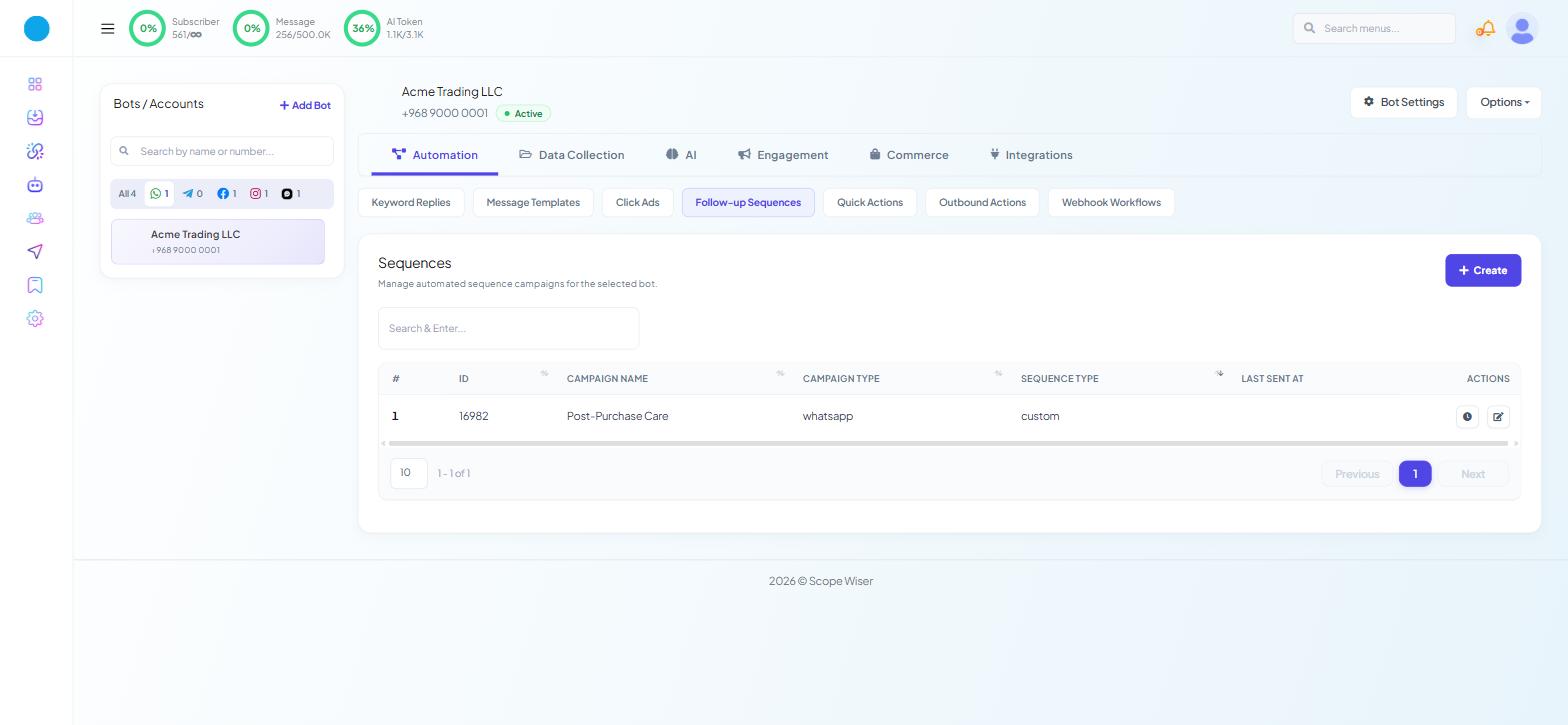
The list has two buttons, Create and Bulk Assign, and the columns CAMPAIGN NAME, ACTIONS, PROCESSED, DELIVERED, OPENED, UNREACHED and LAST SENT AT.
PROCESSED,DELIVERED,OPENEDandUNREACHEDshow how far each campaign's messages got.Bulk Assign signs up many existing subscribers at once. See Sequence Triggers: Labels, Time and Events.
LAST SENT ATtells you whether a campaign is alive. A sequence with subscribers and an old timestamp has stopped delivering. That's usually the first sign anybody notices.ACTIONShas exactly two icons: a clock, Regular Message Report, which opens the numbers for one step of the campaign; and a pencil, Edit, which reopens it in the Flow Builder.
A saved sequence can't be deleted. Choose a name you can live with, and avoid creating test campaigns.
Which channels have them
Sequences work on WhatsApp, Facebook and Instagram. Webchat shows the tab but has no New Sequence Campaign block, so sign up website visitors through WhatsApp or Messenger instead.
Sequences are not broadcasts
Both send a message to many people. The difference is what starts the clock.
Follow-up Sequence | Broadcast | |
|---|---|---|
Timing | Relative to each person — one hour after they subscribed | Absolute — everyone at 10am on Thursday |
Audience | Whoever opts in, continuously | A segment you pick when you compose |
Runs | Indefinitely, for each new subscriber | Once |
Built in | The Flow Builder, from the New Sequence Campaign block | The Flow Builder, from Create Campaign in Broadcasting |
Managed at | Automation → Follow-up Sequences | Broadcasting |
How people get in
There are six ways in, from a button somebody taps to a store order event. Sequence Triggers: Labels, Time and Events goes through each one and says which to prefer.
How one is built
A sequence is a New Sequence Campaign node followed by a chain of Send Message After steps, each with its own delay and its own message. You build it in the Flow Builder, from + Create on the Follow-up Sequences list.
Two guides cover it click by click: Building a Messenger Sequence Campaign for Facebook and Instagram, and WhatsApp Sequences With Template Messages for WhatsApp.
The 24-hour rule
After 24 hours of silence, WhatsApp only delivers an approved, paid template. So every step from Day 1 onward must use Send Template Message (Anytime).
On Facebook, message tags no longer work. Outside the 24-hour window you can only send transactional updates, using an approved Utility Template. No marketing. See Facebook Utility Templates: Messaging Outside the 24-Hour Window.
Where to see who is in a sequence
Subscriber Manager has an All Sequences filter, and an In Sequences stat card showing the number and percentage of your audience currently enrolled.
A subscriber's detail panel has a Sequences tab listing their enrolments.
The Dashboard has a Sequence Messaging Report widget with a View all link.
Next: pick the channel you're building for: WhatsApp Sequences With Template Messages or Building a Messenger Sequence Campaign. Once a campaign has run for a few days, Measuring Sequence Performance shows where the delivery numbers live.