
Sequence Triggers: Labels, Time and Events
Six ways a subscriber enters a follow-up sequence: buttons, keywords, labels, bulk assignment, store events and manual assignment, and how to choose.
What this covers: the six ways to put someone into a sequence, how to set up each one, and which to choose.
There are six ways in. Prefer the one where the customer most clearly asked.
Which trigger to choose
Situation | Trigger |
|---|---|
Promotional drip | Button opt-in |
Printed or advertised shortcode | Keyword, via Configure Reference |
An existing segment | Bulk Actions → Assign Sequence, or Bulk Assign on the sequence list |
Abandoned cart or order event | Store Automation |
Two audiences, one entry point | Condition block on a label, into two sequences |
One customer who asked | Subscriber detail panel or Shared Inbox |
Stop people being signed up twice. Every trigger below can fire twice for the same person. On any sequence with more than one way in, tick the checkbox under Configure New Sequence → Re-entry rules. Sequence Unsubscribe and Resubscribe Logic covers what that checkbox does and doesn't do.
1. A button in a flow (preferred)
The customer chose it, which is better for delivery and, on WhatsApp, for cost.
Add an Interactive block on WhatsApp, or a Generic Template on Facebook and Instagram.
Give it a button with a plain label: Send me the offers, not Subscribe.
Connect the button node's Subscribe to Sequence port to a New Sequence Campaign node. Anyone who taps the button is signed up.
Follow it with a short text block confirming the subscription, so the tap gets a reply.
2. A keyword, through Configure Reference
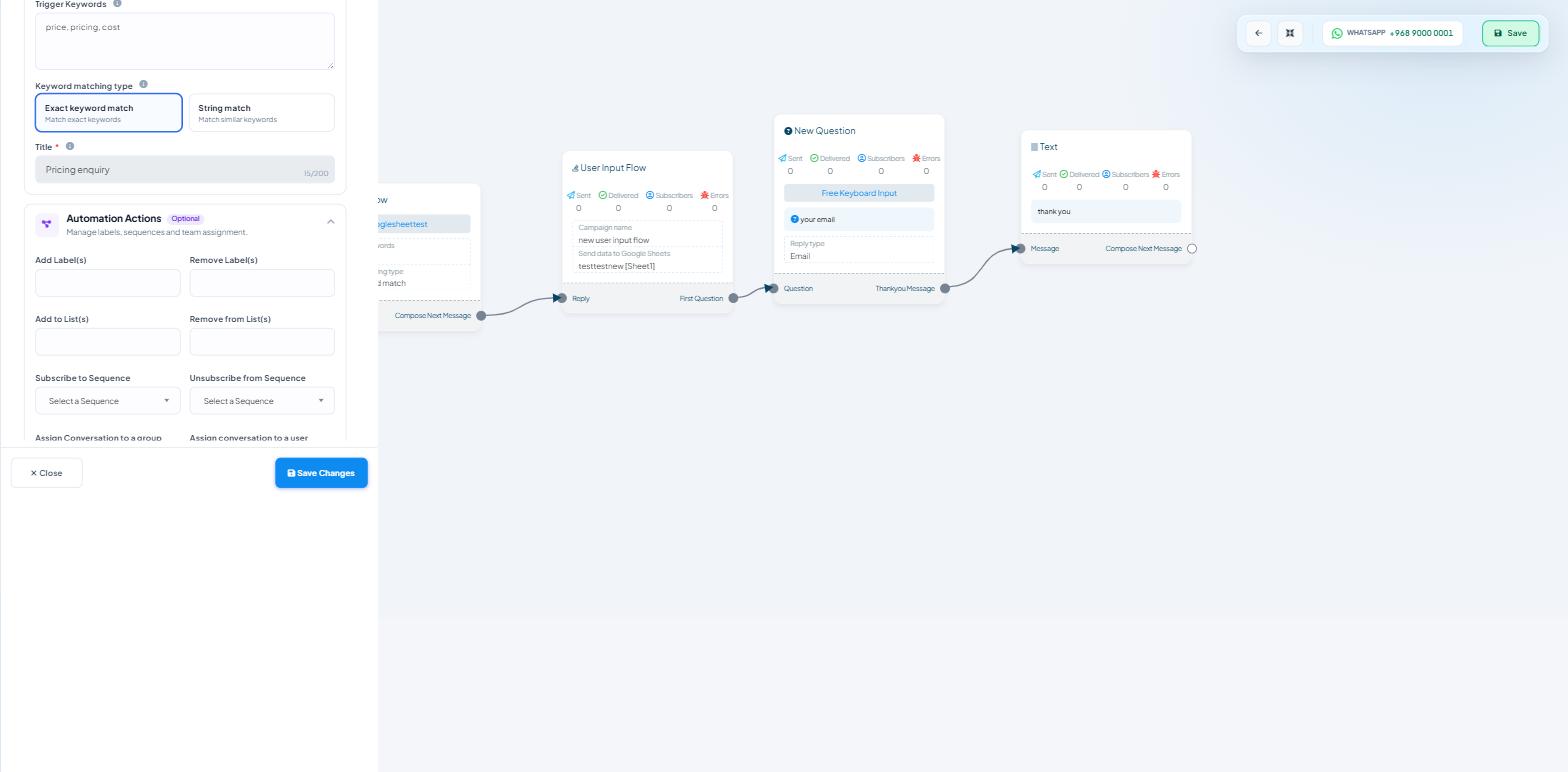
Double-click any Start Bot Flow node. The Configure Reference panel opens.
Under Automation Actions (marked Optional), use one of the two dropdowns:
Subscribe to Sequence— Select a SequenceUnsubscribe from Sequence— Select a Sequence
Anyone who triggers that keyword is signed up, or removed, with no confirmation step.
That's the trade-off. It works well for a deliberate keyword: a customer texting OFFERS to a number printed on a receipt has clearly asked. It works badly on a general enquiry keyword, where the first drip message arrives as a surprise.
The same panel also has Add Label(s), Remove Label(s), Add to List(s) and Remove from List(s), so one keyword can sign someone up, tag them and add them to a list in one go.
3. Labels
Scope Wiser calls tags labels. Labels are added by:
Configure Reference
the Label Assign block in the Flow Builder (WhatsApp, Facebook and Instagram, not Webchat)
the Shared Inbox
Subscriber Manager, in bulk
A label gets someone into a sequence in two ways:
By hand, as a segment. Filter Subscriber Manager by the label, select the results, and use Bulk Actions → Assign Sequence (see section 4).
By branching. Add a Condition block (Flow Control) before the sequence node, with a rule such as Label = Customer. Connect True to one sequence and False to another. The same way in then serves two audiences: existing customers get onboarding, prospects get the sales drip.
4. Bulk assignment from Subscriber Manager
For a segment that already exists, you don't need a flow at all.
Open Subscriber Manager.
Filter using the channel, bot, All Labels, All Lists, All Sequences and All Status selectors, or the "Search by name, number or email..." box.
Select the rows you want.
Choose Bulk Actions ▾ → Assign Sequence, or Options ▾ → Assign Sequence.
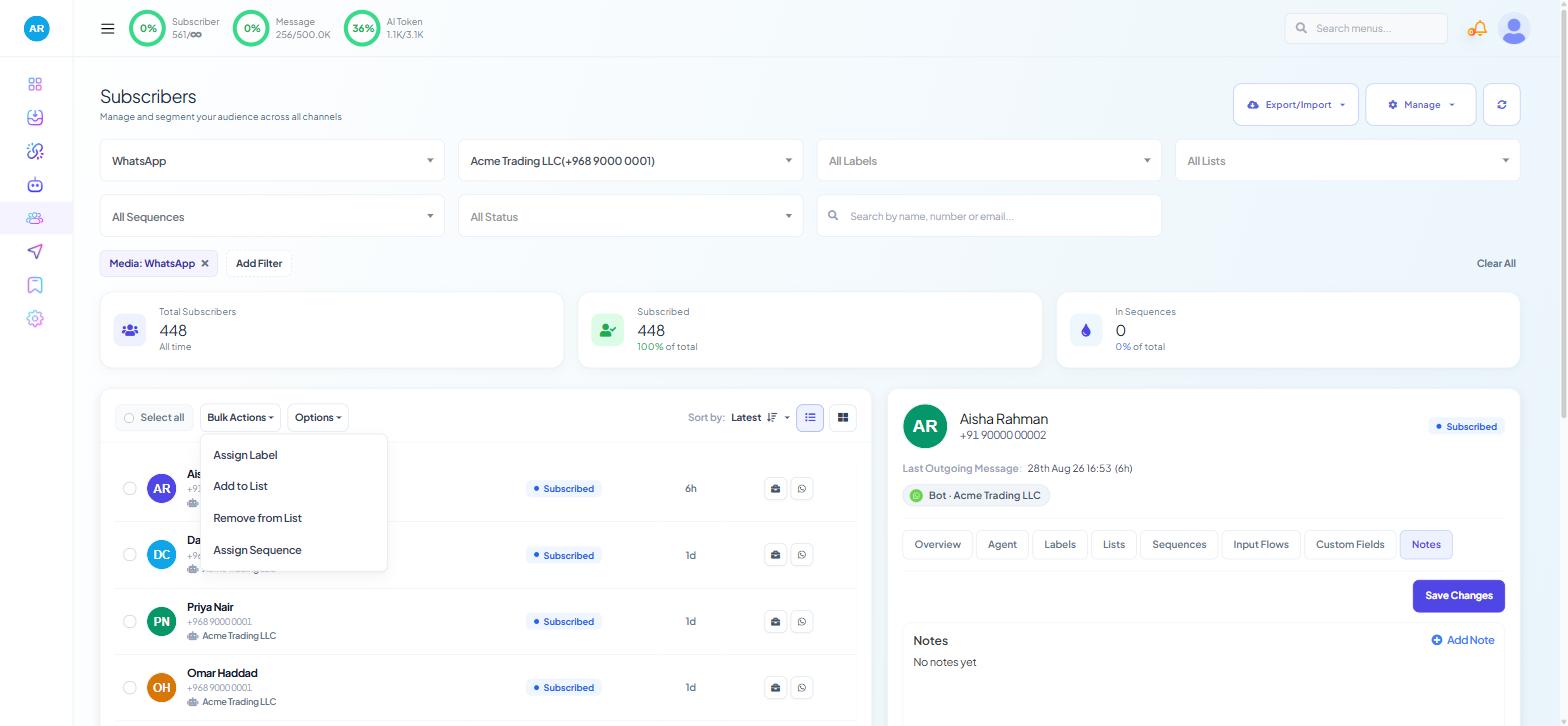
Check All Status first. Assigning a sequence to unsubscribed contacts wastes messages and, on WhatsApp, money. Use the All Sequences filter to leave out anyone already signed up.
Second way: the Bulk Assign button. Go to Chatbot Manager → your bot → Automation → Follow-up Sequences and click Bulk Assign, next to Create. Use it when you're already on the sequence list and want to sign up many existing subscribers at once.
5. Store events (WhatsApp only)
This is the strongest trigger, because the event is a real buying signal rather than a tap. Commerce exists on WhatsApp only.
Go to Commerce → Store Automation and open the create form. It starts with just
CAMPAIGN NAMEandSTORE TYPE.Pick a
STORE TYPE. The rest of the form appears.Pick the
ACTIONthat should fire it:WooCommerce: Order Notification, COD Verification and Order Update Notification
Shopify adds Abandoned Cart Recovery
In
ASSIGN SEQUENCE(next toASSIGN LABEL), choose your sequence.Optional: set
MESSAGE DELAY (MINUTES)to control the gap before the first message.
Every customer who hits that event enters the sequence. The classic use is an abandoned cart at 30 minutes, followed by a two-step recovery sequence.
6. Manually, one subscriber at a time
From Subscriber Manager: open the subscriber, go to the Sequences tab in the detail panel, add the sequence, then click Save Changes.
From the Shared Inbox: on the open conversation, use the Message Sequence field in the Chat Actions rail.
Useful for a customer who asks an agent to keep them informed, and for testing on your own record before anyone real joins.
Reference
Setting the timing
Timing is set per step on Configure Sequence Message. See WhatsApp Sequences With Template Messages, step 6.
Next: Sequence Unsubscribe and Resubscribe Logic, which covers getting people back out again, and back in when a delivery fails. If your labels aren't organised enough to segment on yet, Labels, Lists & Segments: How Scope Wiser Groups Subscribers is the place to start.