
Measuring Sequence Performance
Where a follow-up sequence's numbers live, from node counters to Subscriber Manager, and how to diagnose a gap between Sent and Delivered.
What this covers: where a sequence's numbers appear, a ten-minute weekly check, and how to work out why a step isn't arriving.
There's no single sequence dashboard. The answers sit in five places: the node counters, the campaign list, the Regular Message Report, the dashboard widget and Subscriber Manager.
The weekly check
Ten minutes a week catches the two failures that matter: a campaign that has stopped, and a step that isn't arriving.
Follow-up Sequences list: is
LAST SENT ATrecent for every live campaign?Regular Message Report: for each step, how far apart are Targeted, Sent and Delivered?
Node counters: where in the flow are subscribers dropping, and is Errors above zero?
Subscriber Manager: how many enrolled subscribers are still subscribed?
One conversation: open a real thread and read the ticks.
Change one thing, and give it a week before changing another.
Each place is explained below.
1. Node counters (the fastest check)
Open the sequence in the Flow Builder.
Read the counters on each message node, from the entry point down.
Every message node shows Sent · Delivered · Subscribers · Errors. Button nodes show Click · Subscribers · Errors.
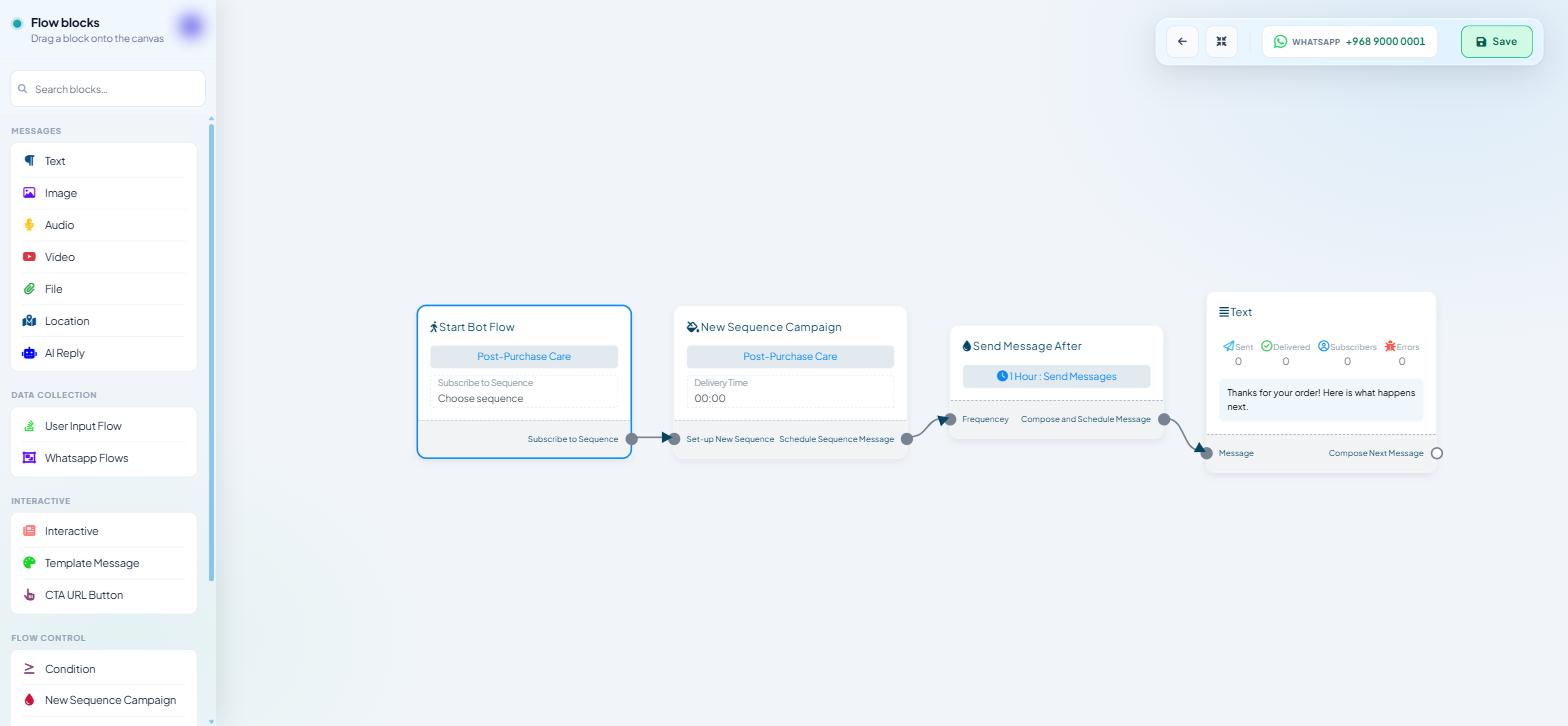
Subscribers falling sharply between steps: people are being removed, or the sequence isn't reaching them. Expect some decline, but expect it to be gradual.
Sent high, Delivered low on one step only: that step's content is the problem. On WhatsApp, a day-one template step is the usual suspect.
Sent zero on a step that should have fired by now: the sequence never reached it. Check the connection into that node and the schedule on its Configure Sequence Message panel.
Errors above zero: the message failed to send, not just failed to arrive.
This is the only view that tells you which step is losing people, and that's the thing you can act on.
2. The campaign list
Open Chatbot Manager → Automation → Follow-up Sequences weekly and read one column: LAST SENT AT.
An old timestamp means a stopped campaign. A campaign with subscribers and a timestamp from ten days ago has stopped delivering, and nothing else will tell you until somebody complains.
3. The Regular Message Report
In the
ACTIONScolumn, click the clock icon.A full-width panel headed Sequence Report slides over. It has three coloured counters and nothing else: Targeted · Sent · Delivered.
The report is per step, not per campaign. Each clock icon belongs to one step of the sequence (the first step is day zero), so a campaign with three steps has three sets of counters.
It does one job: tells you whether a step reached the people it should have.
Targeted well above Sent: people were dropped before the send.
Sent well above Delivered: the channel refused it.
There's no list of who received what. The report has no table, no per-subscriber rows, no timestamps and no search box. That view doesn't exist anywhere in the product.
4. The dashboard widget
The Dashboard has a Sequence Messaging Report card with a View all → link, next to the Broadcasting Report and Webhook Workflow Report. Use it to glance across every campaign: it's where you notice that something has gone quiet.
Next to it, Subscriber Growth (30 days) shows gain against drop. If Drop rises after you launch a sequence, check its spacing and opt-in wording.
5. Who is enrolled: Subscriber Manager
The In Sequences stat card shows how many subscribers are currently enrolled, with a percentage of your total.
The All Sequences filter narrows the list to one campaign. Combine it with All Status to see how many of your enrolled subscribers are still subscribed at all.
Any subscriber's detail panel has a Sequences tab listing their own enrolments.
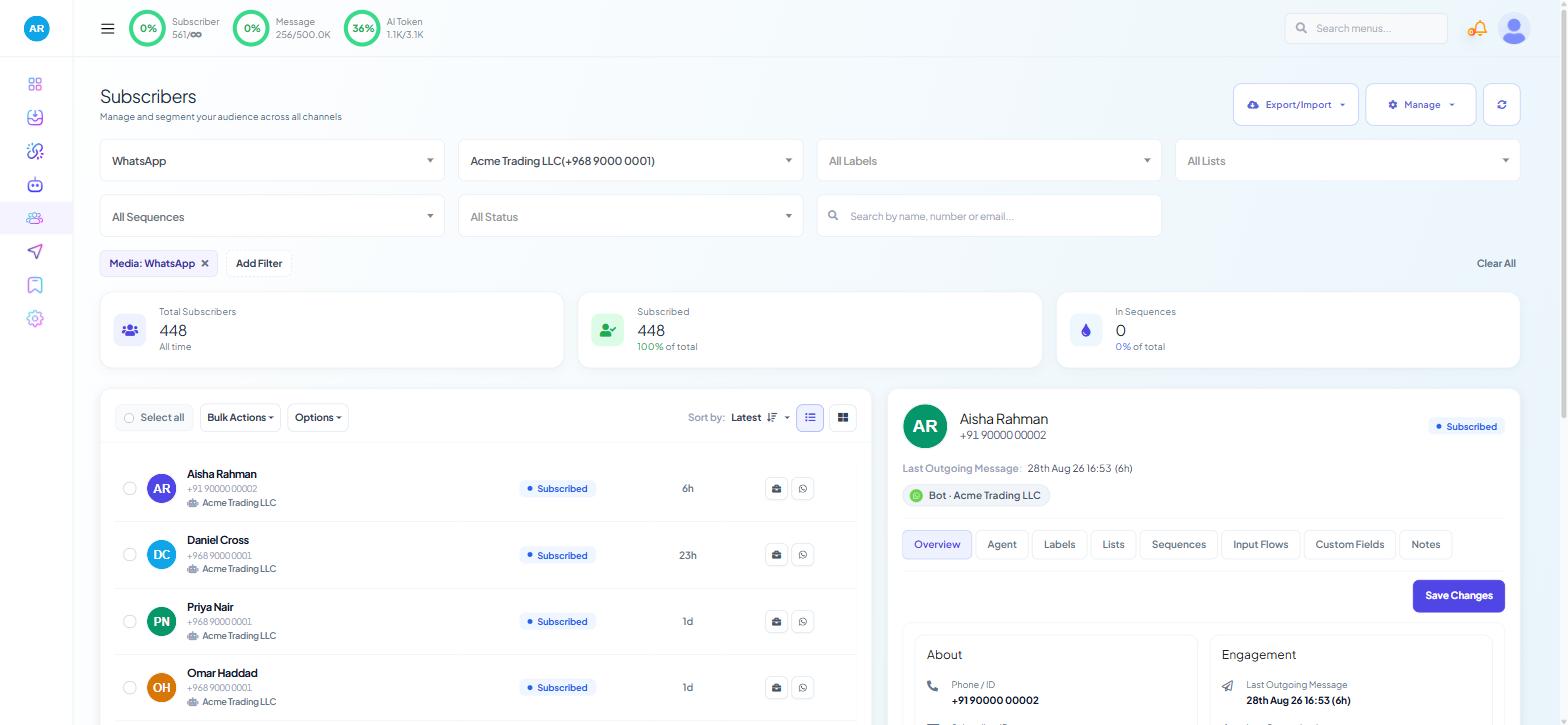
The most useful single number here is enrolled and unsubscribed. Your sequence counts these people but can't reach them, and on WhatsApp they may be costing you template messages.
If something doesn't work
Find which gap you have, then use the table under Reference. Also check:
Shared Inbox. Open an affected thread. Outgoing messages show delivery ticks under the sender tag, and the customer snapshot shows a Messaging Window of Inside 24H or outside it. On WhatsApp, a day-one step that failed against a closed window is a design problem, not a delivery problem: that step needed an approved template.
Message Templates. On WhatsApp, open Automation → Message Templates, run Sync Templates first, then confirm the template your step uses still reads
Approvedin theSTATUScolumn. Approval can change at Meta's end without notice.Connection health. Connect Account shows
MESSAGING LIMIT,QUALITYandLAST SYNCfor each number. A quality rating that has slipped toMediumis often the first visible sign of a drip campaign that is too aggressive.Get a list of failures, not a percentage. Set
ADD LABEL FOR UNSUCCESSFUL MESSAGE DELIVERYon Bot Settings → Shared Inbox and click Publish Changes. Every failure then labels the subscriber, and filtering by that label gives you a list to work through.The failures look like flow errors. Bot Error Logs and Custom Fields covers where those show up.
Reference
What the three counters mean
Targeted: subscribers due to receive a message at that step. It's a plan, not an outcome.
Sent: messages the platform actually attempted.
Delivered: messages that reached the device.
Diagnosing each gap
Gap | Likely cause | Fix |
|---|---|---|
Targeted > Sent | Unsubscribed after enrolling; messaging limit reached; skipped by a rule | Check All Status in Subscriber Manager and the |
Sent > Delivered | Number invalid or no longer on the channel; recipient blocked the business; messaging window closed | Open the thread in the Shared Inbox and read the Messaging Window state |
Errors above zero | Template paused or rejected; billing problem; malformed content | Run Sync Templates and check |
Errors isn't on the Sequence Report. It only appears on the node counters on the canvas, which is why you read both.
Next: Sequence Unsubscribe and Resubscribe Logic, for what to do about the people a report shows you missed. For audience counts more generally, Subscriber Metrics Explained covers how the totals on Subscriber Manager are worked out.