
Sequence Unsubscribe and Resubscribe Logic
How to take somebody out of a follow-up sequence, put them back in, and what the re-entry checkbox actually controls.
What you'll do: stop people being signed up twice, let customers opt out, remove someone from a sequence, and put them back in after a failed message.
Time: 10 minutes per task.
Two situations bring people here. A customer wants out of a drip campaign, and you need to handle that cleanly. Or a message didn't arrive, and you want to reset that person so the sequence runs again from the start.
1. Set the re-entry rule
The re-entry rule decides most of what happens.
Open the sequence's canvas.
Double-click the New Sequence Campaign node. The Configure New Sequence panel opens.
In Re-entry rules, tick the checkbox (it starts unticked):
Allow re-entry only after completion — subscribers won't be added again while the sequence is running. If triggered after completion, the sequence will restart from the beginning
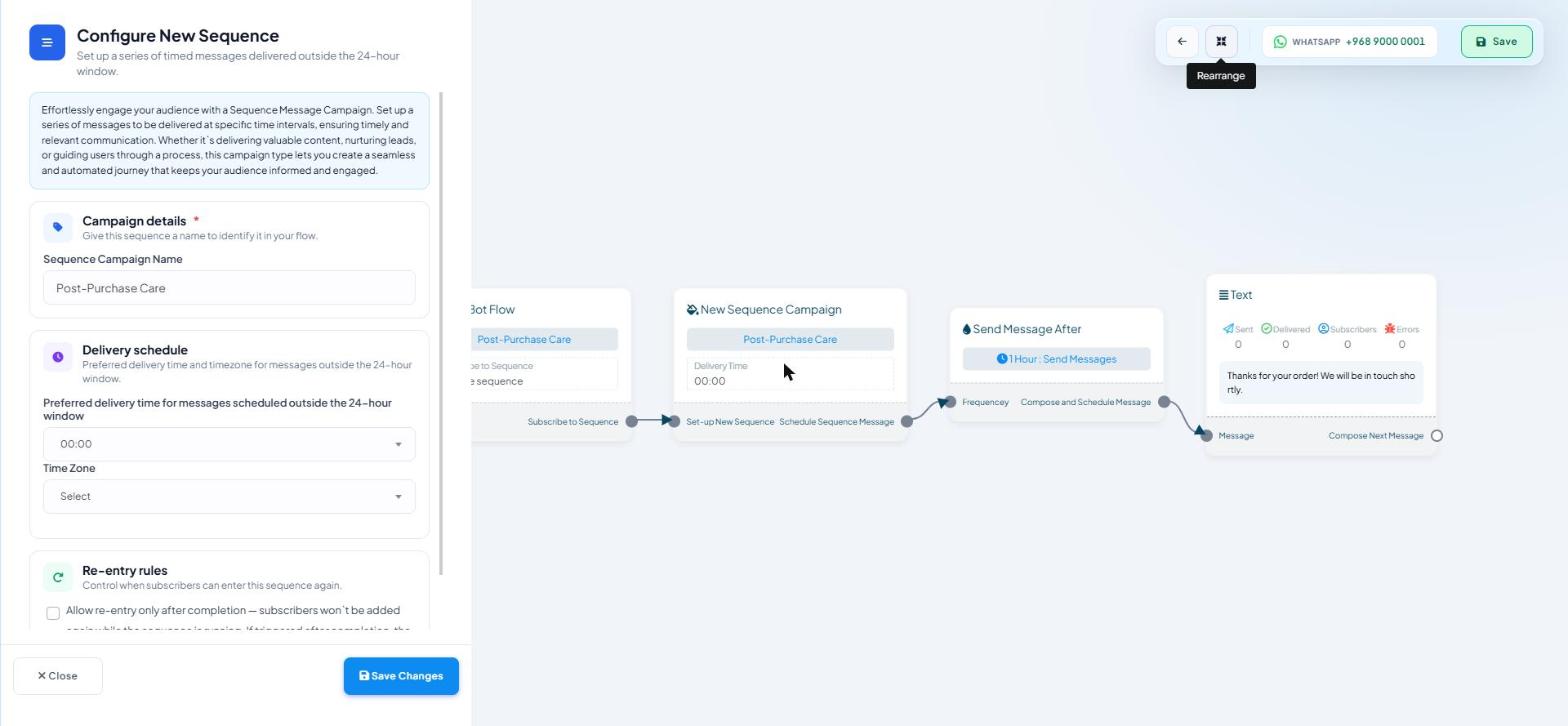
Ticked: someone already partway through can't be added again. Triggering it a second time does nothing until they finish. Once they've finished, triggering it again restarts the campaign from step one.
Unticked: a second trigger signs them up again while the first run is still going, and they receive both.
Tick it on any sequence with more than one way in.
This controls re-entry, not exit. Nothing on this panel removes a person partway through.
2. Let customers opt out
The clean way is a button the customer taps, so the decision is theirs and it's recorded.
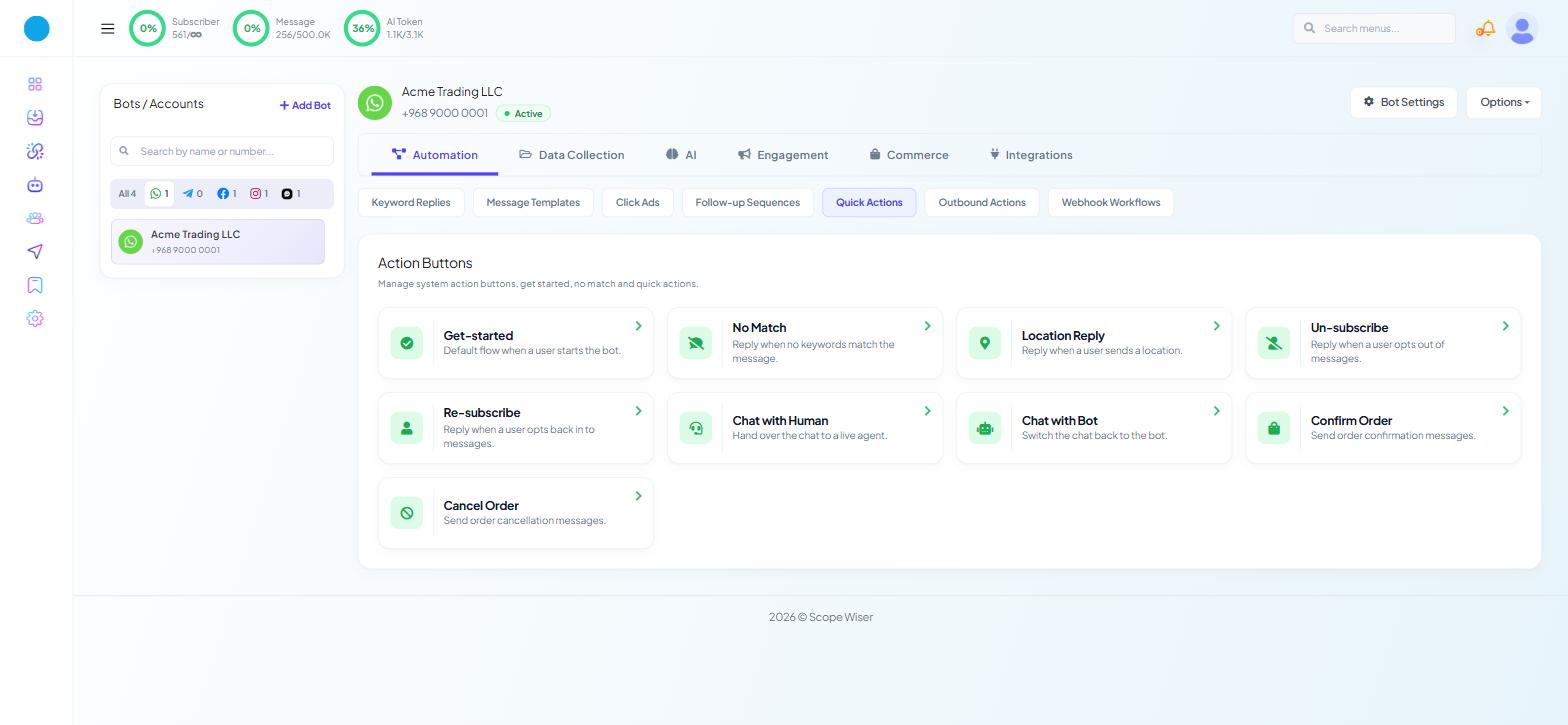
Go to Automation → Quick Actions. The page is headed Action Buttons.
Find the two ready-made cards:
Un-subscribe — "Reply when a user opts out of messages."
Re-subscribe — "Reply when a user opts back in to messages."
Open either card. It's a normal flow you can edit.
Change the wording of the confirmation message. The default text is generic, and an opt-out message is a good place to be gracious and to say plainly what happens next.
Click Save.
Both flows have the same shape: a Start Bot Flow node, an Interactive block with the confirmation message, and a Button node offering the opposite action. The cards say Un-subscribe / Re-subscribe; the flows inside are named Unsubscribe / Resubscribe.
3. Remove someone from a specific sequence
One person:
Open Subscriber Manager.
Find them with the "Search by name, number or email..." box.
Open their detail panel. Its tabs are Overview / Agent / Labels / Lists / Sequences / Input Flows / Custom Fields / Notes.
On the Sequences tab, which lists their enrolments, remove the campaign.
Click Save Changes.
Automatically, in a flow:
Double-click any Start Bot Flow node to open Configure Reference.
Under Automation Actions, use the
Unsubscribe from Sequencedropdown (next toSubscribe to Sequence).
A keyword such as STOP, or a button in your opt-out flow, can then remove someone without anybody touching Subscriber Manager. Point your opt-out button at that and it all runs itself.
There's no bulk remove. Remove people one at a time from their Sequences tab, or automatically with a keyword's
Unsubscribe from Sequenceaction.
A saved sequence can't be deleted. To retire a campaign, take the people out of it and remove its ways in.
4. Put someone back in
Once removed, the same ways in work again:
They send the keyword, or tap the subscribe button, and start from the beginning.
You assign them with Bulk Actions → Assign Sequence or Options → Assign Sequence.
You add the sequence on their Sequences tab and click Save Changes.
A fresh sign-up starts at step one, so they get the whole series again. That's exactly what you want after a failure, and exactly what you don't want after an opt-out.
5. Reset someone after a failed message
First find out whether the message failed or was never sent: open the sequence flow and read Sent · Delivered · Subscribers · Errors on the step's card. Measuring Sequence Performance covers what each gap means and where else to look.
Then:
Confirm the failure from the node counters and the conversation thread.
Fix the cause: approve the template, correct the number, restore billing.
Remove the affected subscriber from the sequence.
Sign them up again, by trigger or by assignment.
Watch the first step arrive before you repeat this for anyone else.
Fix the cause before you sign them up again. Re-enrolling someone into a sequence whose template is still paused repeats the failure and costs you the messages.
✅ Done when…
☐ The re-entry checkbox is ticked on every sequence with more than one way in
☐ Your Un-subscribe and Re-subscribe messages use your own wording
☐ Anyone you reset has received the first step again
If something doesn't work
A customer says everything arrives twice. That's usually the re-entry checkbox being unticked: a second trigger signed them up again while the first run was still going.
A re-enrolled customer fails again. The cause wasn't fixed first, for example the template is still paused.
The failures look like flow errors, not delivery problems. Bot Error Logs and Custom Fields covers where those show up.
Next: Measuring Sequence Performance, which covers where enrolment and delivery numbers appear across the product.