
Validation Rules for Input Fields
Reply types keep bad answers out of your database. Which reply type to choose for each question in a User Input Flow, what validation misses, how to test it.
What you'll do: choose the right reply type for each question in a User Input Flow, so the bot only accepts answers you can use.
Time: 10 minutes, plus testing.
If you accept any text as an answer you get "tomorrow" in a date field and unusable emails. Reply types stop that. Each question has a reply type, and the reply type decides what the bot accepts.
Before you start
☐ The custom fields the answers will be stored in exist.
1. Open the flow
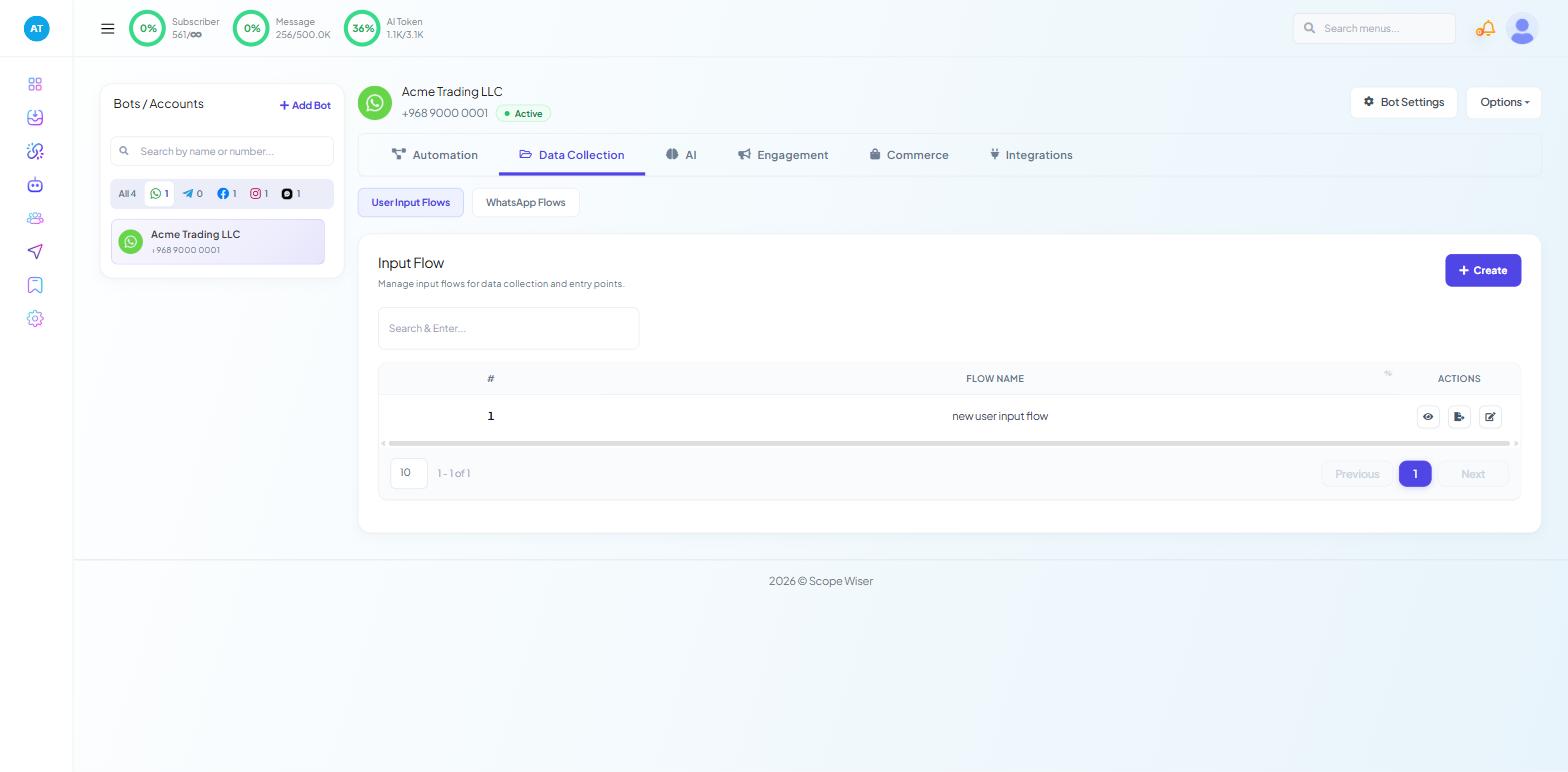
Open Chatbot Manager, select your bot, then Data Collection → User Input Flows.
Click + Create for a new campaign, or the edit (pencil) icon on an existing row.
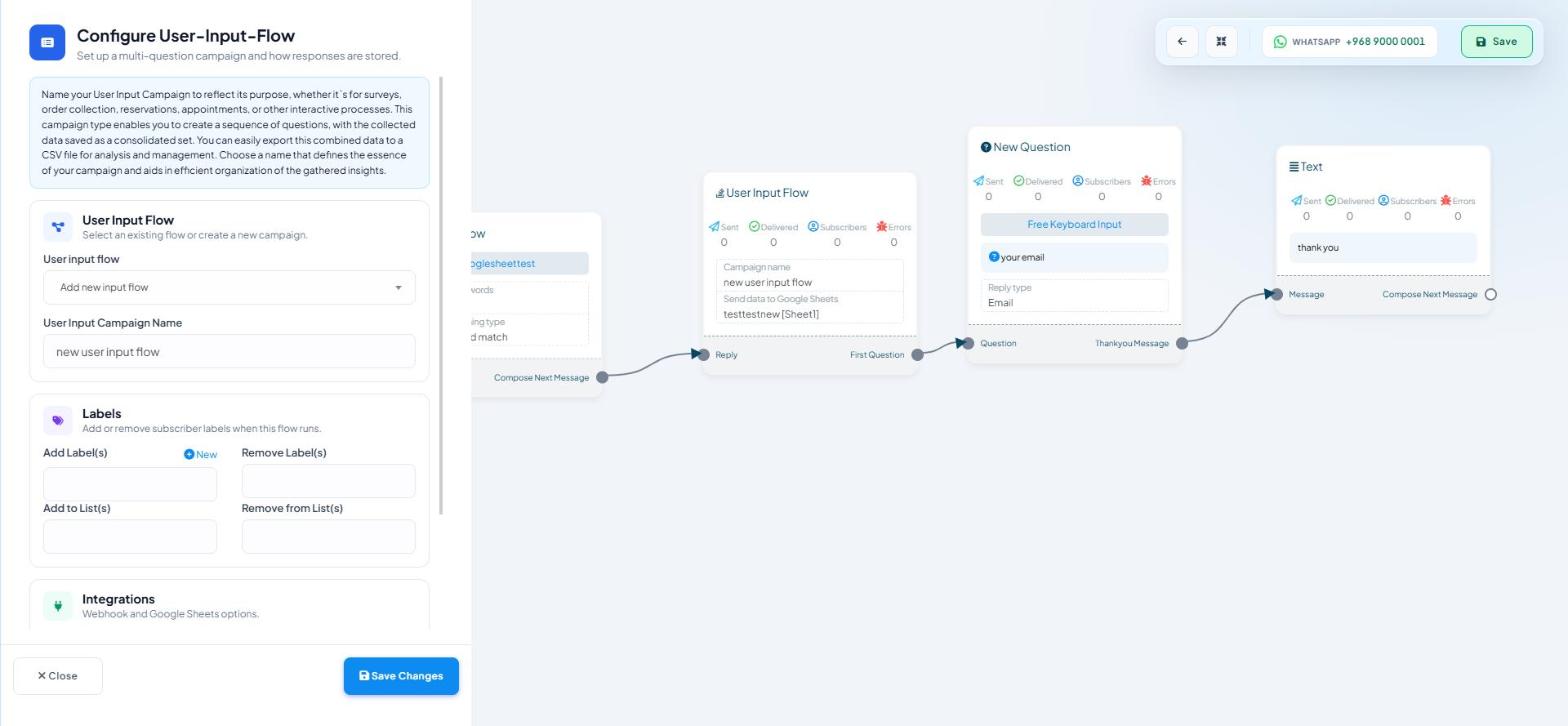
You should now see the Configure User-Input-Flow drawer.
Name the campaign for what it does (Wholesale enquiry, Service booking).
2. Set the reply type on each question
Build the questions from the User Input Flow node's First Question port.
Click a question block.
Choose the reply type (Text, Email, Phone …). Use the guide in the Reference section below.
Choose the custom field the answer is stored in.
Write the question with one example of the format. "Please send your mobile number including the country code, for example +968 9000 0001" gets the right format far more often than "What's your number?".
Repeat for each question.
3. Save
Save from the top right of the Flow Builder.
4. Test before you rely on it
Trigger the flow from a real conversation on the channel it will run on.
Answer badly on purpose: a phone number with no country code, an email with a typo, "next Tuesday" as a date.
Check that invalid answers are refused.
Check that a valid answer is accepted first time.
Check that the bot's retry message makes sense to the customer.
Open the contact in Subscriber Manager and read the Input Flows and Custom Fields tabs.
✅ Done when…
☐ Invalid answers are refused and valid ones accepted first time
☐ Each answer lands in the right custom field
If something doesn't work
A value landed in the wrong field. Fix the mapping on that question now.
A fake email got through. Validation checks the format, not whether the address is real.
nobody@example.compasses.You need your own format (an order reference, say). There is no custom pattern. Collect it as Text and check it later.
A Condition block can't compare a budget. It can test "budget over 5,000" only if the budget was collected as Number.
Reference
Choosing a reply type
Choose by what happens to the answer afterwards:
Text — names and free comments you will read rather than process. Don't default to it.
Email — anything going to an autoresponder, a CRM or an email follow-up.
Phone — any number you will message or call. Ask for the country code in the question.
Number — quantities, budgets, ages.
URL — a website, a social profile, a tracking link.
Date, Time, Datetime — bookings and appointments. Date for a delivery day, Datetime for a slot.
File, Image, Video — a document or photo instead of typed text.
For a fixed set of answers, use an Interactive block with buttons instead of an open question.
Designing a flow people finish
Put the easy questions first: name before budget.
Give one example of the format in the question.
Only validate what you need now. Collect the postcode when it becomes relevant.
Put a Condition block ahead of a question to skip it when the field already has a value.
End with a message confirming what you received.
Using Collected Data in Follow-Up Messages covers putting the data back into your messages.
Next: Building Multi-Step Forms.