
Input Flow Reports & Data Export
Read one subscriber's answers, export a User Input Flow campaign as CSV, or push responses to a webhook or Google Sheet — and when to use which.
What you'll do: read what one person answered, download everyone's answers to a campaign, or set answers to flow out automatically.
Time: 2–5 minutes.
To see one person's answers use Subscriber Manager; to download everyone's use the export icon on the flow.
You want | Use |
|---|---|
One person's answers | Subscriber Manager → the contact (step 1) |
Every answer to one campaign | The export icon on the flow (step 2) |
Answers sent out as they arrive | Webhook or Google Sheets on the campaign (step 3) |
The people, with their stored values | Subscriber Manager export (step 4) |
1. Read one subscriber's answers
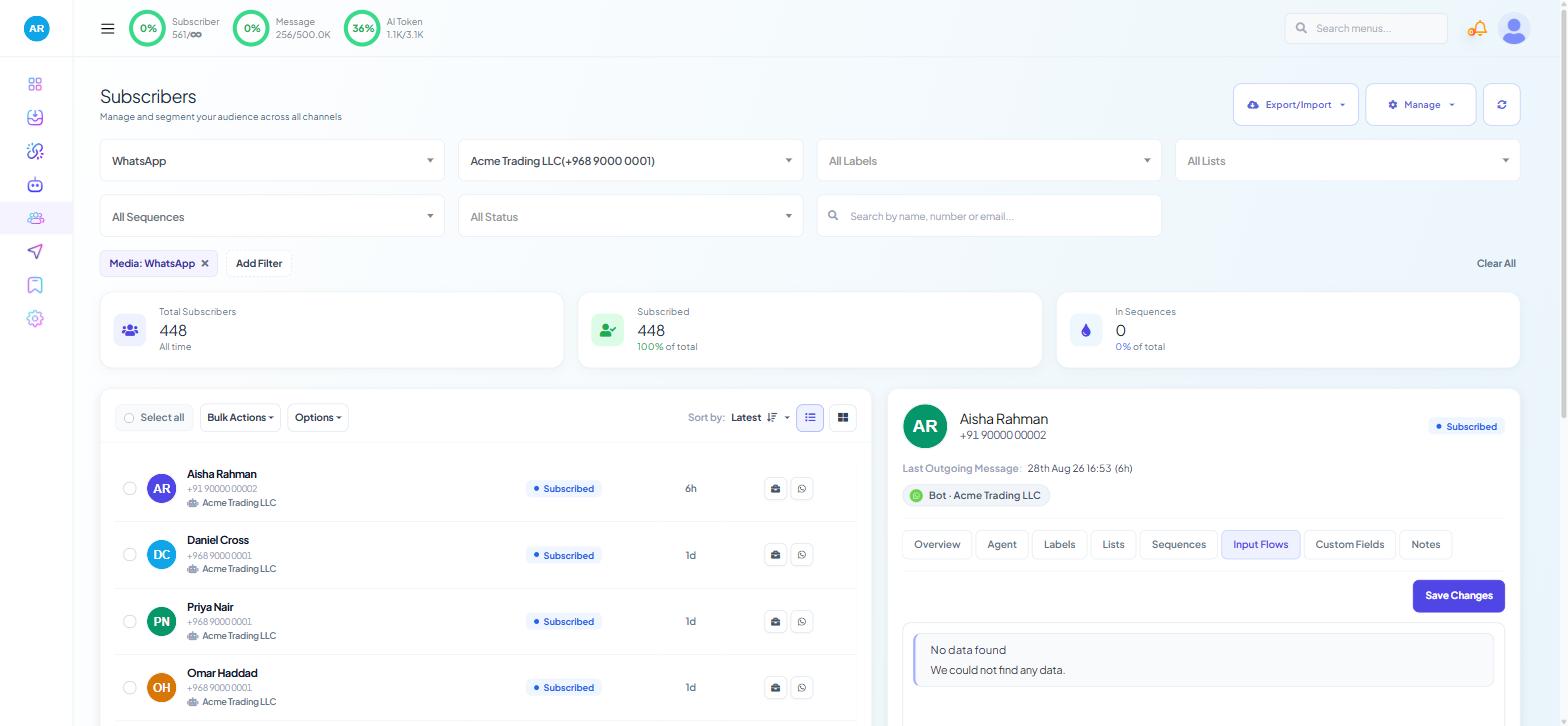
Open Subscriber Manager.
Find the contact. The search box takes a name, number or email.
Click the row to open the detail panel.
Open the Input Flows tab for the questions this person was asked and what they replied, as a set.
Open the Custom Fields tab for the same answers as stored values — what personalisation and broadcast targeting read.
To review a group rather than an individual, filter first. Channel, bot, label, list, sequence and status all narrow the list. The label your flow applies on completion is usually the quickest way to isolate everyone who finished a particular form. Viewing & Filtering Subscribers covers the combinations.
2. Export a whole campaign
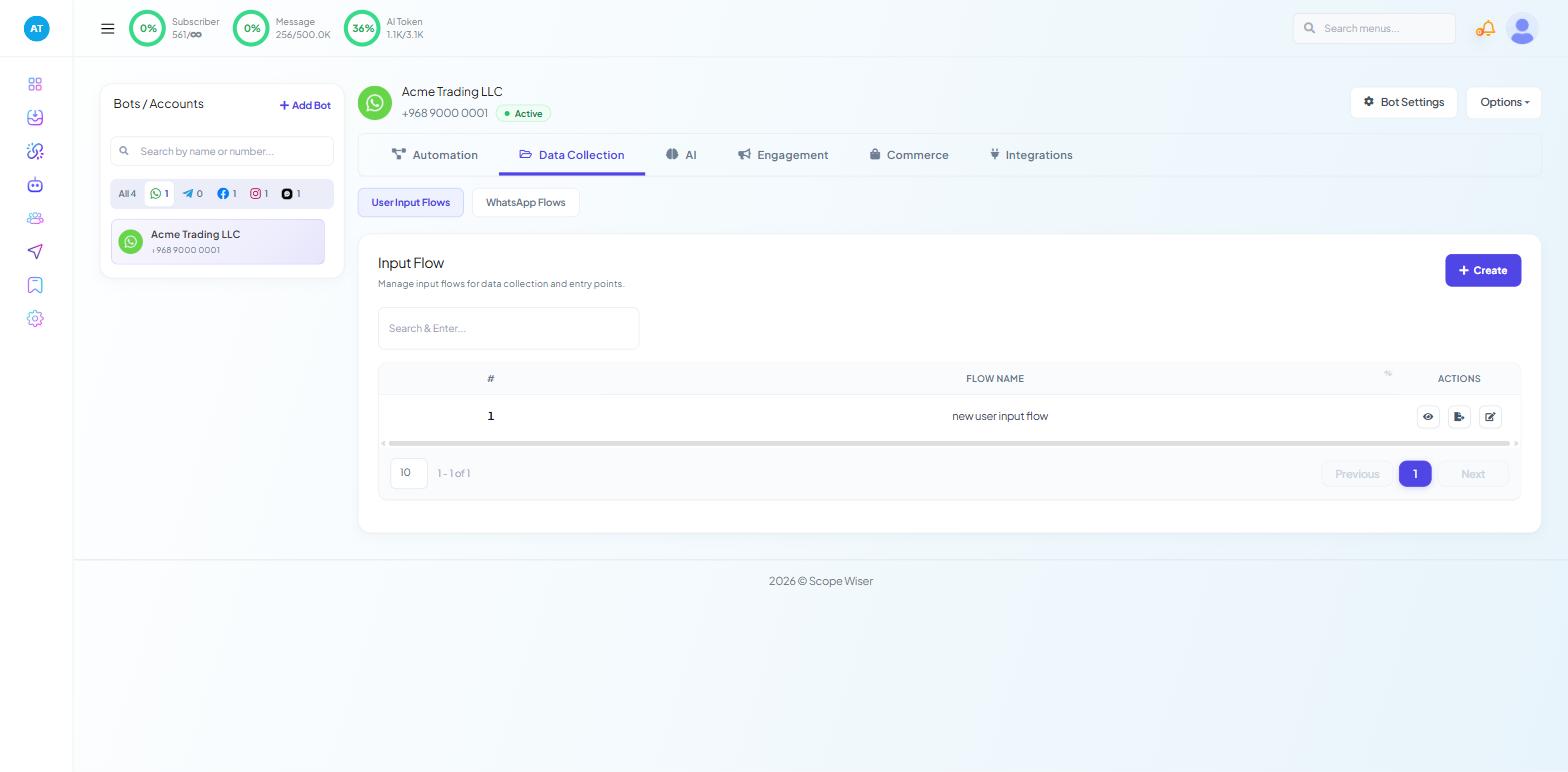
Go to Chatbot Manager, select the bot, then Data Collection → User Input Flows.
Find the campaign. The list shows #, FLOW NAME, a sortable date column and ACTIONS, with a "Search & Enter..." box above it and a page-size selector below.
Click the export (download) icon — the middle one of the three. Left to right they are: preview (eye), export (download), edit (pencil).
You should now see a CSV file download with that campaign's collected responses — one row per respondent, questions as columns — ready for a spreadsheet or an import into another system.
Export before you change a campaign. Editing questions changes what future rows look like; a download beforehand keeps the old shape intact.
3. Optional: export continuously instead
If you download the same CSV every week, set the campaign to push instead.
Go to Data Collection → User Input Flows and click the edit icon on the campaign.
In the Configure User-Input-Flow drawer, find the Integrations card ("Webhook and Google Sheets options.").
Set one of:
Forward Data to Webhook (for developers) — sends each answer set to your CRM automatically.
Sync Data to Google Sheets — writes responses into a connected sheet, which gives your team a live view without anybody having access to Scope Wiser.
The manual export then becomes a backup rather than a routine.
It isn't retrospective. It applies to responses collected from that point on, so configure it when you build the campaign if you can.
4. Export contacts rather than answers
This third export is often the one people actually want.
Subscriber Manager → Export/Import → Export all as CSV takes the contacts themselves, including their stored field values, and respects the filters you have applied.
Options → Download selected as CSV does the same for rows you have ticked.
Use the campaign export when the questions and their answers are the subject. Use the subscriber export when the people are the subject and their answers are attributes — building an audience for another channel, for instance, or handing a segment to a colleague.
✅ Done when…
☐ You can find one person's answers on their Input Flows tab
☐ You have a CSV of the campaign, or it pushes to a webhook or sheet
If something doesn't work
You need several campaigns in one file. There is no combined export across flows. Download each one and join them in the spreadsheet.
You need a date range. There isn't one. Export the campaign and filter by date in Excel or Google Sheets afterwards.
You want it emailed every Monday. There is no scheduling. Set up the webhook or Google Sheets push in step 3 instead.
You corrected the CSV and want to upload it back. An edited CSV cannot be re-imported to update the responses it came from. Use it to enrich a CRM or plan a campaign, not as a place to correct data.
Older answers are missing from the sheet or webhook. Continuous export applies only from the moment you set it.
Reference
Habits worth keeping
Export before you change a campaign.
Label at collection time. A campaign's Add Label(s) setting costs nothing to configure and makes every later filter, count and audience trivial.
For flows that write to a spreadsheet as part of the conversation itself, see Exporting Flow Data to Google Sheets.
Next: Using Collected Data in Follow-Up Messages.