
Collecting Data With Multi-Step Flows Forms
Five ways to send a WhatsApp Flow in Scope Wiser — keyword, template button, broadcast, quick action, website form — and where the answers end up.
What you'll do: pick one of five routes to put your published WhatsApp Flow in front of customers, then find their answers.
Time: 5–15 minutes, depending on the route.
A published form does nothing on its own. It must be sent by one of the routes below.
Before you start
☐ Your form is built and published. Creating a WhatsApp Flows Form covers both builders, and explains why a WhatsApp Flow is not the same thing as a User Input Flow.
☐ In Flows Studio, each field is mapped to a custom field (see step 6).
1. Choose your route
Route | Best for | Limitation |
|---|---|---|
Keyword | Customer-initiated requests — bookings, registrations, quote requests | Only reaches people who message you first |
Message template button | First contact, follow-ups outside the 24-hour window, re-engaging people who went quiet | Template approval takes time, and the wording is fixed once approved |
Broadcast | Collecting the same information from a known list — a survey, an onboarding round, a renewal check | Volume is capped by your WhatsApp Business Account conversation limit |
Quick action | Capturing information at a moment the customer already cares about | You get one shot per event; keep the form short |
Website form | Turning a web lead into a WhatsApp conversation within seconds | Needs an approved template, a correctly formatted phone number, and field mapping that survives a change to your web form |
Then follow the matching step below.
2. Route 1: send it on a keyword
The simplest trigger.
Go to Automation → Keyword Replies and build a flow.
On the Start Bot Flow node, set the Trigger Keywords.
Set Keyword matching type to String match ("Match similar keywords"), not Exact keyword match, for anything a customer might phrase in their own words. Someone typing "I want to register for the class" should still reach your registration form.
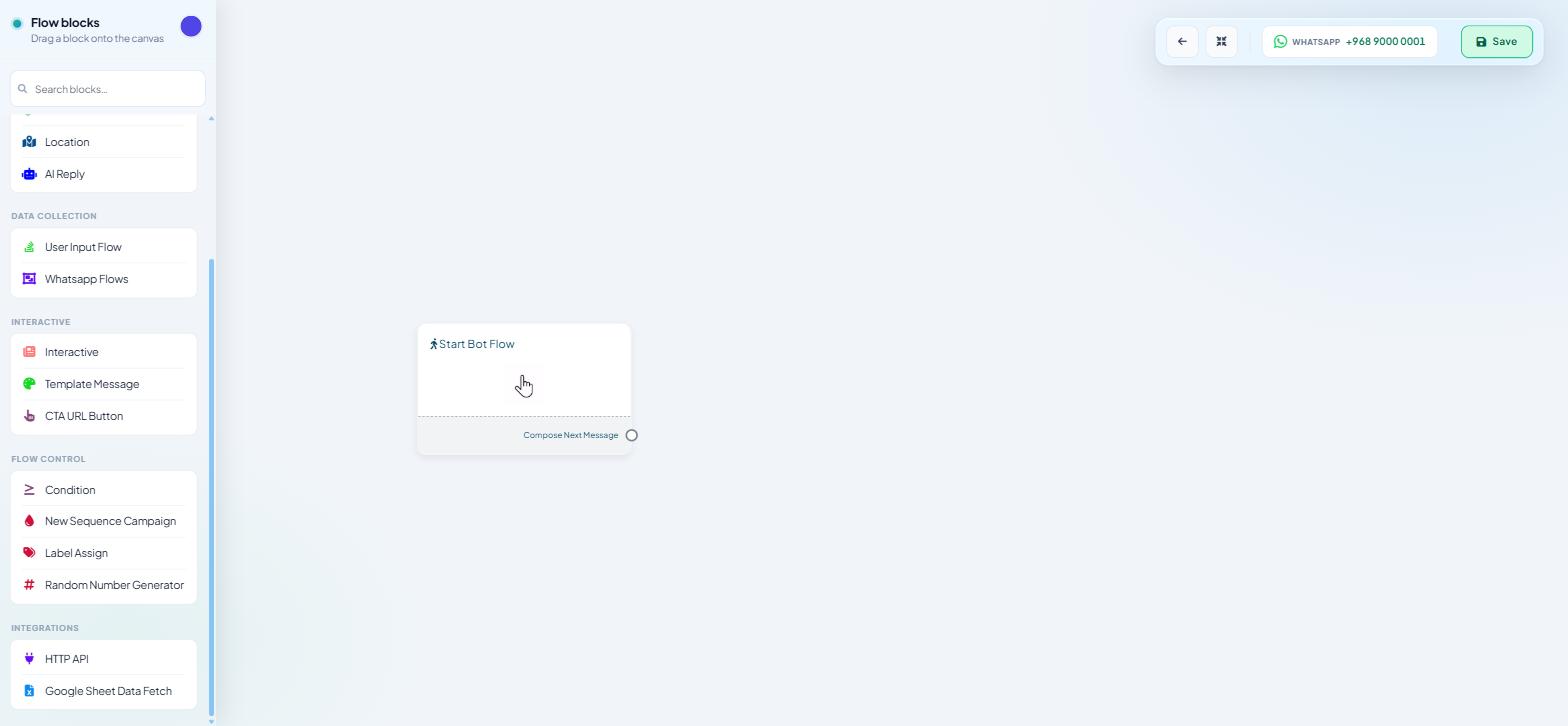
From the DATA COLLECTION group of the palette, drop the Whatsapp Flows block into the flow.
3. Route 2: send it from a message template button
Use this to start the conversation yourself, or to reach someone whose last message was more than 24 hours ago. You need an approved template with a button that starts a bot flow.
Go to Automation → Message Templates and open the Create menu. It offers General Template, WP Template, Mixed Template, Carousel Media Template, Carousel Product Template and Default Template.
Add a button to the template.
Set the button to start the bot flow that contains your Whatsapp Flows block.
Wait for approval. Check the list's STATUS column.
Only approved templates can be sent.
4. Route 3: send it in a broadcast
Broadcasts are composed in the Flow Builder, not in a separate composer.
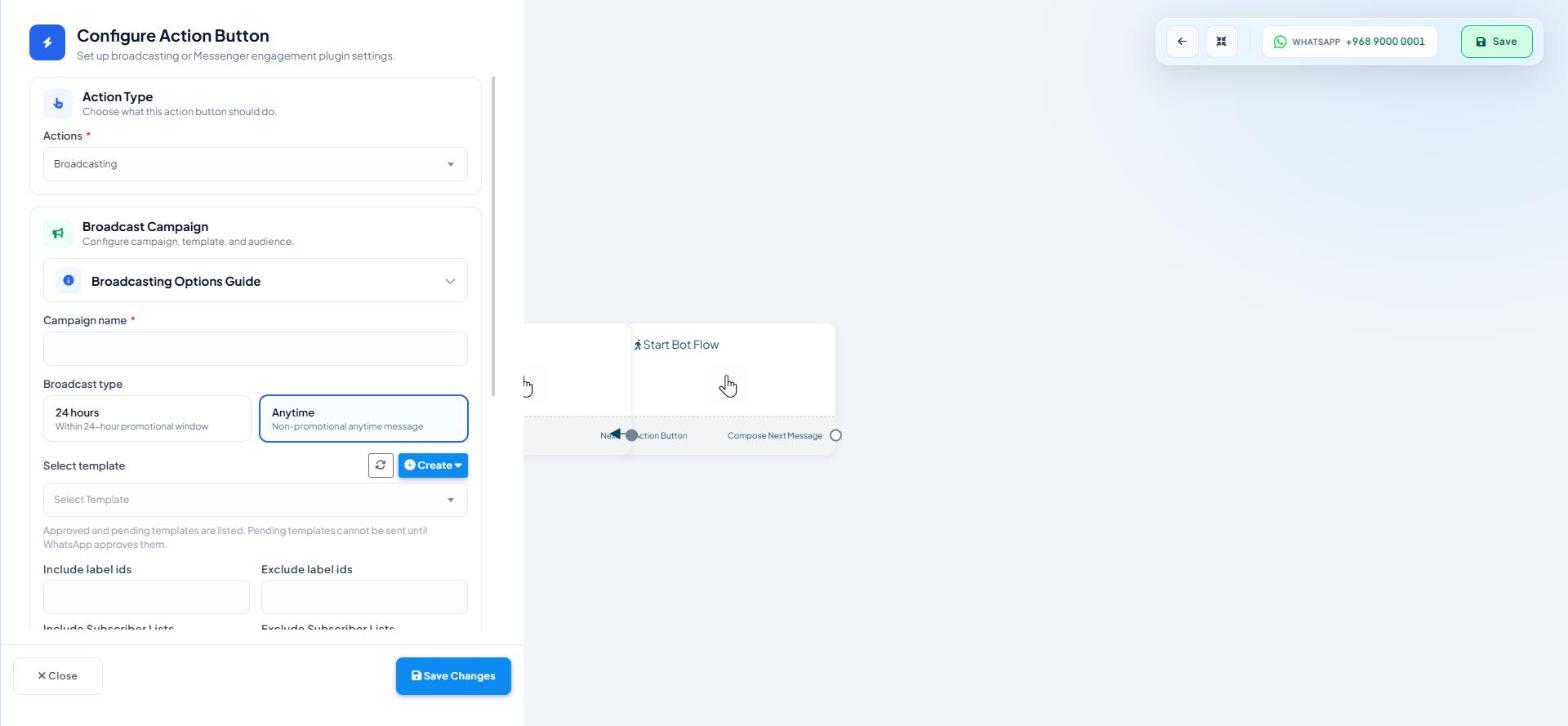
Go to Broadcasting → Broadcast Center → + Create Campaign. The Flow Builder opens with a Configure Action Button drawer.
In the Broadcast Campaign section — "Configure campaign, template, and audience." — fill in Campaign name and Broadcast type.
In Select template, choose your template.
Choose your audience with the label and list include/exclude fields, the country filter and the custom-field filters.
Fill in Assign label after broadcast. It gives you the exact audience that received the form, which you will want when you compare who received it against who submitted.
Pending templates can't be sent. The note beside Select template says: "Approved and pending templates are listed. Pending templates cannot be sent until WhatsApp approves them."
The drawer shows your volume cap as "Daily WhatsApp Business Account (WABA) conversation limit".
5. Route 4: send it from a quick action
Go to Automation → Quick Actions.
Open the system card you want. Each one opens its own flow.
Add a Whatsapp Flows block to that flow.
The cards are Get-started, No Match, Location Reply, Un-subscribe, Re-subscribe, Chat with Human, Chat with Bot, Confirm Order and Cancel Order. Two are unusually good places for a form:
Get-started can qualify a new contact the moment they arrive.
Confirm Order can collect delivery details straight after a purchase — delivery preference, a gift note, a question about fit.
6. Route 5: send it from your website form
A submission on your own site can trigger a Flow on WhatsApp through Automation → Webhook Workflows — "Build webhook-based automation workflows." This route has the most moving parts and its own guide: Triggering a Flows Form From Your Website.
7. Find the answers
Custom fields. In Flows Studio, each field has a Custom Field dropdown — "Select Custom variable". Map it, and the answer lands on the subscriber's profile, under the Custom Fields tab in Subscriber Manager. This is what makes the data useful later: custom fields can be filtered on in the Subscriber Manager and used as broadcast conditions.
Google Sheets. Both builders have a sheet field — Whatsapp Flow Data in Google Sheet in the classic builder, GOOGLE SHEETS in Flows Studio.
A CSV export. Subscriber Manager → Export/Import → Export all as CSV gets subscriber data, including custom fields, out in bulk.
✅ Done when…
☐ Your form reaches customers through at least one route
☐ Submitted answers appear in custom fields, your sheet or your export
If something doesn't work
The template doesn't send. Only approved templates can be sent. Check the STATUS column in Message Templates.
Customers phrase the keyword their own way and get nothing. Use String match, not Exact keyword match.
Answers aren't on the subscriber's profile. The field wasn't mapped to a Custom Field. Retrofitting means asking the customer again.
Reference
Designing a form people finish
Map every field to a custom field as you build. Retrofitting means re-asking the customer.
Say what happens next in the REPLY AFTER SUBMIT message. A form that ends in silence reads as broken.
For developers
Submissions can also be sent to an HTTP API, using the SELECT HTTP API / HTTP API setting on the form. Build the connection first under Integrations → HTTP API.
Next: Triggering a Flows Form From Your Website.