
Triggering a Flows Form From Your Website
Send a WhatsApp Flow automatically when someone submits a form on your site, using Webhook Workflows: callback URL, field mapping, phone format and testing.
What you'll do: when someone submits a form on your website, a WhatsApp template goes out to them with a button that opens your WhatsApp Flow.
Time: 30–45 minutes, plus waiting for template approval.
This is the most technical article in the module. Here is the chain you are building:
Website form submitted
Webhook fires to Scope Wiser
Webhook Workflow matches it to an approved template
Template sends to the submitter's WhatsApp number
They tap the button
Your bot flow runs
The WhatsApp Flow opens
Don't leave out the template. Someone who has just filled in a web form has not messaged you, so the conversation has to start with an approved template — see WhatsApp Rules You Must Know: 24-Hour Window & Template Messaging. Its button is what hands control to your flow.
Before you start
☐ A WhatsApp number connected to Scope Wiser, with a working bot on it
☐ A published WhatsApp Flow. Build it first — see Creating a WhatsApp Flows Form.
☐ A form on your site that collects a WhatsApp phone number. Without a number there is nobody to message.
☐ A form tool that can call a webhook — a "webhook" or "send to URL" option. WPForms, Elementor Pro, Zapier and Pabbly all have one.
1. Check the WhatsApp Flow is published
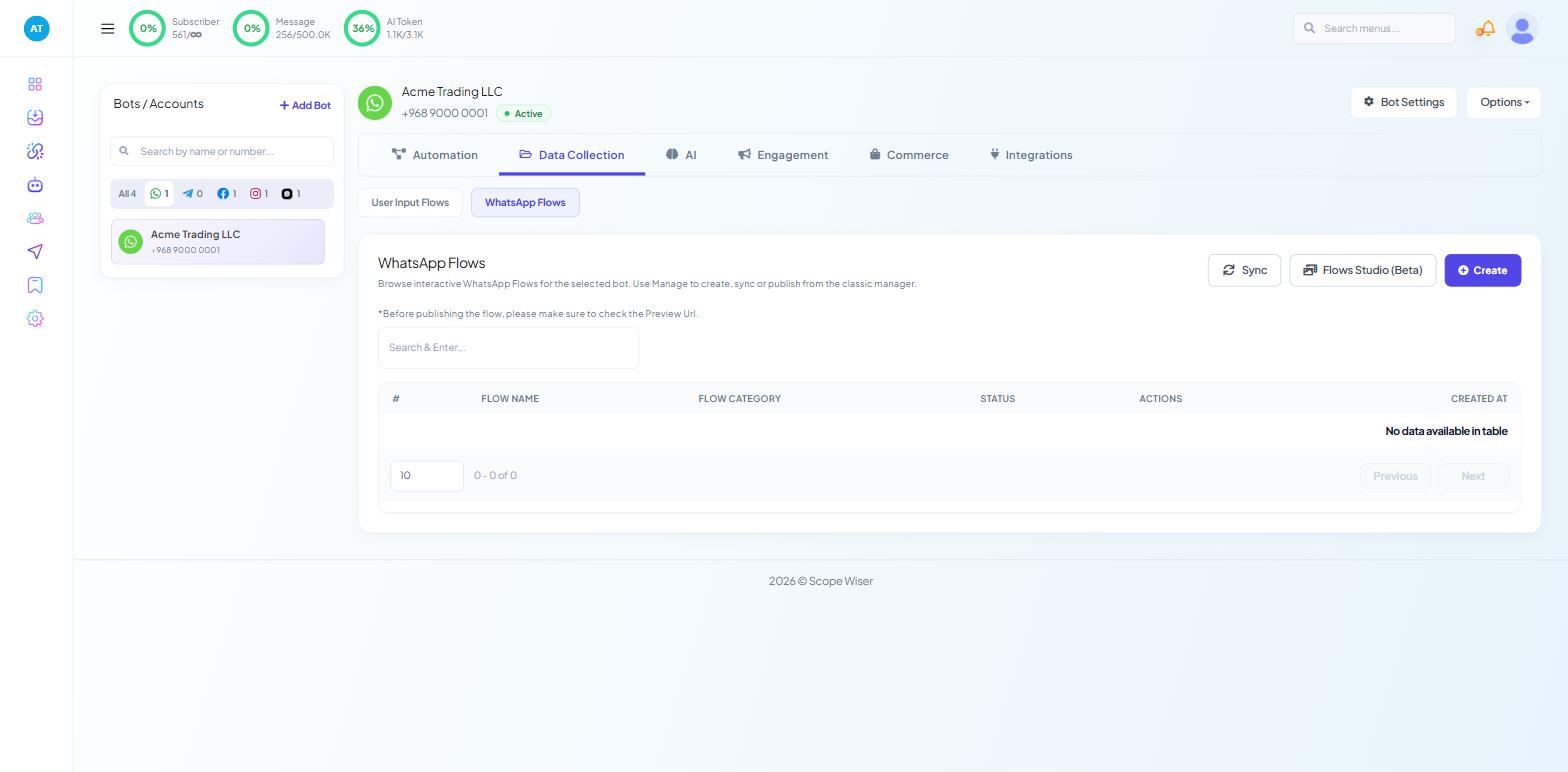
Go to Chatbot Manager → Data Collection → WhatsApp Flows.
Find your flow in the list and check its STATUS shows it as published.
Write down the field names you used. Matching them up later is much harder than writing them down now.
A draft flow will not open. That is the single most common cause of "the message arrived but nothing happens when I tap the button".
2. Create the message template
Go to Automation → Message Templates and click Create.
Write a short, specific body. Someone receives it seconds after filling in a form, so name your business and what they just did: "Thanks for your enquiry about wholesale pricing — tap below and we will get you a quote today."
Add a button and set it to start the bot flow you build in step 3. A plain text template gives the recipient nothing to tap.
Submit it for approval.
Only approved templates can be sent; check the STATUS column. You can carry on with the rest of the build while approval is pending.
3. Build the bot flow that opens the form
This is the flow that runs when the button is tapped.
Open the Flow Builder for your WhatsApp bot and create the flow.
From the DATA COLLECTION group of the palette, drag the Whatsapp Flows block onto the canvas. Note the spelling — Whatsapp Flows, one capital.
Connect it.
Optional: for a pause before the form appears, open Delivery Options on the message block before it and set Delay in reply with the Hours 0–23, Minutes 0–59 and Sec 0–59 sliders. The maximum is 23 hours 59 minutes 59 seconds, not 24 hours.
Save the flow.
4. Create the Webhook Workflow
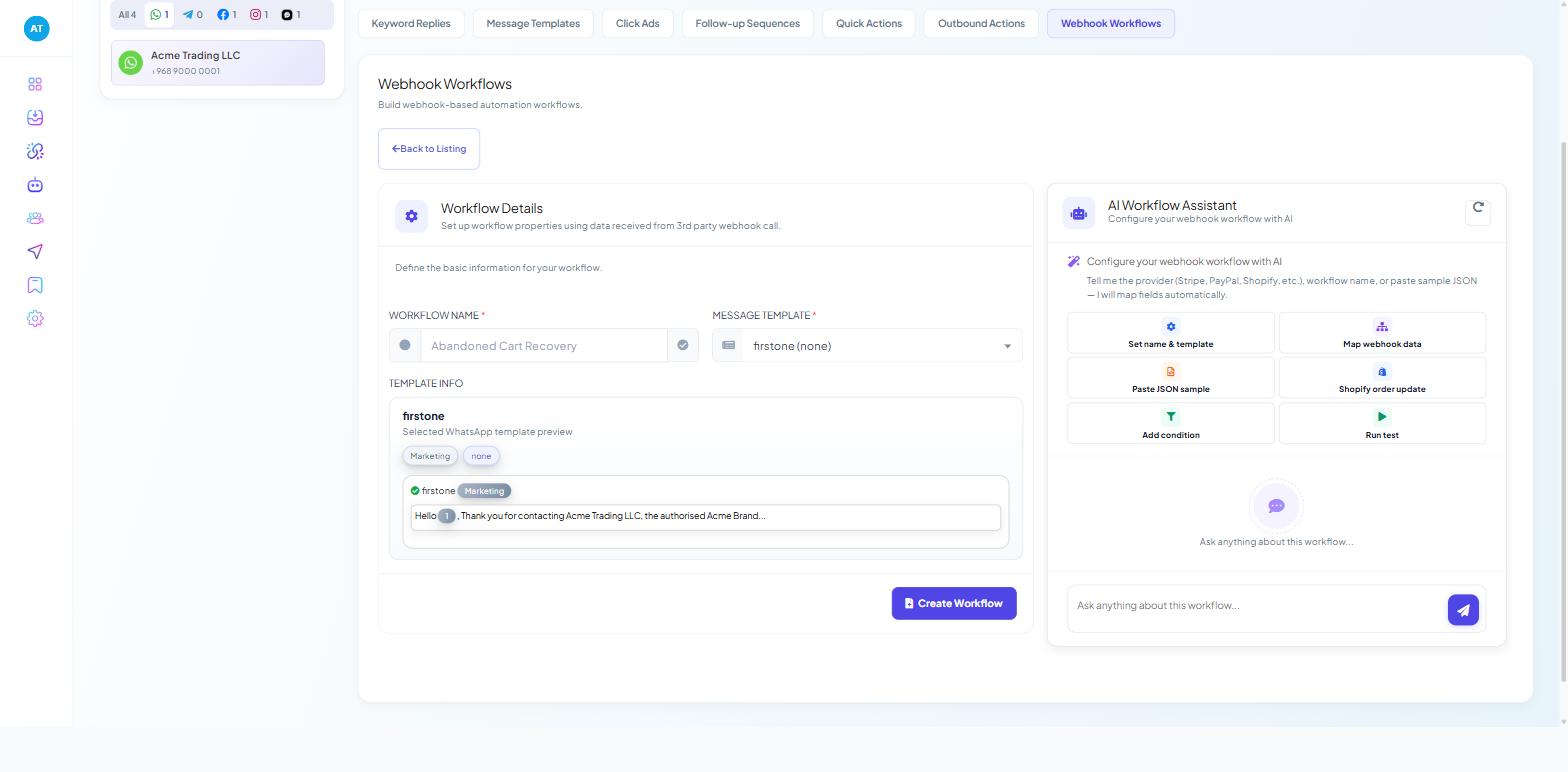
Go to Automation → Webhook Workflows — "Build webhook-based automation workflows." — and click Create.
You should now see the Workflow Details card, headed "Set up workflow properties using data received from 3rd party webhook call."
In WORKFLOW NAME *, name it for the form it serves: "Website contact form", "Pricing page enquiry". (The placeholder reads "Abandoned Cart Recovery".)
In MESSAGE TEMPLATE *, choose the template from step 2. The TEMPLATE INFO block below shows a read-only preview, tagged with its category, so you can confirm it's the right one.
Optional: if your form tool gives you a sample, paste it into AI Workflow Assistant → Paste JSON sample to fill the mapping automatically.
Click Create Workflow.
No webhook URL yet? Nothing below those two fields exists until you click Create Workflow. Hunting for the URL on an unsaved form gets you nowhere.
Webhook Workflows missing from Automation? That is a role gate, not a missing feature. WHATSAPP - WEBHOOK WORKFLOW is its own toggle under Control Panel → User Permission.
5. Copy the webhook URL
In the saved workflow, find the Configure Webhook Data section — "Provide sample JSON, capture a real-time response, or use AI to map fields."
Copy the address in the read-only Webhook Callback URL box, under the note "Copy and paste into your external app to send data to this workflow." That is the URL your form posts to.
To fetch it again later, use Copy Webhook URL in the kebab menu on the workflow's row in the list.
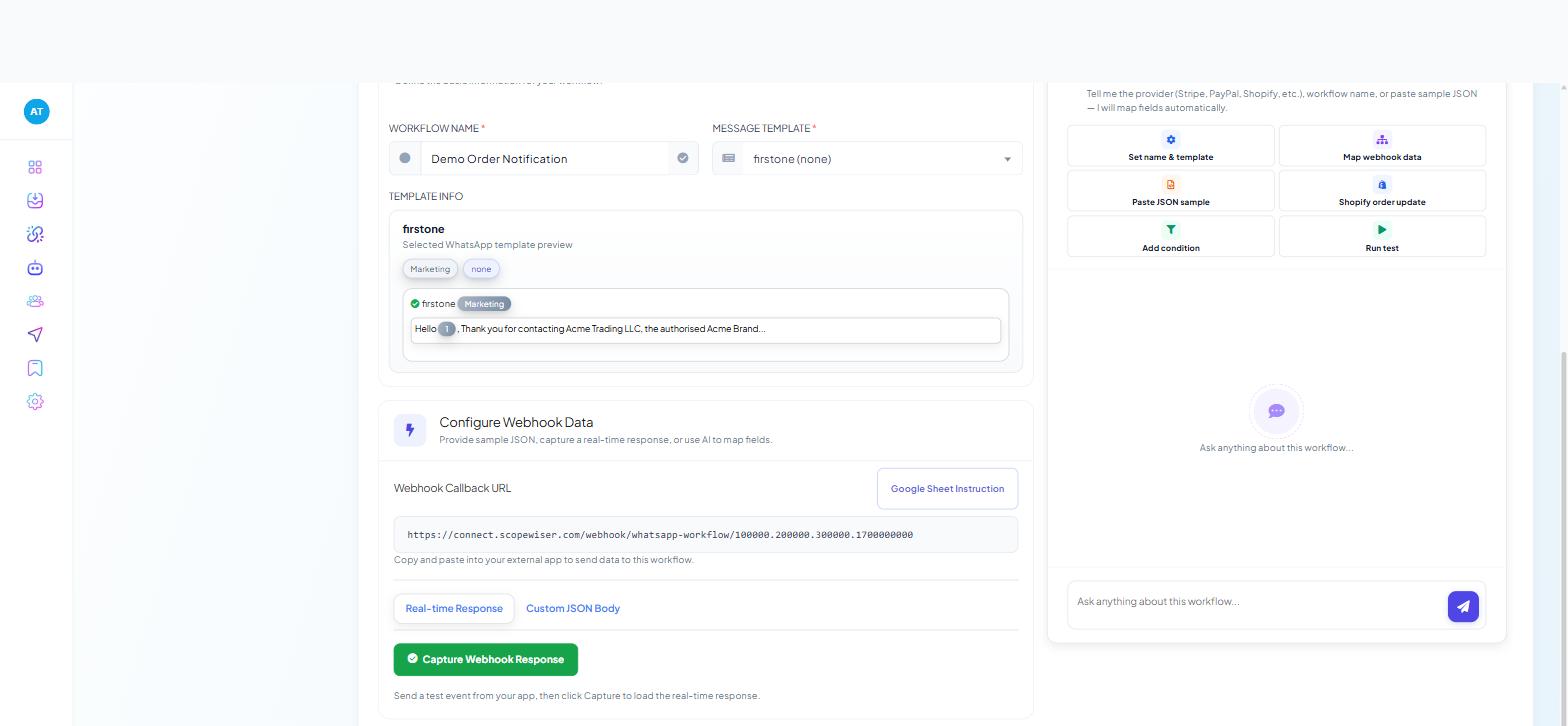
There is no flow to attach here. The workflow only sends the template; what the button opens is set on the template button (step 2).
6. Add the webhook to your site form
In your form tool, add a webhook or HTTP POST action that fires after submission.
Paste the URL from step 5 into it.
Two rules decide whether this works:
Field names must line up. Whatever your form calls the fields —
name,phone,email— those names are what Scope Wiser receives. Renaming one on your website later breaks the mapping silently. Keep them boring and stable.The phone number must be in full international format, including the country code, with no spaces or brackets —
+96890000001, not9000 0001. Where a form lets people type freehand, add a country selector or validation.
Wrong phone format is the commonest failure. The workflow captures the data perfectly and sends nothing.
7. Capture a sample and map the fields
Submit your website form once as a test.
Click Capture Webhook Response.
In Webhook Response Mapping, choose which form field goes into PHONE NUMBER and into each template variable.
Read the mapping, even though it fills itself in. A wrong mapping is the failure that delivers flawlessly and says the wrong thing.
You should now see a green Yes in the row's VERIFIED column once a payload has been captured. That is what the list's Any Verification filter reads. Nothing captured means nothing to map.
8. Test it end to end
Test as a stranger would, on a phone that is not your bot's number.
Submit the form with a real number you control.
The template message should arrive within seconds.
Tap the button. The WhatsApp Flow should open.
Complete and submit it.
Check the answers landed. They appear under Subscriber Manager → Custom Fields only for fields you mapped, and in Google Sheets only if you set the sheet on the form.
✅ Done when…
☐ The workflow row shows VERIFIED Yes
☐ A test submission sends the template to your phone within seconds
☐ Tapping the button opens the WhatsApp Flow
☐ Your answers appear where you mapped them
If something doesn't work
If a step fails, stop there rather than changing three things at once.
The message arrived but nothing happens on tap. The WhatsApp Flow is still a draft. Publish it.
Data captured, nothing sent. Check the phone number is in full international format with the country code.
The message says the wrong thing. Check the field mapping.
The mapping broke after a website change. A form field was renamed.
The template won't send. It isn't approved yet.
Still stuck? Flows Form Troubleshooting works through the causes in this same order, and covers the Workflow Report that shows what happened to each send.
Reference
Actions following successful webhook call
The last section of the workflow, Actions following successful webhook call, can assign the conversation to a team role or member, add or remove a label, set the subscriber's name from a mapped field, and enrol the person in a follow-up sequence with ASSIGN SEQUENCE.
The workflow row's kebab menu
Copy Webhook URL, Report, Resend All Failed Webhook, Download Report, Edit Connection and Delete.
For developers
The Custom JSON Body tab takes a payload you paste, and Run Test loads the mapping fields from it with no external trigger. A sample body from your form tool's documentation is enough to finish the workflow while the form itself is still being built.
Each mapping row also has a Select Formatter dropdown. Trim Left with + as its parameter strips a leading plus from a phone number, and Concat List Items joins an array into the single string a variable can hold.
The Raw Data panel on the workflow — "The original webhook data received in raw format" — keeps the captured payload pretty-printed, and Edit Connection in the row's kebab menu reopens the workflow when a mapping needs changing.
Once one form works, the second takes ten minutes. The other delivery routes — keyword, broadcast, quick action — are covered in the next article, and most businesses end up running two or three side by side.
Next: Collecting Data With Multi-Step Flows Forms.