
AI Customer Service: Business Hours and After-Hours Replies
Set business hours, decide what the AI does when your team is offline, write an honest after-hours reply, and queue overnight conversations for the morning.
What you'll do: set up an AI agent to answer when your team is offline, and leave overnight conversations ready for the morning shift.
Time: 20 minutes.
Before you start
☐ You have an AI agent built and enabled. See AI Assistant Overview: What It Can and Cannot Do.
☐ You have decided what the AI may answer:
Let it answer stable facts: delivery areas, opening hours, the returns window, what a product does.
For orders, refunds and complaints, have it collect details and promise a reply.
Add legal, medical and financial topics to Restricted Topics (see AI Intent Detection and Agent Routing).
1. Set your business hours
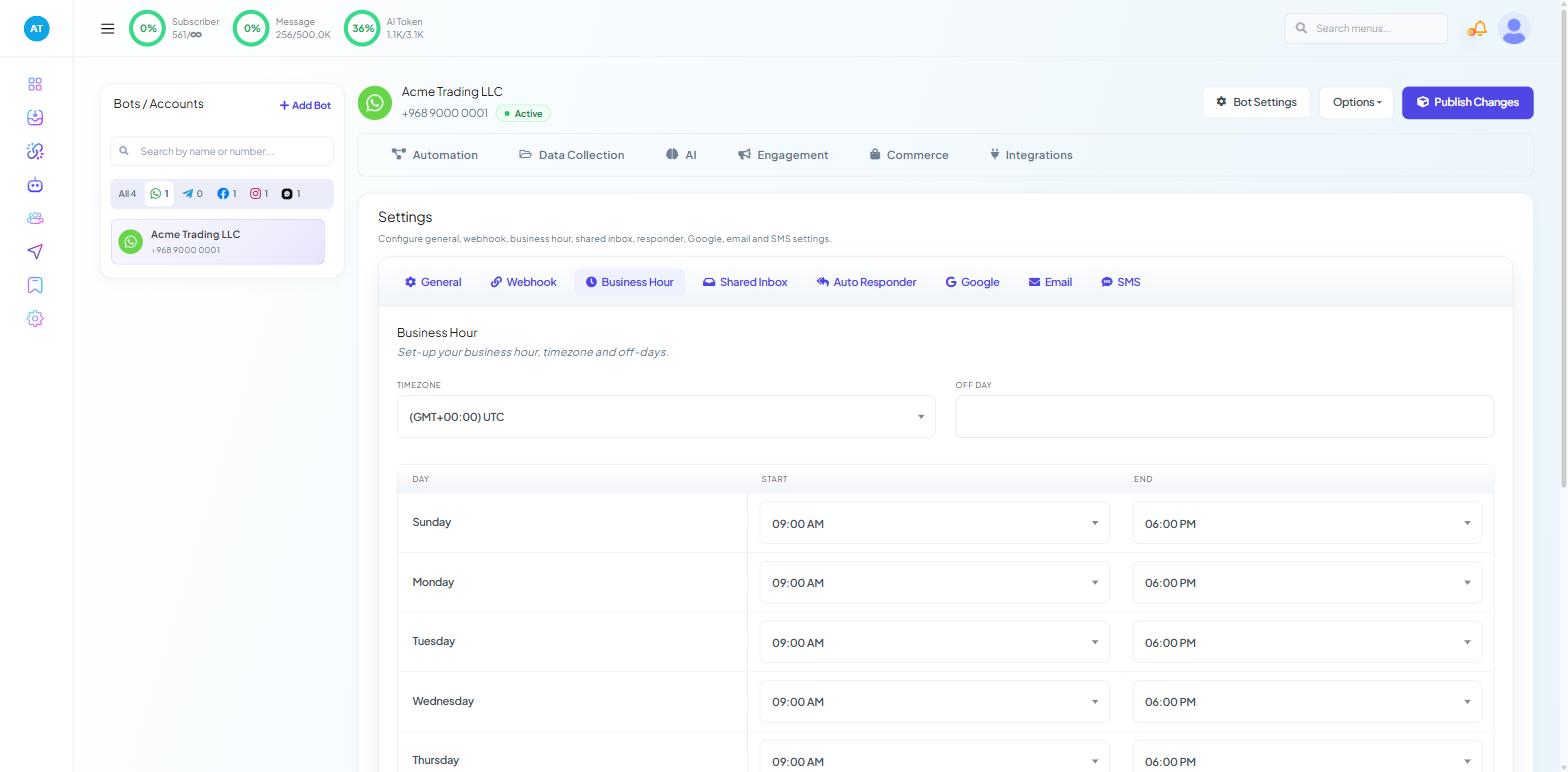
Open Chatbot Manager, select the bot and click Bot Settings.
Open Business Hour.
Set TIMEZONE and OFF DAY.
Fill in the DAY / START / END table.
Decide the two toggles underneath:
Disable bot reply during business hours — flows and keyword replies stop while you are open.
Disable AI assistant during business hours — the AI answers only when you are closed, so people handle the day and the AI handles the night.
Optional: under Special Bot during business off hours, switch on ENABLE SPECIAL BOT to run a different bot out of hours.
Click Publish Changes.
This is a separate save from the AI tab. Settings here are kept only when you click Publish Changes.
2. Stop after-hours handovers to an empty desk
Go to Chatbot Manager → AI → AI Configuration.
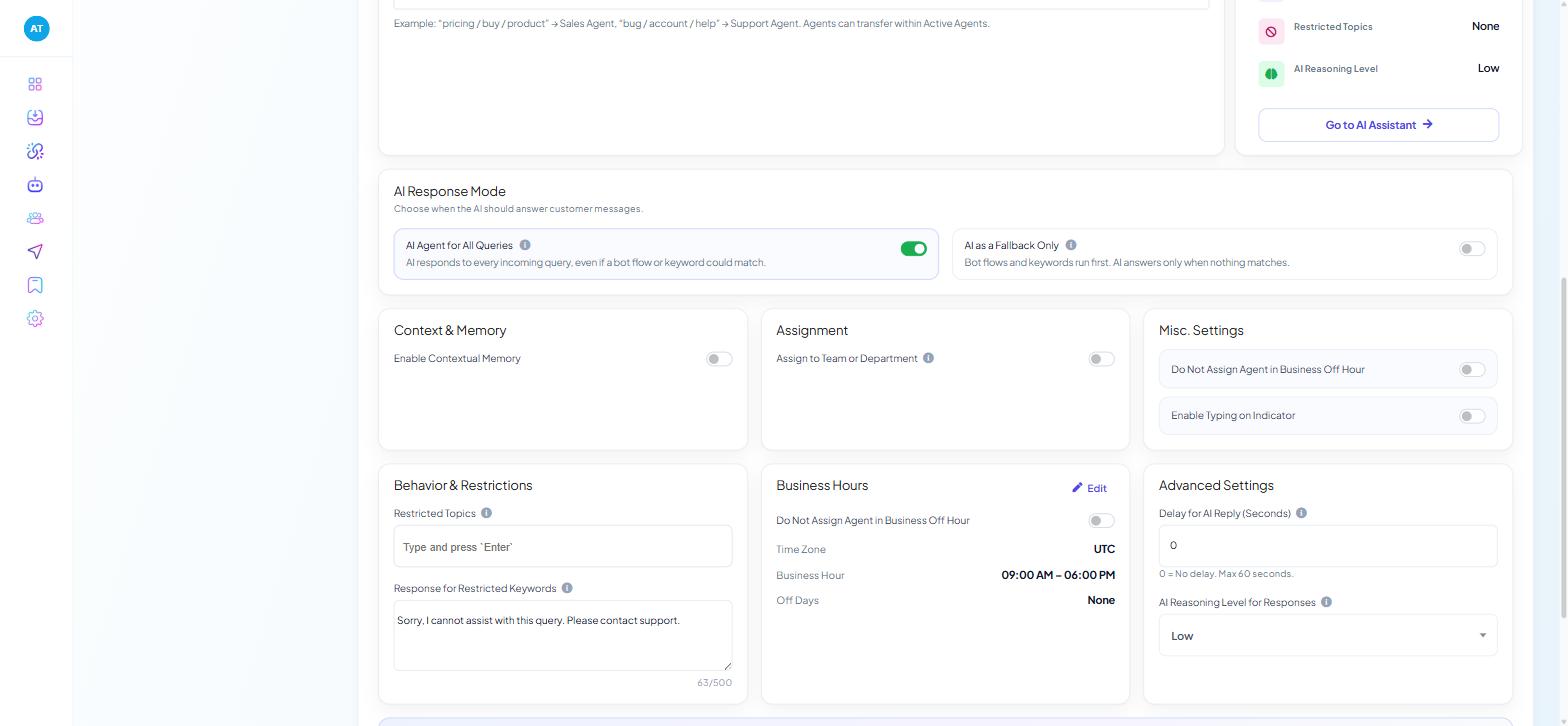
Switch on Do Not Assign Agent in Business Off Hour. It appears under both Misc. Settings and Business Hours; either works. With it on, the AI stops passing conversations to people outside business hours.
Under Assign to Team or Department, write an Assignment Message that is true at 3am as well as 3pm, for example: "Thanks — a colleague will reply when we open at 9am."
Click Save Settings.
The Business Hours card on this page is read-only; its Edit button takes you back to Bot Settings.
3. Tell the agent what to say out of hours
Open Chatbot Manager → AI → Agents and edit the agent.
In SYSTEM PROMPT, say what to say out of hours and which details to collect, for example: "Outside business hours, say that a colleague will reply when we open at 9am. For order problems, ask for the order number and a photo of the fault."
Click Save Agent.
4. Let the agent do the filing itself
In the agent's SYSTEM PROMPT, type
##.Add the actions you need from the table below.
Write them as conditions, for example: "When the customer reports a problem with an existing order, record the order number with
##save_custom_field##, label the conversation with##add_label##, and set a follow-up for the morning with##follow_up##."Click Save Agent.
Action | Use it for |
|---|---|
| An internal note the morning shift reads first |
| Setting the follow-up reminder itself |
| Tagging the conversation — |
| Storing the order number or address on the subscriber record |
| Closing the ones that were fully answered |
| Handing to the next person in a rota |
The full action list is in AI Intent Detection and Agent Routing.
To queue a conversation for the morning by hand instead:
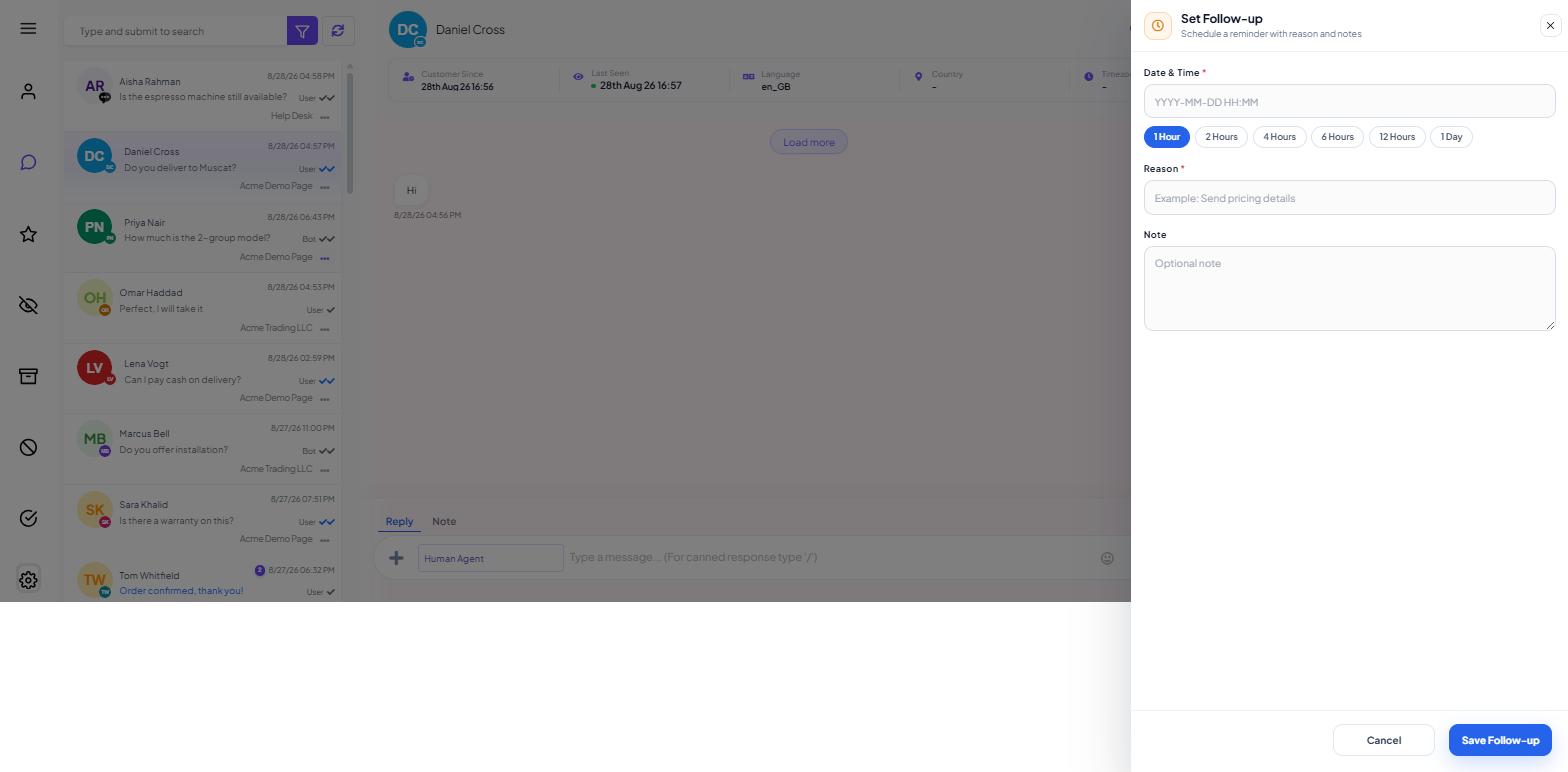
Open it in the Shared Inbox and click Set Follow-up.
Pick a quick chip (1 Hour to 1 Day) or a Date & Time.
Add a Reason, and save.
5. Check what happened overnight
Open the Shared Inbox and use the rail filters — Mine, All, Important, Unread, Archived, Blocked, Resolved — to find the overnight queue.
Read conversations where the customer went quiet after an AI reply. Each one shows a gap in the knowledge or the prompt.
Update the knowledge source behind any wrong answer. The analysis tools are in AI in the Shared Inbox: Smart Assistant and Conversation Analysis.
✅ Done when…
☐ Business hours are set and published in Bot Settings → Business Hour
☐ Do Not Assign Agent in Business Off Hour is on and saved
☐ The agent's prompt says what to do out of hours
☐ Overnight conversations are waiting for you, labelled or followed up, in the morning
If something doesn't work
Business hours didn't save. Click Publish Changes in Bot Settings; saving the AI tab doesn't save them.
The AI hands conversations to people at night. Switch on Do Not Assign Agent in Business Off Hour in AI Configuration.
Customers go quiet after an AI reply. There is a gap in the knowledge or the prompt. Fix the source behind the answer.
Next: AI Intent Detection and Agent Routing.