
AI Assistant Overview: What It Can and Cannot Do
Where Scope Wiser's AI lives, how to switch it on, how AI Configuration and Agents divide the work, and the limits to know before it answers customers.
What you'll do: learn where Scope Wiser's AI appears, then switch it on for one bot safely.
Time: 10 minutes, once you have an agent and a knowledge set.
Scope Wiser's AI appears in four places:
Where | What it does | Who it serves |
|---|---|---|
Chatbot Manager → AI | Creates agents and decides when they answer customers | Your customers |
Flow Builder → AI Reply block | Lets one step in a flow answer with AI instead of fixed text | Your customers |
Shared Inbox → AI Assistant panel | Analyses a conversation and drafts replies for a colleague | Your team |
AI Token meter, top bar | Shows what all of the above has used | You |
The first two speak to customers. The third only helps your team; the customer sees nothing unless a colleague sends what it drafted.
Before you start
☐ Give it something to answer from. An agent with an empty knowledge set is worse than no agent. See Training Your AI: Knowledge Sets, URLs, Files and Live Data.
☐ Decide the response mode. Fallback is the safer default.
☐ Have a handover path. Somebody watching the Shared Inbox, or a team to assign to.
☐ Know where the AI Token meter is. It sits in the top bar on every screen; the detail is in AI Token Usage Log on the Account page.
1. Open the AI tab
Open Chatbot Manager and pick a bot.
Click the AI tab.
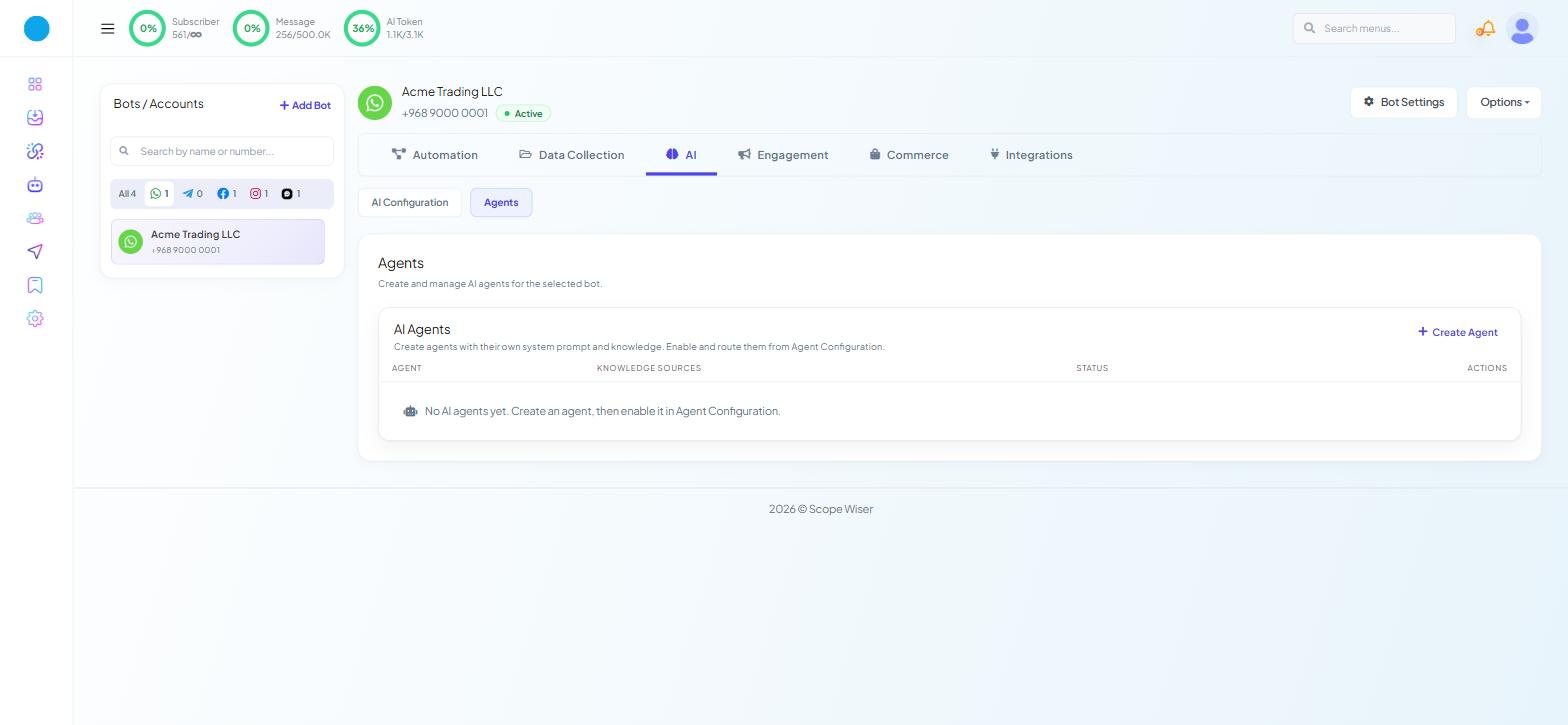
You should now see two sub-tabs: AI Configuration and Agents. Both exist on WhatsApp, Facebook, Instagram and Webchat bots.
Agents is where you build an agent. Each agent has its own name, its own SYSTEM PROMPT and its own knowledge set, so a sales agent and a support agent can hold different instructions.
AI Configuration is where agents are switched on and given work.
Building an agent does nothing on its own. Until you enable it in AI Configuration, it never answers anybody.
A new account shows an empty Agents table (AGENT / KNOWLEDGE SOURCES / STATUS / ACTIONS) and the message "No AI agents yet. Create an agent, then enable it in Agent Configuration." The Agents page calls the other tab "Agent Configuration"; it means the AI Configuration tab.
2. Switch the AI Agent toggle on
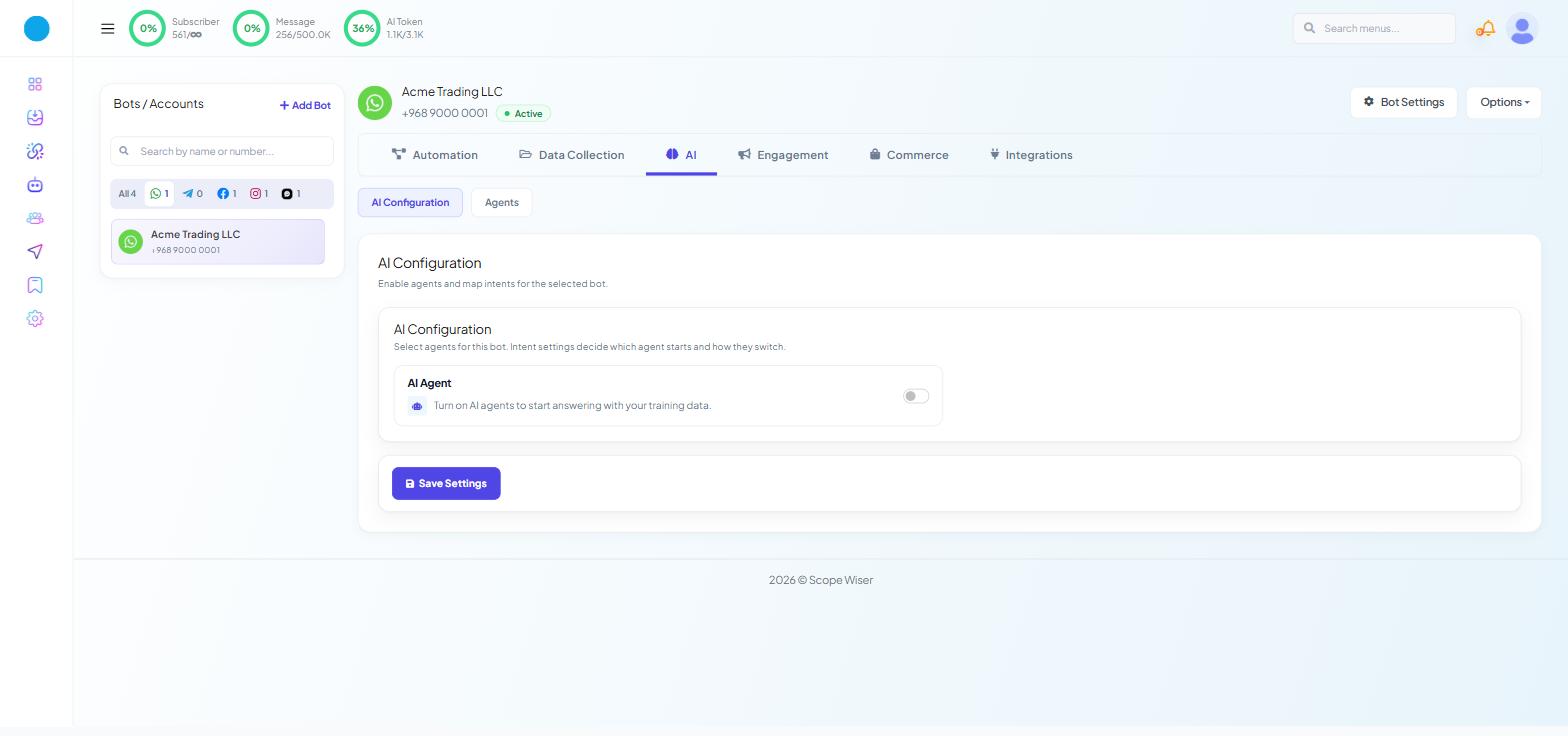
Go to Chatbot Manager → AI → AI Configuration.
Switch the AI Agent toggle on.
You should now see the helper text change to "AI agents are active and ready to assist." and the rest of the page appear.
Nearly empty page? Nothing is missing. The whole panel sits behind the one AI Agent toggle. Until it is on, none of the settings appear.
3. Start small
Create one agent with a narrow job and a short knowledge set.
In Active Agents, pick that agent.
Set AI Response Mode to AI as a Fallback Only.
Leave Delay for AI Reply (Seconds) at 0.
Work through the other settings. Each one is explained in AI Intent Detection and Agent Routing (the full list is in the Reference section below).
Click Save Settings.
Don't click Reset to Default unless you want to discard the whole configuration. There is no Publish Changes button on this screen; that belongs to Bot Settings.
4. Check what was saved
Look at the right-hand card headed AI Assistant Overview (even though the toggle beside it is called AI Agent).
Check it shows the Active Agents, Agent Routing, Response Mode, Contextual Memory, Restricted Topics and AI Reasoning Level you chose.
5. Watch, then widen
Read what the AI says in the Shared Inbox for a few days.
Then, in this order: widen the knowledge, add a second agent, or move to all queries.
✅ Done when…
☐ The AI Agent toggle is on and the helper text says the agents are active
☐ One agent is in Active Agents, with AI as a Fallback Only
☐ The AI Assistant Overview card shows what you saved
☐ You have read a few days of its replies in the Shared Inbox
If something doesn't work
The AI Configuration page is nearly empty. The AI Agent toggle is off.
An agent never answers. It hasn't been enabled in AI Configuration.
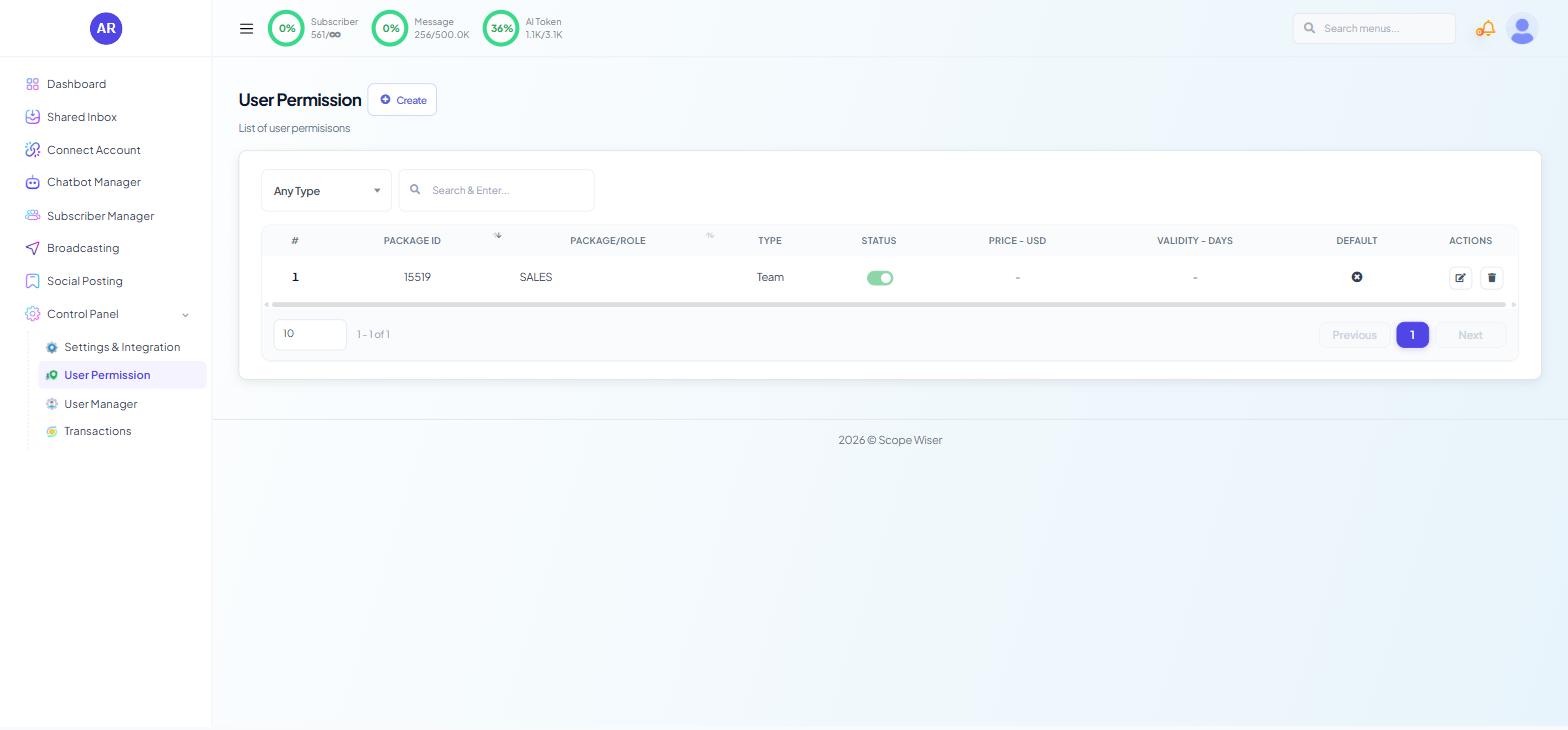
A team member can't change the AI. BOT AI AGENT and BOT AI ASSISTANT are separate permissions under Control Panel → User Permission. Someone can be allowed to draft replies in the inbox without being allowed to change how the bot answers customers.
Reference
AI Configuration settings
Each is explained in AI Intent Detection and Agent Routing.
Active Agents — pick the agents allowed to answer. + Create Agent and Refresh sit beside it.
Agent Routing — + Add Rule to say which kind of message goes to which agent.
AI Response Mode — AI Agent for All Queries or AI as a Fallback Only.
Enable Contextual Memory and its Memory Window.
Assign to Team or Department, with Team / Department, an Assignment Message and Do Not Assign Agent in Business Off Hour.
Enable Typing on Indicator.
Restricted Topics and Response for Restricted Keywords.
Delay for AI Reply (Seconds).
AI Reasoning Level for Responses — Low, Medium or High.
What the AI does well
Choose AI as a Fallback Only and your existing flows and Keyword Replies run first; the AI answers only what they miss.
Use Agent Routing to send pricing questions to one agent and problem reports to another.
An agent can also add labels, hand over, or look up orders — see AI Intent Detection and Agent Routing.
What it cannot do
It can be wrong, and it sounds confident when it is.
It only knows what you gave it. Stale prices or policies produce wrong answers.
Put medical, legal and financial topics in Restricted Topics so a person handles them.
The controls you have
SYSTEM PROMPT on each agent sets its role, tone and limits — Training Your AI: Knowledge Sets, URLs, Files and Live Data.
The knowledge set attached to each agent decides what it can answer — same guide.
Restricted Topics and Response for Restricted Keywords on AI Configuration — AI Intent Detection and Agent Routing.
Human handover: Assign to Team or Department, Pause AI in the Shared Inbox, and Disable AI assistant during business hours in Bot Settings → Business Hour — AI Customer Service: Business Hours and After-Hours Replies.
To see AI helping your team with no customer exposure, start with AI in the Shared Inbox: Smart Assistant and Conversation Analysis.
Next: Training Your AI: Knowledge Sets, URLs, Files and Live Data.