
AI Tokens: How Usage and Cost Actually Work
What an AI token is, what uses them, why replies cost different amounts, where to see usage, how to reduce it, and what to do if the AI stops replying.
What this covers: what uses AI tokens, why one reply costs more than another, where to see your usage, how to reduce it, and what to do if the AI stops replying.
What a token is
AI tokens are what Scope Wiser's AI features consume. A token is a fragment of text. A short common word is about one token; a long or unusual word is several. A sentence is a handful of tokens and a paragraph a few dozen.
Two things are counted:
Input — the customer's message, the agent's system prompt, the knowledge consulted, and any earlier conversation the agent can see.
Output — the reply.
Most of the cost is what the AI reads (prompt, knowledge, history), not what the customer typed.
What uses tokens
An AI agent answering a customer on WhatsApp, Facebook, Instagram or Webchat.
An AI Reply block inside a flow.
Analyze Customer Conversation in the Shared Inbox.
Help me to reply in the Shared Inbox, each time you send it a message.
Understanding an incoming image or voice note.
Nothing else does. Keyword Replies, bot flows, broadcasts, sequences, labels and the inbox itself cost no tokens.
Why one reply costs many times another
In order of impact:
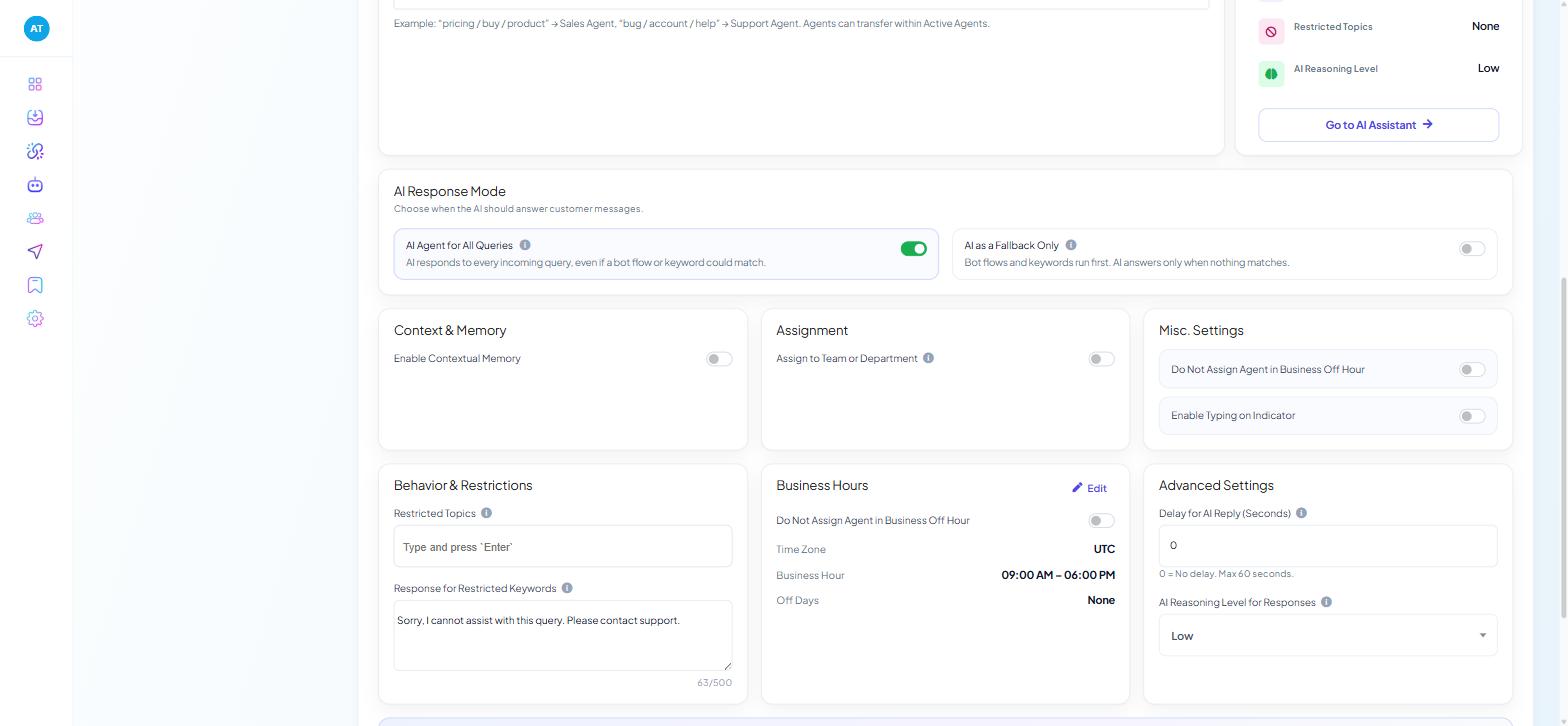
How much knowledge the agent consults. A tight knowledge set reads less per question. This is the biggest lever.
Contextual memory. Memory Window adds past conversations to every reply; 2 costs far less than 8.
Reasoning level. AI Reasoning Level for Responses (
Low,Medium,High) under Advanced Settings on AI Configuration. High costs more on every reply, including routine ones. The same trade-off appears as Reasoning Effort in the Shared Inbox.System prompt length. The prompt is sent with every reply.
Reply length. Tell the agent to answer briefly.
All of these settings are explained in AI Intent Detection and Agent Routing.
1. Check what you have used
In the top bar, on every screen. There are three ring meters — Subscriber, Message and AI Token. A reading such as 1.1K/3.1K means just over a third of the allowance is spent. Glance at it before you switch an agent to all-queries mode.
On the Account page:
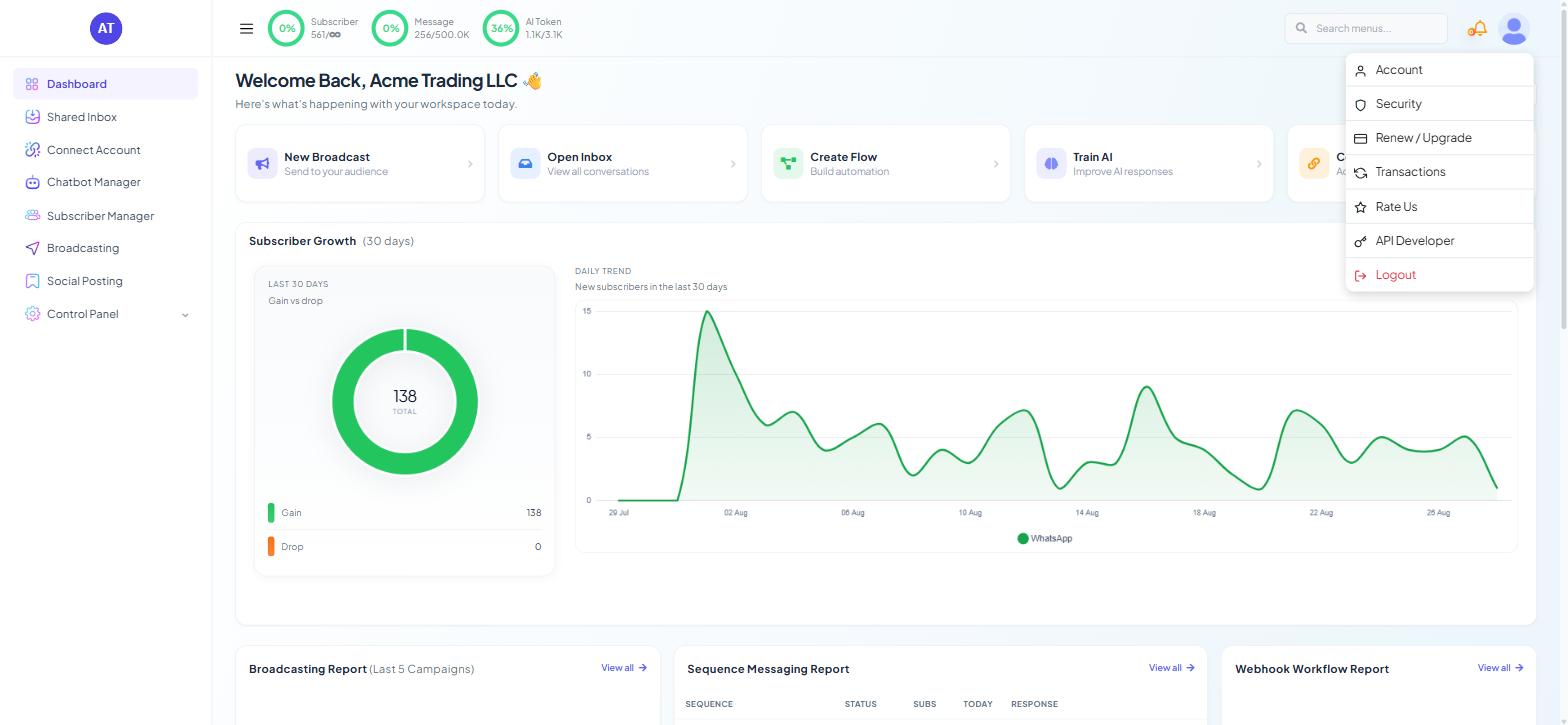
Open the profile menu at the top right and choose Account.
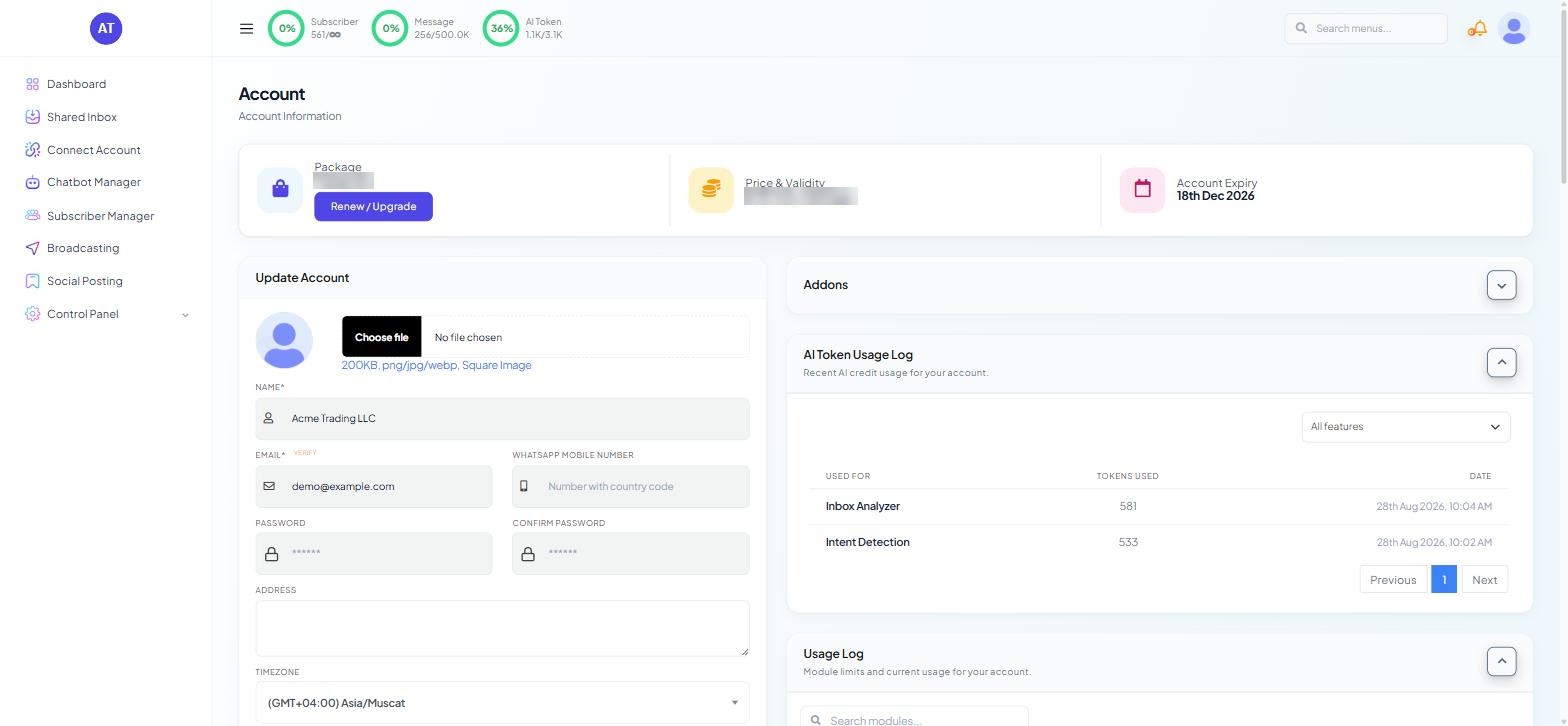
Expand AI Token Usage Log in the right-hand column. Filter by feature (for example Bot Reply or Intent Detection) and read USED FOR, TOKENS USED and DATE. AI agent replies show as AI Agent Planner — in our tests, about 4,000 tokens per reply. The top-bar meter can lag behind this log.
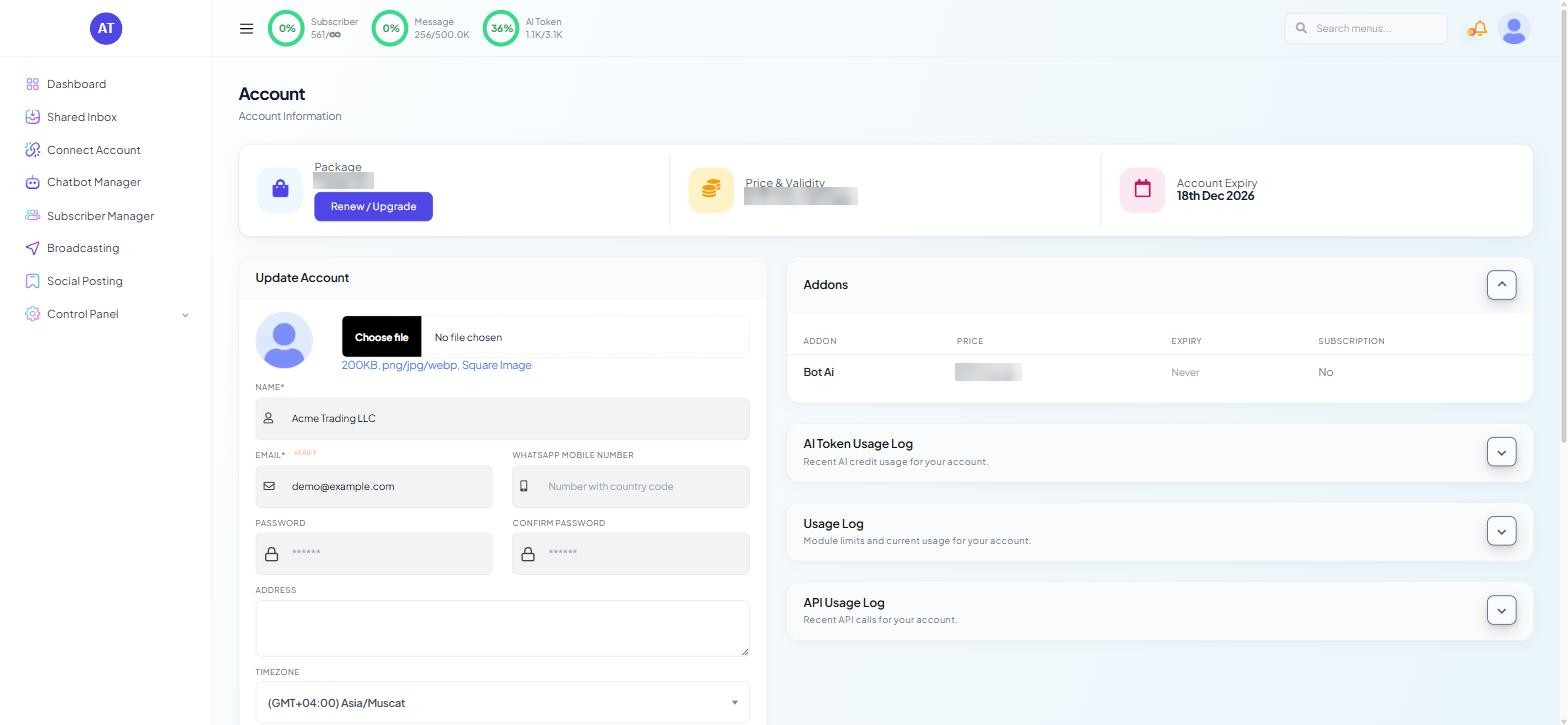
Any purchased token pack is listed as an addon in the Addons table (ADDON, PRICE, EXPIRY, SUBSCRIPTION) on the Billing page — open it from the profile menu or Go to Billing on the Account page.
2. Reduce consumption without making the AI worse
Answer predictable questions with Keyword Replies. Opening hours, delivery times, the address — one fixed answer, no tokens. This is usually worth more than everything else combined.
Use fallback mode. AI as a Fallback Only means flows and keywords run first, so anything they cover costs nothing — and if the balance runs out, the bot still answers from its flows.
Check the meter before a campaign, a launch or a busy season, not after.
Keep knowledge sets narrow and per-agent.
Trim the system prompt to what the agent is, what it must not do, and how to hand over. Ask it to answer in two or three sentences.
Turn contextual memory on deliberately. Useful for sales conversations that run over days; wasted on one-question enquiries.
Match reasoning level to the work.
Use the Shared Inbox tools with intent. Run Analyze Customer Conversation on conversations that matter, not on every routine enquiry.
3. Buy more
Open the profile menu (top right).
Click Renew / Upgrade.
Choose the AI token addon.
Billing in the same menu lists what you have bought.
If something doesn't work
The meter jumps unexpectedly. Check in this order:
Was a bot switched from fallback to AI Agent for All Queries?
Was Enable Contextual Memory turned on, or its Memory Window widened?
Was the reasoning level moved to
High?Was a large knowledge source attached to an agent recently?
Did traffic rise? A campaign that trebles messages trebles AI usage.
The AI stops replying.
If nothing else has changed, switch the AI Agent toggle off and then on again first.
Otherwise, switch the AI Agent toggle off on the affected bots (Chatbot Manager → AI → AI Configuration). They return to their bot flows and Keyword Replies, which is better for customers than an AI that answers nothing.
Switch it back on once the cause is fixed — for example, after topping up tokens.
The AI answers things it should not. Fix it in AI Intent Detection and Agent Routing.
Next: Message Credits and AI Tokens: Tracking and Optimising.