
Set Up Your First AI Agent, Step by Step
Create an AI agent that answers your customers from your own information: write its instructions, give it knowledge, switch it on, test it safely, then go live.
What you'll do: build an AI agent that answers common customer questions on its own, using information you give it. You'll test it where no real customer can see it, then switch it on.
Time: about 45 minutes, most of it writing your answers.
On a phone? Tap any screenshot to see it larger. The numbered red boxes match the numbered steps beside them.
An AI agent is a helper with three parts:
Part | What it is | Where you set it |
|---|---|---|
Instructions | How it should behave: tone, language, what to do when it doesn't know | SYSTEM PROMPT |
Knowledge | The facts it answers from: hours, prices, delivery, returns | Knowledge Sources |
Switch | Which bot it answers on, and when | AI Configuration |
Before you start
☐ A connected channel (WhatsApp, webchat, Messenger or Instagram). See Get Started.
☐ Enough AI Tokens for testing. In our tests each AI reply used about 4,000 tokens, so a 14K allowance covers only three or four replies. Check Account → AI Token Usage Log, and buy more before you test if you need to.
☐ A list of the 10 to 20 questions customers ask most, with your answers. Sales or support colleagues will know them.
1. Plan what the AI should answer
Read your list of questions and mark each one:
AI can answer. The answer is a stable fact: opening hours, location, delivery areas and fees, the returns window, what a service costs.
A person must answer. Complaints, refunds, custom quotes, anything about a specific order.
Open Chatbot Manager, choose your bot, and look at Automation → Keyword Replies. Note any reply that catches broad words like price, how much or hello, and any default reply that answers every message.
Why this matters: in the safer Fallback mode, your keyword replies always answer first, and the AI only replies when nothing else matches. If a keyword catches how much, a customer asking "How much is delivery?" gets that keyword reply, not the AI. A catch-all default reply means the AI never answers at all. Decide now which keyword replies stay.
2. Write down your knowledge
Write your answers as plain, short facts, one topic per paragraph. For example:
Opening hours: Sunday to Thursday, 9 am to 6 pm. Closed Friday and Saturday.
Location: our showroom is in Al Khuwair, Muscat.
Delivery: free in Muscat on orders over 20 OMR, 2 to 3 working days.
Other regions: 5 OMR flat fee, 3 to 5 working days.
Returns: unused items within 14 days, with the receipt.
Servicing: 15 OMR per visit.
Tips:
Write it in one language. The AI translates its answers into the customer's language.
Include the numbers. The AI only knows what you write.
Leave out anything that changes daily, such as stock levels.
3. Create the agent
Click Chatbot Manager and choose a bot.
Click the AI tab, then Agents.
Click + Create Agent. The Create AI Agent form opens.
Fill in the top of the form:
NAME: something your team will recognise, for example Support Agent.
SLUG: leave it empty. It fills itself in from the name.
STATUS: Active.
DESCRIPTION: one sentence for your team, for example Answers hours, delivery and returns questions.
In SYSTEM PROMPT, write the agent's instructions. Start from this and change the name:
You are the customer support assistant for Acme Trading.
Answer only from the knowledge you have been given.
Keep replies short and friendly, in the customer's language.
If you do not know the answer, or the customer asks for a person,
say a team member will reply soon. Never make up prices or dates.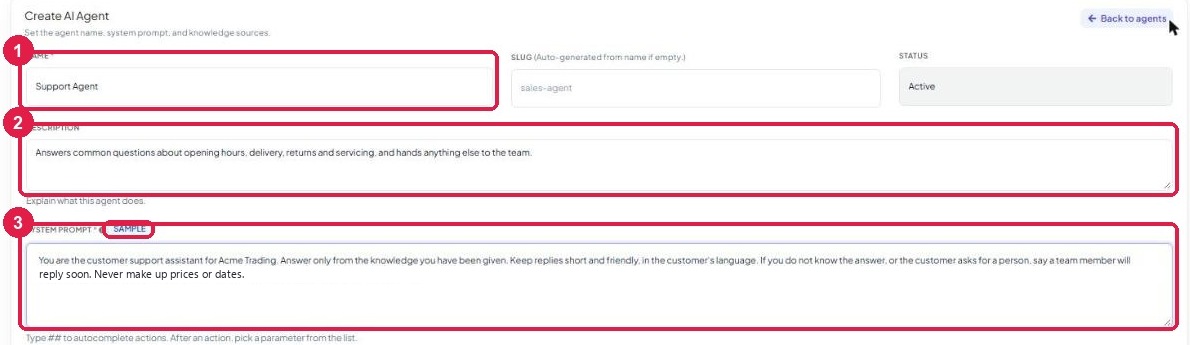
In the screenshot: 1 NAME, 2 DESCRIPTION, 3 SYSTEM PROMPT and the SAMPLE button.
Tip: click SAMPLE beside SYSTEM PROMPT to see a longer example, and Prompt action guide for the actions you can add in step 5.
4. Give it knowledge
Still on the same form, scroll to Knowledge Sources.
Under Knowledge Set, choose Create New.
Type a name for the set, for example Customer FAQ. Do this first: the form refuses to add a source until the set has a name.
Click Content, paste the facts from step 2, and click Save. You'll see Content saved successfully.
Check that Attached Knowledge now shows (1).
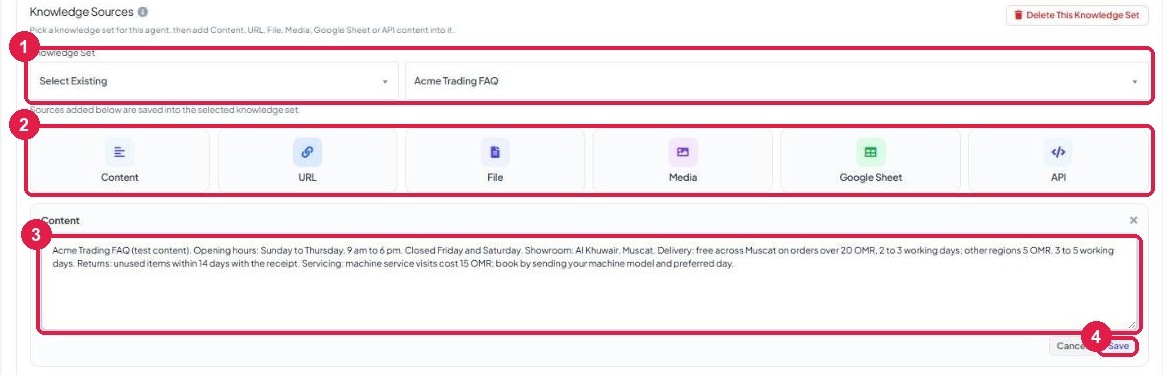
In the screenshot: 1 the knowledge set, 2 the source types, 3 your facts pasted in, 4 Save.
Important: the knowledge set saves the moment you add a source, even if you then click Cancel on the agent. If you change your mind, open the set again and use Delete This Knowledge Set.
Other source types work the same way: URL (a web page), File (a PDF or document), Media (product photos the agent can send when asked), Google Sheet and API. See Training Your AI: Knowledge Sets, URLs, Files and Live Data for each one.
Click Save Agent. You'll see AI Agent created successfully. The agent appears in the list with 1 source and Active.
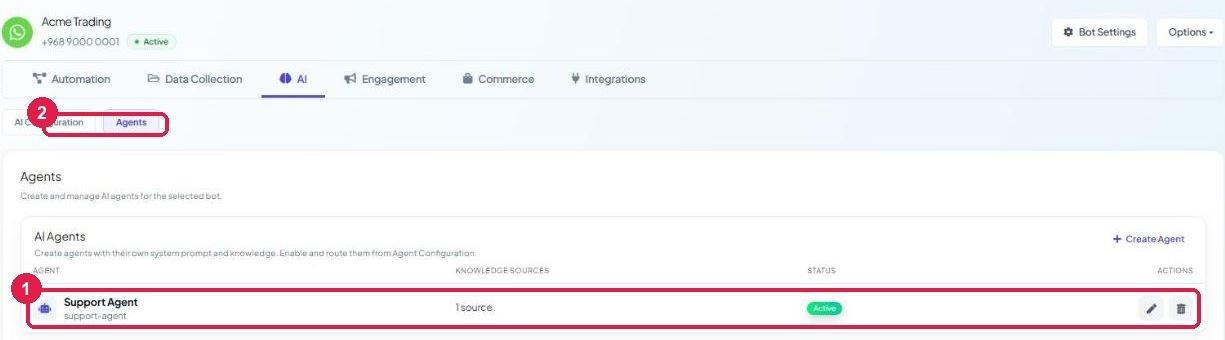
In the screenshot: 1 your new agent, 2 the Agents tab it is listed under.
Good to know: agents belong to your account, not to one bot. An agent you create on your WhatsApp bot also appears under your webchat bot, so you build it once.
5. Add actions (optional)
Actions let the agent do things as well as answer: add a label, hand the chat to a person, start a flow. You add them inside the SYSTEM PROMPT.
In SYSTEM PROMPT, start a new line and type
##. A list of actions opens.Pick one, for example Add Label, then pick the label from the second list.
Write the rule around it, for example:
When the customer asks about a refund, run this action:
##add_label## : 12
The number is the label's ID. The list fills it in for you, so always pick from the list rather than typing it.
Useful first actions:
Action | Use it for |
|---|---|
Add Label | Tag chats such as refund or new lead, so your team can filter them |
Assign Team Member (Fixed Person) | Hand the chat to one named colleague |
Assign Team Role | Hand the chat to whoever is free in a team role |
Trigger Bot Flow | Start one of your existing flows, such as a booking form |
Mark as Solved | Close chats that were fully answered |
The full list, with every action, is in AI Intent Detection and Agent Routing.
Test each action you add (step 7). If one doesn't seem to run, remove it and check the Bot Error Logs (see If something doesn't work).
Click Save Agent.
6. Switch it on for one bot
In Chatbot Manager, choose the bot, then AI → AI Configuration.
Turn on AI Agent. The panel changes to AI agents are active and ready to assist.
In Active Agents, choose your agent.
Scroll to AI Response Mode and choose:
AI as a Fallback Only: your keyword replies answer first, and the AI answers only when nothing matches. Best when you already have flows.
AI Agent for All Queries: the AI answers every message, even when a keyword would match. Best for a new bot with no flows.
Leave the other settings as they are for now. Delay for AI Reply and AI Reasoning Level can wait until you've seen it working.
Click Save Settings, then reload the page and check the switch is still on.
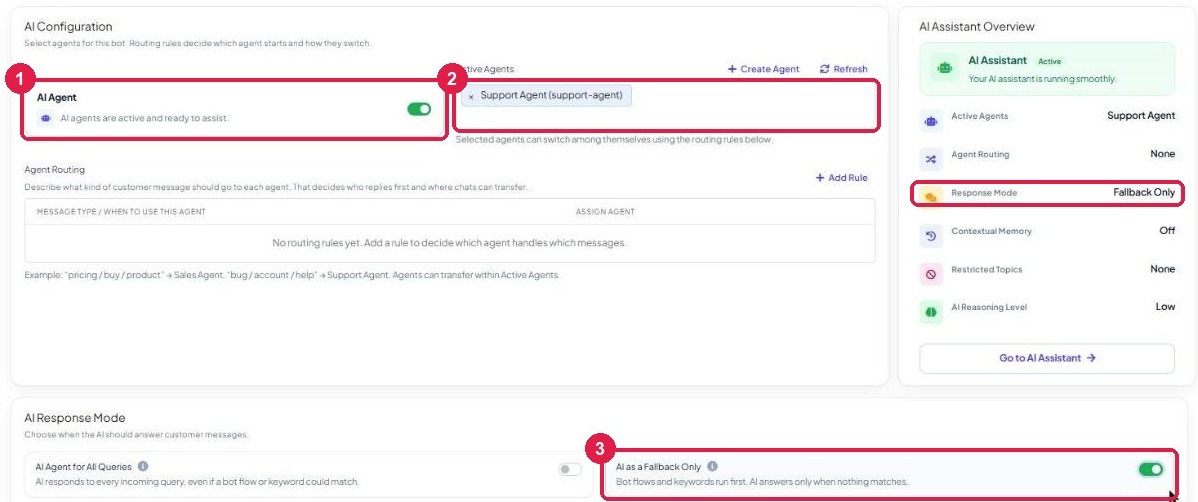
In the screenshot: 1 the AI Agent switch, 2 Active Agents, 3 AI as a Fallback Only.
7. Test it where customers can't see it
Don't test on your live WhatsApp number: real customers would get your test replies. Use a channel nobody else uses yet. A webchat widget that isn't on your website yet is ideal. See Website Chat Widget: Create, Embed & Manage.
Switch the AI on for the test bot, as in step 6.
Send questions you know the answers to, one at a time:
What time do you open?
Do you deliver to Sohar? How much?
Can I return something I bought last week?
Where is your shop?
I want to talk to a person
One question in another language your customers use, for example متى تفتحون؟
Wait for each reply before sending the next.
Open Shared Inbox and find the conversation. Each AI reply is marked AI Agent with the agent's name, so you can tell it apart from keyword replies.
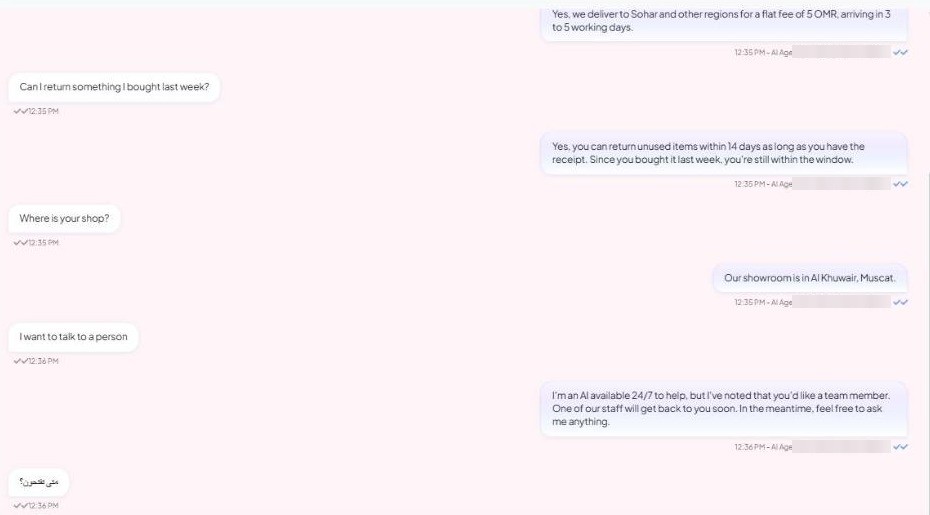
You should now see answers that match your knowledge exactly, a polite hand-over when someone asks for a person, and a reply in the customer's own language.
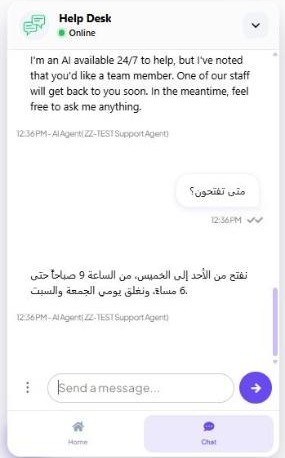
If an answer is wrong, fix the knowledge, not the prompt: add or correct the fact, save, and ask again.
Voice notes
The AI agent also answers WhatsApp voice notes: it turns the voice note into text, then replies as usual. Its reply is always text, never a voice note. Each voice note uses AI tokens, like a typed message.
To try it:
On your test bot, send three or four voice notes with questions your knowledge answers.
Check that each reply answers the question from your knowledge.
Add this line to the SYSTEM PROMPT, so a voice note that is too short or noisy to follow goes to a person instead of a dead end:
If you cannot understand a voice note, apologise, ask the customer to type their question,
and say a team member will also listen to it.
Your team can read any voice note with Convert to text in the Shared Inbox. See Live Chat and the Shared Inbox: Complete Overview.
8. Go live and keep an eye on it
On your live bot, switch the AI on with AI as a Fallback Only first.
For the first week, read a few AI conversations in the Shared Inbox every day.
Check your token use in Account → AI Token Usage Log. Each AI reply is listed there as AI Agent Planner, with the tokens it used. The top-bar meter can lag behind the log, so trust the log. See AI Tokens: How Usage and Cost Actually Work.
Once you're happy, consider AI Agent for All Queries, or turn off keyword replies that the AI now answers better.
To pause the AI on one chat, open it in the Shared Inbox and click Pause AI. To stop it everywhere on a bot, turn off AI Agent in AI Configuration and click Save Settings.
✅ Done when…
☐ The agent is listed as Active, with at least one knowledge source
☐ AI Agent stays on in AI Configuration after a reload, with your agent selected
☐ Your test questions got correct answers, marked AI Agent in the Shared Inbox
☐ A question in a second language got an answer in that language
☐ You know which keyword replies still answer first
If something doesn't work
Problem | What to check |
|---|---|
A keyword reply answers instead of the AI | You're in Fallback Only mode and a keyword matched, or a default reply catches every message. Narrow the keyword, or test in All Queries mode on a test bot. |
The AI doesn't reply at all | Is AI Agent still on after a reload, and is your agent in Active Agents? Is the agent's STATUS Active? Does the AI Token meter have tokens left? |
It stopped replying partway through | Your AI tokens have probably run out. In Chatbot Manager, open Options → Bot Error Logs: an entry System Error : 402 means the platform refused the request. Check Account → AI Token Usage Log, and top up your tokens. |
"Please enter a knowledge set name first." | Choose Create New, type the set name, then add the source. |
"Choose Select Existing or Create New." | Pick one of the two in Knowledge Set before clicking a source type. |
The answer is wrong or made up | Add the missing fact to the knowledge. Keep Answer only from the knowledge you have been given in the prompt. |
It sent an image nobody asked for | Check the Media sources in the agent's knowledge set, and remove images that don't belong there. |
It answers in the wrong language | Add Reply in the customer's language to the prompt. |
It says it couldn't understand a voice note | The note was probably very short or recorded somewhere noisy (see Voice notes in step 7). Your team can play it, or read it with Convert to text in the Shared Inbox. |
Reference
A good system prompt covers
Topic | Example line |
|---|---|
Who it is | You are the customer support assistant for Acme Trading. |
Where answers come from | Answer only from the knowledge you have been given. |
Tone and length | Keep replies short and friendly. |
Language | Reply in the customer's language. |
When it doesn't know | Say a team member will reply soon. Never make up prices or dates. |
What it must not discuss | Do not discuss competitors or give legal advice. |
Actions | When the customer asks for a refund, run ##add_label## : 12 |
Where to go next
AI Intent Detection and Agent Routing: several agents, such as one for sales and one for support, and the rules that choose between them.
AI Customer Service: Business Hours and After-Hours Replies: what the AI says when your team is offline.
AI in the Shared Inbox: let the AI draft replies for your team instead of answering customers.