
AI in the Shared Inbox: Smart Assistant and Conversation Analysis
The two AI tools beside a Shared Inbox conversation: run Analyze Customer Conversation, read its scores, and use Help me to reply without the customer seeing.
What you'll do: use the two AI tools beside a conversation — one to analyse it, one to help you draft a reply.
Time: 5 minutes.
The inbox AI tools only help your team. Nothing reaches the customer unless you send it.
Before you start
☐ Your role has the BOT AI ASSISTANT permission (see If something doesn't work).
☐ You have AI tokens. Both tools use them — see AI Tokens: How Usage and Cost Actually Work.
1. Open the AI Assistant panel
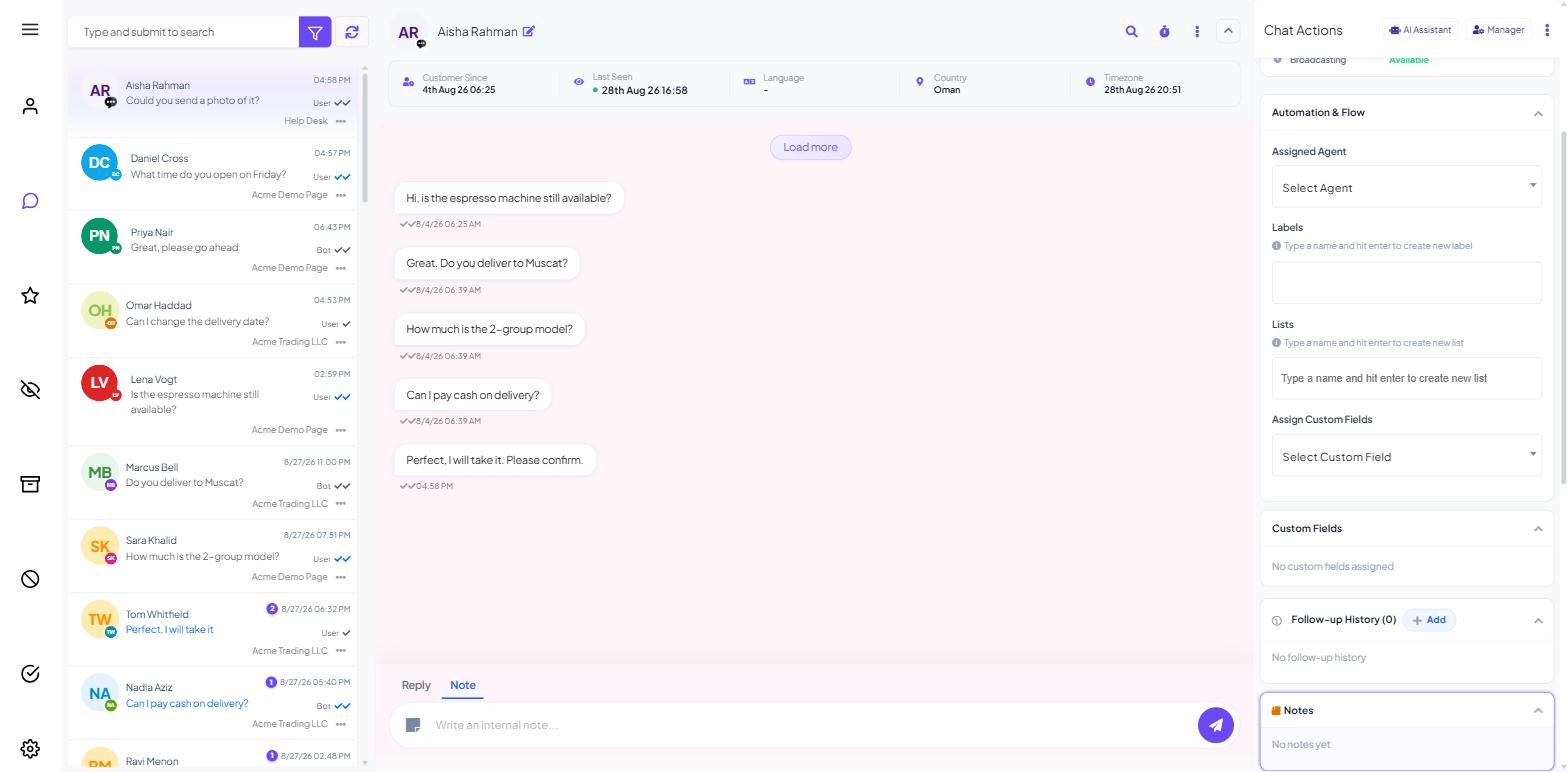
Open Shared Inbox from the sidebar and select a conversation.
In the right-hand Chat Actions panel, click AI Assistant at the top. Or scroll down past Assign Custom Fields, Custom Fields, Follow-up History and Notes to the AI Assistant section.
You should now see two tools and one setting that applies to both.
2. Set Reasoning Effort
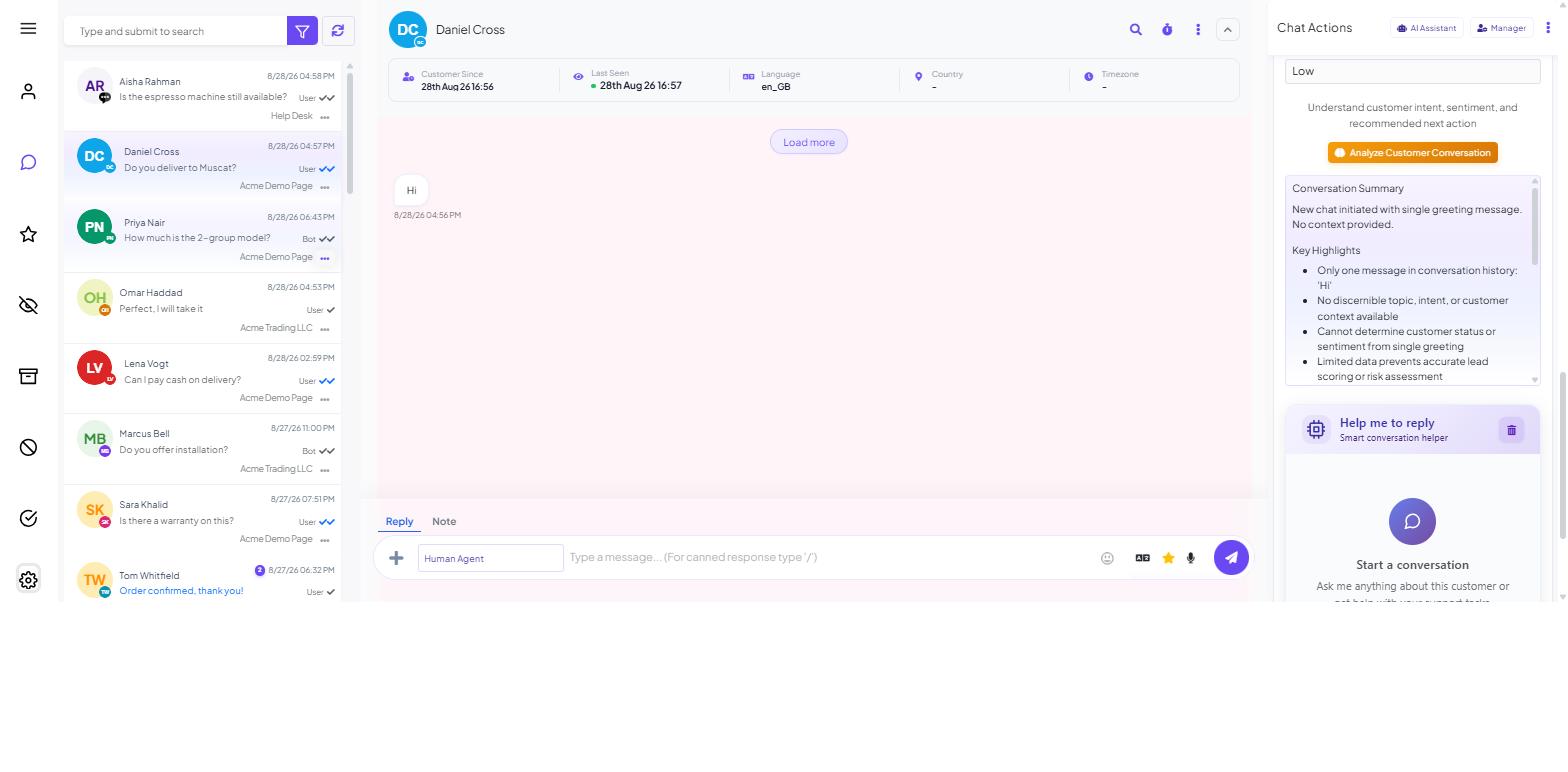
Reasoning Effort is a dropdown at the top of the panel, set to Low by default.
Leave it on Low for routine enquiries.
Raise it for a difficult account. Higher effort handles long or tangled conversations better and costs more time and tokens.
3. Analyse the conversation
Click Analyze Customer Conversation.
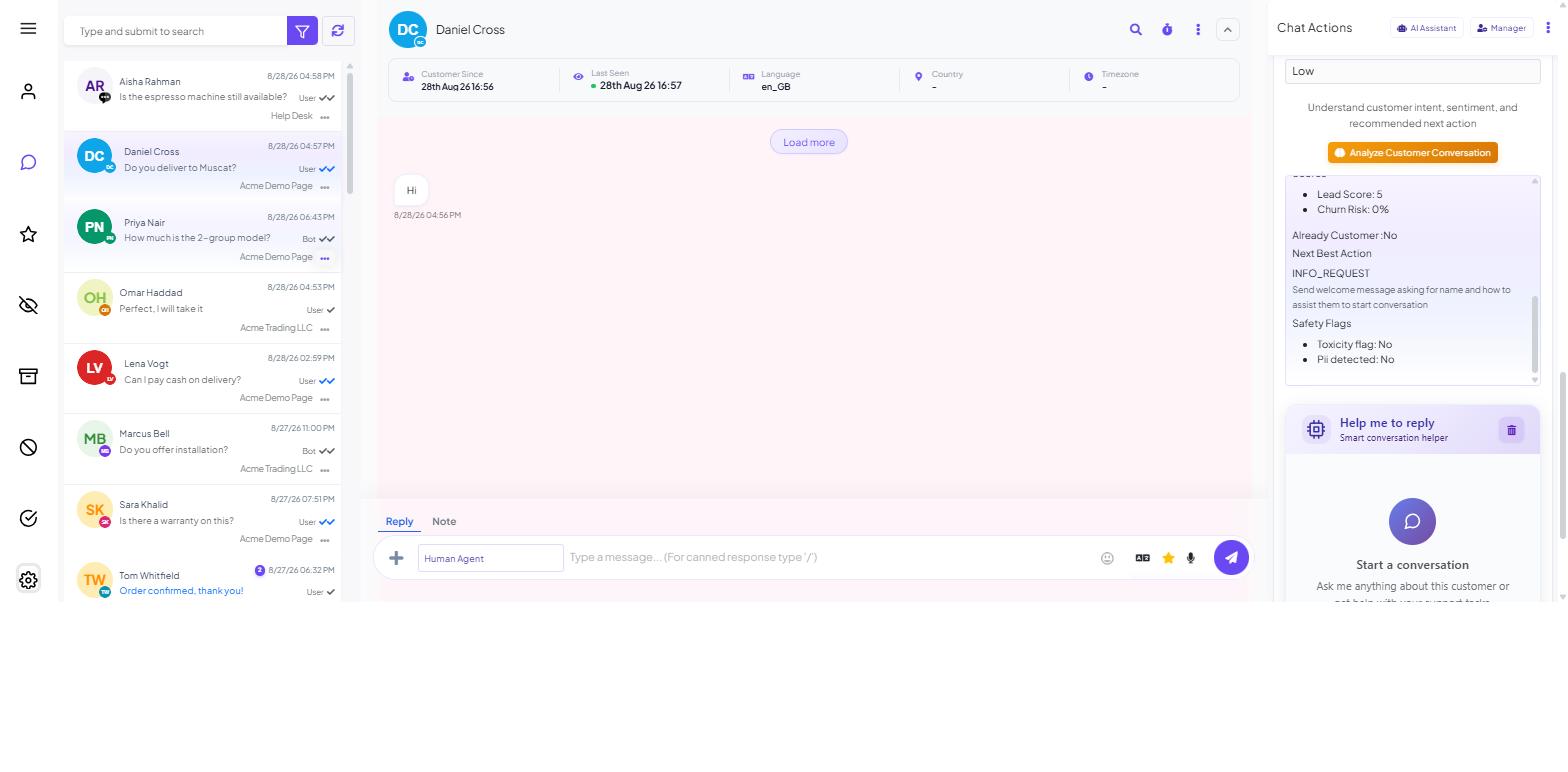
You should now see six blocks: Conversation Summary, Key Highlights, Sentiment, Scores, Next Best Action and Safety Flags. What each one means is in the Reference section below.
Using it well:
Compare the summary against the thread for the first week, so you know how far to trust it.
Use the scores to decide which conversation to open first, not whether a person is worth calling back.
Don't run it on every two-message enquiry. Each run reads the whole thread and costs tokens.
4. Get help drafting a reply
Help me to reply, subtitled Smart conversation helper, is a chat window of your own with the customer conversation in view.
Type your request into Type your message... and send it. For example:
"Draft a reply explaining our returns window."
"What has this customer already been told about delivery?"
"Make this shorter and less formal."
Copy what you want into the message composer at the bottom of the conversation ("Type a message... (For canned response type '/')").
When you're finished, click the trash icon on the panel to clear the thread.
Nothing crosses over on its own. The customer sees only what you copy into the composer and send.
5. Take over a live conversation
The Quick Actions strip near the top of the Chat Actions rail has twelve buttons (click See More for the rest): Pause Bot, Pause AI, Scheduled, Notes, Follow-up, Send Flow, Add Label, Assign Team, Add Sequence, Custom Field, Messaging Window and Google Meet.
Click Pause Bot to stop keyword replies and flows.
Click Pause AI to stop the AI agent replying to the customer.
When you take over a live conversation, press both. Neither affects the AI Assistant panel.
✅ Done when…
☐ You can run Analyze Customer Conversation and read its six blocks
☐ You can draft a reply in Help me to reply and copy it into the composer
If something doesn't work
You can't see the AI Assistant tools. BOT AI ASSISTANT is its own permission under Control Panel → User Permission, separate from BOT AI AGENT. Support staff can have the inbox tools without being able to change how the bot answers customers. See Adding Team Members and Access Control.
The assistant's replies show formatting characters, such as
**Summary:**. This is cosmetic.The bot or AI keeps replying while you chat. Press both Pause Bot and Pause AI.
Reference
The six analysis blocks
Conversation Summary. What the exchange is about and where it has got to. Read this when a colleague's conversation lands on you.
Key Highlights. Facts pulled from the thread: prices quoted, discounts offered, contact details, commitments made.
Sentiment. Current (for example
neutral) and Trend (for exampleflat). On a two- or three-message exchangeflatmeans there is not enough to say. A conversation trending down needs a person's attention.Scores. Lead Score out of 100, Churn Risk as a percentage, and Already Customer (Yes/No). Use them to sort a queue, not to judge an individual.
Next Best Action. A short code such as
INFO_REQUESTand a plain recommendation, for example "Share product catalog, pricing, or schedule a demo after receiving contact details."Safety Flags. Toxicity flag and Pii detected.
Yeson the second means the thread contains personal information, which affects how it should be handled and exported.
For assignment, filters, notes, follow-ups and canned responses, see the Live Chat and Shared Inbox guides.
Next: AI Assistant Overview: What It Can and Cannot Do.