
Bot Error Logs and Custom Fields
Where a failed flow shows up, how to read per-node error counters, and how custom fields store per-subscriber data you can drop into any message with a hash.
What you'll do: find where a flow broke and fix it, then use custom fields to personalise messages safely.
Time: 10–20 minutes.
Two tools. The error log tells you when a flow broke. Custom fields are how a message says "Hi Sara" instead of "Hi there", and they are where flows most often break, which is why both are here.
Part A: Find and fix errors
1. Read the node counters
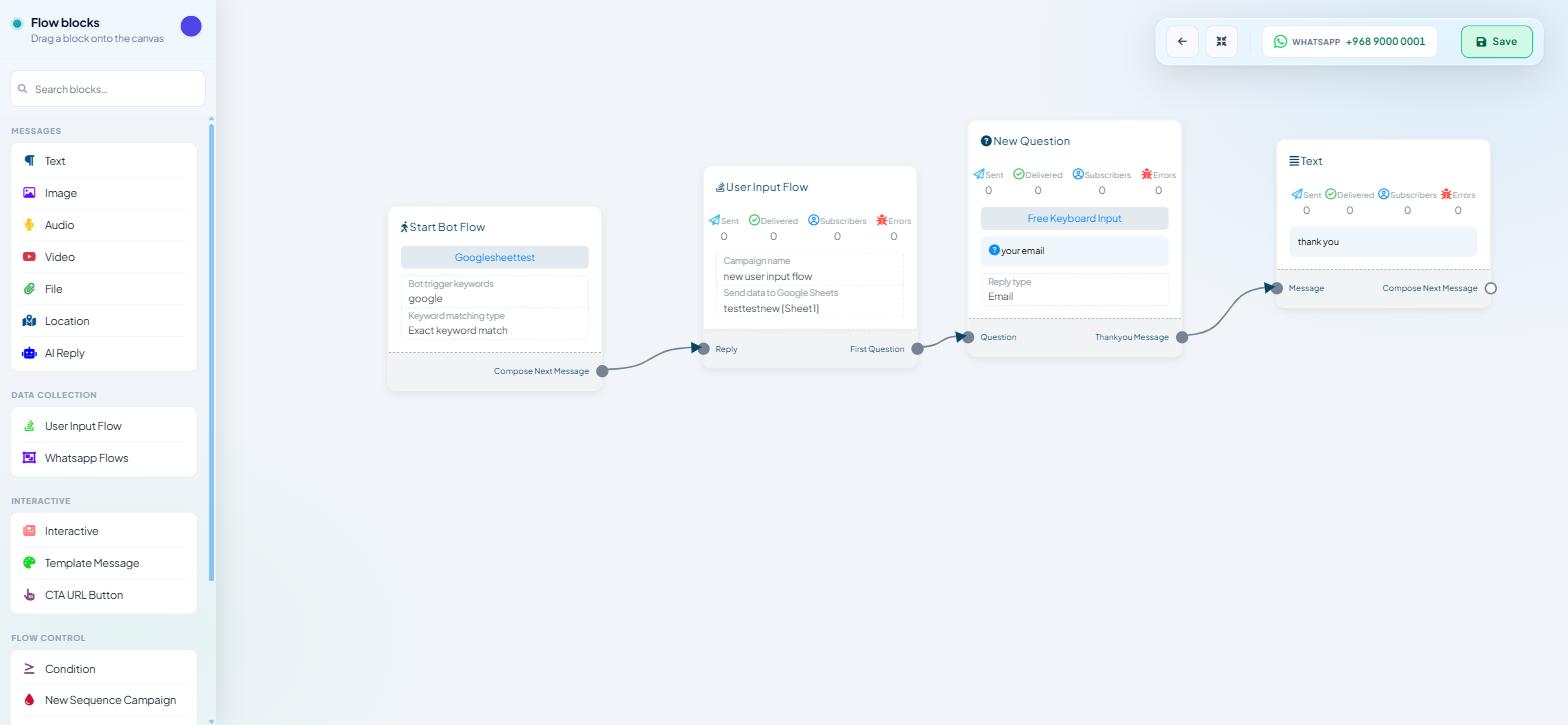
Before opening any log, open the flow. Every message node on the Flow Builder canvas carries four counters on its card: Sent · Delivered · Subscribers · Errors. Button nodes show a comparable set: Click · Subscribers · Errors.
Open the flow that misbehaved.
Walk the flow from the top.
Find the first node where the numbers stop making sense. That is almost always where the fault is, not the node that looks broken to the customer.
What the numbers mean:
Sent high, Delivered low: the platform accepted the message and the channel did not deliver it. Blocked numbers, invalid numbers, expired messaging windows.
Sent zero on a node partway down a flow: execution never reached it. The problem is upstream: a condition sending everyone down the other branch, or a broken connection.
Errors above zero: the send itself failed. That is the node to investigate.
2. Open the error log
In the Chatbot Manager bot header, click Options ▾ (beside Bot Settings).
Click Bot Error Logs.
You should now see each failure with its message, the time it occurred, and an edit action that jumps straight to the flow that produced it.
3. Fix the cause
Template errors on WhatsApp. A message template that was approved when you built the flow can be paused or rejected later, and sends against it then fail. Go to Automation → Message Templates, press Sync Templates, and confirm the row still reads
Approved. Channel-specific codes are catalogued in WhatsApp Error Code Reference.JSON Decode, 403 and 404. The external system you connected under Integrations → HTTP API answered wrongly. Test it there with Send Test Request, or ask whoever runs that system. (Developer detail under Reference.)
4. Clear the log
Once the causes are fixed, clear the log so the next failure is obvious.
Fix before you clear. An empty log is only useful if the errors in it were resolved rather than dismissed.
5. Catch failed deliveries automatically
Go to Bot Settings → Shared Inbox.
Set
ADD LABEL FOR UNSUCCESSFUL MESSAGE DELIVERYto a label.Click Publish Changes.
Every failed delivery then tags the subscriber, so you can filter Subscriber Manager by that label. Filter on it weekly.
Part B: Use custom fields
Custom fields are the per-subscriber values your bot collects and reuses: order number, city, preferred language, membership tier. The product calls them custom fields throughout; older material sometimes says "custom variables", and it means the same thing. Each field holds a separate value for every subscriber. Nothing is global.
6. Create a custom field
Go to Subscriber Manager.
Open the Manage ▾ menu (Labels · Lists · Custom Fields).
Click Custom Fields and create the field.
7. Fill it from a flow
The usual route is a User Input Flow that asks a question and saves the answer. See What User Input Flows Are and When to Use Them.
Alternatively, the Configure Reference panel on the Start Bot Flow node has a Save to Custom Field dropdown with a + Add new field link beside it, so anything that triggers the reference can write a value.
8. Use it in a message
Open a message block's configuration drawer.
Type a single
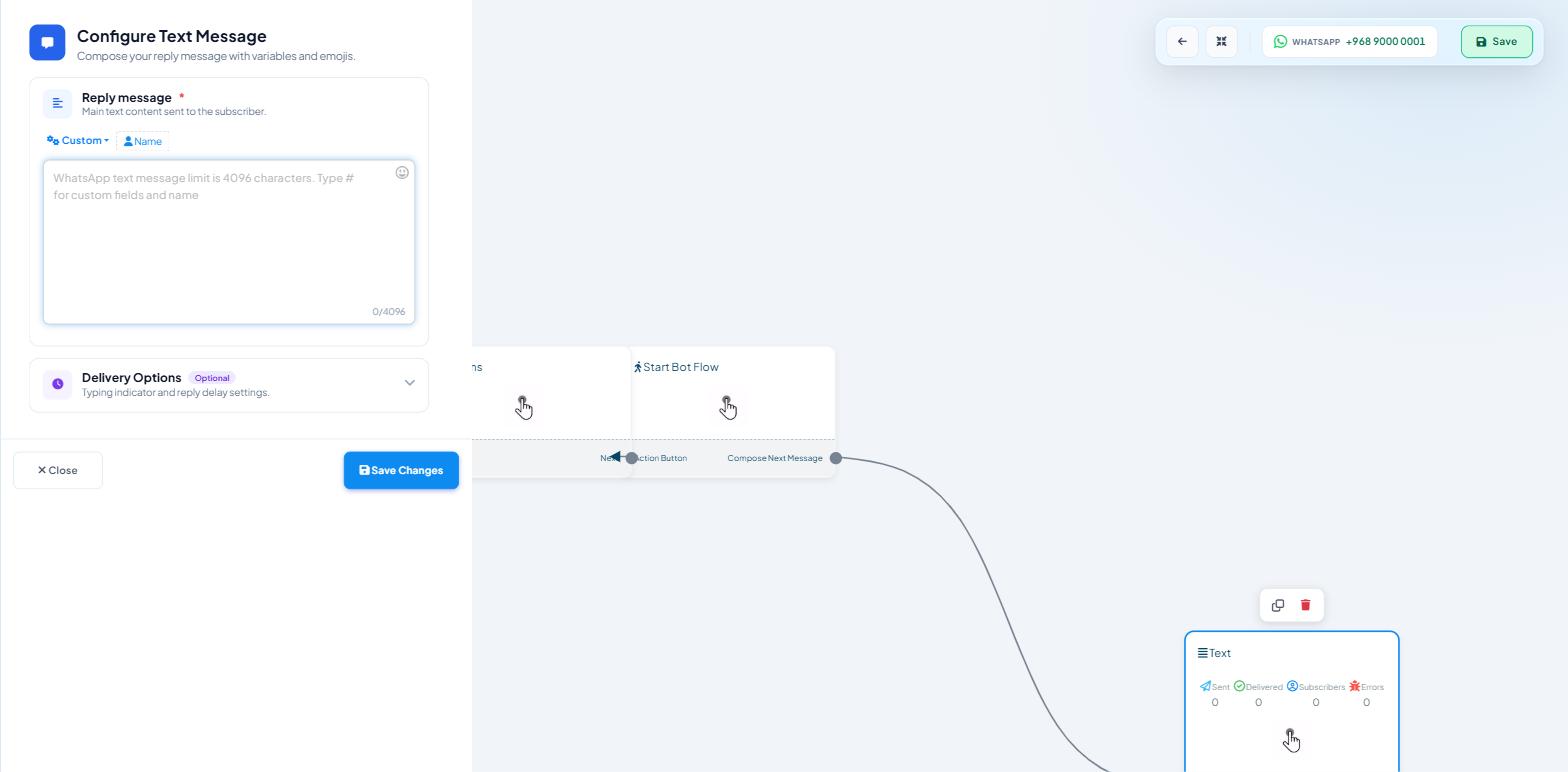
#in the body. The custom-field and name picker opens.Choose the field you want.
The Configure Text Message drawer also carries a Custom dropdown and a Name button above the textarea that do the same job from the toolbar, alongside an emoji picker. The Configure Interactive drawer states it outright in its body placeholder: "Type # for custom fields and name".
Type a single
#, not##. In WhatsApp message templates,#inserts a custom field and#!a template variable.
9. Guard against empty values
A field only holds a value once something has written one. Personalise on a field a subscriber may not have and you get a message with a gap in it, or a greeting to nobody.
Write copy that survives an empty value. "Your order is on its way" beats "Hi #FIRST_NAME#, your order..." if the field is often blank.
Branch first. A Condition block offers a
Has Valueoperator on both system and custom fields. Send the personalised version down the True branch and a generic version down False.Test with a subscriber who has never filled the field in, not only with your own record.
✅ Done when…
☐ The error log is empty because the causes were fixed
☐ A failed-delivery label is set
☐ Personalised messages read correctly for a subscriber with an empty field
If something doesn't work
A node partway down shows Sent zero. The problem is upstream: a condition or a broken connection.
Template sends fail. Press Sync Templates and check the template still reads
Approved.JSON Decode, 403 or 404 errors. The connected API answered wrongly. Test it with Send Test Request.
A message has a gap or greets nobody. The custom field was empty. Branch on
Has Value.A webhook workflow shows
SKIPPED. The workflow ran and deliberately did not send: a condition problem, not a delivery problem.
Reference
Other places failures surface
Failed deliveries as a label. See step 5.
Webhook workflow runs. Automation → Webhook Workflows has its own Workflow Report, where
SKIPPEDmeans the workflow ran and deliberately did not send.
Error codes: for developers
JSON Decode Error. Something that was supposed to be JSON was not: usually an endpoint returning an HTML error page, plain text or an empty body. Call the endpoint yourself with the same parameters and look at what actually comes back.
403 and 404 responses. Authentication and address problems respectively. A 403 usually means an expired token or a key that lacks permission; a 404 means the URL is wrong or the resource has moved. Both are fixed at the other end.
Viewing and editing one subscriber's fields
Open their row in Subscriber Manager and use the Custom Fields tab in the detail panel. The panel's tabs run Overview / Agent / Labels / Lists / Sequences / Input Flows / Custom Fields / Notes, with a Save Changes button, so a value can be corrected by hand when a customer gives you a better answer over the phone.
From the Shared Inbox, the Chat Actions rail has an Assign Custom Fields control with a Select Custom Field dropdown, so an agent mid-conversation can record something without leaving the thread.
A working routine
Check node counters on the flow that misbehaved.
Open Options ▾ → Bot Error Logs and read the most recent entries.
Fix the cause: the endpoint, the template, the condition.
Clear the log so the next failure is obvious.
If failures are delivery-side rather than flow-side, set the failed-delivery label and filter on it weekly.
What to do next
Using Collected Data in Follow-ups covers the other half of the custom-field story: capturing values through a User Input Flow and spending them in later messages. For failures that turn out to be duplicate or conflicting automation rather than errors, read Preventing Bot Conflicts and Duplicate Replies.
Next: Using Collected Data in Follow-ups