
Conditions, Triggers & Branching Logic in Flow Builder
How a flow starts, and how to send people down different paths with the Condition block: ask a question, store the answer and branch on it.
What you'll do: build a flow that asks a question, stores the answer and sends people down different paths depending on what they said.
Time: 15 minutes.
Triggers decide whether a flow starts at all. Conditions decide where a running flow goes next.
Before you start
☐ You know how to set a trigger on Start Bot Flow. See Introduction to Flow Builder: How Scope Wiser Flows Are Built.
☐ The Get-started and No Match quick actions are set up. Do these before anything else: No Match is the safety net for every message your keywords do not catch.
☐ A real phone on the connected channel to test from
1. Set the trigger
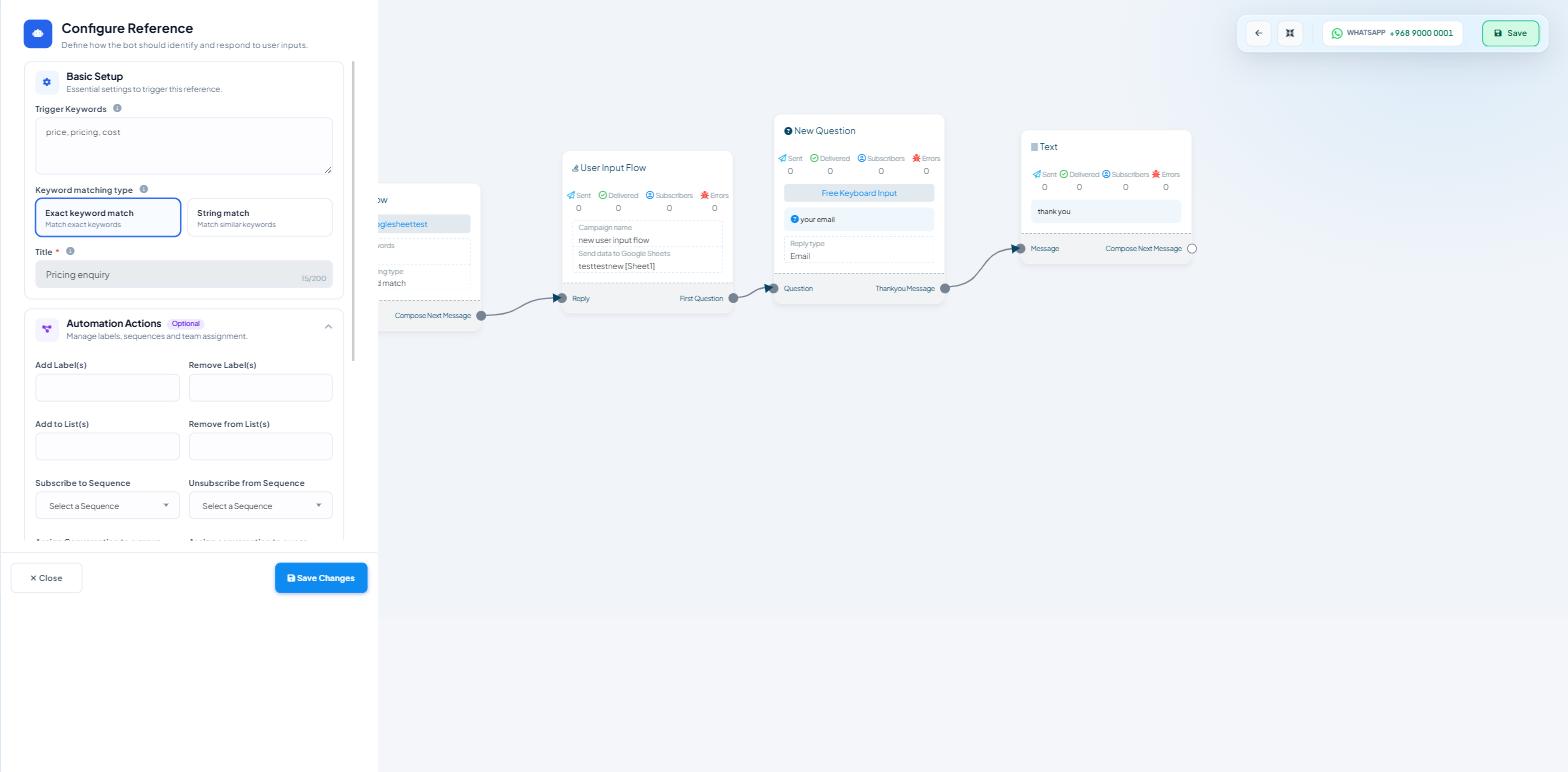
Click Start Bot Flow.
Set Trigger Keywords to a single word your audience would not send by accident.
Keep Exact keyword match.
Give it a Title such as
Customer check.Click Save Changes.
2. Ask the question
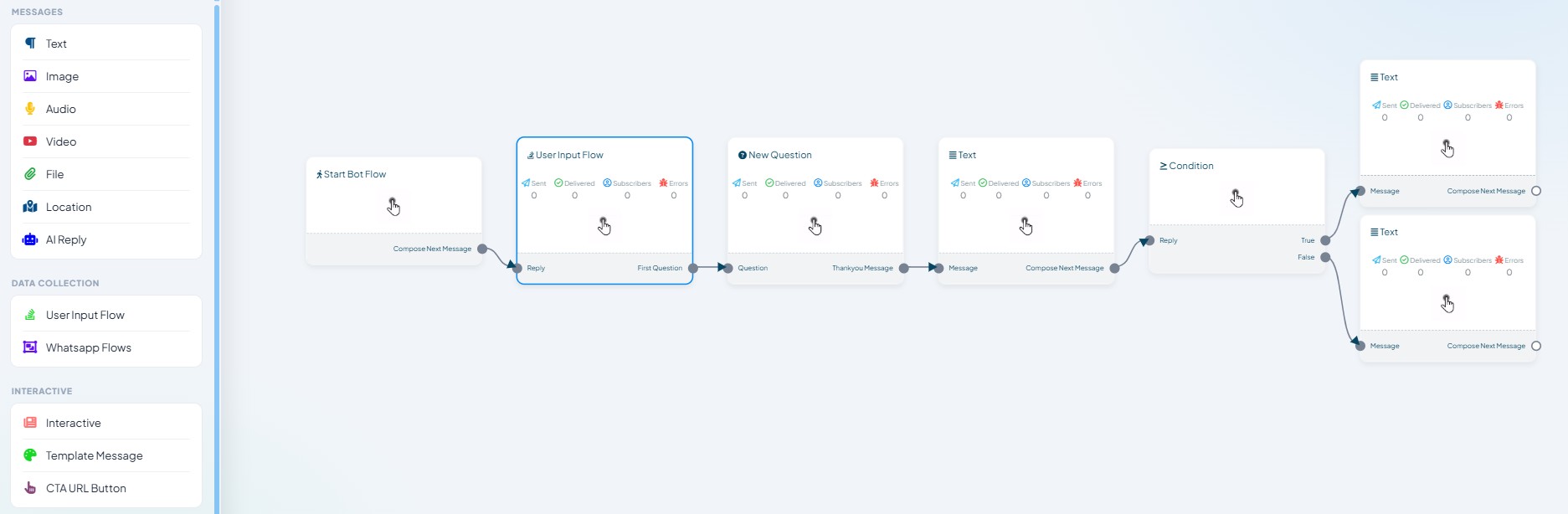
Drag User Input Flow from DATA COLLECTION onto the canvas and connect it. Its panel is headed Configure User-Input-Flow.
Pick a campaign from the User input flow dropdown. (If you have none, build one first under Chatbot Manager → Data Collection → User Input Flows.)
Optional: the same panel can Add Label(s), Remove Label(s), Add to List(s) and Remove from List(s), and can send the answers out through Forward Data to Webhook or Sync Data to Google Sheets.
3. Acknowledge the answer
Drag a line out of the node's First Question port. This creates a New Question node.
Build the question there.
Connect a Text block to that question's Thankyou Message port, with something short: "Thanks, one moment."
Optional: under Delivery Options, set Delay in reply and switch on Typing on display, so the reply does not land in the same instant as the question.
4. Branch on the answer
Condition sits under FLOW CONTROL in the palette and is on every channel.
Drag Condition onto the canvas, or pull a line out of the previous block's port and choose Condition from the menu. Connect it.
Click the Condition block.
Add a rule: choose the field to check (here, the field the input flow just filled) and the value it must match.
Click Save Changes.
One Condition block can hold several rules (if / else if / else), so a three-way split needs one block, not three. A rule can check a system field (first name, last name, gender), a custom field you filled earlier in the flow, or a value another system returned.
5. Give both outcomes somewhere to go
The block has two output ports, True and False.
Connect a Text block to the True port.
Connect another Text block to the False port.
Never leave False unconnected. The False path runs when someone answers in a way you did not expect, and an unconnected False port leaves that person with silence.
6. Save and test
Save twice: Save Changes saves the panel you are in; the blue Save in the top-right toolbar saves the flow.
Send the trigger word from a real phone on the connected channel.
Judge the test by what arrives on the phone.
✅ Done when…
☐ The trigger word starts the flow and asks your question
☐ An expected answer takes the True path
☐ An unexpected answer takes the False path and still gets a reply
If something doesn't work
Three failures account for most of the debugging:
Nothing fires at all. Check the trigger keyword and matching type first. Exact matching will not catch "hi there" when the keyword is
hi.The wrong flow fires. Two flows share an overlapping keyword, and a broad string match on one is catching the other's traffic. Keyword Replies lists every flow for the bot; check for collisions there.
The branch never resolves. The condition is reading a field that was never filled, usually because the input flow ran later than you thought, or saved to a different field.
Reference
Other ways a flow starts
Flows also start from Quick Actions, Follow-up Sequences, User Input Flows, Chat Entry and Broadcast campaigns: same canvas, different first node.
The rest of Flow Control
Label Assign adds a subscriber label mid-flow, so everyone who reached that branch can be filtered in Subscriber Manager later. Not on Webchat.
New Sequence Campaign starts a timed series of messages that continues after the conversation ends. Give it a Sequence Campaign Name; it adds three Send Message After nodes to the canvas. Tick Allow re-entry only after completion if someone should be able to go through the sequence again once it has finished. Not on Webchat.
Random Number Generator splits people at random, for testing two versions of a message. WhatsApp only.
RCN lets a Messenger customer agree to receive regular updates from you. Facebook only. See Media Blocks: Images, Files, Cards and Carousels.
What to do next
Quick Replies, Buttons & CTA URLs is the natural next step. Branching on a tap is more reliable than branching on typed text, because you chose the answers.
Next: Quick Replies, Buttons & CTA URLs