
WhatsApp Rules You Must Know: 24-Hour Window & Template Messaging
The Meta rules that decide whether your WhatsApp broadcast is delivered: the 24-hour window, approved templates, opt-in, quality rating and daily limits.
What this covers: the two Meta rules that decide whether a WhatsApp message is delivered at all (the 24-hour service window and approved templates), plus opt-in, quality rating and what Meta charges.
Neither rule is a Scope Wiser setting, and neither can be switched off.
Before your first broadcast
☐ A WhatsApp Business Account connected to Scope Wiser, and a phone number connected through Meta's official WhatsApp API (done during setup)
☐ Meta business verification completed for the Meta Business account (Meta also calls it Business Manager or business portfolio) that owns the account
☐ A display name approved by Meta that matches your actual business identity
☐ Two-factor authentication turned on for the number
☐ At least one approved template, if you'll message anyone outside their window
☐ Consent from everyone you'll send promotional messages to (see below)
Connection and verification are covered in Connect WhatsApp to Scope Wiser and WhatsApp Business Profile, Verification & Messaging Limits.
The 24-hour service window
Meta only lets you send free-form messages (plain text, images, buttons, anything you like) within 24 hours of a customer's last message to you. That period is the service window. It applies to WhatsApp and Facebook Messenger alike.
Three things matter in practice:
The customer starts the clock, not you. Sending a message doesn't open a window. Only a message from them does.
Every message from them resets it to a full 24 hours. A one-word reply gives you another day.
When it closes, free-form messages stop. No error appears in the customer's chat. The message simply isn't delivered.
A customer reply reopens the window, so everything you send after that reply is free-form and cheaper.
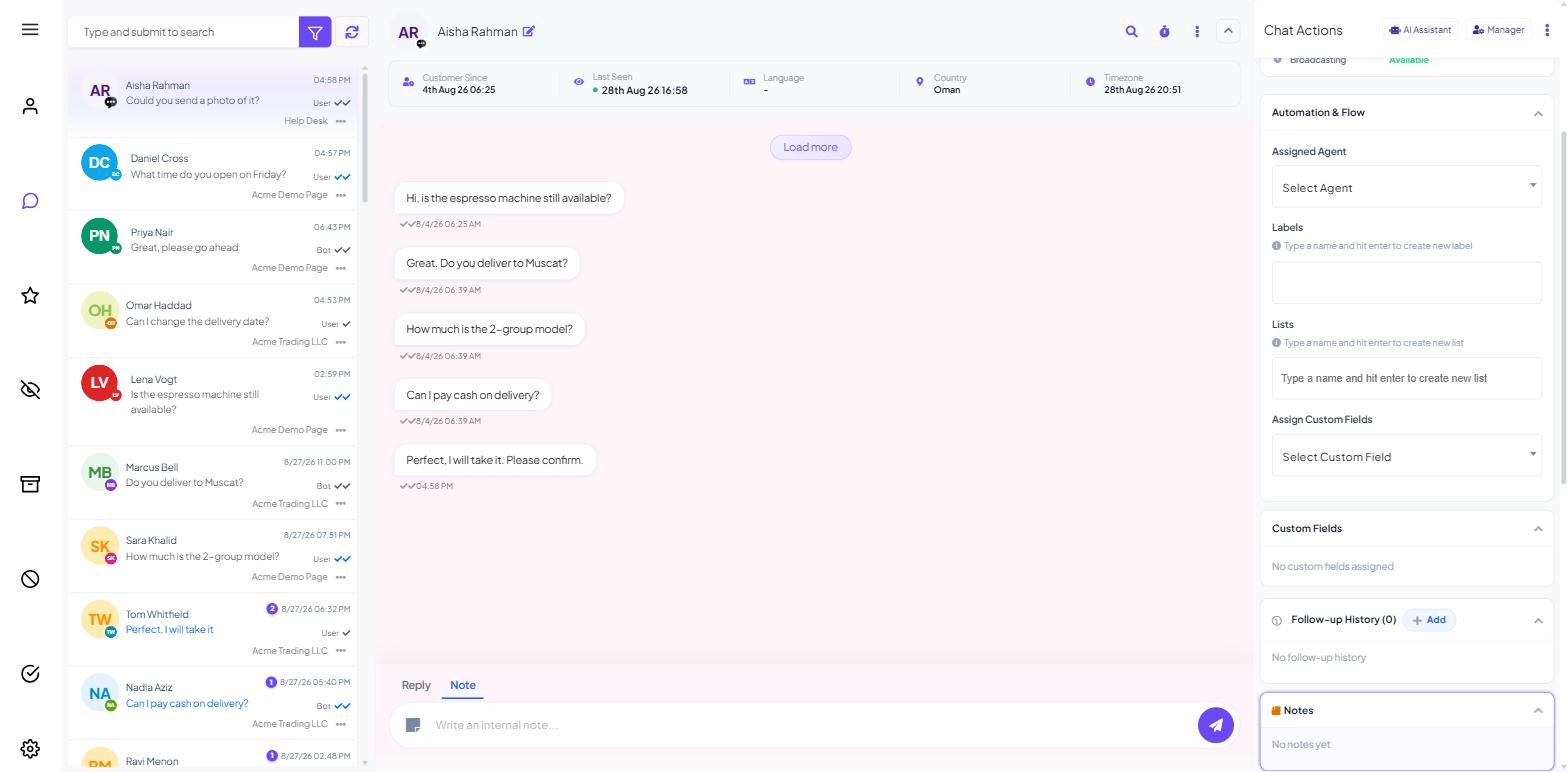
Check one customer's window
Open Shared Inbox and select the conversation.
Look at Customer Snapshot in the Chat Actions rail on the right.
The Messaging Window row reads
Inside 24Hwith a live countdown, or shows that the window has closed.Directly under it, OPT-IN Through shows how that person became a subscriber.
Outside the window, only templates are delivered
Once the window closes, the only message WhatsApp accepts from a business is an approved message template: fixed wording, reviewed by Meta in advance, with variable slots for the parts that change for each person.
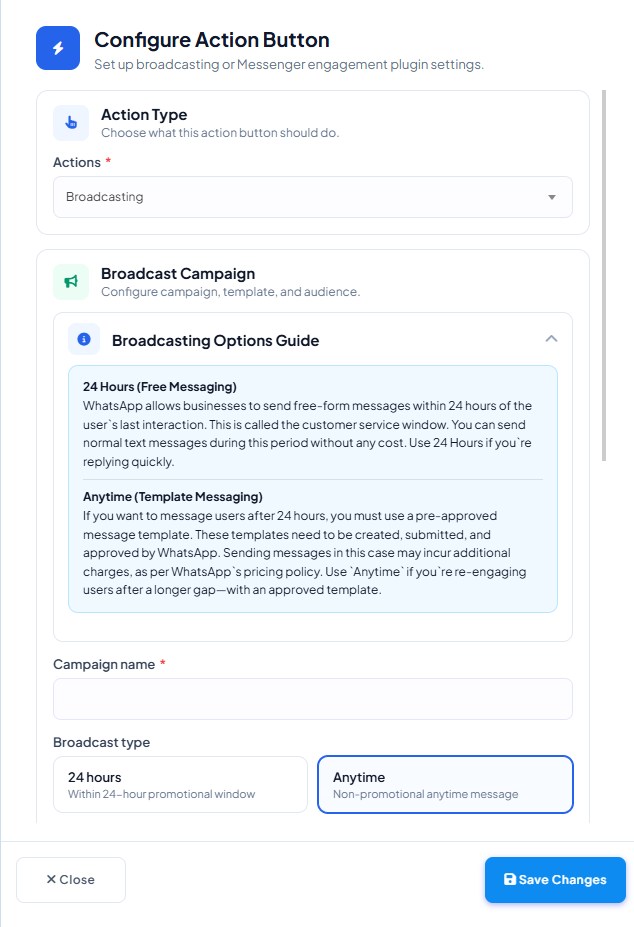
Every template has a category, chosen when you create it. The TEMPLATE CATEGORY control offers three:
Category | Use it for |
|---|---|
| Something the customer already has a relationship with — an order update, a booking confirmation, a payment receipt |
| Offers, launches, reminders to come back, anything promotional |
| One-time codes and login verification |
Choose the category honestly. Marketing content submitted as a utility template is the most common reason a template is rejected.
Two more rules catch people out:
An approved template can't be edited and stay approved. A changed template goes back through review.
Approval is per language. The same message in Arabic and English is two templates, each reviewed separately.
Creating and submitting templates is covered in Creating & Getting WhatsApp Templates Approved. The content rules that cause refusals are in Why Message Templates Get Rejected.
Opt-in is a requirement, not a courtesy
You must have consent before sending a promotional or non-transactional message. Meta doesn't require one particular method, but it does expect you to be able to show where consent came from. That's what the OPT-IN Through field records for each subscriber.
Buying a list and importing it doesn't create consent. Neither does someone having bought from you once. If you can't point to a moment when a person asked to hear from you, leave them out of a marketing broadcast.
Quality rating and the daily conversation limit
Meta scores each phone number on how customers react to it. Blocks and "report business" taps push the rating down.
Go to WhatsApp Integration → Business Accounts → Phone Numbers.
QUALITY shows High/Medium/Low.
MESSAGING LIMIT shows how many conversations you may start per day.
Both stay blank until the number has sent messages.
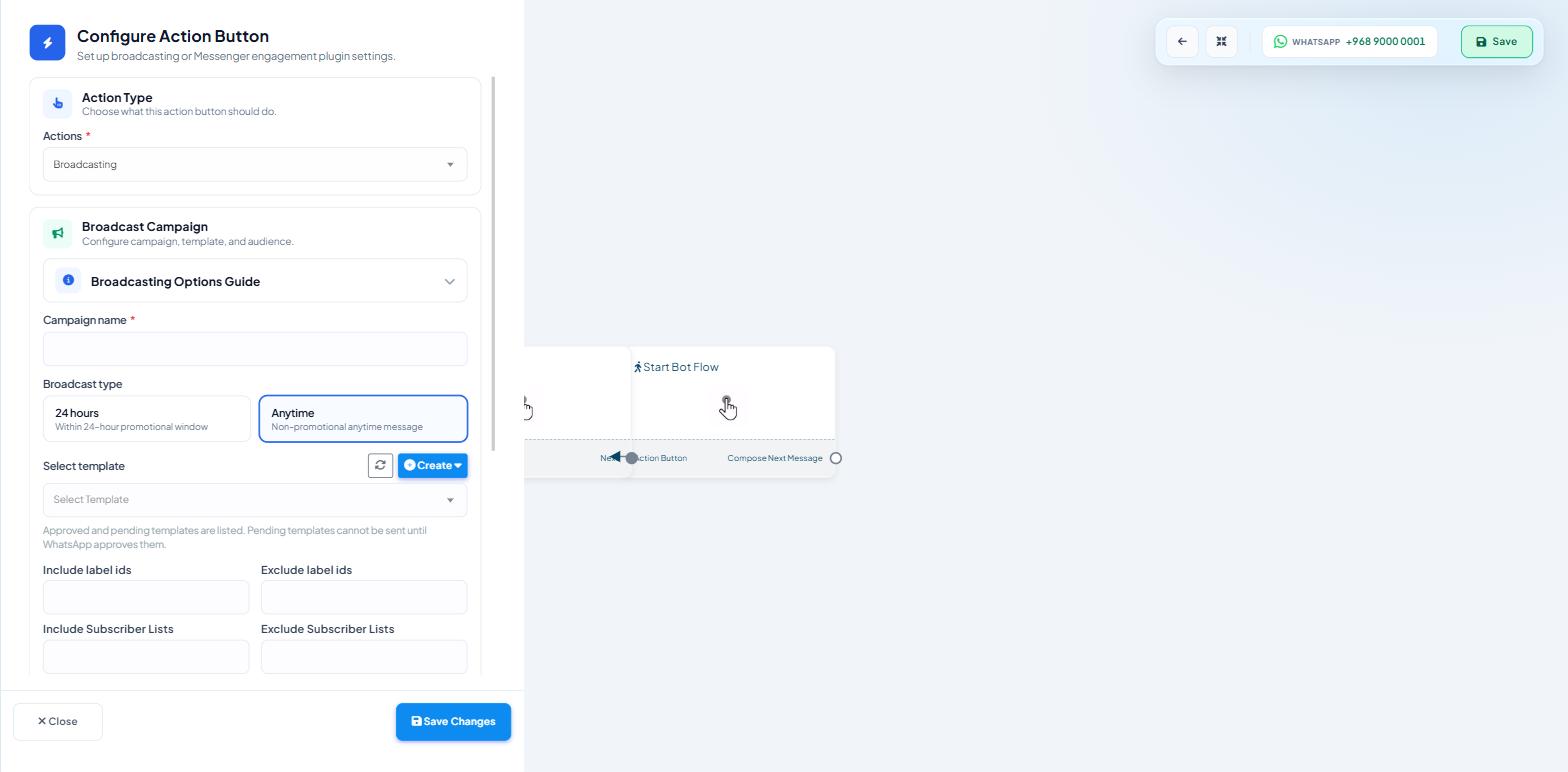
The broadcast drawer shows your targeted audience and that daily limit side by side. Anything above the limit isn't delivered that day: see Running a WhatsApp Broadcast Campaign.
A rating that has slipped recovers on its own if you message more selectively. Broadcasting less often, to smaller and better-chosen segments, is the fix. There's no button that repairs it.
What WhatsApp won't carry at all
Meta's Commerce and Business Policies ban a defined list of categories, including gambling, tobacco, alcohol, adult content and certain financial products. Templates in those areas are refused at review, and repeated attempts put the account itself at risk.
Cold messaging is banned too. Sending to people who never opted in breaks the policy even if every individual message is an approved template.
What this costs
Meta charges per template message delivered. The price depends on the message's category and the recipient's country; marketing costs more than utility. Meta changes these prices from time to time, so always check the current rates on Meta's official page: Pricing on the WhatsApp Business Platform.
Scope Wiser's own message credits are separate from Meta's charges and are covered in Message Credits & AI Tokens.
Messenger has its own 24-hour window and solves it a different way: see Facebook RCN Broadcasting Explained.
Next: Creating & Getting WhatsApp Templates Approved. Get one template through review before you plan a campaign, because approval is the step with the unpredictable wait. Once you have an approved template, Running a WhatsApp Broadcast Campaign takes you through the send itself.