
Adding Team Members & Access Control
Give colleagues their own Scope Wiser logins: build a role in User Permission, create the person in User Manager, and restrict which bots and chats they can reach.
This page gives each colleague their own login instead of a shared one. It takes two screens, in a fixed order: Control Panel → User Permission defines what a role can do, then Control Panel → User Manager creates the person and assigns them that role. Build the role first; the person's form asks for one.
Step 1 — Build the role
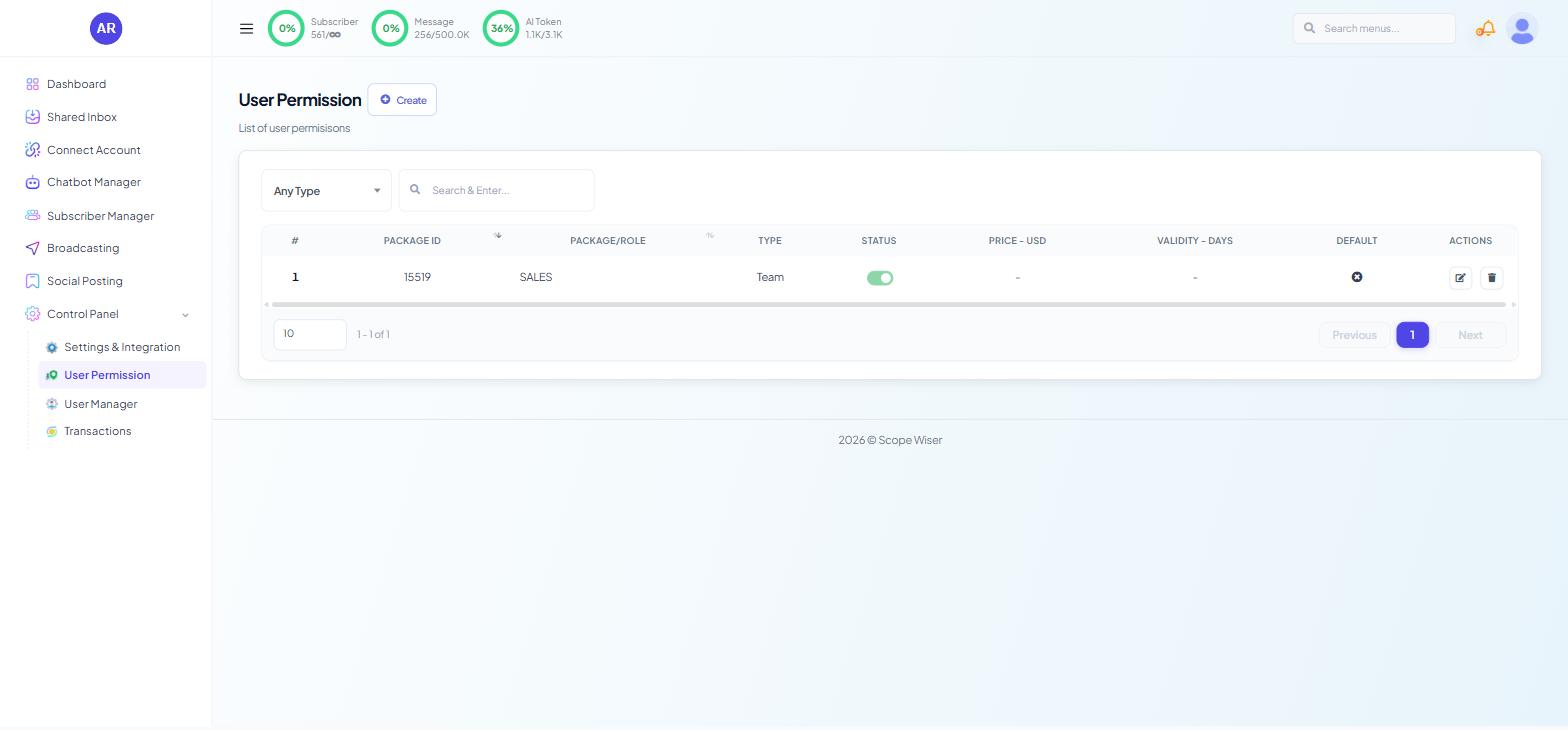
Open Control Panel → User Permission. The list shows existing roles; team roles show
Teamin the TYPE column.Click Create.
In TEAM ROLE NAME *, name it for the job (
SALES,SUPPORT AGENT), not the person.
The channel switches
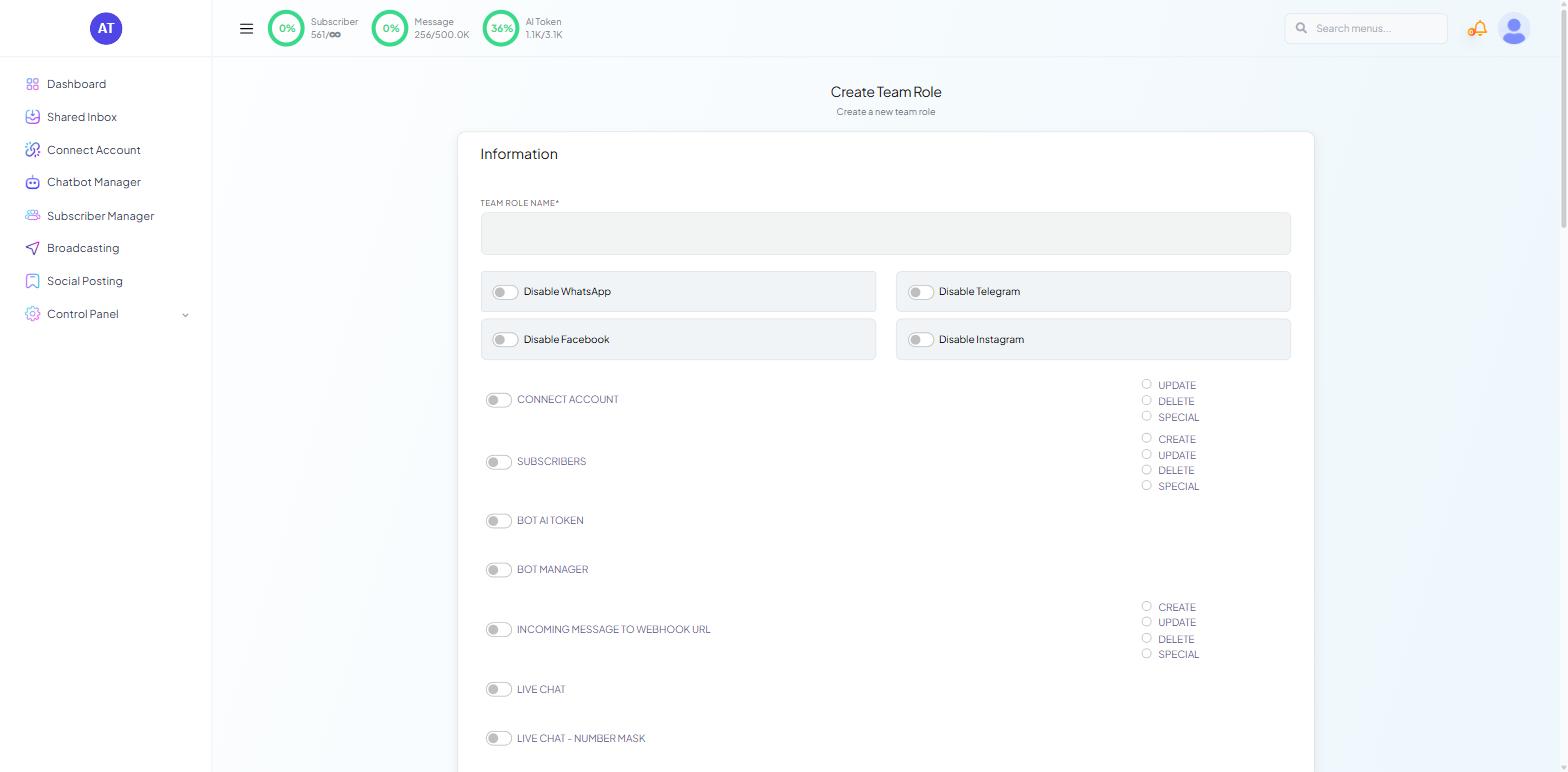
Near the top sit Disable toggles, one per channel — WhatsApp, Facebook and Instagram among them. If a role is only ever going to work on WhatsApp, disable the other channels here; they vanish from that person's view entirely, whatever the permissions below say.
The permission list
Below the channel switches runs one long list of permission toggles. Each is on or off, and most carry up to four sub-permissions:
CREATE — add new items of that kind.
UPDATE — change existing ones.
DELETE — remove them.
SPECIAL — additional or advanced actions within that module.
The list mirrors the sidebar (Connect Account, Subscribers, Bot Manager, Broadcast, Live Chat, AI, WhatsApp features, Integrations, Control Panel). Four toggles deserve a deliberate decision:
LIVE CHAT - NUMBER MASK hides customer phone numbers from the agent. Switch it on for contractors, or for anyone who should not be able to copy numbers.
CONTROL PANEL - USER & TEAM lets the holder create and edit other users. Anyone with it can grant themselves anything. Keep it to owners.
CONTROL PANEL - PACKAGE & ROLE lets the holder rewrite the roles themselves — the same problem by a different route.
API DEVELOPER exposes API credentials, which give access to the whole account outside the interface.
Grant the least a person needs to do their job; adding a permission later takes thirty seconds.
Save with Create on a new role, or Update when editing. The form is one long list, so scroll to the bottom to find the button.
Step 2 — Create the person
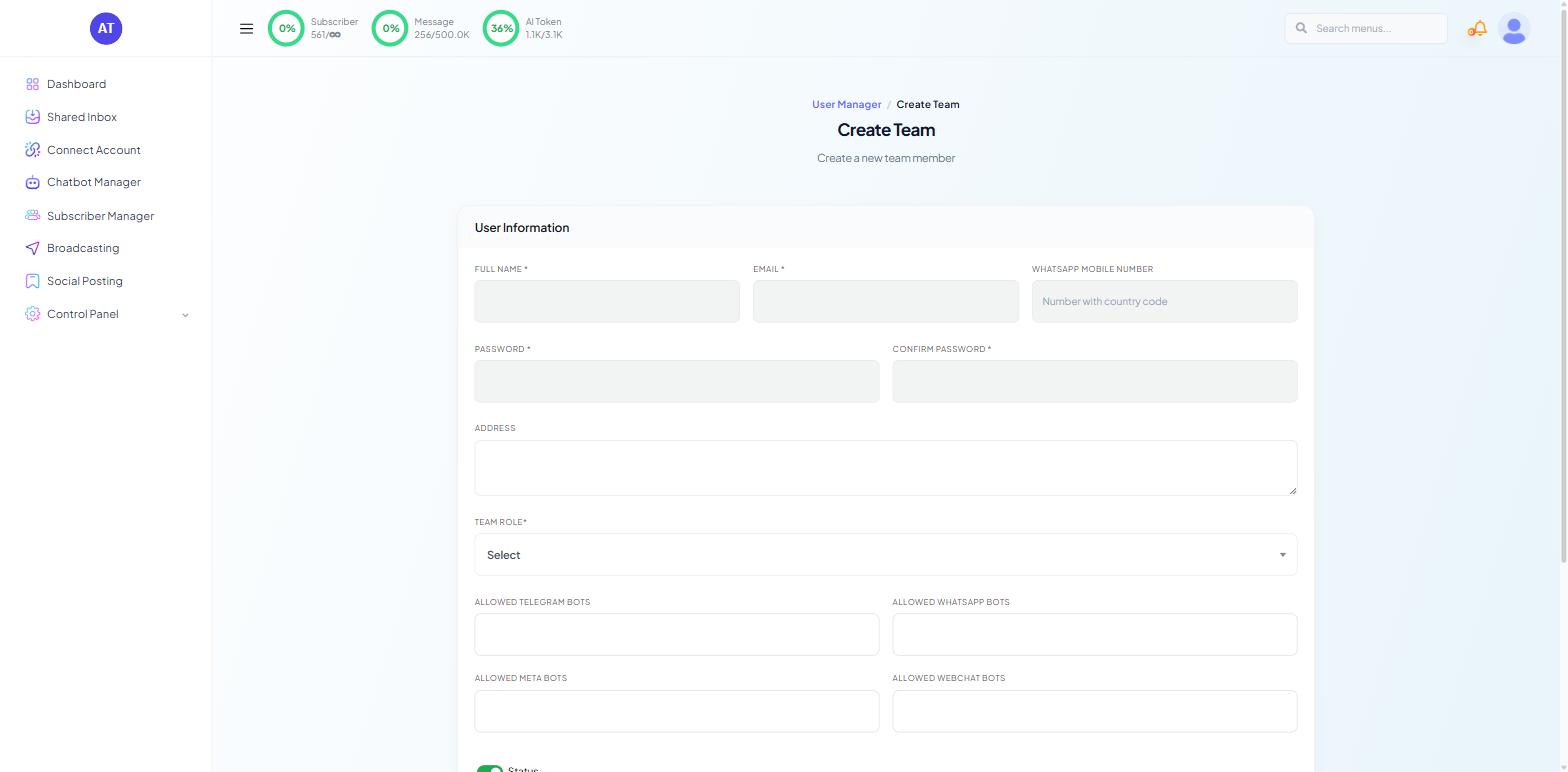
Open Control Panel → User Manager and click Create. The form is headed Create Team, with a User Information card.
Fill in:
FULL NAME * — the name that appears against this person's replies in the Shared Inbox. Use a real one.
EMAIL * — their login. It must be theirs, not a shared address.
WHATSAPP MOBILE NUMBER — "Number with country code", for example
+968 9000 0001.PASSWORD * and CONFIRM PASSWORD * — set an initial password and ask them to change it once they are in.
ADDRESS — optional.
TEAM ROLE* — choose the role you built in step 1.
Set the bot restrictions: ALLOWED WHATSAPP BOTS, ALLOWED META BOTS and ALLOWED WEBCHAT BOTS. A role says what a person can do; these say which bots they can do it to. An agent hired for one brand should see one bot, not every account you run.
Check the two toggles at the end, both on by default:
Status — whether the login works at all.
Allow Only Assigned Chat in Livechat — when on, the agent sees only conversations assigned to them. Leave it on for agents. Turn it off only for supervisors who need to see everything.
Click Create.
Managing people afterwards
The User Manager list shows each person with their PACKAGE/ROLE, STATUS, EXPIRY DATE, LAST IP and LAST LOGIN, with edit and delete actions per row.
LAST LOGIN and LAST IP are the two columns to read regularly. A dormant account is an unnecessary risk, and a login from somewhere unexpected is worth a question.
When someone leaves, turn their STATUS toggle off rather than deleting the row. Deactivating removes access immediately while keeping the history of who did what.
To change what somebody can do, edit the role rather than the person — the change reaches everyone holding it at once. Edit the person only to change which role they hold or which bots they can reach.
A structure that holds up
Three or four roles cover most teams: an owner with everything, a campaign role with broadcasting and subscribers but no Control Panel access, a support role with the Shared Inbox and little else, and a read-only role for anyone who only needs to look.
Review roles every few months and remove permissions nobody needs.
What to do next
Account Security: 2FA, Passwords & Email Verification covers the account-level protections that sit alongside roles, including the logged-in device list that shows you every active session.