
Billing, Plan Limits & the Usage Log
Read your Scope Wiser plan, allowances and usage: the Package cards, the Addons and Usage Log panels on the Account page, the top-bar meters and the Transactions record.
Your plan, your usage and your payments are shown in three different places. This page shows where each one is and which numbers to check before a campaign.
Where billing lives
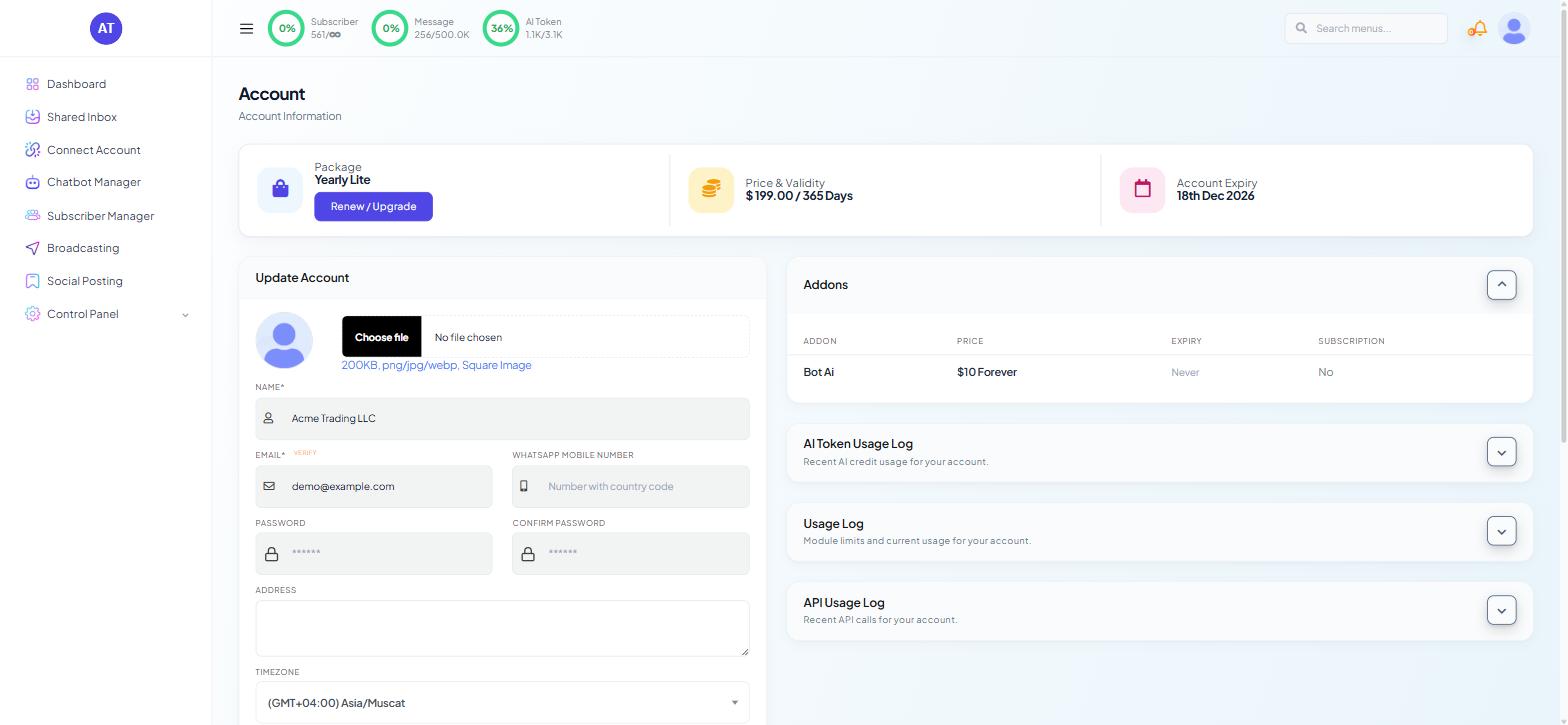
Click your avatar at the top right and choose Account. The Account page is the billing page — not Control Panel → Settings & Integration, which handles workspace security.
The profile menu also carries Renew / Upgrade and Transactions directly, and Transactions appears again under Control Panel for roles that include it.
Your plan, at the top of the Account page
Three cards sit across the top:
Package — the plan you are on, with a Renew / Upgrade link.
Price & Validity — what the plan costs and the term it runs for.
Account Expiry — the date it lapses.
Read Account Expiry first. An expired account means bots that stop replying to customers. Put the date in your own calendar.
The panels on the right
Four collapsible panels stack down the right-hand column of the Account page.
Addons — a table of ADDON, PRICE, EXPIRY and SUBSCRIPTION. Addons are extras on top of your base plan and carry their own expiry dates. A base plan that renews while an addon lapses makes the feature disappear with no obvious cause, so check this panel's EXPIRY column at the same time as your account expiry.
Usage Log — "Module limits and current usage for your account." Each module your plan covers, what you are allowed, and what you have used. Open it when you want to know whether you can do something.
AI Token Usage Log — "Recent AI credit usage for your account." AI tokens go down whenever your bot uses an AI reply or an AI agent, independently of message volume.
API Usage Log — only relevant if a developer has connected other software to your account.
The meters in the top bar
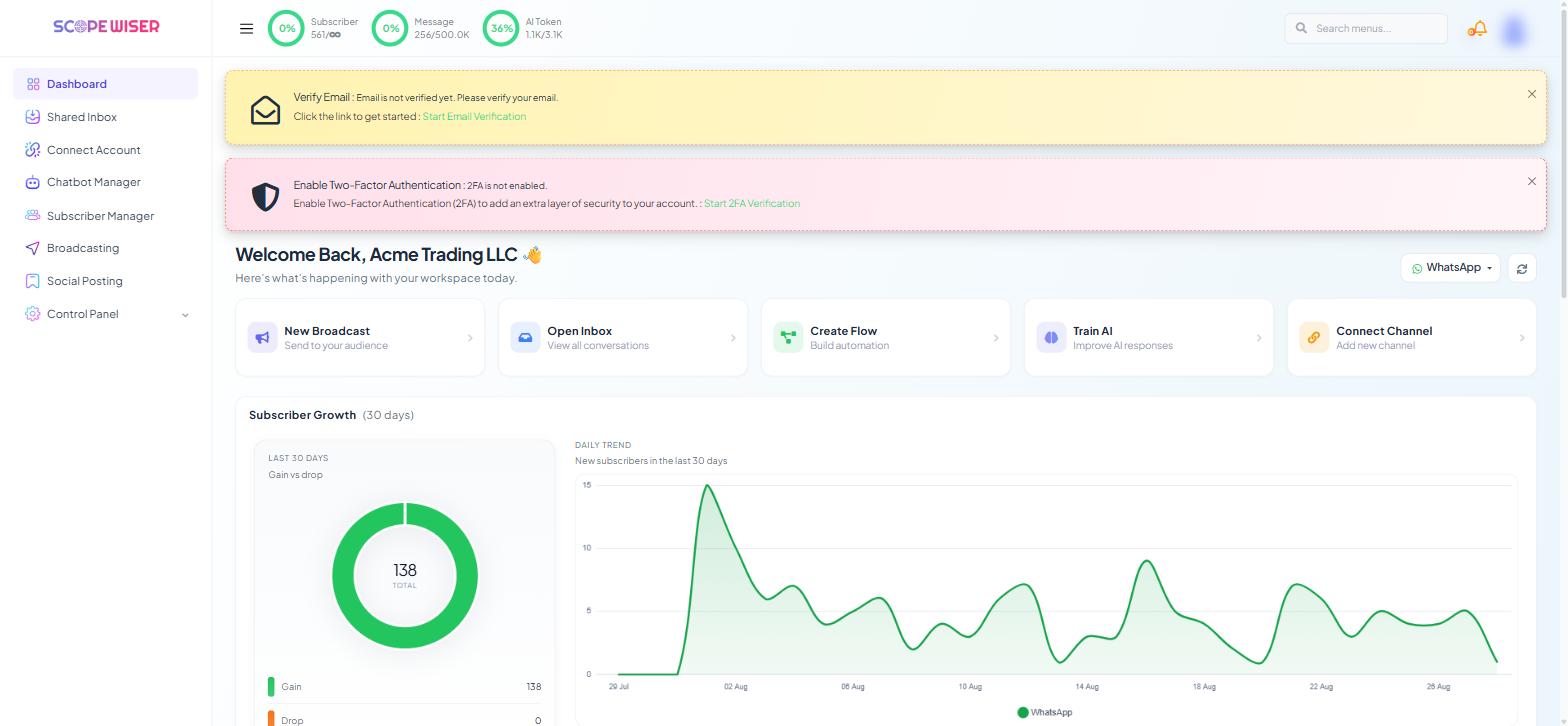
Three ring meters — Subscriber, Message and AI Token — sit in the top bar on every screen and show usage against your allowance; Message Credits & AI Tokens: Tracking and Optimising explains how to read them.
Which numbers matter, and when
Before a large broadcast, check the Message meter. A campaign that stops halfway because credits ran out leaves half your audience without the message.
Before turning on AI replies, check AI Token. AI use grows with conversation volume, so it can move faster than you expect after a launch.
After a large import, check the Subscriber figure. Imports are the fastest way to reach a subscriber cap.
Monthly, read the Usage Log against your calendar. A spike almost always maps to a specific campaign.
Put these checks in a recurring calendar reminder.
Upgrading and renewing
Renew / Upgrade appears on the Package card and in the profile menu, and leads to the pricing options for your account. Before you click:
Upgrade for the limit you keep hitting, not the largest number on offer. The Usage Log shows which module is constraining you.
Addons can be cheaper than a plan step. If one feature or one allowance is the problem, look at the Addons panel before moving the whole plan up a tier.
To remove Scope Wiser branding, click Remove Branding on the WhatsApp Integration page — it opens the paid add-on on the Pricing page.
Transactions
Transactions — from the profile menu, or Control Panel → Transactions — is your payment record. Use it to confirm a renewal went through, to check a charge you did not expect, and to find the reference a billing conversation will ask for.
What to do next
Message Credits & AI Tokens: Tracking and Optimising goes deeper into the two resources that move fastest, including the habits that keep both allowances down. If a subscriber figure looks wrong rather than merely high, Subscriber Metrics & Recounts explains which of the subscriber numbers to trust.