
Subscriber Metrics Explained
Where Scope Wiser reports subscriber numbers, how the usage meters, the growth chart and the Subscriber Manager cards differ, and what to check when a count looks wrong.
Scope Wiser shows subscriber numbers in three places, and each answers a different question. This article explains which number to read for what, and what to check when a count looks wrong.
The three places a subscriber count appears
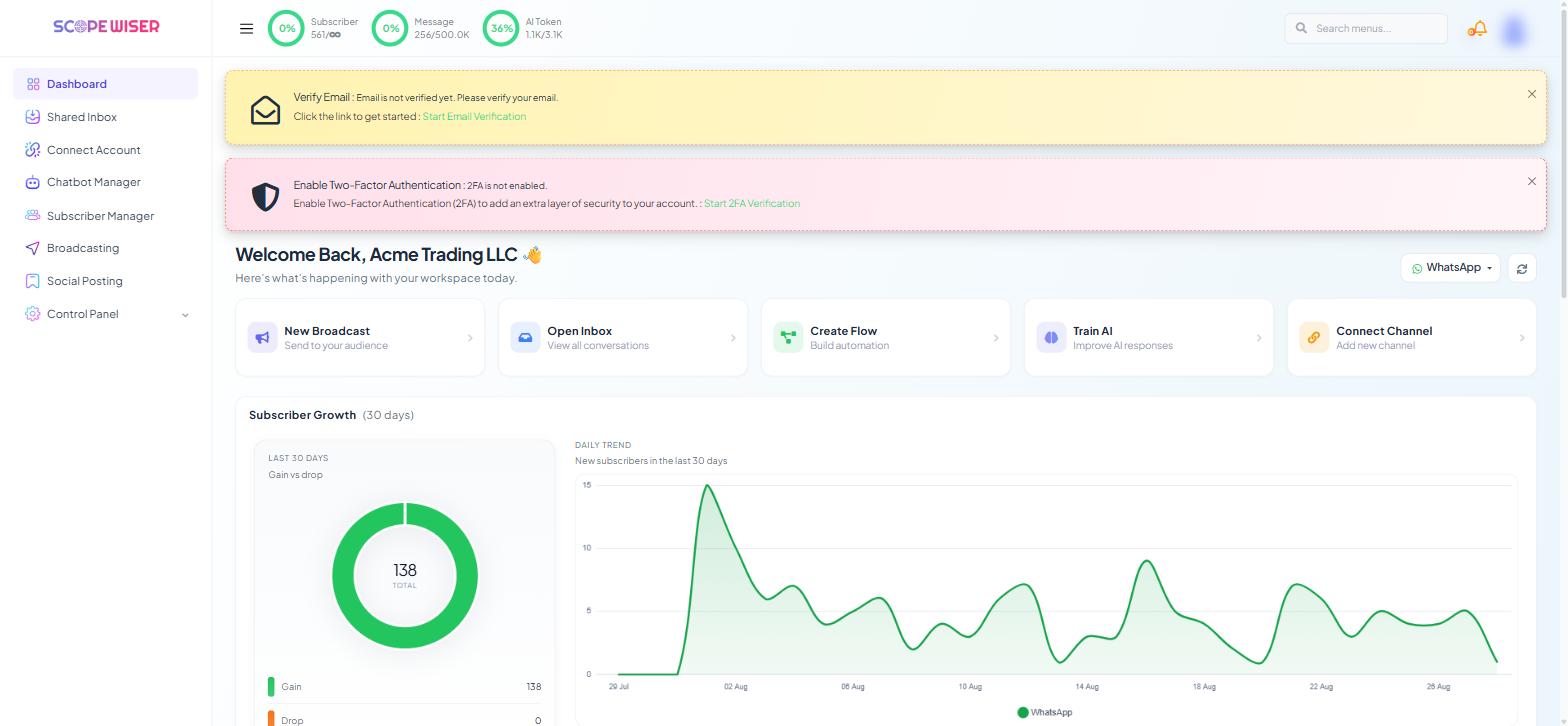
The usage meters, top of every screen. Three rings sit in the top bar — Subscriber, Message and AI Token. The number before the slash is what you have; after it is your plan limit (∞ = no limit). 557/∞ means 557 contacts with no cap; 238/500.0K on the Message meter is a real ceiling.
This is a billing number. It counts everything in your account, including unsubscribed contacts, and ignores every filter.
The Dashboard's growth widget. Open Dashboard. The Subscriber Growth (30 days) widget shows LAST 30 DAYS · Gain vs drop as a donut with Gain and Drop beneath it, and DAILY TREND · New subscribers in the last 30 days as a day-by-day chart.
This is a movement number. It tells you what changed, not what you hold. The channel selector at the top right of the dashboard controls which channel the widgets show — check it before concluding that a channel has stopped producing subscribers.
Subscriber Manager's stat cards. Three cards above the list: Total Subscribers, Subscribed (as a percentage) and In Sequences (as a percentage).
These are the only figures that respond to your filters. Set channel, bot, label and status, then read the cards — that is the group your next bulk action or broadcast will reach.
Symptom → check
Total Subscribers rising, Subscribed % falling → look at what happens shortly after people join. An aggressive first sequence is the usual cause.
Gain high, Drop high, total flat → people are leaving as fast as they arrive. Drops usually cluster on the days you broadcast; find that send and read what it said.
In Sequences near zero on an account that uses sequences → filter Subscriber Manager by the sequence (All Sequences) to confirm nobody is enrolled, then check the sequence trigger.
Gain zero for several days on every channel → check the channel connection under Connect Account before changing anything about your marketing.
There is no date-range filter in Subscriber Manager. For week-on-week comparisons, read the daily trend, or use Export/Import → Export all as CSV and group by date in a spreadsheet.
Usage against your plan
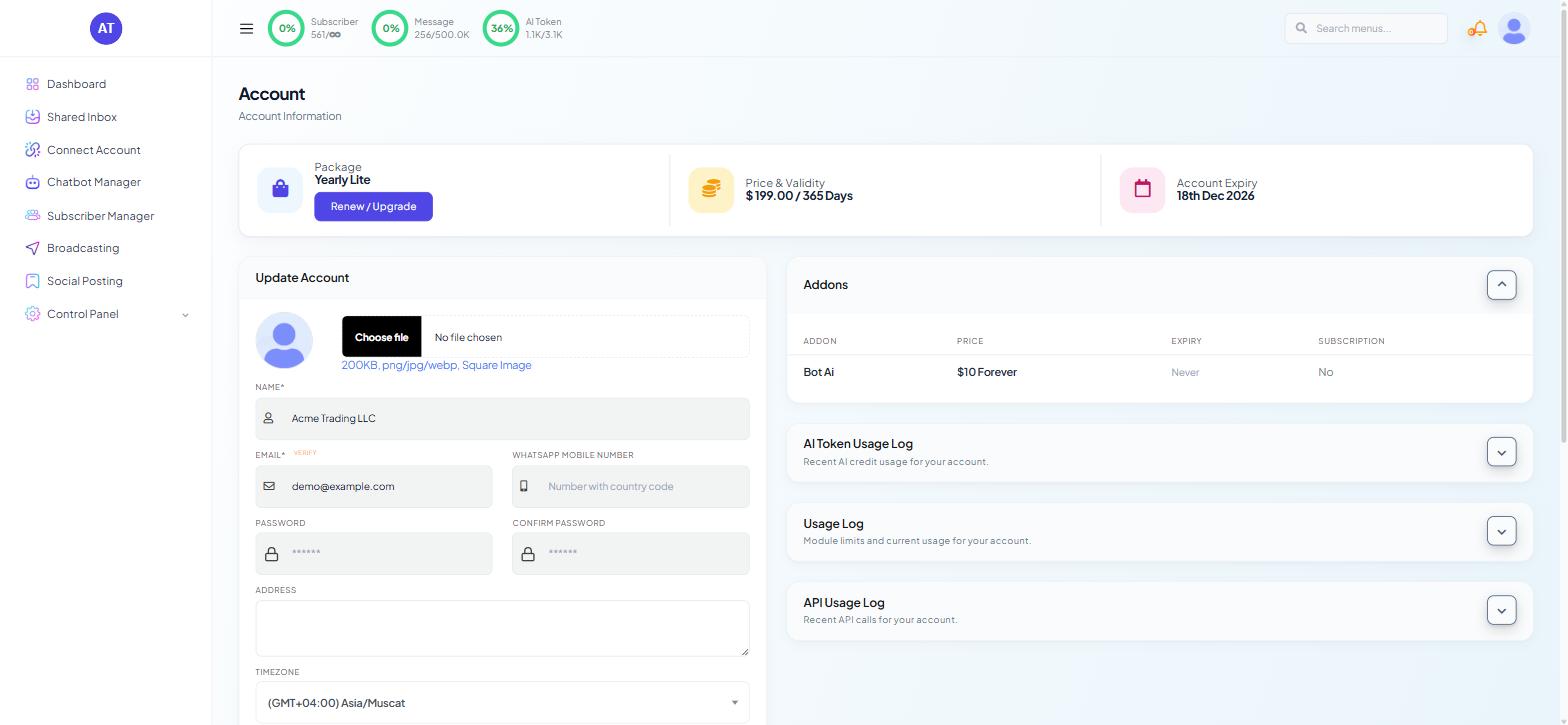
Click your avatar (top right) → Account. Plan and usage live here, not under Control Panel.
The right-hand column holds four panels:
Addons — what you have bought, with price, expiry and subscription state.
AI Token Usage Log — recent AI credit usage.
Usage Log — module limits and current usage. This is the breakdown behind the top-bar Subscriber meter.
API Usage Log — recent API calls.
When a count looks wrong
Three explanations that are not faults:
Unsubscribed contacts still count. Someone who opted out stays in the database and in the Subscriber meter until you delete the record. Filter All Status → Unsubscribed in Subscriber Manager to see the size of that group.
Channels do not merge. One person who has messaged your WhatsApp number and your Facebook Page is two subscriber records, and both count.
A filter is still applied. The Subscriber Manager cards respond to filters and the top-bar meter does not, so a difference between them usually means a chip is still active. Press Clear All and compare again.
What to do next
Viewing & Filtering Subscribers turns these totals into specific groups. Labels, Lists & Segments: How Scope Wiser Groups Subscribers keeps those groups meaningful as the list grows.