
Click-to-WhatsApp Ads
Run Facebook and Instagram ads that open a WhatsApp chat: where Click Ads lives, what each campaign step asks for, how icebreakers work, and what to watch.
What you'll do: run a Facebook or Instagram ad whose button opens a WhatsApp chat with you instead of a landing page. The person lands in a conversation, and from that moment they are a WhatsApp subscriber you can answer, qualify and follow up.
Time: 30–45 minutes.
Before you start
The ad will not run without all three of these:
☐ A WhatsApp Cloud API number connected to Scope Wiser. How to Connect WhatsApp to Scope Wiser: Complete Setup Guide covers this if it is not done.
☐ That number linked to the Facebook Page you will advertise from. Meta routes ad clicks into a chat thread on the linked number. Without the link, people see errors or land in the wrong place, and Ads Manager cannot attribute the conversation.
☐ A Meta ad account you can spend from, connected to Scope Wiser.
Also:
☐ A flow for the bot to say. Build it before you spend money, not after.
1. Open Click Ads
Click Chatbot Manager.
In the left-hand Bots / Accounts panel, select your WhatsApp bot.
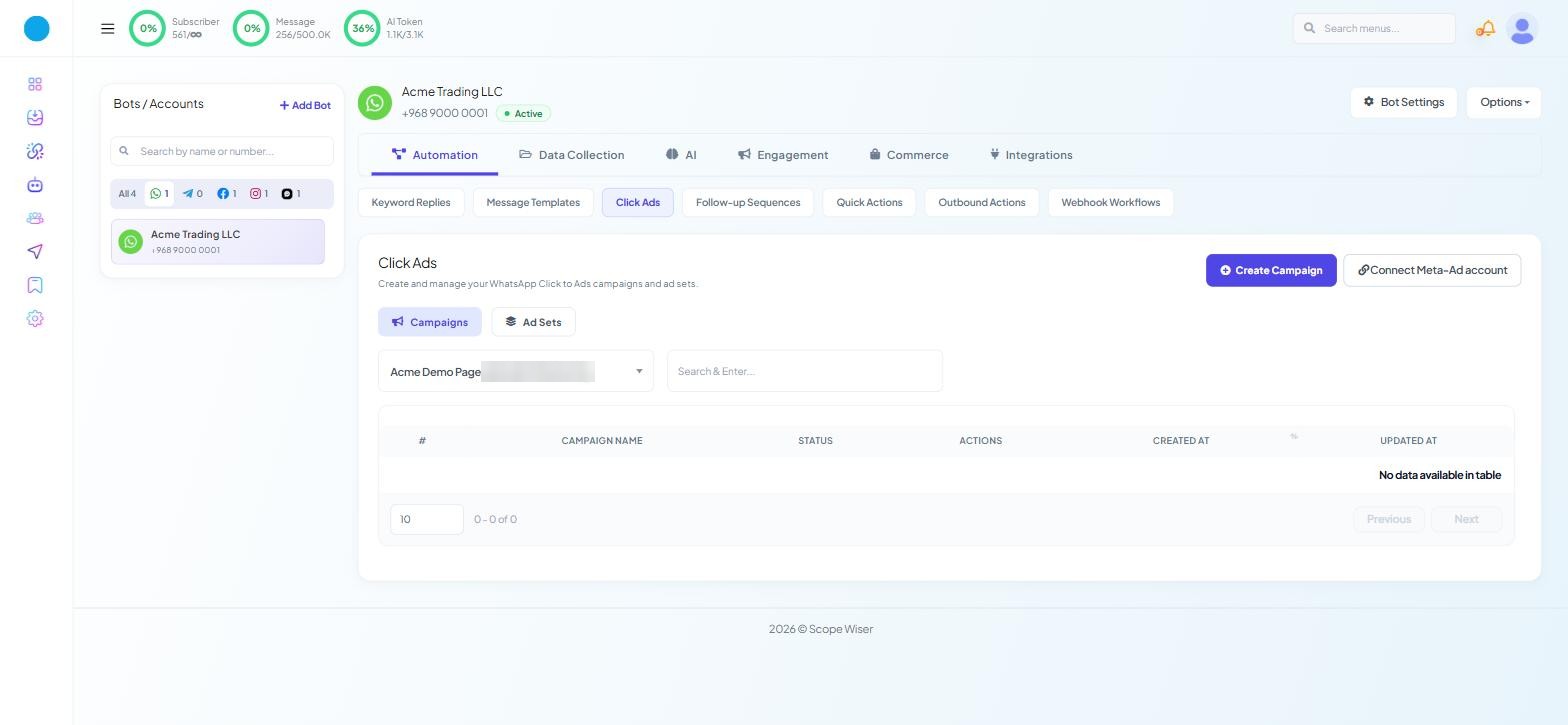
Open the Automation tab, then the Click Ads sub-tab.
You should now see two buttons at the top, Create Campaign and Connect Meta-Ad account. Below them are two inner tabs, Campaigns and Ad Sets, and an ad-account selector.
Click Ads appears on WhatsApp bots only. It is not in the Automation tab of a Facebook, Instagram or Webchat bot, even though the ads themselves run on Facebook and Instagram. The module belongs to the number the conversation lands on.
2. Choose the ad account
If the ad-account selector is empty, click Connect Meta-Ad account first.
Pick the ad account in the selector.
Set the ad account selector before you create anything. It decides which account the campaign is built in and which budget it spends.
3. Create the campaign (step 1 of 4)
Click Create Campaign. It opens a four-step flow: campaign, ad set, creative, ad. Each step ends with a Next.
Campaign Name: something you will recognise in the table later.
Objective: choose Engagement. It optimises for conversations, which is what this ad is for.
Special Ad Categories: select None unless your business is in credit, employment, housing, social issues, elections or politics. Declaring a category you do not need restricts targeting for no reason.
Status: set it to Paused if you want to review the whole thing before it spends anything. You can switch it to Active later.
Click Next.
4. Set the ad set (step 2 of 4)
This is budget, schedule and audience.
Bid amount: the most you will pay for a result.
Budget type and amount: daily or lifetime. Daily is easier to control while you are learning what a conversation costs you.
Optimisation goal: choose Conversations. (The other option, Impressions, optimises for being seen by people who will never message. Conversations is almost always the right answer here.)
Page: the Facebook Page the ad runs from. This must be the Page your WhatsApp number is linked to.
Set the start and end time, and the ad set status.
Target audience: country or group of countries, plus optional tags and custom audiences.
Click Next.
5. Build the creative (step 3 of 4)
Fill in the ad header, primary text, description and image.
Choose the welcome message type. This is where a Click-to-WhatsApp ad differs from any other ad:
Welcome with autofill message: the chat opens with a message already typed. The person taps send and you receive a predictable, identical first message, so a single keyword can trigger a single flow.
Welcome with ice breaker: the chat opens showing up to four tappable questions. The person picks one, which tells you their intent before you have asked anything.
Click Next.
First campaign? Start with autofill. Icebreakers qualify better, but autofill is simpler to wire up. Move to icebreakers once you know what people actually ask.
6. Finish the ad (step 4 of 4)
Set the ad status.
Preview the ad across placements. Mobile feed, desktop feed, Instagram and right column render very differently.
Finish.
7. Set up icebreakers (only if you chose them)
Icebreakers are a Meta feature, set against your phone number rather than in Scope Wiser.
Go to Connect Account → Connect WhatsApp.
Expand Business Accounts and click Manage Account. This takes you to Meta's WhatsApp Manager.
Open Phone Numbers and click the settings icon beside your number.
Find Icebreakers under Automations.
Add up to four questions and save.
Back in Scope Wiser, go to Chatbot Manager → Automation → Keyword Replies.
Create a reply for each question, using the icebreaker's wording as the keyword, so that tapping it triggers the matching flow.
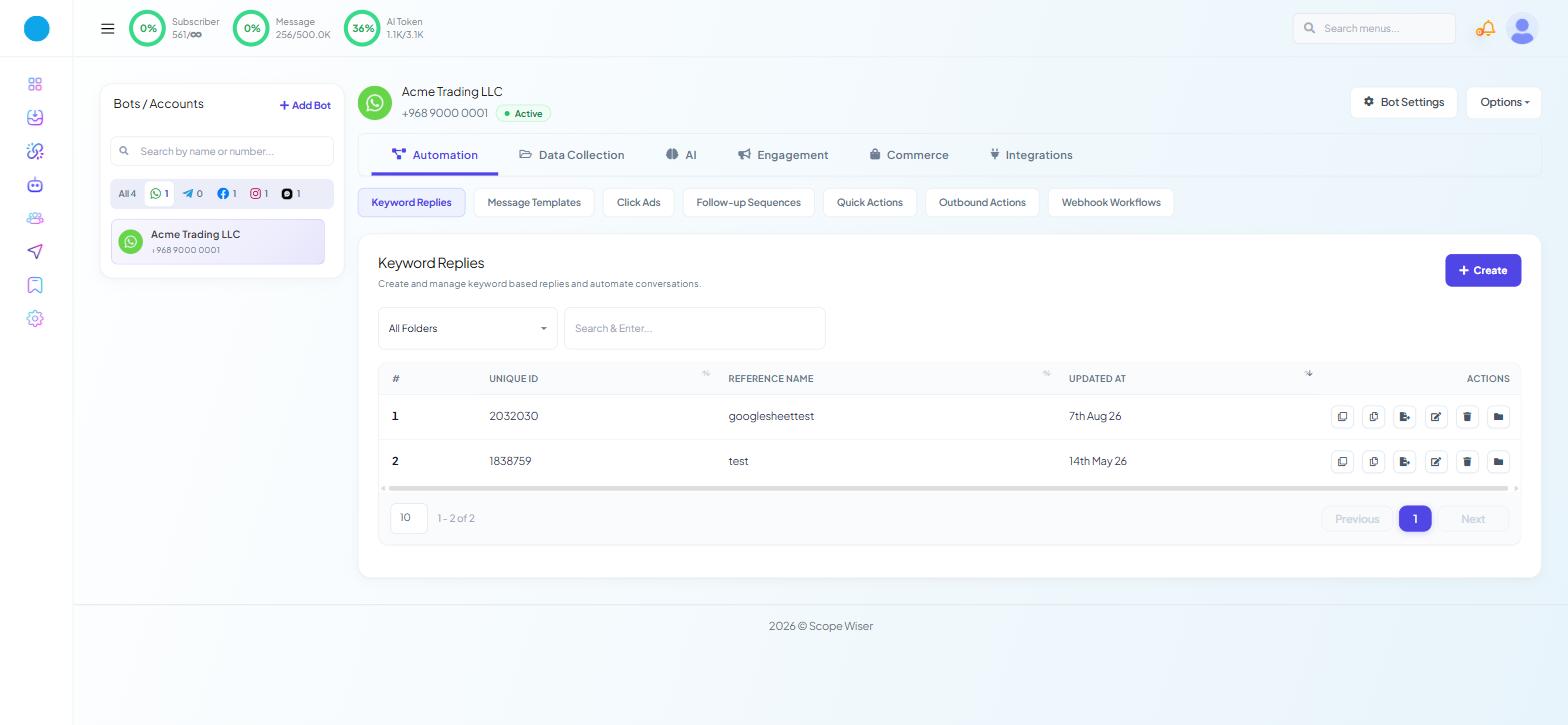
Every icebreaker needs a matching reply. An icebreaker with no matching reply produces silence at the precise moment you have paid for someone's attention.
8. Test the icebreakers
Icebreakers show only to a number that has never chatted with you, so test from a new number.
Confirm the icebreakers appear.
Tap each one and check the right flow starts.
✅ Done when…
☐ The campaign appears in the Campaigns table
☐ You have previewed the ad across placements
☐ If you use icebreakers: each one, tapped from a new number, starts the right flow
If something doesn't work
The ad-account selector is empty. Use Connect Meta-Ad account first.
People see errors or land in the wrong place. The WhatsApp number is not linked to the Facebook Page you advertise from.
Icebreakers don't appear. They show only to a number that has never chatted with you. Test from a new number.
Tapping an icebreaker gets no reply. Create a Keyword Reply that uses the icebreaker's exact wording.
Chats die after the first message. Fix the flow in Flow Builder and label contacts as they arrive (Subscriber Manager → Bulk Actions → Assign Label).
Reference
Campaigns table
The Campaigns table lists what exists: #, CAMPAIGN NAME, STATUS, ACTIONS, CREATED AT and UPDATED AT, with a Search & Enter... box and a page-size control.
Reading the results
Once the campaign is live, the Campaigns table gives you status and timestamps. The campaign's own detail view carries the ad preview and performance figures: clicks, impressions, spend, reach, CPM, CPC and CTR.
Watch two things:
Cost per conversation = spend ÷ chats started.
If chats die after the first message, fix the flow in Flow Builder and label contacts as they arrive (Subscriber Manager → Bulk Actions → Assign Label).
What to do next
Introduction to Flow Builder: How Scope Wiser Flows Are Built is where you improve the conversation those clicks land in. If you want a free equivalent of the same idea on your own site, Website Chat Widget: Create, Embed & Manage covers the widgets that do it.
Next: Introduction to Flow Builder: How Scope Wiser Flows Are Built