
Connect Instagram DM Automation
Instagram connects through the same Facebook login as your Pages: what your account must be, how to switch on automation, and what an Instagram bot can do.
What you'll do: bring your Instagram account into Scope Wiser and switch it on for DM automation.
Time: 5–10 minutes.
Instagram rides on Facebook. The Connect Instagram card opens an Instagram Integration screen and the Connect Facebook card opens Facebook Integration, but both use the same Login with Facebook button, and one Facebook login brings across your Pages and your Instagram accounts together.
Before you start
Two conditions are set on Instagram's side, and Scope Wiser cannot work around either:
☐ A Business account. Personal and Creator accounts cannot be automated. Convert in the Instagram app before you start.
☐ Linked to a Facebook Page you administer. The link is what Meta's API follows. Without it, the account does not appear in the Instagram tab no matter how many times you log in.
Also:
☐ You are logged into the correct Facebook user in your browser: the one that administers that Page.
1. Check whether you are already connected
If you have linked a Facebook Page to Scope Wiser at any point, your Instagram account may be there already.
Go to Connect Account.
Click Manage on your Facebook row.
Look at the Instagram (n) tab inside your profile card.
If your account is listed, skip to step 3.
2. Connect
Follow steps 1–4 in Connect a Facebook Page.
At step 3 there, opt in to all current and future Instagram accounts.
Don't skip the Instagram opt-in. Skipping it is the single most common reason an Instagram account never shows up.

3. Confirm the account arrived and switch it on
Under Connected Facebook Profiles (or Connected Instagram Profiles on the Instagram screen), find your profile card. It shows a PRIMARY badge, its ID and a Connected on date. The Instagram screen also lists your Pages with their linked handle, for example Instagram: @yourshop, and a BOT STATUS of
Connected.Open the Instagram (n) tab inside it. The count in the tab label tells you how many accounts came across.
Switch on the toggle next to the account to enable automation.
Open Chatbot Manager.
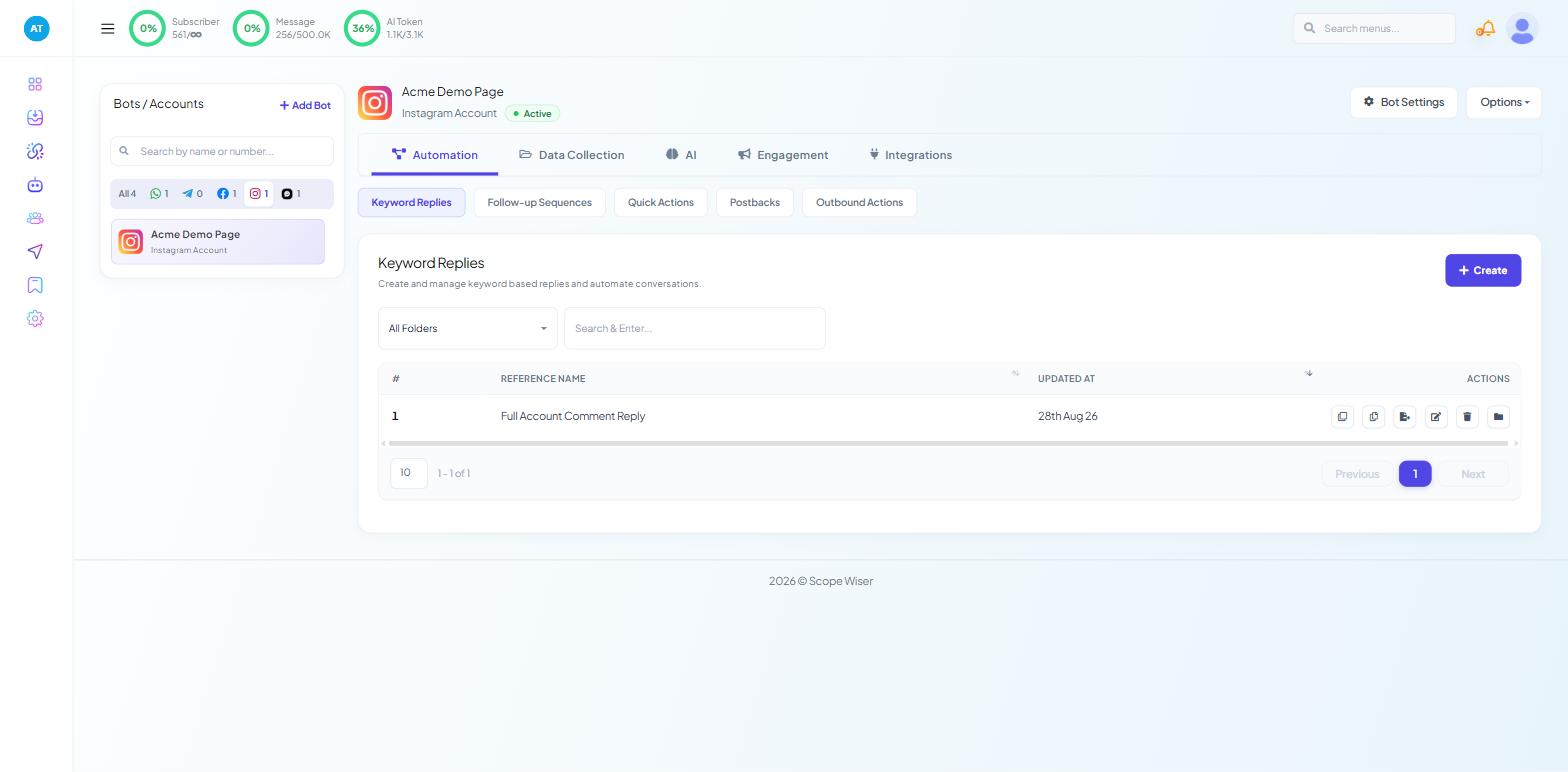
You should now see the account in the left-hand Bots / Accounts panel, labelled with the handle and Instagram Account. Above that list, the channel filter chips (All, WhatsApp, Facebook, Instagram, Webchat) carry counts, so Instagram moving from 0 to 1 is your confirmation that the channel is live.
4. Build the first DM reply
The build is the same on every channel: Automation → Keyword Replies → + Create opens the Flow Builder. Build Your First Chatbot in 5 Minutes walks it through.
Two blocks in the Instagram palette are worth knowing:
Generic Template: a card with an image, title, subtitle and buttons.
Carousel: a scrollable row of those cards. It is the pattern most Instagram shops end up building.
There is no Interactive block. That one is WhatsApp-only.
Instagram conversations you answer by hand land in Shared Inbox alongside every other channel. See Live Chat and the Shared Inbox: Complete Overview.
✅ Done when…
☐ The account appears in the Instagram (n) tab with its toggle on
☐ The account appears in Chatbot Manager with the Instagram chip count at 1 or more
If something doesn't work
No Instagram accounts listed after login. Check the account type is Business, that it is linked to a Page you administer, and that you logged in as the right Facebook user.
Permission denied during the Facebook dialog. Run the login again and opt in to all current and future Instagram accounts.
Messages stop arriving. Reconnect from Connect Account and grant the permissions again.
Fixing Channel Connection Problems goes through each of these in detail.
Reference
What an Instagram bot can do
Select the Instagram account in Chatbot Manager and the tab row adapts to the channel. Instagram gives you Automation, Data Collection, AI, Engagement and Integrations. There is no Commerce tab, since product catalogues are WhatsApp-only.
Automation: Keyword Replies, Follow-up Sequences, Quick Actions, Postbacks and Outbound Actions. Keyword Replies is where a DM bot begins.
Data Collection: User Input Flows, for capturing structured answers.
AI: AI Configuration ("Enable agents and map intents for the selected bot.") and Agents.
Engagement: Comment Automation, Get Started Settings and Persistent Menu. Comment Automation is the Instagram-specific one: it handles replies to comments on posts, alongside the DM automation.
Integrations: set up per account (Google Sheets, email, SMS and the rest). Select the Instagram account in Bots / Accounts first.
What to do next
If your Facebook Pages have not been set up yet, Connect a Facebook Page covers what changes on the Messenger side. If the Instagram connection is behaving unpredictably, go to Fixing Channel Connection Problems.