
WhatsApp Messaging Limits & Business Verification
Why new WhatsApp accounts start at 250 customers a day, why the limit is per Meta Business account, three ways to raise it, and what to do if Start Verification is missing.
What this covers: how the 250-customers-a-day starting limit works, the three ways to raise it (only one of which is verification), how to get verified, and where to read your current position inside Scope Wiser.
1. What you get at the start
A new Meta Business account (Meta also calls it Business Manager or business portfolio) starts at 250 unique customers in a rolling 24-hour period. That counts business-initiated conversations: broadcasts, template sends, anything you start.
The limit belongs to the Meta Business account, not the phone number. Meta calculates it at account level and every phone number inside that account shares the same allowance. Adding a second number does not give you another 250.
Replying is unaffected. Customer-initiated conversations inside the 24-hour window are unlimited at every tier, so support and sales conversations never hit this.
The full tier table is under Reference below.
2. Three ways past 250
This is the part most people get wrong. You do not have to be verified to scale.
Verify your business in your Meta Business account.
Have a partner complete verification on your behalf.
Send 2,000 delivered messages outside customer service windows, to unique WhatsApp numbers, within a rolling 30-day period, using templates with a high quality rating.
That third route matters. If the business verification option is not showing in your Meta Business account, you are not stuck. Keep sending good-quality template messages to real customers and Meta raises the limit on its own. The option often appears later, once the account has some history behind it.
Above 2,000, scaling becomes automatic: Meta raises the tier when you consistently use most of your current allowance and keep your quality rating up, and lowers it again if customers start blocking or reporting you.
3. Get verified
Verification is worth doing even though it is not the only path (see What verification still gets you under Reference). It happens on Meta's side, against your Meta Business account, not inside Scope Wiser.
Open your Meta Business account at business.facebook.com.
Go to Settings, then Security Centre.
Click Start Verification.
Upload documents that match your legal business name: name, address, and usually a website or a utility record.
Expect anything from a few hours to a few working days. What decides it is whether the documents agree with each other and with the business name on the account.
Two details reject more applications than anything else: the legal business name must match your documents exactly, and your website must load over HTTPS and carry the same business name and contact details.
4. Read your current limits in Scope Wiser
Everything you need sits on one screen.
Click Connect Account in the sidebar.
On your WhatsApp row, click Manage. You land on WhatsApp Integration, "Connect and manage your WhatsApp Business Accounts and phone numbers."
Expand Business Accounts.
Look at the Phone Numbers table. Each column is explained under Reference below.
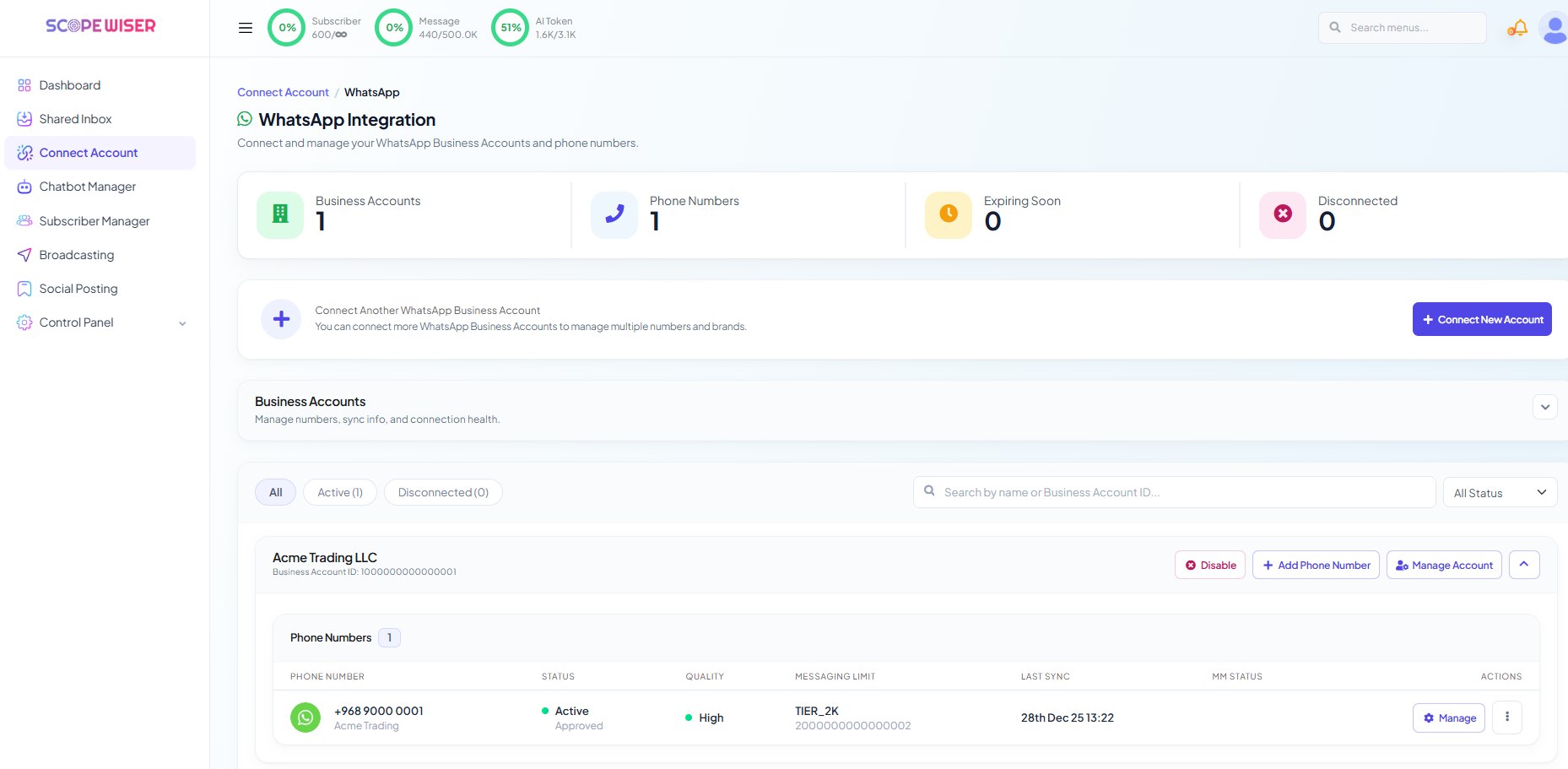
MESSAGING LIMIT is the number that matters here. If it is not moving, the constraint is either verification or your own sending pattern, not the platform.
LAST SYNC is worth a glance too. A stale timestamp means Scope Wiser is showing you an old picture. Manage Account on the business-account block re-syncs it.
If something doesn't work
Start Verification is not there
Two different things cause this, and only one is a problem.
You cannot open Security Centre at all. You do not have Full access to the Meta Business account. That is the highest permission level, and it is the only one that can verify. Ask whoever created the account to give you Full access, or have them do the verification.
Security Centre opens but shows "Ineligible for verification". This is not a fault, and the fix is almost always the same one: connect your WhatsApp number first.
Meta grants verification eligibility when something on the Meta Business account needs it. In their words, it depends on the product or feature that you want to access and that requires you to verify your business. A Meta Business account with nothing attached to it has no such feature, so there is nothing to verify for, and the button stays greyed out.
In practice, across the accounts we have onboarded, the verification option appears once the WhatsApp connection is started or completed. So the order that works is:
Create the Meta Business account.
Connect your WhatsApp number through Scope Wiser.
Go back to Security Centre. The option is normally there now.
Watch your email too. Meta often sends the verification prompt from the product rather than from Security Centre, so it can arrive as a notification inside the connection flow before you think to look.
Until then you are not blocked: the 250-customer allowance is a real working volume, and route three stays open the whole time.
Other problems
MESSAGING LIMIT is not moving. The constraint is verification or your own sending pattern, not the platform.
The table looks out of date. Check LAST SYNC, and use Manage Account on the business-account block to re-sync.
Your tier dropped. Meta lowers it if customers start blocking or reporting you.
Reference
The tiers
Tier | Unique customers you can start conversations with, per 24h |
|---|---|
Starting tier | 250 |
1 | 2,000 |
2 | 10,000 |
3 | 100,000 |
4 | Unlimited |
What verification still gets you
Unverified | Verified | |
|---|---|---|
Fastest route past 250 | Must earn it by sending | Immediate |
Display name | Not approved — customers see a number | Approved, so customers see your brand |
Official Business Account | Not eligible | Eligible to apply |
Phone Numbers table
Column | What to read from it |
|---|---|
PHONE NUMBER | The number and the display name attached to it |
STATUS |
|
QUALITY | Meta's quality rating — |
MESSAGING LIMIT | Your tier — the 250-customer tier while you are unverified, rising (for example to 2K) once Meta lifts it |
LAST SYNC | When Scope Wiser last pulled this from Meta |
MM STATUS | Marketing messages status. |
What to do next
Your WhatsApp Business Profile and Facebook Page Link covers what customers see when they tap your name, and how to link the number to a Page for click-to-WhatsApp ads.
If your Facebook Page is not connected to Scope Wiser yet, Connect a Facebook Page is the natural follow-on: it brings Instagram across in the same pass. If your numbers are connected but behaving oddly, go straight to Fixing Channel Connection Problems.
Next: Connect a Facebook Page