
Facebook Engagement Widget
Put a Messenger button on your website: where the Engagement Widget lives in Chatbot Manager, how it connects to a flow, and why the domain must be whitelisted.
What you'll do: put a Messenger button on your website. A visitor clicks it, Messenger opens, and the conversation runs on your Facebook Page, so it carries on after they close the tab, on whichever device they next pick Messenger up on.
Time: 10–15 minutes.
Before you start
☐ A Facebook Page connected as a bot. The Engagement Widget is a Facebook-only feature.
☐ The exact domain of your live site (not a staging URL)
☐ Access to your site's custom-code or footer setting
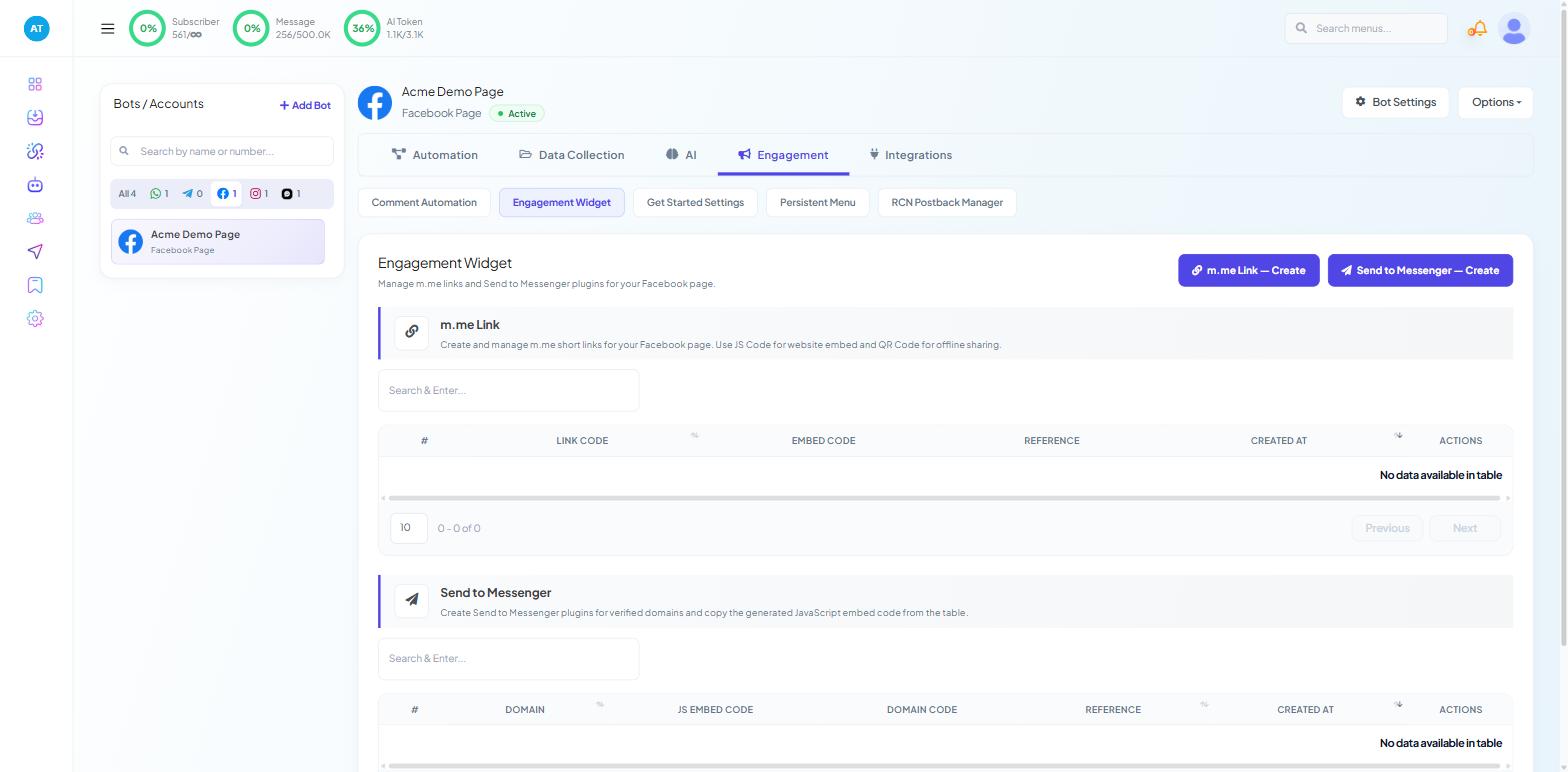
1. Open Engagement Widget on your Facebook Page
Click Chatbot Manager.
In the left-hand Bots / Accounts panel, select your Facebook Page. This is the step people skip.
Open the Engagement tab.
Click the Engagement Widget sub-tab.
You should now see these sub-tabs: Comment Automation, Engagement Widget, Get Started Settings, Persistent Menu and RCN Postback Manager.
2. Build the widget
Create a new widget. The Flow Builder opens with a drawer titled Configure Action Button.
On the Action Type card, set Actions to the Messenger engagement plugin option. The Messenger Engagement Plugin card below it now holds the widget's own settings.
Enter the domain of your live site, not a staging URL. It must match exactly what visitors see in the address bar.
Set Reference, your internal label for the widget. It is how you tell a homepage button from a pricing-page button later, and how you attribute conversations back to a placement.
The domain must match exactly. A widget set up for
example.comand pasted intowww.example.comwill not load.
3. Connect it to a flow
Add a greeting to Start Bot Flow. The flow connected there is what the visitor reads in Messenger.
Build a short welcome flow: a greeting, one useful question, and a route to a human. Introduction to Flow Builder: How Scope Wiser Flows Are Built covers the mechanics.
Click Save at the top right of the canvas.
Don't save an empty widget. A widget with nothing attached delivers a silent thread, which is worse than no button at all.
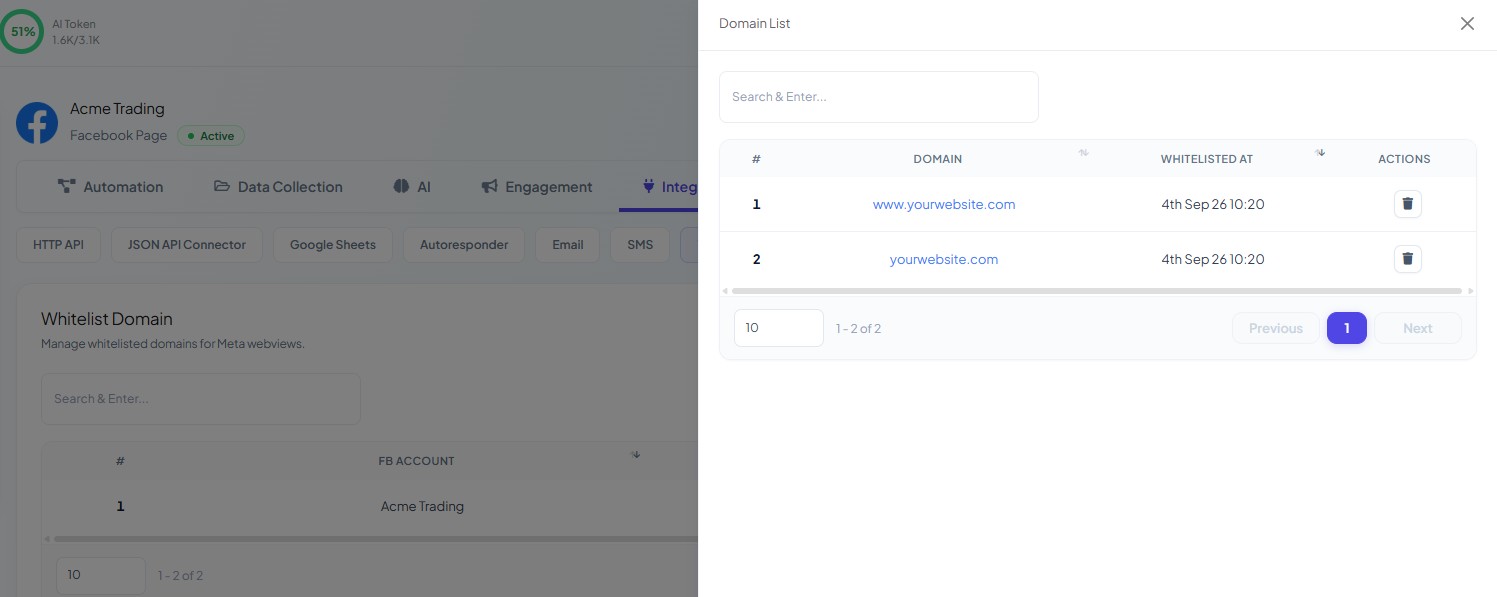
4. Whitelist the domain
This is the step that quietly breaks otherwise correct setups. Meta will not let a Messenger plugin run on a page it does not recognise.
On the Facebook bot, go to Chatbot Manager → Integrations → Whitelist Domain.
Add the exact hostname your visitors see. If your site serves both the bare domain and the
www.variant, add the one that actually loads in the browser address bar.
5. Embed it on your site
Return to the Engagement Widget listing.
Take the embed code from the widget's row.
Paste it into your site's custom-code or footer setting, so it loads on every page you want the button on. Page builders that accept an HTML or shortcode block work the same way: drop the block where you want the button, paste the code, publish.
For developers: the snippet is JavaScript. Place it in the
<head>or immediately before the closing</body>tag of a template that renders on every page.
6. Test before you announce it
Testing on your own machine is not enough, because you are already logged into Facebook and already subscribed to your own Page. Check three things:
The button renders on the live domain, not just in your editor preview.
It opens Messenger rather than a broken window. The usual failure here is the domain.
A first-time visitor gets your flow. Use a second browser profile, or a colleague who has never messaged the Page, and confirm the greeting arrives.
✅ Done when…
☐ The button shows on your live site
☐ Clicking it opens Messenger
☐ A first-time visitor receives your greeting
If something doesn't work
You cannot see Engagement Widget. Check which bot is selected. A WhatsApp bot's Engagement tab offers only Chat Entry; Instagram and Webchat bots offer neither.
The button appears but clicking it does nothing. The domain is wrong or not whitelisted.
It opens Messenger but the thread stays empty. The flow is not connected or not saved.
What to do next
If your site also serves people who do not use Messenger, read Website Chat Widget: Create, Embed & Manage. A webchat widget and a Messenger button coexist happily and catch different visitors. To reach people before they reach your site, Click-to-WhatsApp Ads covers the paid equivalent of the same idea.
Next: Click-to-WhatsApp Ads