
How to Connect WhatsApp to Scope Wiser: Complete Setup Guide
Connect your WhatsApp Business Account to Scope Wiser: embedded onboarding step by step, phone number verification, and what to do when it fails.
What you'll do: connect your WhatsApp Business number to Scope Wiser, so your bot, broadcasts, catalogue and shared inbox can all use it.
Time: about twenty minutes with embedded onboarding.
There are two ways in. Embedded onboarding hands the whole thing to Meta. The second way needs a developer. Almost everyone should use the first.
Before you start
Gathering these first saves a lot of backtracking. You do not need a developer: embedded onboarding creates everything else for you.
☐ A Meta Business account (Meta also calls it Business Manager or business portfolio). If you have ever run a Facebook Page or an ad account, you have one already.
☐ A phone number for the business. A number already in the WhatsApp Business app is fine: WhatsApp Coexistence lets it run there and here at the same time. A number signed in on the ordinary WhatsApp app has to be deleted from that app first (see section 6).
☐ A way to receive the verification code during setup. Meta picks one of four for you: an SMS code, a voice call, an access code sent as a WhatsApp message, or a QR code you scan. The last two apply to a number already in the WhatsApp Business app.
If you are not sure whether your Meta side is ready (the Meta Business account, your admin role, the display name, business verification), work through Before You Connect WhatsApp: What Meta Requires first.
Number on the ordinary WhatsApp app? Deleting it from that app removes the chat history on that device. Export anything you need beforehand.
1. Open the WhatsApp integration page
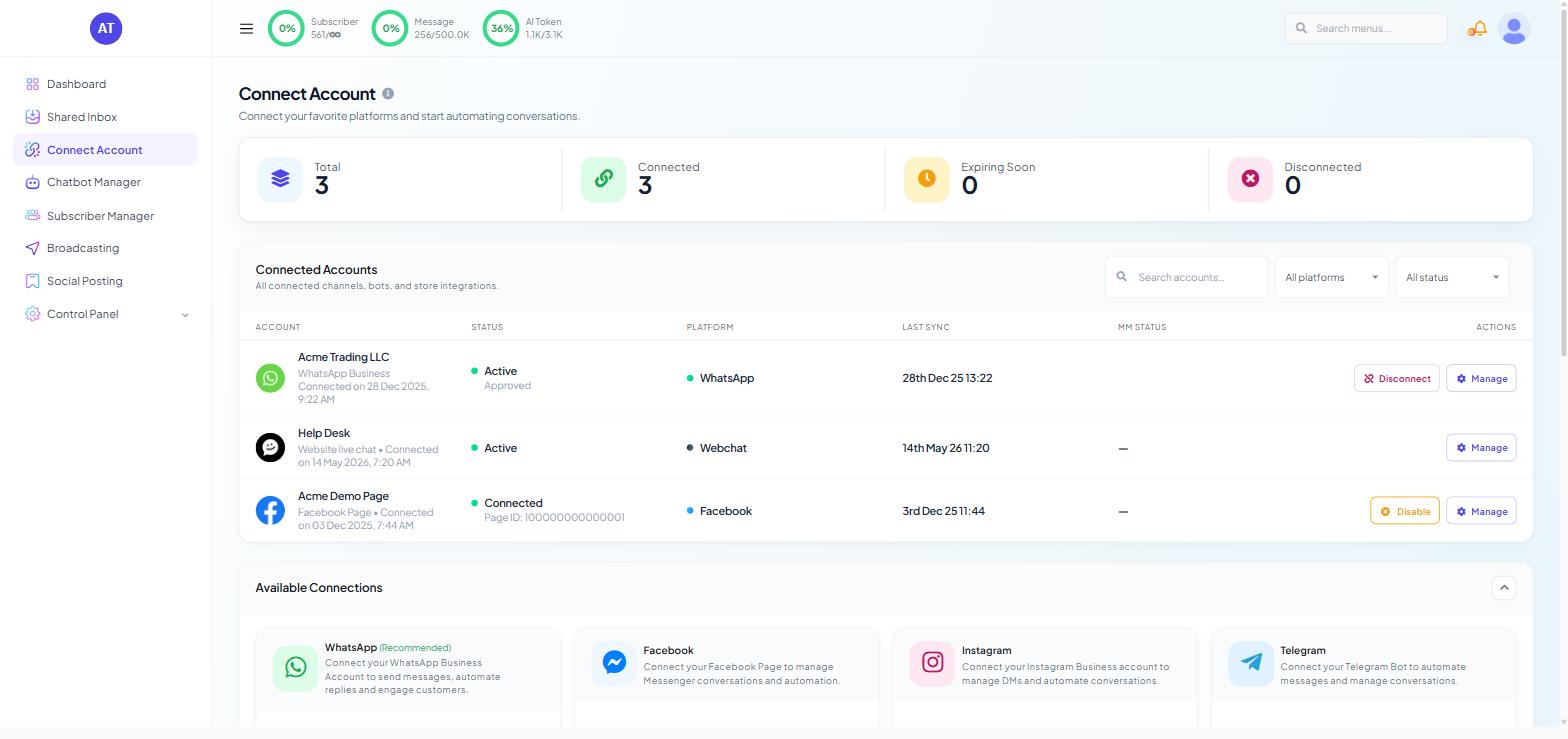
Click Connect Account in the sidebar.
In Available Connections, choose Connect WhatsApp.
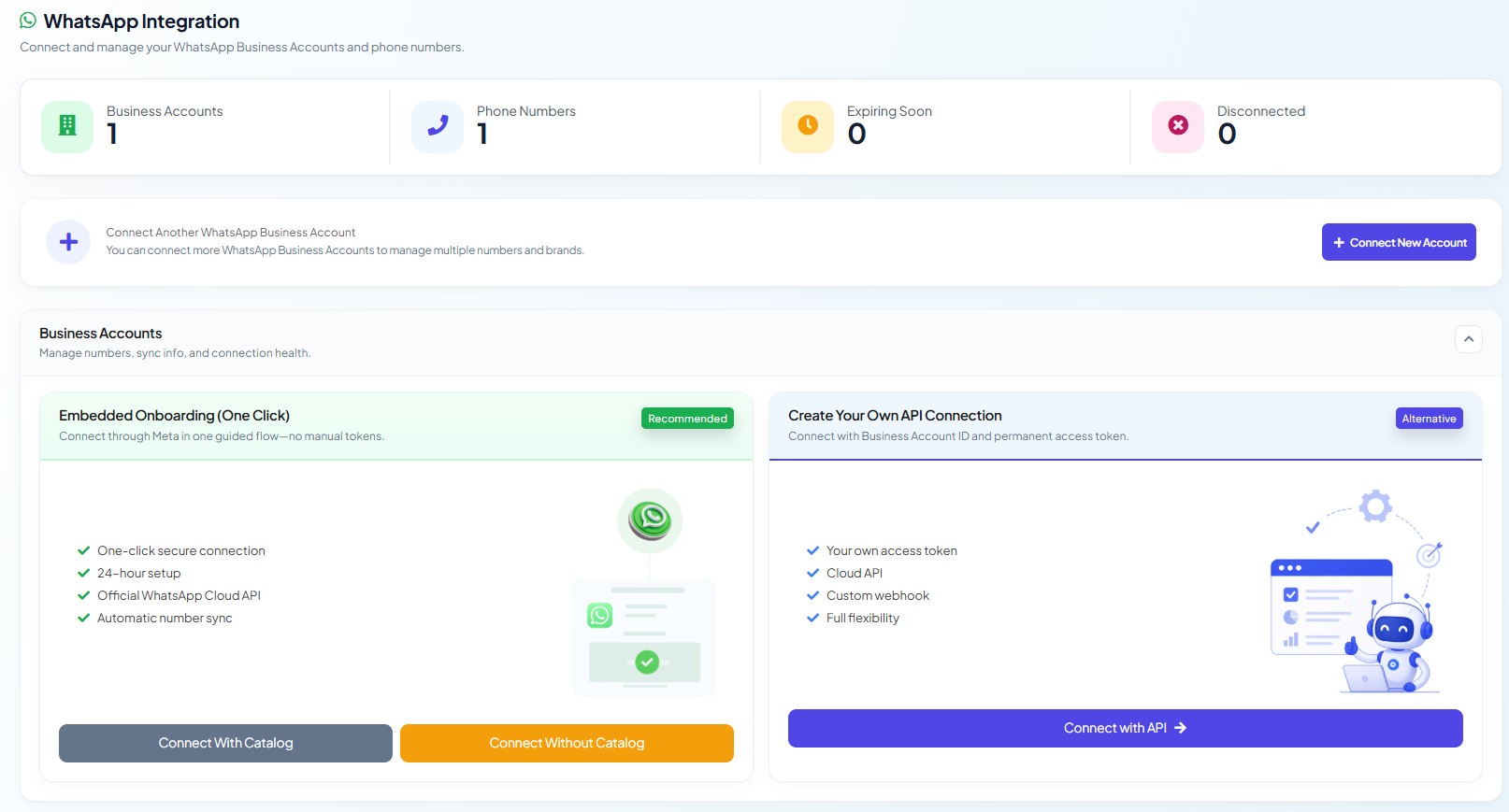
You should now see WhatsApp Integration, headed "Connect and manage your WhatsApp Business Accounts and phone numbers." There are four counters (Business Accounts, Phone Numbers, Expiring Soon and Disconnected) and two connection cards.
2. Choose embedded onboarding
Find the card labelled Embedded Onboarding (One Click), marked Recommended, with the description "Connect through Meta in one guided flow—no manual tokens."
Click Connect with Embed Onboarding →. The button splits into two.
Choose one:
Connect With Catalog: links a Meta product catalogue at the same time. Choose this if you plan to sell through WhatsApp, so you do not have to reconnect later.
Connect Without Catalog: everything else.
Unsure? Pick Connect With Catalog. An empty catalogue costs nothing and saves a second pass through this flow.
3. Work through Meta's window
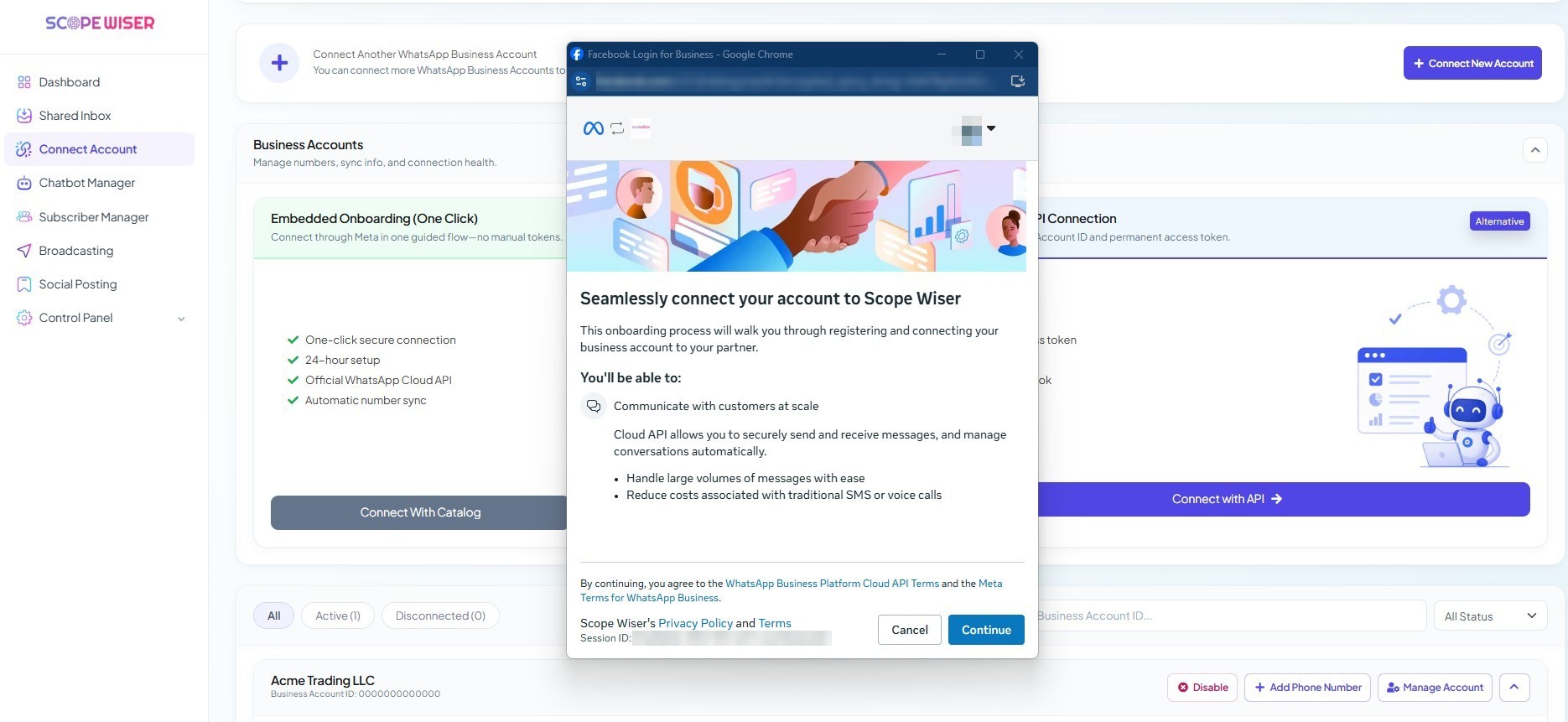
A Meta-hosted window opens, titled "Seamlessly connect your account to Scope Wiser." This is Meta's screen, not Scope Wiser's. The wording is theirs and changes occasionally. A rail of step circles runs down the left edge, so you can see how far through you are.
Intro. Click Continue. (This accepts Meta's terms.)
Select business assets. There are four dropdowns: Business portfolio, WhatsApp Business account, Catalog and Instagram Account. Pick your Meta Business account.
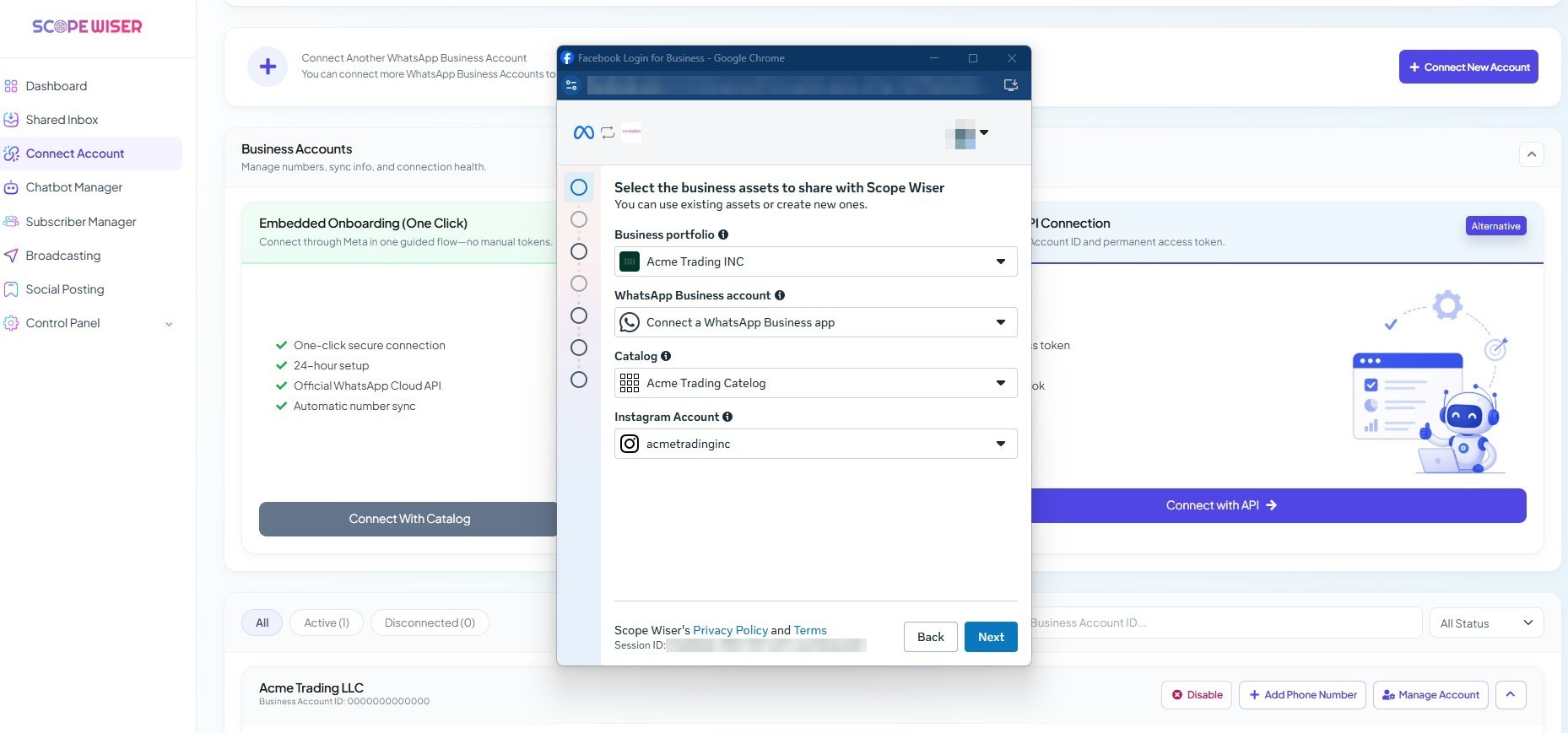
In WhatsApp Business account, choose:
Create a WhatsApp Business account to have Meta make a new one for you, or
Connect a WhatsApp Business app for a number already running in the WhatsApp Business app (see section 6 for how verification differs).
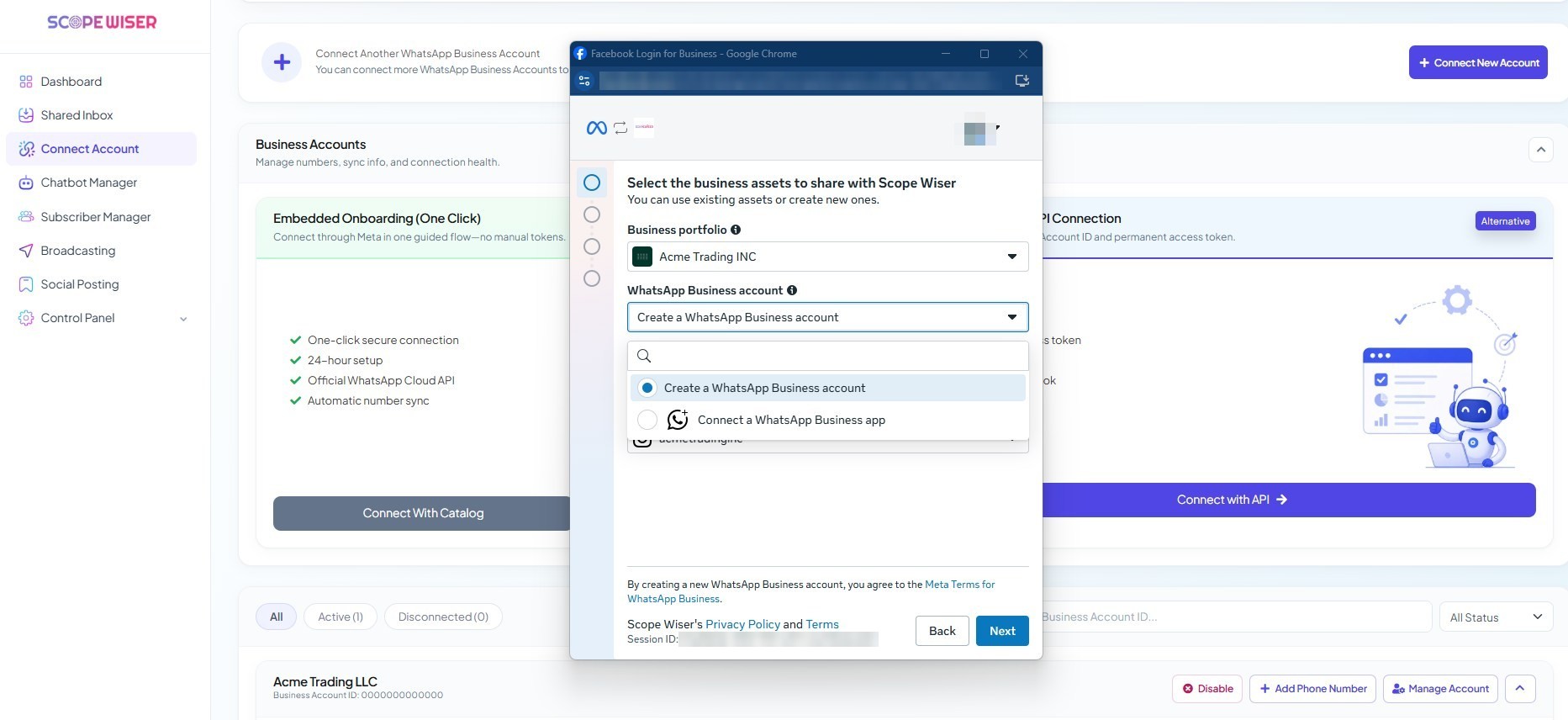
Click Next.
Phone number. Pick the country and enter the number. Next stays disabled until a number is entered. Meta warns here: "If you haven't added your WhatsApp Business App number to your business portfolio, you'll need to verify it to continue."
Verification. Meta sends a code by SMS or voice call. Enter it.
Finish. Meta returns you to Scope Wiser.
4. Confirm the connection
On WhatsApp Integration, expand Business Accounts ("Manage numbers, sync info, and connection health.").
Find your account. It shows its Business Account ID, with a Phone Numbers table beneath.
You should now see your number with STATUS Active. If it reads Active, you are done. Each column is explained under Reference below.
5. Add more numbers (optional)
For an additional WhatsApp Business Account, click + Connect New Account.
To add another number to an existing account, click + Add Phone Number on that account.
Once you have several, use the filter chips (All, Active, Disconnected) and the search box ("Search by name or Business Account ID...").
6. If your number is already on a WhatsApp app
Number in the WhatsApp Business app
You do not have to give the number up. WhatsApp Coexistence lets the same number run in the WhatsApp Business app and here at the same time: your team can keep replying from the app while automation, broadcasts and the Shared Inbox work through this connection. Recent chats and contacts can come across when you connect.
Run embedded onboarding as above.
At the WhatsApp Business account step, choose Connect a WhatsApp Business app.
Enter that number with its country code.
Meta sends a verification code as a WhatsApp message, from the official Facebook Business Account. Look in WhatsApp, not in your text messages.
On the phone, open the WhatsApp Business app and tap Connect to the Business Platform.
Either paste the code there, or scan the QR code shown on screen. Either one completes the link.
There is no SMS here, and this is where people get stuck. If you are waiting on an SMS that never arrives, this is why: the code went to WhatsApp, and the last step happens inside the app on the phone rather than in the browser.
Your existing WhatsApp Business account is converted to a Messaging account and keeps its account ID, so nothing you have built on it is lost.
Number on the ordinary WhatsApp app
Coexistence does not cover this case.
Export your chat history from the app if you want to keep it. It does not come across.
Delete the account from within the app: Settings → Account → Delete my account.
Wait a few minutes, then run embedded onboarding with that number.
✅ Done when…
☐ Your number appears in the Phone Numbers table with STATUS
Active
If something doesn't work
Verification code never arrives. Try the voice-call option instead of SMS. Numbers that forward or sit behind a virtual PBX often silently drop the SMS. If the number is in the WhatsApp Business app, look in WhatsApp instead (section 6).
"Number already registered". The number is still active on the WhatsApp app. Go back and delete it there.
The Meta window is blank, or shows a bad gateway. A temporary fault at Meta's end or ours. Wait a few minutes and run the flow again.
"You don't have permission". Your Meta user is not an admin of the Meta Business account. Fix the role in the Meta Business account first; nothing on the Scope Wiser side works around it.
Status shows
Disconnectedafter working fine. The access token expired or Meta revoked permissions. Use Manage Account to re-sync.Quality rating drops to
MediumorLow. This is about how customers respond to your messages, not about setup. Blocks and "report" taps push it down; it recovers if you message more selectively.
For anything else, see Fixing Channel Connection Problems.
Reference
Phone Numbers table
Column | What it tells you |
|---|---|
PHONE NUMBER | The connected number and its display name |
STATUS |
|
QUALITY | Meta's quality rating — |
MESSAGING LIMIT | Your tier — how many unique customers you can message in 24 hours. A new, unverified account starts at the 250-customer tier; Meta raises it as you send |
LAST SYNC | When Scope Wiser last pulled status from Meta |
MM STATUS | Marketing messages status. |
QUALITY reflects how people respond to your messages, so it only becomes meaningful once the number has started sending.
Option 2: Create Your Own API Connection (for developers)
Only choose Create Your Own API Connection if a developer manages your Meta credentials.
On the same page, the second card is Create Your Own API Connection, marked Alternative: "Connect with Business Account ID and permanent access token."
Click Connect with API → and supply your Business Account ID and permanent access token from Meta's developer console. A token you generate is yours to rotate and yours to fix when it expires; embedded onboarding does that for you.
What to do next
With WhatsApp connected, the next step is Build Your First Chatbot in 5 Minutes: the flow that answers your first message. If you plan to sell through WhatsApp, go to Chatbot Manager → Commerce → Product Catalog and confirm your catalogue came through.
Next: Build Your First Chatbot in 5 Minutes