
Auto-Comment on Your Posts
Schedule your own comments on Facebook and Instagram posts to keep them visible: comment templates, one-time and periodic schedules, and the report.
What you'll do: have Scope Wiser post a comment from your own page, on your own post, at a time you choose.
Time: 10 minutes.
An auto-comment isn't a reply to anybody. To answer people who comment, see Auto-Reply to Comments on Your Posts. The two are set up separately, even though they can run on the same post.
What it's good for
Putting the link in the comments. Write the post without a URL, then auto-comment the URL a minute later. The post keeps its reach and the link is still one tap away.
Keeping a post alive. A comment a day or two after publishing brings the post up again. Two or three well-spaced comments over several days is the useful range.
Starting a conversation. A question in the comments, such as "which colour would you pick?", gets replies that a statement doesn't.
Announcing the next step. "Doors close Friday", on an existing launch post, without publishing anything new.
1. Write a comment template
Comment text is saved as a reusable template, so you don't type it into each campaign.
Open Chatbot Manager → your Facebook Page → Engagement → Comment Automation.
Click Manage ▾ at the top right of the Comment Automation card, level with the heading. (Not the Manage ▾ buttons beside each post in Latest Posts.)
Choose Comment Template. The same menu also has Reply Template and Manage Custom Fields.
On the Auto Comment Template Manager, click Create new template.
Enter a Template Name.
Type the comment.
Click Add more to add variations. Each extra row is another version of the comment, and the bot rotates between them. Remove deletes a row.
Click Save.
Emoji, links and line breaks are all fine in a comment.
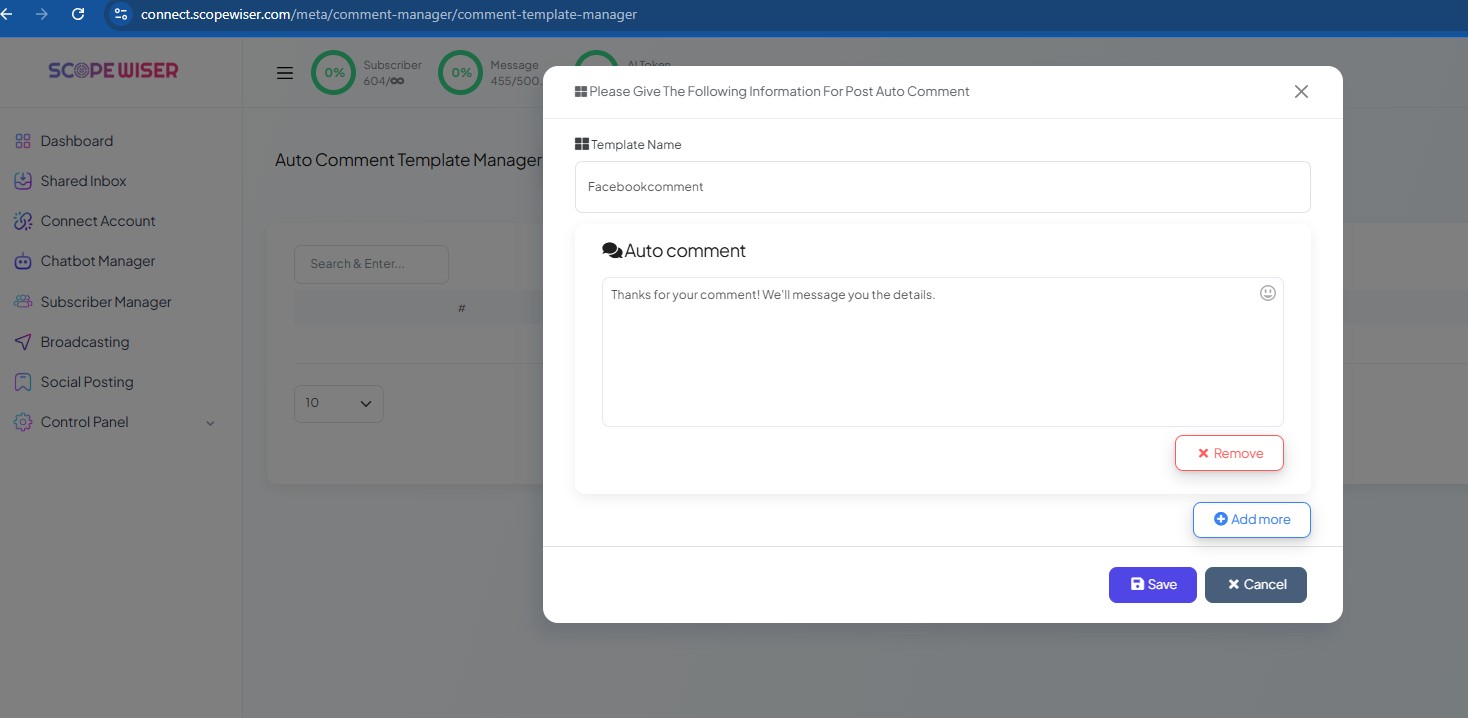
You should now see your template listed in the Auto Comment Template Manager.
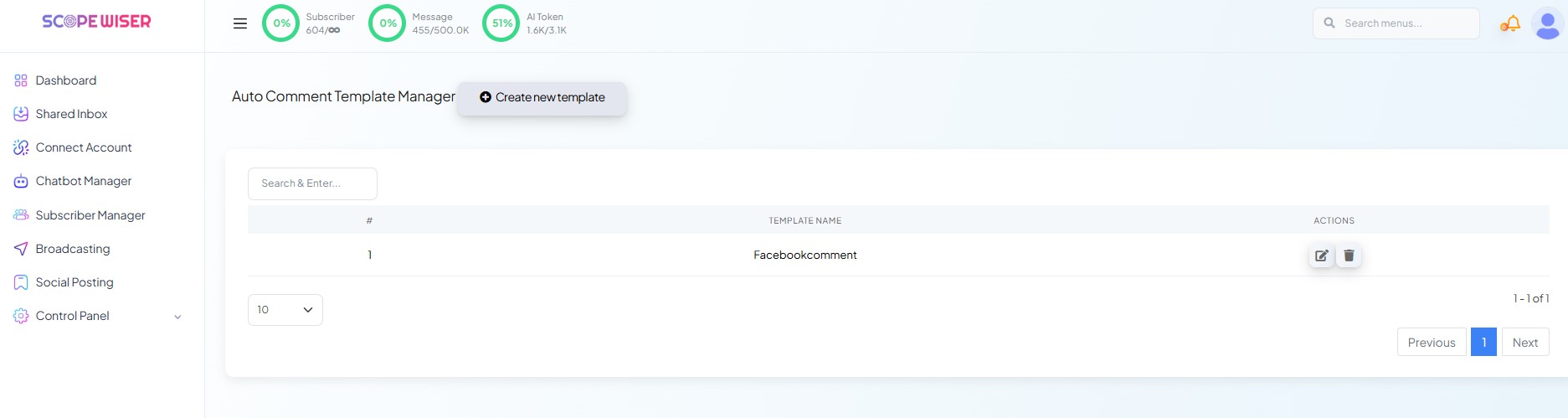
Tip: write a handful of templates at the start, for example a link comment, a question comment and a "last chance" comment. Campaigns then become choosing, not writing. Use names you'll recognise in a dropdown six months from now:
link-in-comments-storebeatstemplate 2.
2. Schedule the comment on a post
In Latest Posts, click Manage ▾ beside the post.
Choose Enable auto comment.
Fill in the dialog:
AUTO COMMENT CAMPAIGN NAME: name it after the post, not the feature.
AUTO COMMENT TEMPLATE: the template from section 1.
ONE TIME or PERIODIC: a single comment, or one that repeats at an interval.
SCHEDULE TIME: the date and time.
TIME ZONE: set this on purpose (see the warning below).
Click Save.
The comment posts itself when the time arrives.
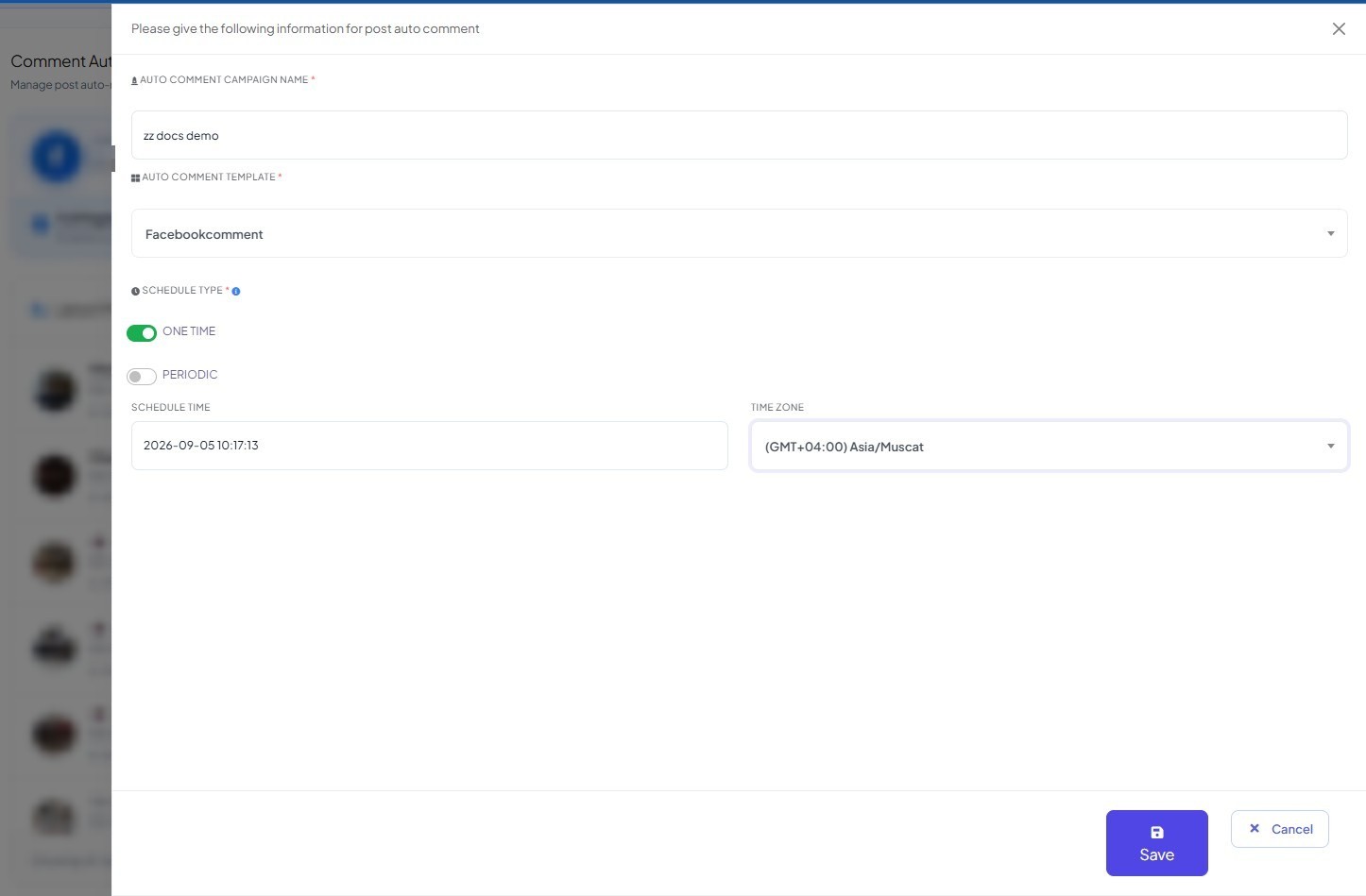
Check the time zone. It's the most common mistake on this screen. A comment scheduled for 09:00 in the wrong time zone lands in the middle of the night for the audience it was written for.
3. Check the report
Each post keeps a record of what was commented and what happened. Look at it after your first campaign, because a failure here is silent: nothing appears under your post and nothing tells you why.
The report shows:
the comment that was posted
when it was posted
whether the schedule was one-time or recurring
the outcome
Nothing is recorded until the scheduled time has passed. An empty report an hour after saving a campaign set for tomorrow is normal.
✅ Done when…
☐ You have at least one comment template saved
☐ The post has an auto-comment campaign with the right time zone
☐ After the scheduled time, the report shows the comment as posted
If something doesn't work
The report shows a failed entry. Usually the post was deleted, the page permissions changed, or Meta rejected the comment as spam.
The report is empty. The scheduled time hasn't passed yet.
Comments stop appearing. Facebook may have flagged rapid posting. Space them out.
Something else replies to your own comment. If a page-wide auto-reply campaign is running, your auto-comment may be a comment it then decides to reply to. Test on a quiet post first.
Reference
Using it well
Space comments out. Two or three comments over three to five days on a campaign post.
Vary the templates. The same comment under every post on a page stands out more than no comment at all.
Check how it behaves with a page-wide reply campaign (see above). Test on a quiet post first.
On Instagram you get there the same way, Chatbot Manager → the Instagram account → Engagement → Comment Automation, and it does the same job.
Links in Instagram comments aren't clickable, so "putting the link in the comments" doesn't work there. On Instagram the value is the conversation starter and the reminder.
Next: Scheduling Social Posts: Multimedia, CTA & Carousel. If you're scheduling the comment, you may as well schedule the post too: it covers the composer at Social Posting, where a post and its auto-reply template are set up together.