
Auto-Reply to Comments on Your Posts
Set up automatic replies to Facebook and Instagram comments: the three reply modes, when to use AI, and how to pair a public reply with a private message.
What you'll do: make Scope Wiser answer comments on a Facebook or Instagram post instantly, and optionally open a private chat with each commenter.
Time: 15 minutes.
This article is about replying to comments other people leave. Posting comments of your own on a schedule is a different feature: see Auto-Comment on Your Posts.
Before you start
☐ Your Facebook Page or Instagram account is connected
☐ You know which post you want to automate
1. Open the post's auto-reply settings
Click Chatbot Manager in the left menu.
In the Bots / Accounts panel, click your Facebook Page or Instagram account.
Open the Engagement tab, then Comment Automation.
In the Latest Posts list, click Manage ▾ beside the post.
Choose Enable auto reply.
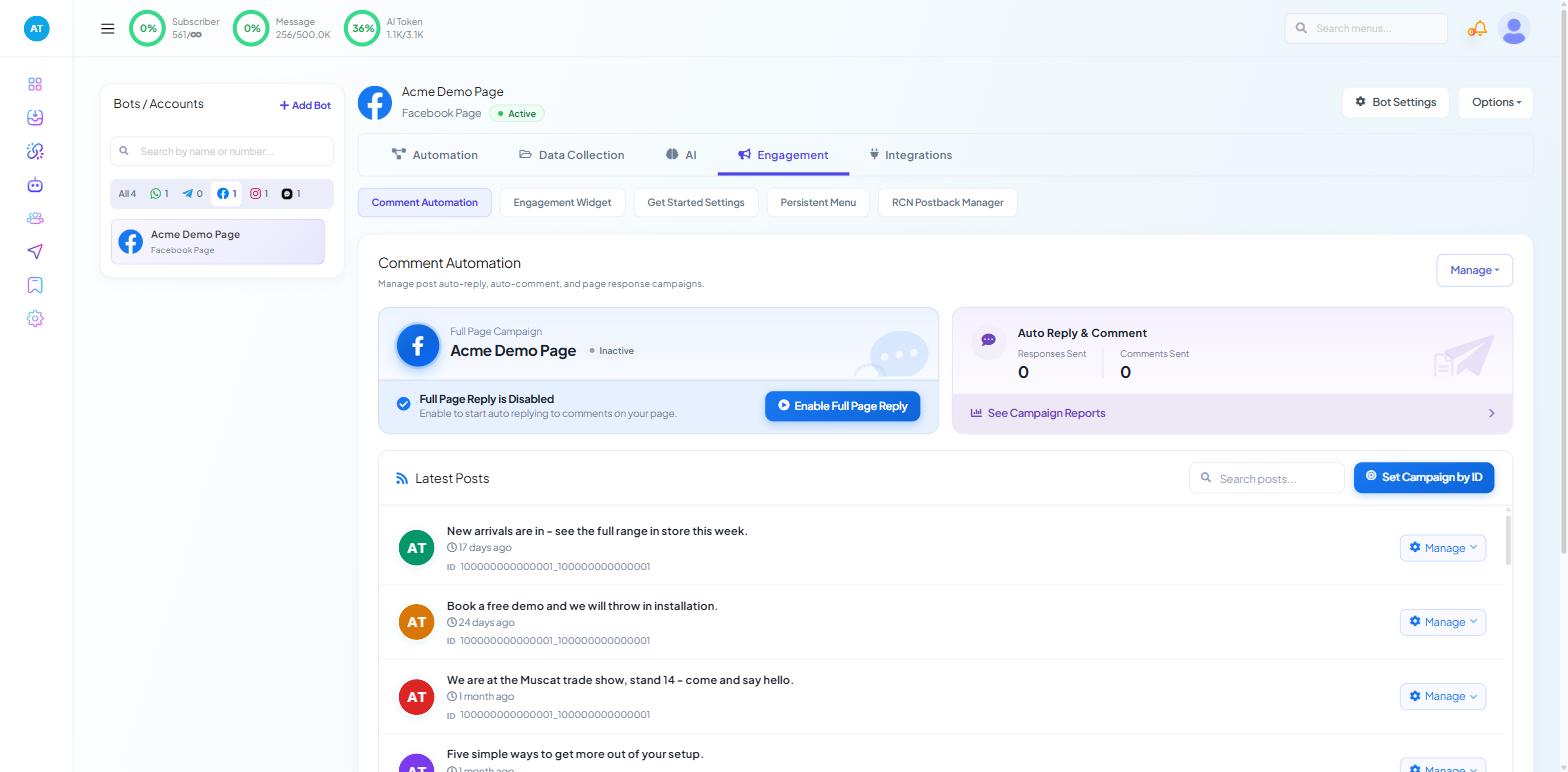
You should now see a form headed "Please give the following information for post auto reply".
No Comment Automation sub-tab? You have a WhatsApp or Webchat bot selected. Neither has comments.
2. Choose a reply mode
Everything else in the form follows from this choice. Pick one mode per campaign; you can't mix them.
Generic message for all. One fixed reply under every comment, whatever it says. Quickest to set up. Use it for giveaways, contests and announcements, where the comments are mostly "me" or "🔥". Keep it short and warm. Don't try to answer a question with it, because it will also appear under comments that asked nothing.
Automated reply by AI. Scope Wiser reads the comment and writes a reply that fits it. You give it a short brief describing who the bot is and how it should behave (see Writing the AI brief below). Use it when comments really vary: product questions, availability, delivery, opening hours.
Filtered keyword reply. You list words or phrases and give each one its own reply, with an optional image or video, plus a fallback for comments that match nothing. This gives you the most control. Use it when the answers are facts: prices, sizes, delivery areas. It has its own article: Keyword Filters & Offensive-Comment Moderation.
Rule of thumb: generic for campaigns, keyword for facts, AI for support.
3. Set the switches
The switches in the form are worded as questions:
Do you want to send reply message to a user multiple times? Usually best left off. A regular customer who comments on five posts in a week doesn't need five identical public replies. Turn it on for giveaways, where multiple entries are the point.
Do you want to enable comment reply? This is the public reply under the comment. Leave it on unless you only want the private message.
Do you want to hide comments after comment reply? Useful in one case: someone posts their phone number or order details in public. Answer it, then hide it. Don't use it as a general setting: it makes your post look as if nobody engaged with it.
Offensive-comment handling: a word list plus an action, hide or delete, and an optional private message to the person. Hiding is the calmer option: the commenter still sees their own comment, nobody else does. Deleting is visible to them and tends to make things worse.
4. Name it and set when it runs
Campaign name: name it after the post and what it does, for example Autumn launch — price replies, not Facebook comment reply. You'll have a dozen of these within a few months.
Set the time window if you need one:
Campaign Start time
Campaign End time
Comment Between Time, which limits replies to a range within each day
Leave the time fields empty and the campaign replies whenever a comment arrives. Set them when you only want to reply during business hours, or only while an offer is live.
5. Add a private message (optional)
Meta lets a page send a direct message to someone who has commented. With both a public reply and a private message set, this happens: the person comments, everyone sees a polite public answer, and the person gets a message where you can ask a question, send a catalogue, or take an order.
In the same form, set the Private message template. This is the message the commenter receives in their inbox.
Write the public reply so it makes sense to a bystander, and the private one so it makes sense to the individual. They are different audiences.
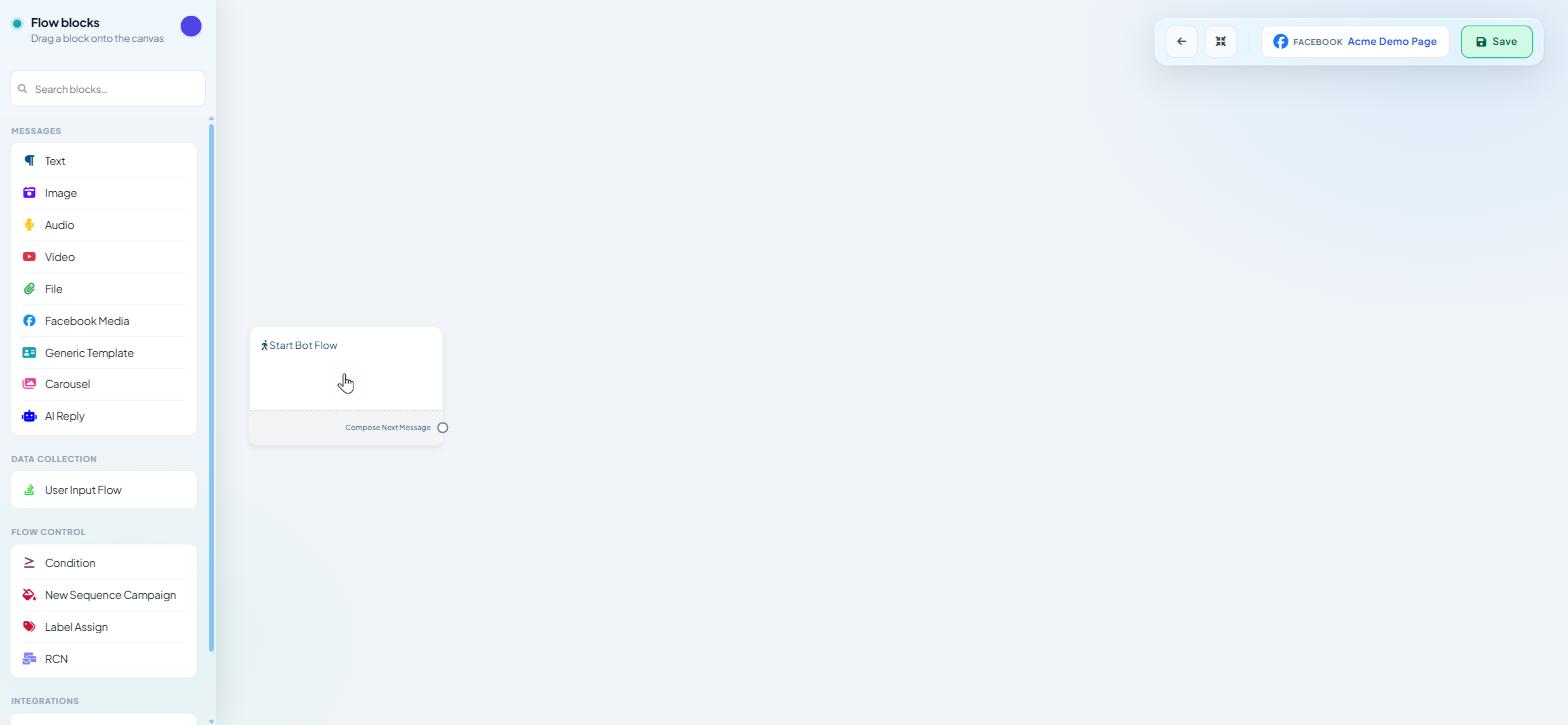
The private message is a bot message built in the Flow Builder. Its buttons come from Generic Template or Carousel.
Tip: make the public reply mention the commenter and point to the DM, for example "Hi @name, I've sent you a message". The person knows to look, and bystanders can see a real answer exists without it being posted publicly.
The public reply and the private message are reported separately. Check the private-reply column in the campaign report (see Page-Wide Comment Automation).
6. Test it
Comment on the post from a second account.
Check the public reply appears under your comment.
If you set a private message, check it arrives in that account's inbox.
✅ Done when…
☐ A test comment gets the public reply you wrote
☐ If you set one, the private message arrives in the commenter's inbox
If something doesn't work
Nothing replies at all. The campaign is attached to a different post from the one you're testing on, or auto-reply was never enabled for that post. Check both before suspecting the reply itself.
The public reply appears but no private message arrives. Either the person has never messaged your page and Meta's window for a comment-triggered message has passed, or no private template was selected on the campaign.
The same person gets replied to again and again. The multiple-replies switch is on.
AI replies are confidently wrong. The brief is too thin. Add the missing facts, or move that type of question to a keyword reply.
Replies land on comments you'd rather ignore. Add the words to the moderation list so those comments are hidden before a reply is generated.
Reference
Writing the AI brief
If you choose the AI mode, the brief (the training context) is everything. A vague brief produces a chirpy assistant that invents delivery times. A typical brief reads like this:
"You are a support agent for Acme Trading. Be polite, helpful and brief. If you do not know an answer, invite the person to message us."
Always include three things:
who the business is and what it sells
the tone you want, in one phrase
a clear instruction for when it doesn't know the answer: invite a direct message, never guess
If you sell in a specific market, say so, or replies may quote the wrong currency.
Keep prices, stock levels and dates out of the brief. Anything that changes weekly belongs in a keyword-filtered reply, where you can edit it in one place.
Instagram example: comment-to-DM
Publish a post that asks people to comment a specific word, for example a guide, a discount or a price list in exchange for typing STYLE or PRICE. Then:
Go to Chatbot Manager → your Instagram account → Engagement → Comment Automation.
Click Manage ▾ beside that post in Latest Posts and choose Enable auto reply. The same menu also has Enable auto comment, Latest comments and Leave a comment now.
Choose the filtered keyword reply mode and set the trigger word.
Write a short public reply, so bystanders see the account is active.
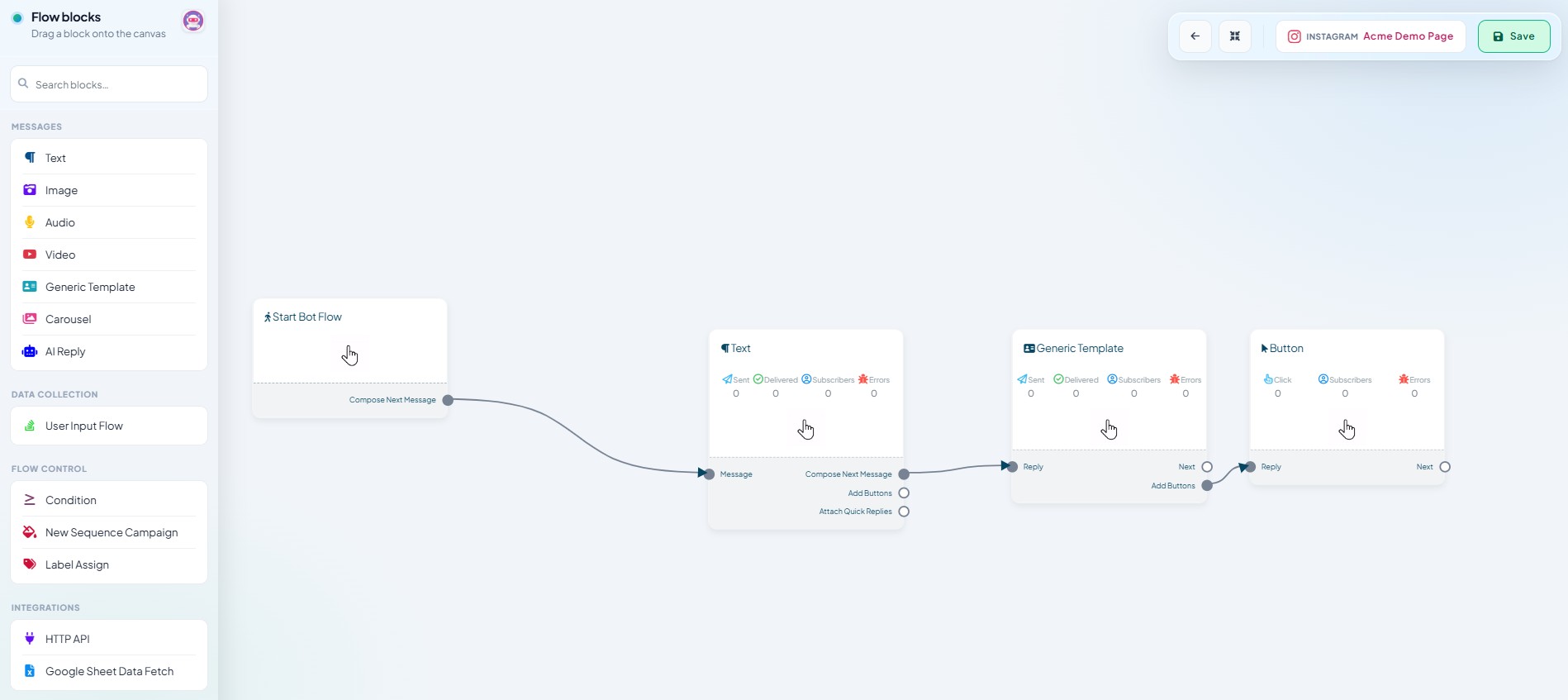
Build the private message: a Text block that delivers what they asked for, then a Generic Template with two buttons, one to see more and one to talk to a person.
The post must state the trigger word plainly, or nothing fires.
Ask one qualifying question
After the comment-to-DM message, ask one question using a Generic Template with three buttons: what they want, which budget band, or which product line. Branch on the answer with a Condition block, then tag them with Label Assign. Every conversation then becomes a segment you can broadcast to later.
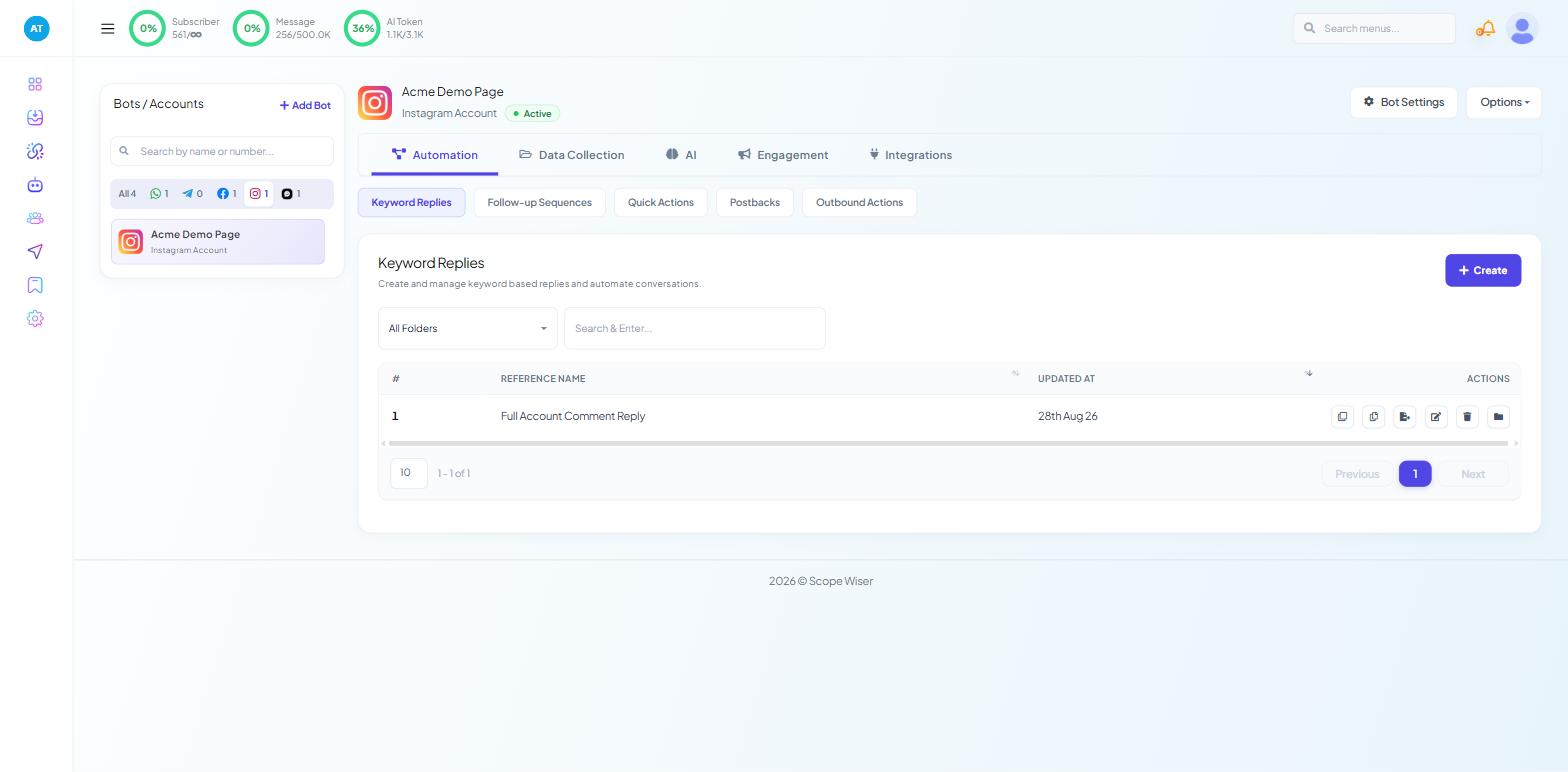
The same flow can also be started from a keyword, under Chatbot Manager → Automation → Keyword Replies.
Keep it to one question, two at most. Every extra question loses people.
Next: Keyword Filters & Offensive-Comment Moderation, for precise answers to the questions that repeat. Read Page-Wide Comment Automation when setting up each post one by one starts to feel like admin.