
Page-Wide Comment Automation
Run one comment automation across every post on a Facebook Page or Instagram account, including future and old posts, and know when it's the wrong choice.
What you'll do: apply one comment automation to every post on the account, including posts you haven't written yet and old posts people still find and comment on.
Time: 15 minutes, plus checks during the first week.
Before you start
☐ You know how to set up auto-reply on a single post (see Auto-Reply to Comments on Your Posts)
☐ The behaviour you want really is the same on every post (see below)
☐ Someone can watch the shared inbox for the first day
Is page-wide right for you?
It's right when you want the same behaviour everywhere. That's almost always about support or moderation:
Thank every commenter politely and invite them into the inbox.
Hide spam and abuse wherever it appears.
Answer the handful of questions that come up on every post: hours, delivery, how to order.
Catch comments on posts from two years ago that you'd otherwise never see.
It's wrong when the reply should depend on the post. A giveaway reply under a service announcement is worse than silence. Campaign automation belongs on the campaign post.
Most accounts run both: a quiet, generic page-wide campaign as a baseline, plus specific per-post campaigns on top for anything being actively promoted.
1. Open Comment Automation
Click Chatbot Manager in the left menu.
In the Bots / Accounts panel, click your Facebook Page or Instagram account.
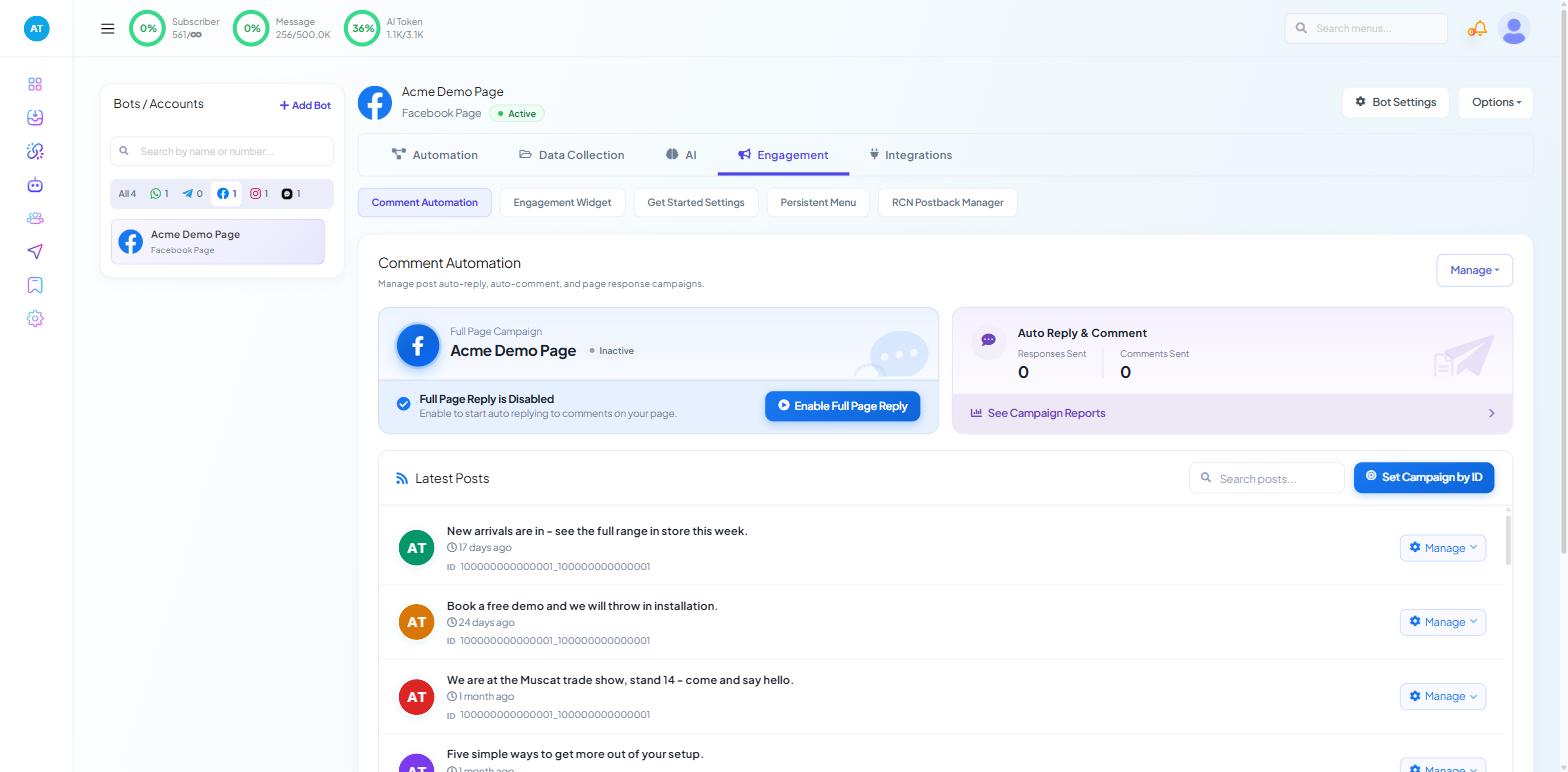
Go to Engagement → Comment Automation.
The page-wide controls sit alongside the post list, not inside any single post.
2. Set up the campaign
This is the same work as setting up a single post: the same three reply modes, the same switches, the same moderation list and the same optional private message. Auto-Reply to Comments on Your Posts covers all of them, and Keyword Filters & Offensive-Comment Moderation covers the word lists.
For a whole account, choose the reply mode carefully:
Generic is the safest and most common choice. One short, neutral thank-you plus a private message that does the real work. It can't say anything wrong because it barely says anything.
AI is the most useful and needs the tightest brief. It now answers for your entire page, on every kind of post. The brief must state what the business does, the tone, and, most importantly, that it should invite a direct message rather than guess. Keep prices and dates out of it entirely.
Filtered keyword works for a small set of universal questions: hours, location, how to order. Keep the list short. A forty-rule filter applied to every post you've ever published will fire in places you didn't imagine.
Write the reply so it works with no context. Old posts are included (see step 3), so the wording must make sense under content you've forgotten writing. "Thanks for getting in touch, we've sent you a message" works everywhere; "Your discount code is on its way" doesn't.
3. Turn it on
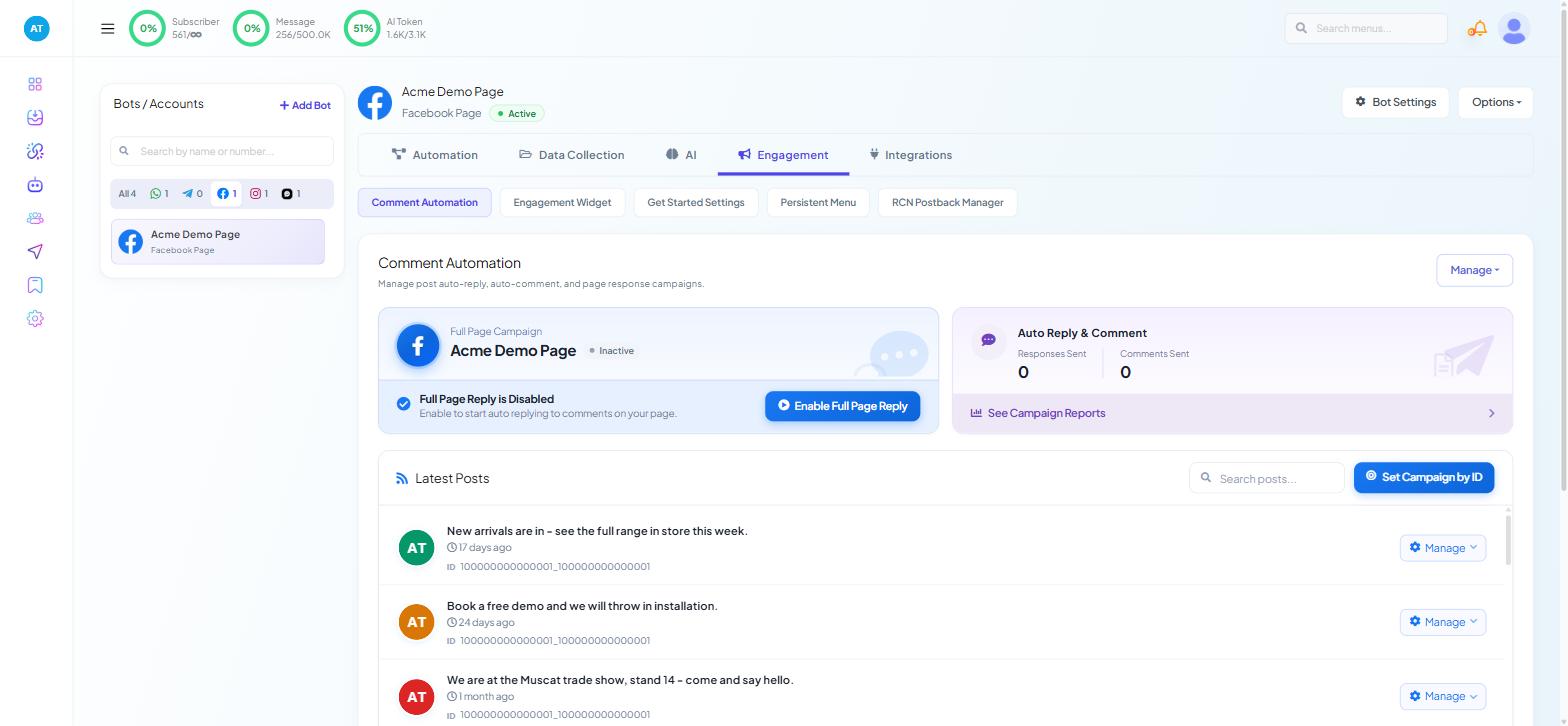
On the Full Page Campaign card, click Enable Full Page Reply. Until you do, the card reads "Full Page Reply is Disabled".
It takes effect immediately across the whole Page.
Old posts are included. Turning this on doesn't only cover future posts: comments on posts you published long ago are covered too. That's often what you want, because old content usually has a backlog of unanswered questions. But the first hours can be busy. If the campaign sends private messages, you've just opened a lot of conversations at once, so watch the shared inbox for the first day.
4. Check it during the first week
Page-wide automation is the one comment feature you shouldn't set and forget, because it affects every post. Check three things:
What is being replied to. Open a few recent posts and read the threads as a visitor would.
What is being hidden. An over-broad moderation word quietly removes real comments, and the only sign is that your posts look unpopular.
What is arriving in the inbox. If private replies are on, someone has to answer the people who reply back. Live Chat and the Shared Inbox covers assigning them.
5. Read the campaign report
On the campaign row, click the eye icon (Campaign Report).
The report opens as a second table underneath the campaign list.
The report is empty until you click that icon, so a blank report screen usually just means you haven't opened it yet.
Each row is one comment the campaign acted on: the commenter's name, the comment text, the reply that was posted, the time, and two separate status columns: one for the public reply and one for the private reply.
The public reply and the private reply succeed and fail separately. If you judge the campaign only by whether replies appear under your posts, you won't notice private replies quietly failing. When a private reply fails, the reason is in the last column (see Reference).
✅ Done when…
☐ The Full Page Campaign card no longer reads "Full Page Reply is Disabled"
☐ You've read a few threads as a visitor and the replies make sense
☐ The Campaign Report shows both status columns succeeding
If something doesn't work
Something has gone wrong and you need it to stop. Disable first, diagnose afterwards. You can disable the campaign at any time from the same place you enabled it, and it stops immediately. The cost of a paused campaign is a few unanswered comments.
The report screen is blank. You haven't clicked the eye icon on the campaign row yet.
A reply seems to be missing from the report. Rows can lag a minute behind. Refresh before assuming a miss.
The per-post report is empty. While a page-wide campaign runs, its activity is recorded against the account campaign, not the post. An empty per-post report doesn't mean the automation is broken.
Your posts look unpopular. A moderation word may be too broad and hiding real comments.
Your own auto-comments get replies. Page-wide replying and auto-commenting are separate features, and they interact. See Auto-Comment on Your Posts.
Reference
Private reply errors
Error | What it means |
|---|---|
| The platform refused the DM — usually because the comment is outside the window in which a private reply is allowed, or because one has already been sent to that comment. |
| A generic platform rejection. Check the template the campaign is sending. |
What turning it off does and doesn't undo
Comments already replied to stay replied to.
Comments already hidden stay hidden until you unhide them on the platform itself.
Next: Live Chat and the Shared Inbox, where the conversations this creates arrive. To sort people with one qualifying question before a person takes over, see Auto-Reply to Comments on Your Posts.