
Comment Automation: How It Works on Facebook & Instagram
Where Comment Automation lives in Scope Wiser, what it can do on Facebook and Instagram, and how public replies, private replies and auto-comments differ.
What this covers: what Comment Automation does with the comments on your Facebook and Instagram posts, where to find it, and what to check before you turn it on.
Comment Automation watches the comments on your Facebook and Instagram posts. It can reply in public under a comment, message the commenter privately, post comments of your own on a schedule, and hide or delete comments that contain words you list.
Where to find it
Comment Automation is set per bot, not for your whole account.
Click Chatbot Manager in the left menu.
In the Bots / Accounts panel on the left, click your Facebook Page or Instagram account. If you run several, the channel filter chips above the list make this quicker.
Open the Engagement tab.
Click Comment Automation.
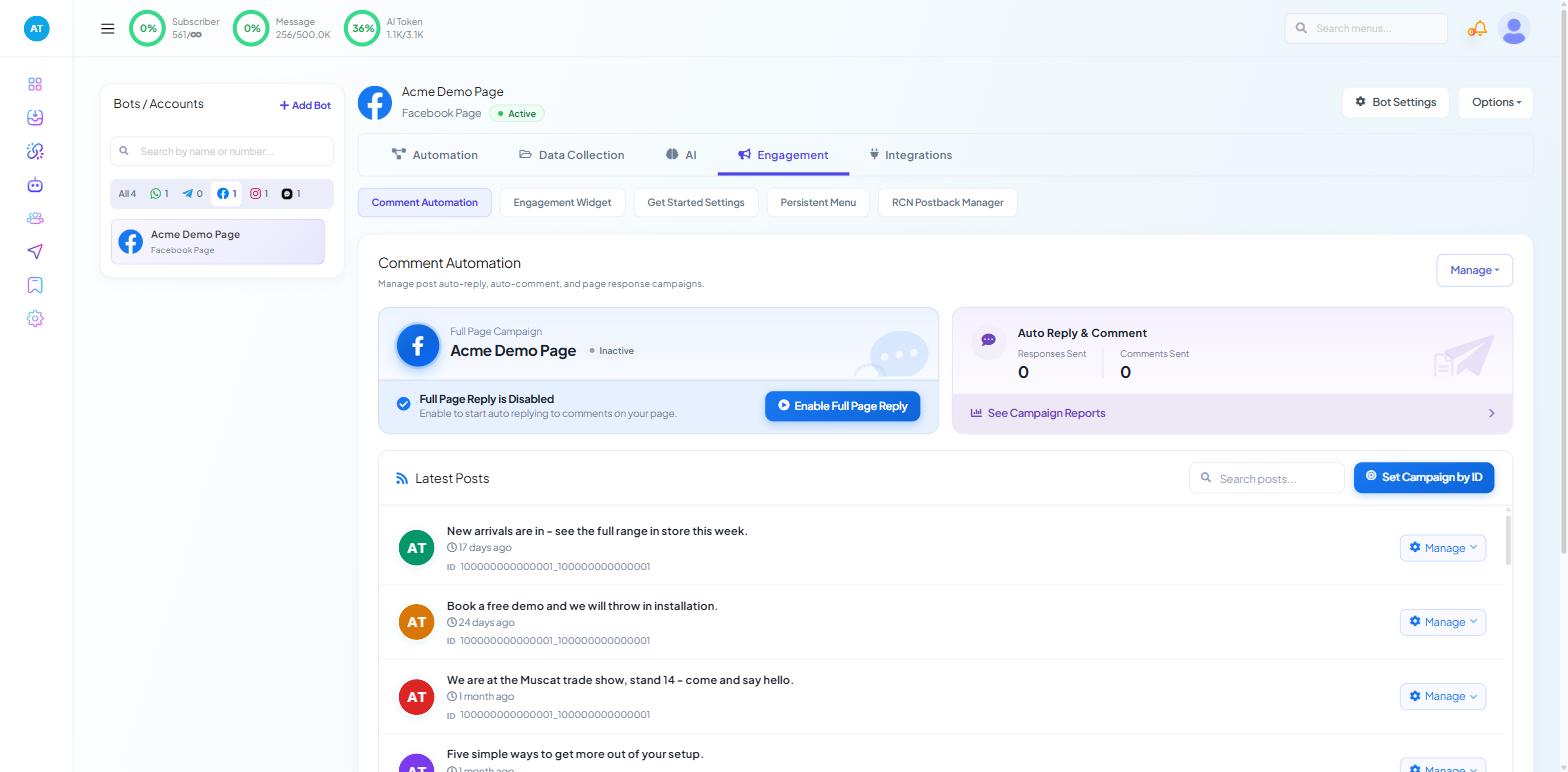
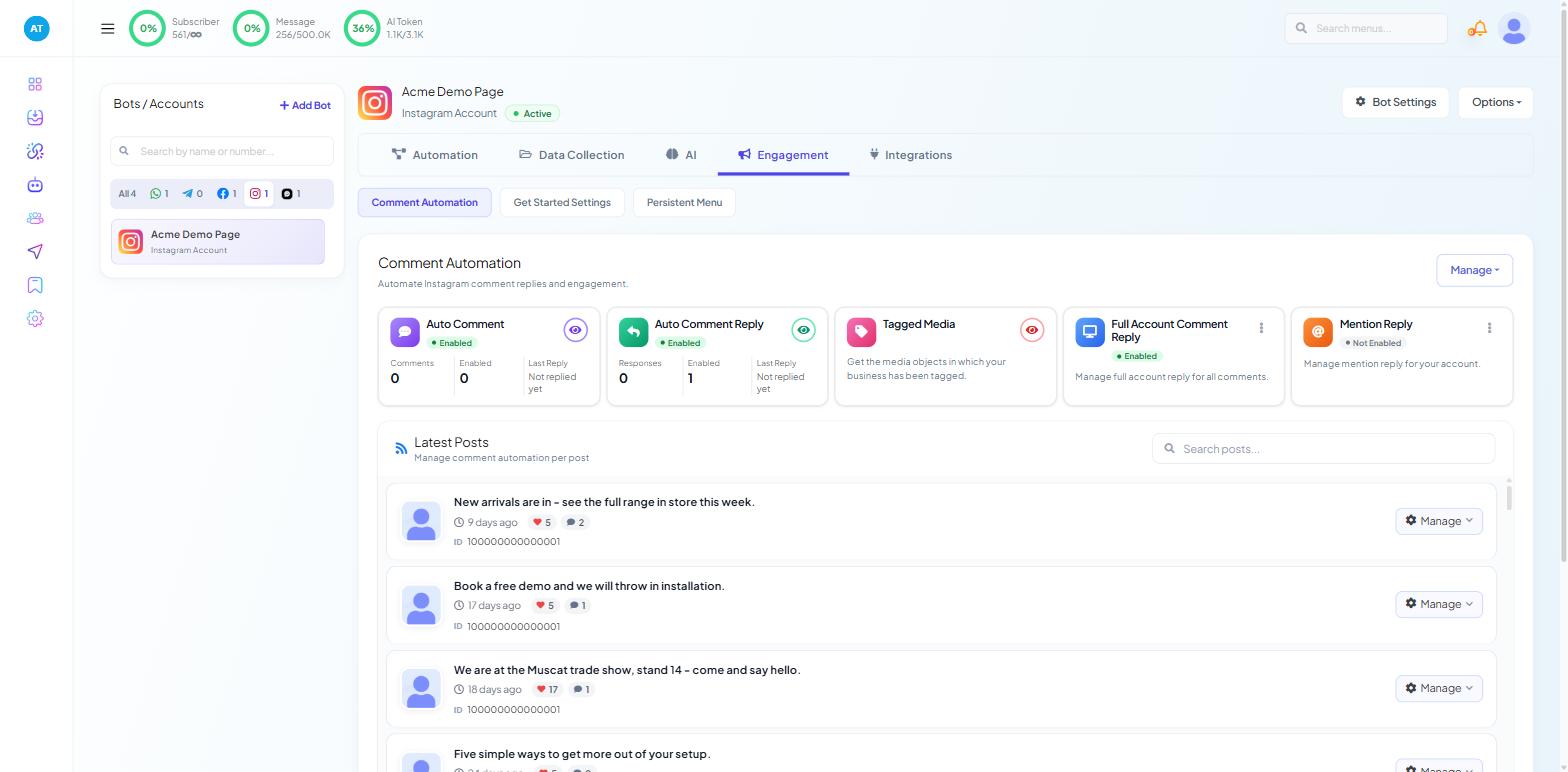
Can't see Comment Automation? First check which bot is selected: WhatsApp and Webchat bots don't have it. On a team login, your role also needs COMMENT AUTOMATION under Control Panel → User Permission.
The four things it does
Public reply. A reply posted under the visitor's comment, where everyone can see it.
Private reply. A direct message to the commenter. Meta only allows this in response to a comment, and only inside its own time window.
Auto comment. A comment from your own page on your own post, at a time you set. It isn't a reply to anybody.
Moderation. Hides or deletes comments that contain words from a list you write. A hidden comment is still visible to the person who wrote it, and invisible to everyone else.
Private replies are built in the Flow Builder. Their buttons come from Generic Template or Carousel.
Each of these has its own article: Auto-Reply to Comments on Your Posts, Auto-Comment on Your Posts, and, for moderation, Keyword Filters & Offensive-Comment Moderation.
One post or the whole page
You can attach automation to one specific post, or to the whole account.
One post: use this for a campaign, such as a launch, a giveaway or a single Reel. The reply wording can then be specific to that post.
The whole page: use this when the behaviour should be the same everywhere, such as answering every commenter politely and sending them to the inbox.
Page-Wide Comment Automation covers the second case, including when it is the wrong choice.
Before you turn anything on
☐ The account is connected properly. Facebook Pages and Instagram accounts connect through the same place: Connect Account → Connect Facebook or Connect Instagram. Both open Facebook Integration. An Instagram account must be a professional account linked to a Page, and it must appear under the Instagram tab of a connected profile there.
☐ You know what the automation is for: acknowledging, answering, or capturing contacts. Each needs different wording. A reply that tries to do all three ends up doing none of them.
☐ You have a test post nobody is looking at. Publish something ordinary, comment on it yourself from a second account, and watch what happens.
Reference
Engagement sub-tabs by channel
Channel | Engagement sub-tabs |
|---|---|
Comment Automation · Engagement Widget · Get Started Settings · Persistent Menu · RCN Postback Manager | |
Comment Automation · Get Started Settings · Persistent Menu | |
Chat Entry only — no Comment Automation | |
Webchat | Get Started Settings · Persistent Menu — no Comment Automation |
WhatsApp and Webchat bots have no Comment Automation. Instagram has no Engagement Widget or RCN.
Next: Auto-Reply to Comments on Your Posts. It introduces the three reply modes (generic, AI and keyword-filtered) that the other articles build on. If your goal is reach rather than replies, read Auto-Comment on Your Posts instead.