
Keyword Filters & Offensive-Comment Moderation
Give precise answers to repeat questions and keep abuse off your posts: keyword-filtered comment replies, fallback messages and hide-or-delete moderation.
What you'll do: set up replies that fire on specific words in a comment, and automatically hide or delete comments that contain words you don't want on your page.
Time: 20 minutes.
One screen does two jobs. It decides what to reply when a comment contains a word you were hoping for, and what to do when it contains a word you weren't.
Both are in the auto-reply settings for a post or a page. They work independently: moderation runs whichever reply mode you have chosen, so you can filter abuse while replying with AI, or while replying with a single generic message.
Before you start
☐ You have opened auto-reply for a post or page under Chatbot Manager → your Facebook or Instagram bot → Engagement → Comment Automation (see Auto-Reply to Comments on Your Posts)
☐ You have pulled about twenty real comments from your last few posts, to see what people actually type
1. Set up keyword-filtered replies
Filtered replies are the third reply mode, alongside generic and AI. Instead of one answer for everyone, or a generated answer for each person, you list trigger words and give each its own reply.
Use this mode when the answers are facts: prices, sizes, delivery areas, opening hours and stock. You want these stated the same way every time and changed in exactly one place. An AI reply rewords; a filtered reply repeats.
In the reply settings, choose the filtered-reply mode.
Give the campaign a name.
Choose how closely a comment has to match:
Exact match fires only when the comment is the trigger word and nothing else. Good for campaign keywords such as
STYLE,GUIDEorPRICE, where you've told people what to type.Contains fires when the word appears anywhere in the sentence. Good for real questions, because nobody comments just "delivery"; they comment "how long is delivery to Muscat?".
Add the filters. Each one takes a trigger word or phrase and the reply to send. Each can also carry an image or video, such as a price list graphic, a size chart or a short demo clip.
Write the no-match reply. This is posted when a comment matches none of your triggers, which is most comments.
Keep the no-match reply neutral and useful: a thank-you plus an invitation to message you, for example "Thanks for your comment — send us a message and we'll help." A fallback that pretends to answer something is worse than no fallback at all.
A filtered reply can also send the commenter a private message: see Auto-Reply to Comments on Your Posts.
2. Turn on offensive-comment moderation
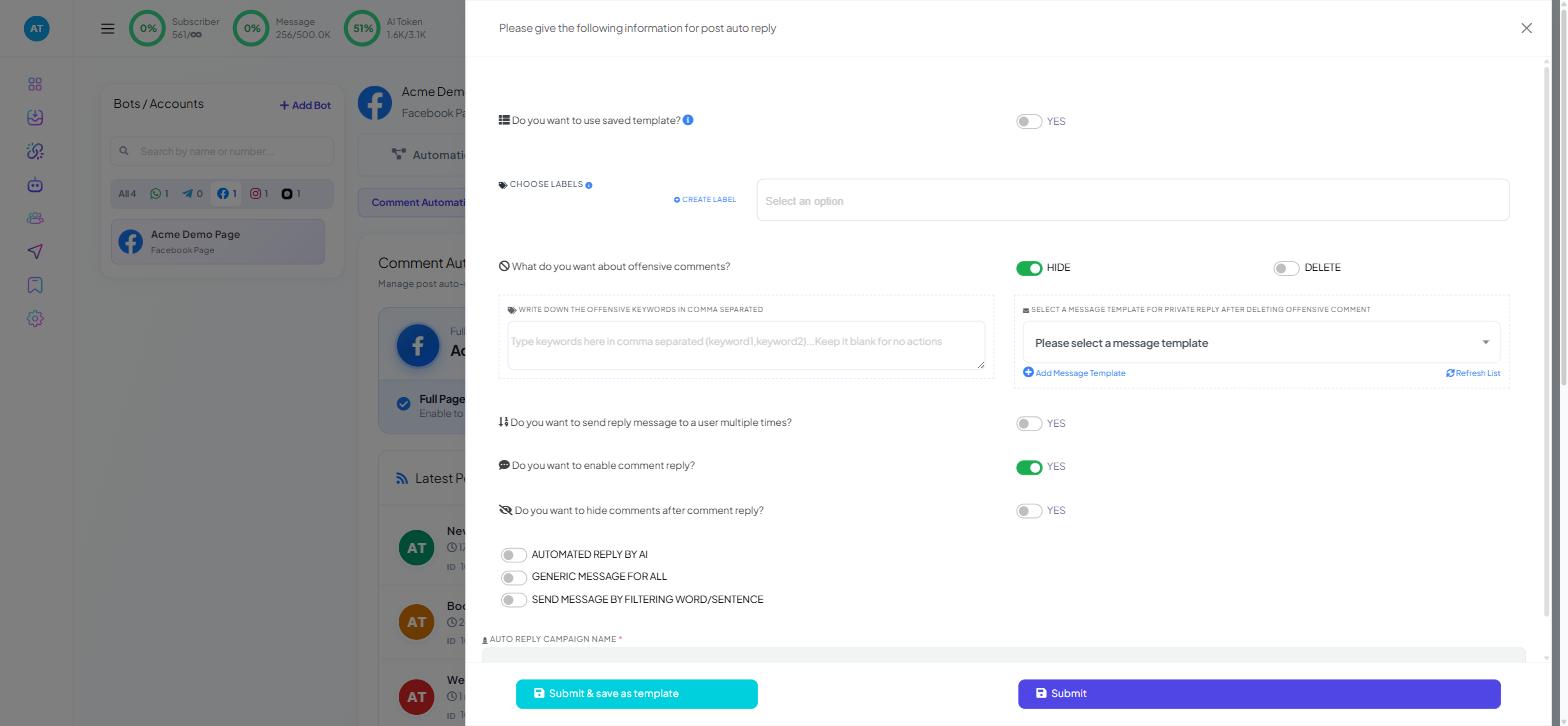
On the same screen, enter your word list, separated by commas (see Building the word list below).
Choose what happens when a comment contains one of the words:
Hide (the right default): the comment disappears for everybody except the person who wrote it. From their side nothing has happened, so there's no second, angrier comment about being censored.
Delete: removes it completely. The person can tell, and often responds. Keep this for material you can't leave on your page at all.
Optional: add a private message to the commenter. A short, calm one, such as "We've received your message and someone will reply to you here", turns a public argument into a private conversation.
Leave moderation on everywhere. It costs nothing when nothing matches.
✅ Done when…
☐ Your keyword rules are in, with a no-match reply
☐ Your moderation word list is in, with Hide or Delete chosen
If something doesn't work
An unpleasant comment got through. Moderation matches words, not meaning. A comment that is unpleasant without containing a listed word goes through.
An innocent comment was hidden. A comment containing a listed word innocently, such as "this is sick", gets hidden. Both cases happen, and neither is a fault in your settings.
A comment matched two rules. A comment like "price and delivery?" contains two triggers. Put the more valuable answer earlier, and consider a combined rule for common pairs.
Reference
Choosing keywords that work
Write down what people actually type, not what you would type. Look at the words in real comments. "Cost", "how much", "price", "kam" and "?" are five different triggers for one question.
Cover the misspellings. "Delivary" and "shiping" are trigger words. Add them.
Put the most important rules first (see above).
Keep the list short enough to maintain. Ten well-chosen rules that are correct beat forty that are half out of date.
Don't put a price in a keyword reply you can't update the same day it changes. Give the range, or invite a message.
Building the word list
Start with three categories rather than a list of insults:
Profanity and abuse. The obvious core. Include the common disguised spellings, because people use them.
Spam patterns. "Whatsapp me", "dm for promotion", "cheap followers", "investment". On most business pages this category catches far more comments than abuse does, and it's the one people forget.
Words that are wrong on your page specifically. A competitor's name pasted under every post. A defamatory claim you've already dealt with. A phrase used by a particular troll.
Review the list monthly. It goes out of date faster than any other setting in the product.
Which mode to run where
Situation | Reply mode | Moderation |
|---|---|---|
Giveaway or contest post | Generic | On, spam list |
Product post with price and stock questions | Filtered keyword | On |
Support-shaped page, varied questions | AI | On, full list |
Sensitive campaign or public issue | Filtered, narrow | Delete, plus a private message |
Moderation stays on in all four.
Next: Page-Wide Comment Automation. Once the rules are right for one post, it shows how to apply the same behaviour to every post on the account without setting up each one, and when that's a bad idea.