
Scheduling Social Posts: Multimedia, CTA & Carousel
Schedule Facebook and Instagram posts from Scope Wiser: the three post types under Social Posting, what each supports, and how to attach an auto-reply template.
What you'll do: create a Facebook or Instagram post in Scope Wiser, publish it now or schedule it, and attach an auto-reply template so comments get answered.
Time: 10 minutes per post.
Before you start
☐ Your Facebook Page (and Instagram account, if you want it) is connected
☐ You can see Social Posting in the left menu. If not, your role needs SOCIAL POSTING under Control Panel → User Permission.
☐ Optional: an auto-reply template, if comments on this post should be answered automatically (see Auto-Reply to Comments on Your Posts)
1. Choose the post type
Click Social Posting in the left menu.
You should now see a page headed Facebook & Instagram Poster — "Effortlessly Schedule and Share Your Content Across Facebook and Instagram" — with three cards, each with an Open → link:
Multimedia Post — "Post Text, Link, Image, Video on Facebook & Instagram automatically."
CTA Post — "Post Call to Action on facebook automatically."
Carousel/Video Post — "Post Carousel/Video on Facebook automatically."
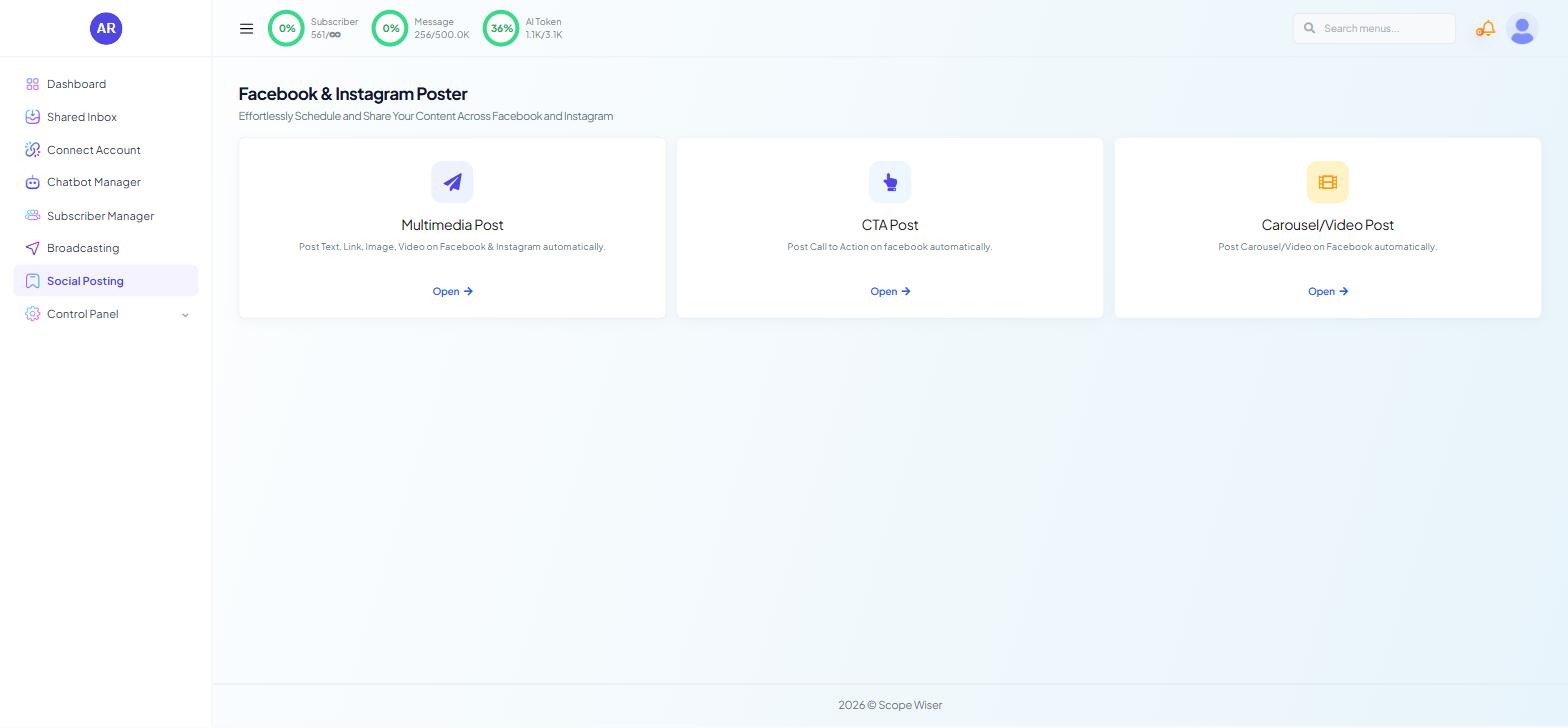
Click Open → on the type you need, then follow the matching section below.
Need it on Instagram? Choose Multimedia Post. The three types aren't variations of one editor. They create different things on the platform, and only Multimedia Post reaches Instagram. The full comparison is under Reference.
2a. Create a Multimedia Post
On the Multimedia Post list, click Create New Post. Multimedia Post Create opens in three columns: page picker on the left, composer in the middle, live preview on the right.
Pick the content type from the four tabs at the top of the composer: Text, Link, Image/Carousel or Video. Do this before you write, because switching tabs changes which fields are available.
Choose the page in the left column. There's a Search pages…… box above the list.
Select Auto Reply Template: pick the auto-reply template that should answer comments on this post. This is the field most people skip, and it's the reason to create posts here rather than on Facebook directly.
CAMPAIGN NAME: this is how you'll find the post in the list later. Nobody on Facebook sees it.
TEXT: write the post where it says "Type your message here...". There's an emoji picker beside it, and the preview updates as you type.
POSTING TIME: the POST NOW toggle is on by default. Leave it on to publish straight away, or turn it off to schedule.
INSTAGRAM: this toggle is at the top of the preview panel and is off by default. Turn it on to publish the same content to your connected Instagram account as well.
Click Submit.
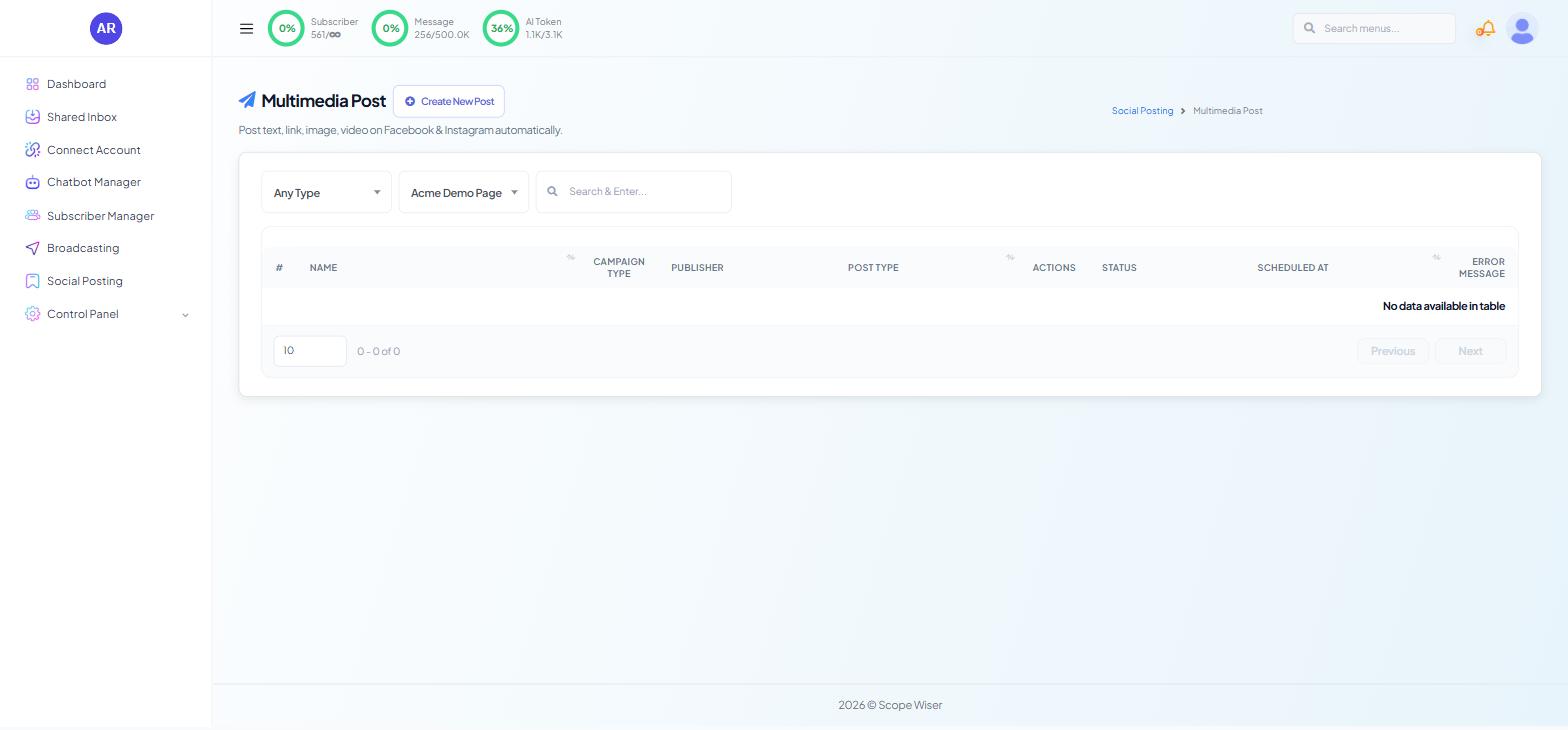
You should now see the list again, with your post and its status.
2b. Create a CTA Post
A CTA post is a Facebook link post with an action button attached, such as Learn More, Sign Up or Book Now. It has no uploaded media. If you want an image, use a Multimedia Post.
Fill in CAMPAIGN NAME.
Write the MESSAGE that introduces the link.
Enter the POST LINK: the address the post and its button point to.
Choose the CTA BUTTON TYPE (the full list is under Reference).
Pick the page under POST TO PAGES.
Optional: choose an AUTO REPLY TEMPLATE if comments on this post should be answered automatically.
Set POSTING TIME, or tick Post now.
Click Submit.
A preview sits beside the form, with the note "This preview may differ with actual post." Use it as a rough guide to layout, not to how the post will finally look.
2c. Create a Carousel/Video Post
This is Facebook's swipeable multi-card post, where each card has its own image, title, description and link. The same screen can also build a video slideshow, which turns the images into a video.
On Create Carousel/Video Poster, choose the Carousel or Video Slide Show tab at the top. Do this before you fill anything in.
Fill in CAMPAIGN NAME.
Choose the page under POST TO PAGES.
Enter the SLIDER LINK: the destination for the whole carousel.
Enter the MESSAGE: the post's text, shown above the carousel.
Fill in Slider Content 1:
TITLE
DESCRIPTION
ACTION LINK: where this card goes
the image, either as an IMAGE LINK or through UPLOAD IMAGE → Upload
Click Add More Content for each further card.
Set POSTING TIME, or leave Post now on.
Click Create Campaign.
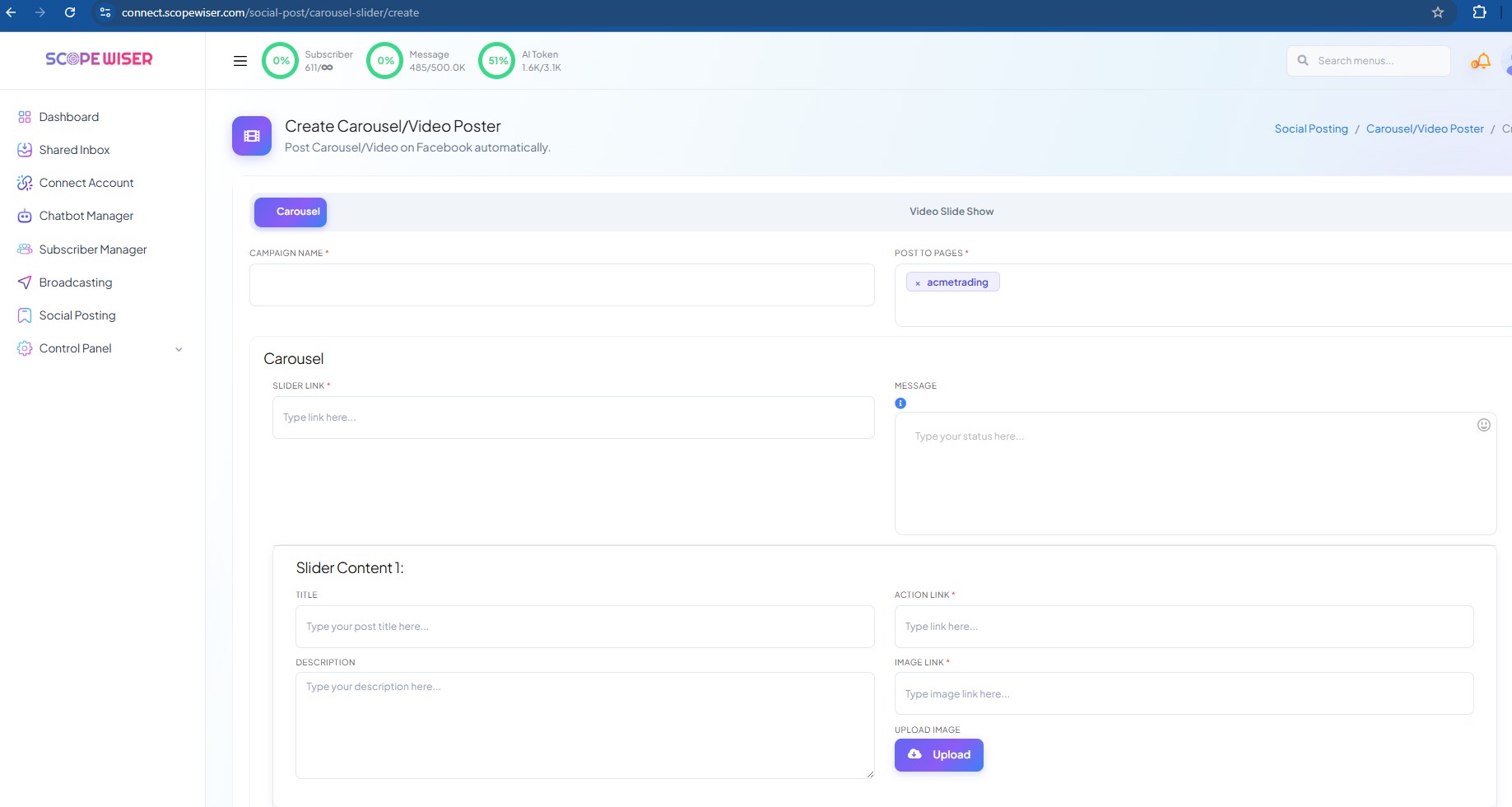
SLIDER LINK and ACTION LINK are different fields. Mix them up and everyone goes to the same page, whichever card they tapped.
3. Check the status
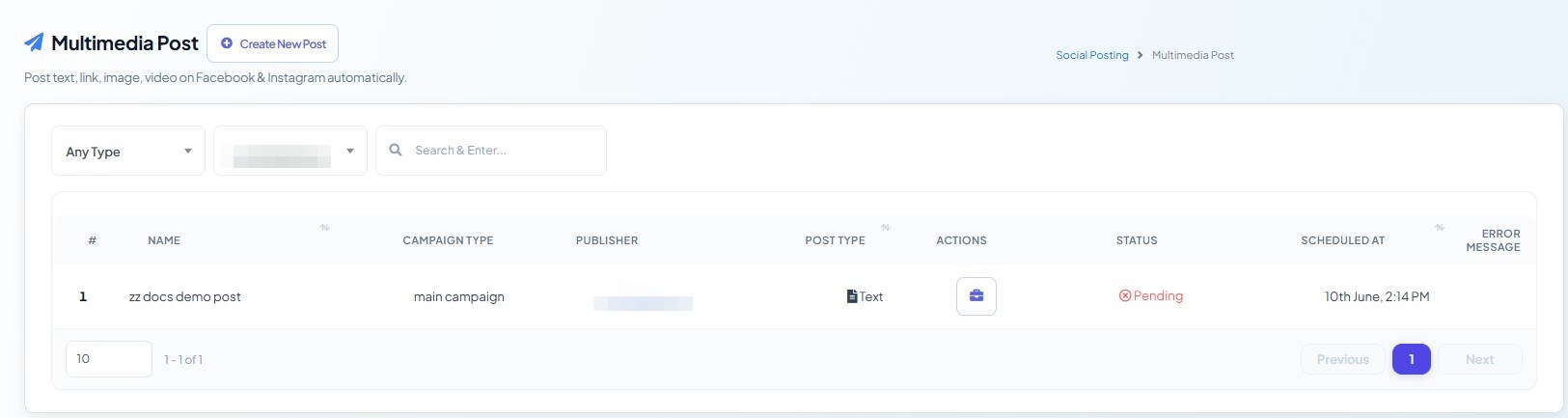
Every post goes back into its list with a status:
Pending means scheduled and waiting.
A failure writes its reason into ERROR MESSAGE.
✅ Done when…
☐ Your post is in the list with a status
☐ It shows as scheduled, or it has appeared on your page
☐ If you need comments answered, an auto-reply template is attached
If something doesn't work
Look at the ERROR MESSAGE column first. Most failures come from one of three things:
The page is disconnected. Reconnect it from Connect Account → Connect Facebook, which opens Facebook Integration (the same page Instagram connects through).
A video is still processing. Video posts take time between submitting and appearing. A status that sits at pending for a few minutes is normal.
The platform has flagged a URL.
Failed posts don't retry themselves. Recreate the post once the connection is healthy.
Reference
The three post types compared
Multimedia Post | CTA Post | Carousel/Video Post | |
|---|---|---|---|
Yes | Yes | Yes | |
Yes, via a toggle | No | No | |
Content | Text, link, image, carousel, video | A link with a call-to-action button | Multi-slide carousel or video slideshow |
Media upload | Yes | No — link only | Yes, per slide |
The Multimedia Post list
Social Posting → Multimedia Post opens a list filtered by Any Type and ALL Pages, with a Search & Enter... box. The columns are #, NAME, CAMPAIGN TYPE, PUBLISHER, POST TYPE, ACTIONS, STATUS, SCHEDULED AT and ERROR MESSAGE. ERROR MESSAGE is the one to check when a post didn't appear.
Which Multimedia content type to choose
Text: announcements and questions, the posts that get replies rather than clicks.
Link: attaches a URL and lets Facebook build the preview card. Use it when the click is the point.
Image/Carousel: the workhorse. This is a native, Instagram-compatible carousel of images. It is different from the Carousel/Video Post type, which builds a Facebook link carousel with a separate destination for each slide.
Video: uploads a video file. Expect processing time between submitting and the post appearing.
CTA button types
Facebook offers: Book Travel, Buy Now, Call Now, Download, Get Directions, Get Quote, Install App, Install Mobile App, Learn More, Like Page, Listen Music, Message Page, No Button, Open Link, Play Game, Shop Now, Sign Up, Subscribe, Use App, Use Mobile App, Watch More and Watch Video.
Next: Auto-Comment on Your Posts, to schedule the follow-up comment that carries your link. Posting the URL in a comment rather than in the post keeps the post's reach, and the two schedules are worth planning together.