
Step 2: Set Up Your Meta Business Portfolio
Create or find your Meta Business portfolio, check you have full access, and fill in the business details Meta will check later. No technical knowledge needed.
What you'll do: find or create your Meta Business account (Meta also calls it Business Manager or business portfolio), and check that you are allowed to manage it.
Time: 10 minutes if you already have one, 20 minutes if you create one.
Meta is the company behind WhatsApp and Facebook. Your Meta Business account is like a folder. It holds your Facebook Page, Instagram account, WhatsApp number and the people who manage them. WhatsApp for business always needs one.
Confused by all the Meta accounts? Facebook Account, Page and Meta Business Account: Why You Need Them explains each one with a picture, in four minutes.
Before you start
☐ Your own, personal Facebook login. Meta requires a real person to manage a business. Do not create a new Facebook profile for the business. Meta often disables those, and you would lose everything attached to it.
☐ A business email address you can open right now
☐ Your legal business name, exactly as on your licence or registration
☐ Your business address, phone number and website, if you have one
☐ Your business logo, in case Meta asks you to create a Facebook Page
1. Open Meta Business Suite
In your browser, go to business.facebook.com (this website is called Meta Business Suite).
Sign in with your personal Facebook login.
You should now see your business, or a Select business screen like this one.
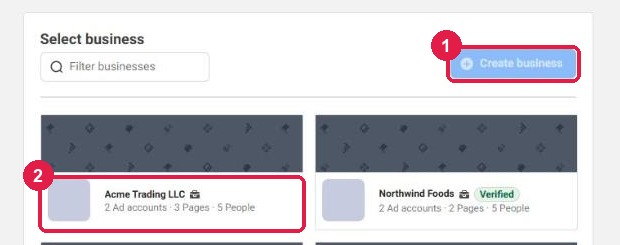
Your business is in the list (2)? Click it and go to section 3. Do not create a second one. Two accounts for one business cause problems later.
The list is empty, or your business isn't there? Ask colleagues first. If the company ever ran Facebook ads or a Facebook Page, an account probably exists. Someone just needs to add you. If you're sure there isn't one, go to section 2.
2. Create the account (only if you don't have one)
On the Select business screen, click Create business (1).
In Meta's form, enter your business name, your name and your business email.
Finish Meta's prompts.
In your email inbox, open Meta's email and click the link to confirm.
You should now see your new business open in Meta Business Suite.
Use your real, legal business name. Meta compares it with your documents in Step 4. Changing it later means verifying again.
Meta asks for a Facebook Page? This is common now. Select your business Page if you have one. If not, create a simple one with your business name and logo, then carry on. A Page is free, and you need it for Messenger or Instagram later.
3. Check that you have full access
People often skip this check. It is the most common reason the WhatsApp connection fails halfway with "You don't have permission".
In Meta Business Suite, click the gear icon (Settings) at the bottom of the left menu.
In Settings, under Users, click People.
In the list, find your own name. It has (you) after it.
In your row, look at the Business portfolio access column.
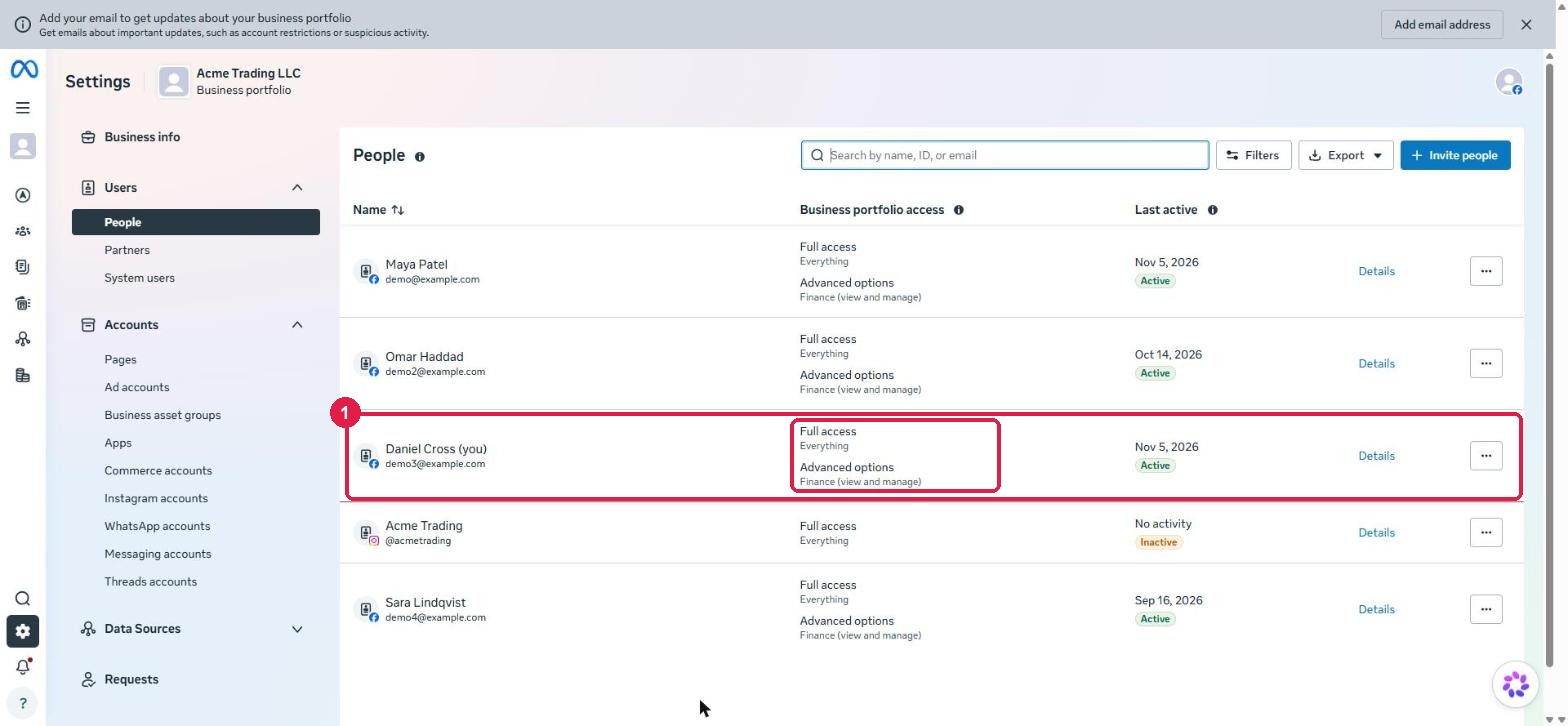
You should now see Full access and, under it, Everything. If you do, go to section 4.
If it says anything else
Someone who already has full access must change it for you. Send them this message:
Hi, I'm setting up WhatsApp for our business with Scope Wiser. Could you give me Full access to our Meta Business account? In Meta Business Suite: Settings → Users → People → my name → change my access to Full access. Thanks!
When they have done it, refresh the page and check again.
4. Fill in your business details
In Settings, click Business info at the top of the left menu.
Under Business details, click Edit.
Fill in Legal business name, Address, Business phone and Website.
Save your changes.
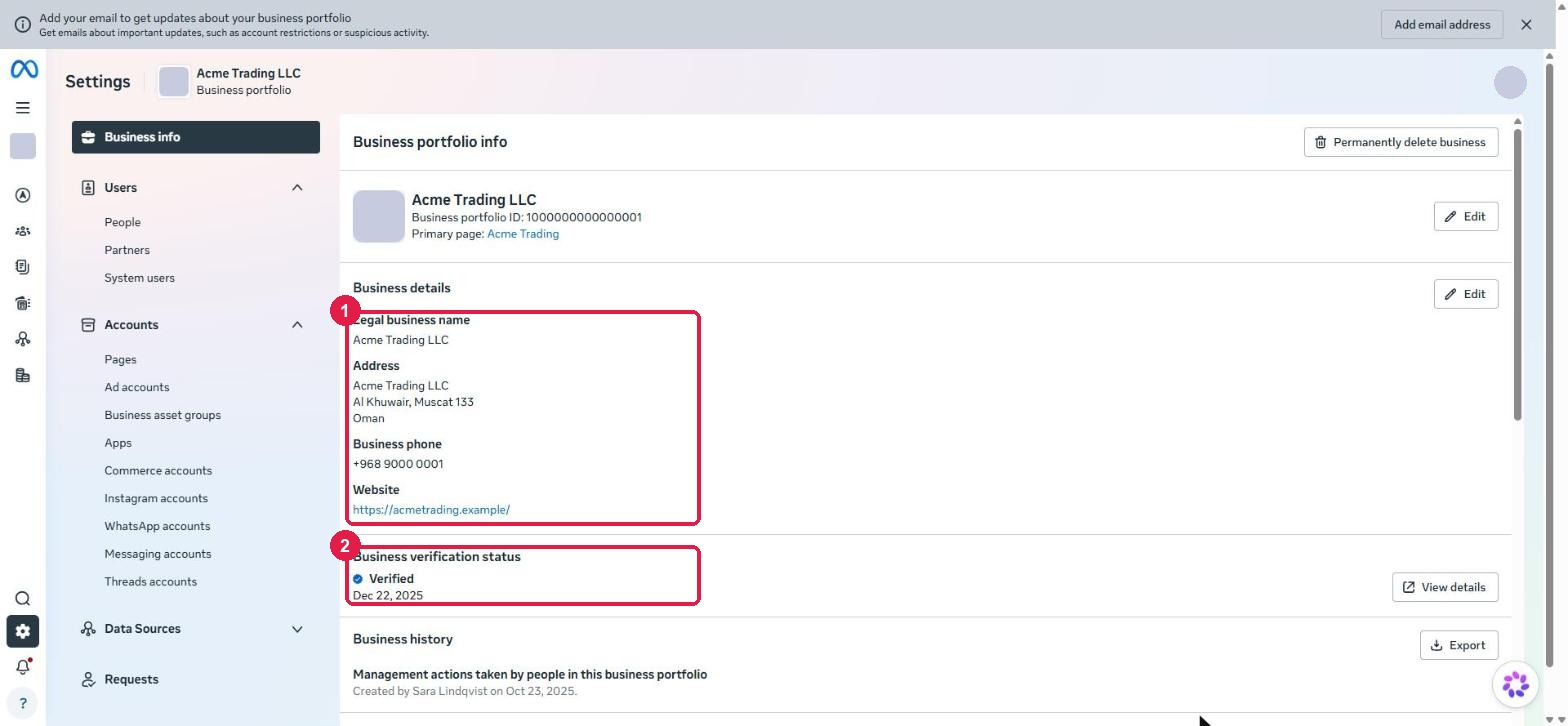
You should now see your details under Business details.
Use the same name, address and phone number everywhere: here, on your website and on your documents. If they don't match, Meta usually rejects verification in Step 4.
Business verification status (2) probably says Not verified. That is normal. You deal with it in Step 4. Meta usually offers verification only after WhatsApp is connected.
5. Gather your documents now
You need these in Step 4. Collect them now, so you don't wait later:
☐ One official business document: a certificate of incorporation, business licence, tax document, or a recent utility bill in the business's name
☐ A website on your own domain (for example acmetrading.com, not a free site address) that shows the same business name and contact details
You should now see both items ready on your computer.
✅ Step 2 done when…
☐ You can open your Meta Business account in Meta Business Suite
☐ Your own row in People shows Full access
☐ Business info shows your legal name, address, phone and website
☐ Your business document is ready
If something doesn't work
Problem | What to check |
|---|---|
I can't find Settings | Look for the gear icon in the column of icons on the far left, near the bottom. |
I never received Meta's email | Check your spam folder. Check you typed the email address correctly. |
My access is not Full access | Ask someone with full access to change it (see section 3). |
Next: Step 3: Connect Your WhatsApp Number.