
Step 3: Connect Your WhatsApp Number
Connect your WhatsApp number to Scope Wiser in one guided Meta window, including numbers already in the WhatsApp Business app, and check it shows Active.
What you'll do: link your business's WhatsApp number to Scope Wiser. Then the bot, the team inbox and broadcasts can use it.
Time: 10–20 minutes. Keep the phone with that number next to you.
Before you start
☐ Step 2 is done: you have Full access to your Meta Business account (Meta also calls it Business Manager or business portfolio)
☐ The phone with the number you want to connect is in your hand
☐ You know your situation from Get Started: Which Situation Are You In?:
A: a new number
B: a number in the WhatsApp Business app
C: a number on the ordinary WhatsApp app
Situation C only: do this first. Save any chats you want to keep. Then, in the ordinary WhatsApp app, go to Settings → Account → Delete my account. This removes the number from the app and erases the chat history on that phone. Wait a few minutes before you continue.
1. Open Connect Account
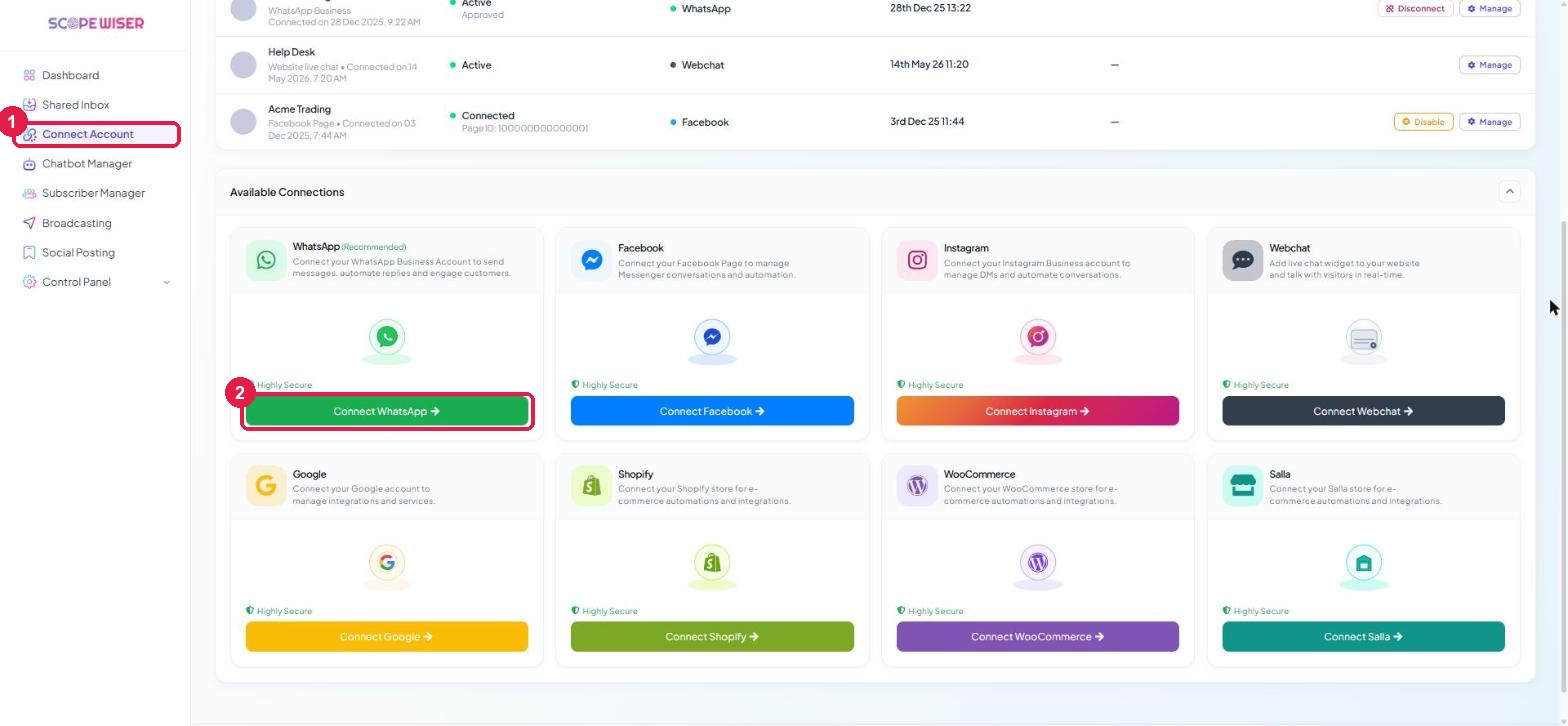
In Scope Wiser's left menu, click Connect Account (1).
Scroll down to Available Connections and click Connect WhatsApp → (2).
You should now see the WhatsApp Integration page with two cards.
2. Choose the one-click option
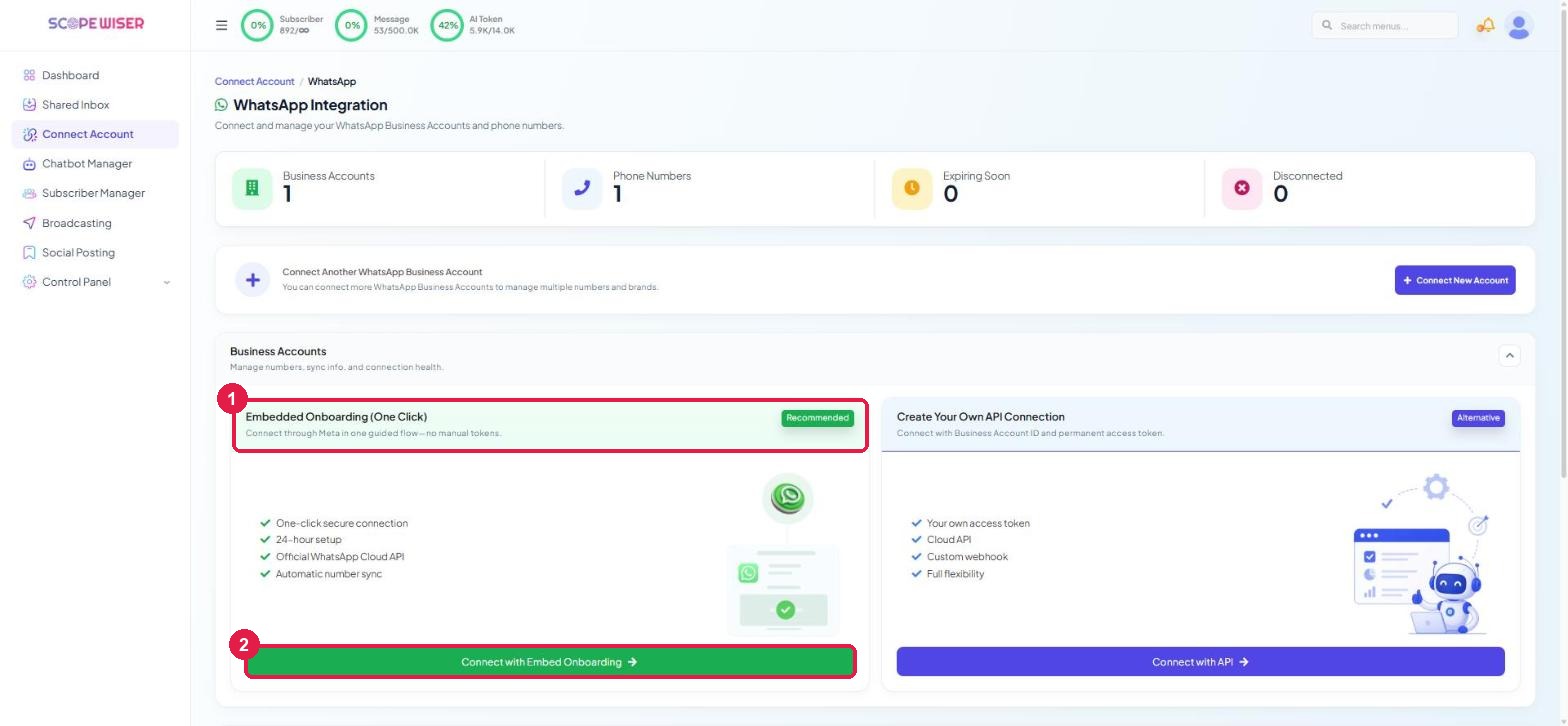
On WhatsApp Integration, find the left card, Embedded Onboarding (One Click) (1), marked Recommended. The other card is for developers.
On that card, click Connect with Embed Onboarding → (2).
You should now see the button split into two choices:
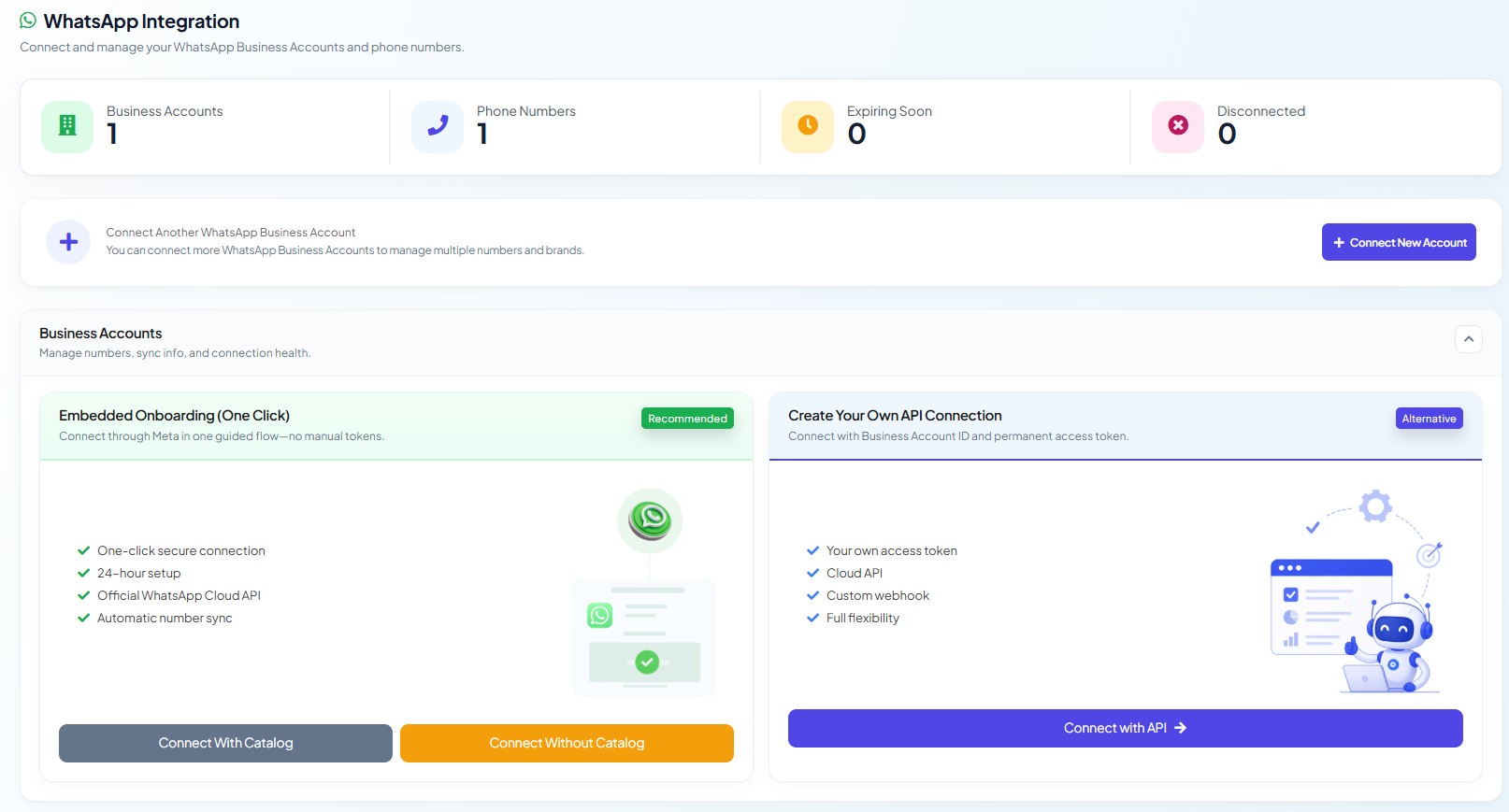
Click Connect With Catalog if you might sell products in WhatsApp. A catalog is a list of your products that customers can browse in the chat. Click Connect Without Catalog if you won't. Not sure? Choose Connect With Catalog. It costs nothing and saves connecting again later.
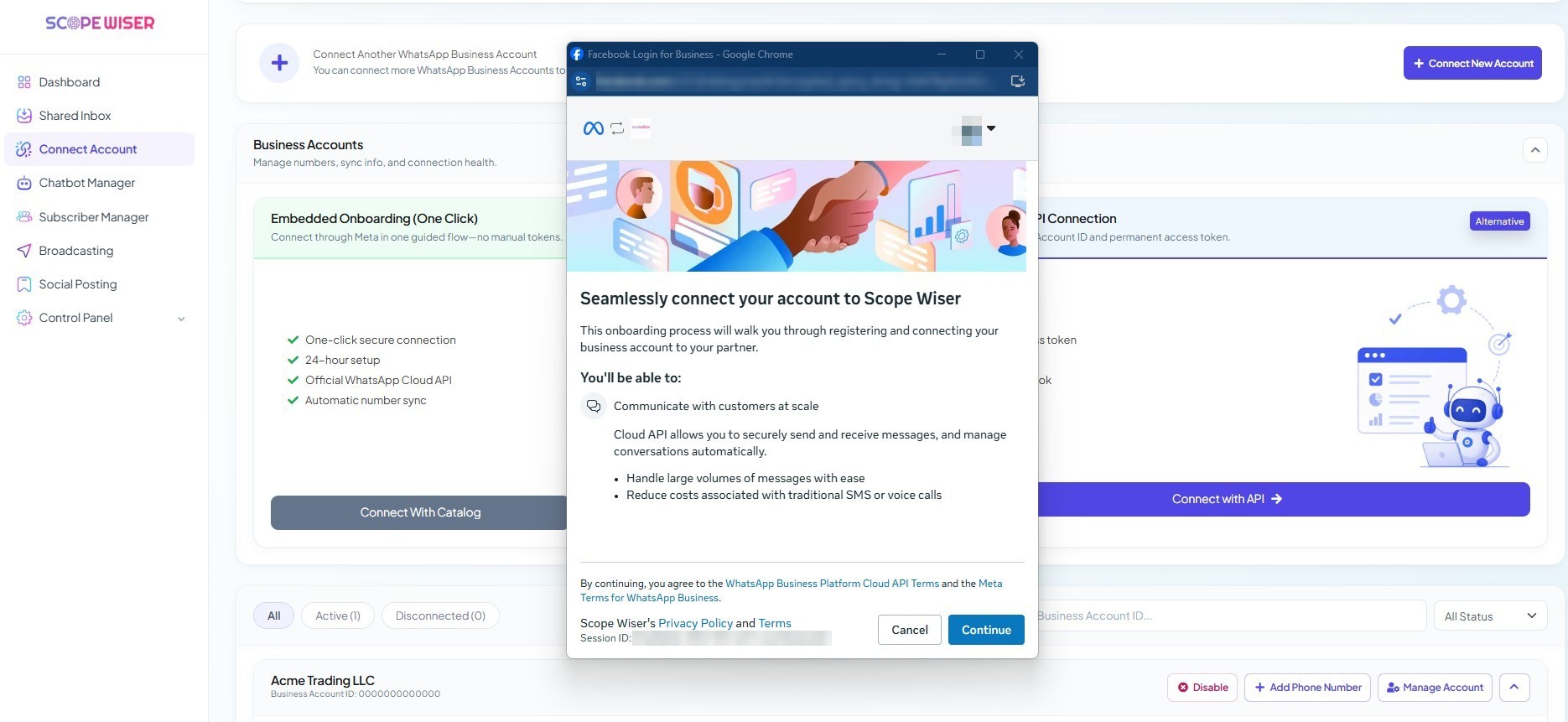
You should now see a Meta window open on top of Scope Wiser.
Nothing happens when you click? Your browser may block pop-up windows (small extra windows). Allow pop-ups for connect.scopewiser.com and click the button again.
3. Follow Meta's window
The next screens are Meta's, so the wording may change a little.
3a. Start. On Meta's first screen, click Continue.
You should now see Meta asking which business to use.
3b. Choose your business. In the Business portfolio list, pick the account from Step 2.
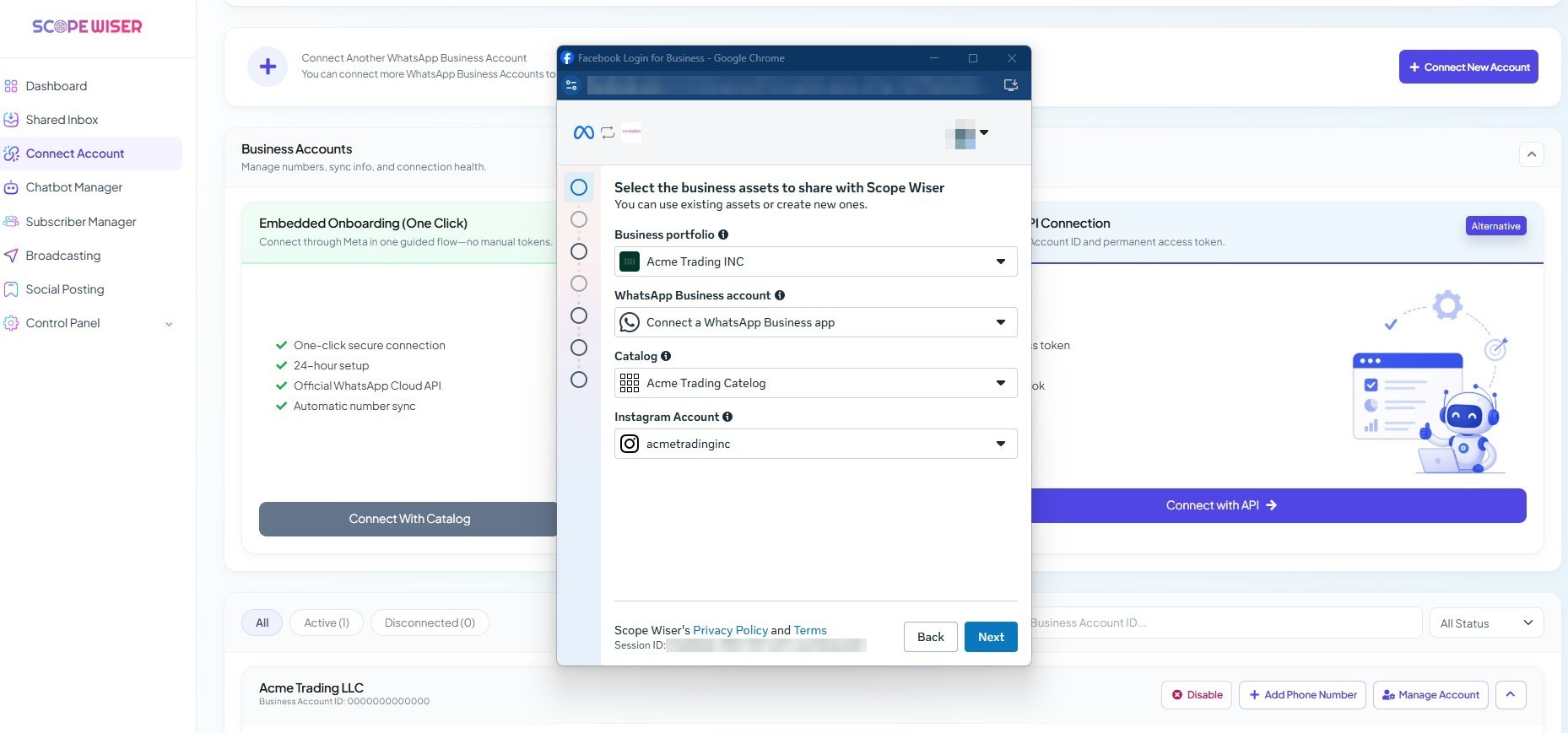
3c. Choose the WhatsApp account. On the same screen, open the WhatsApp Business account list. This is Meta's name for the part that holds your number.
Situation A or C: choose Create a WhatsApp Business account.
Situation B: choose Connect a WhatsApp Business app.
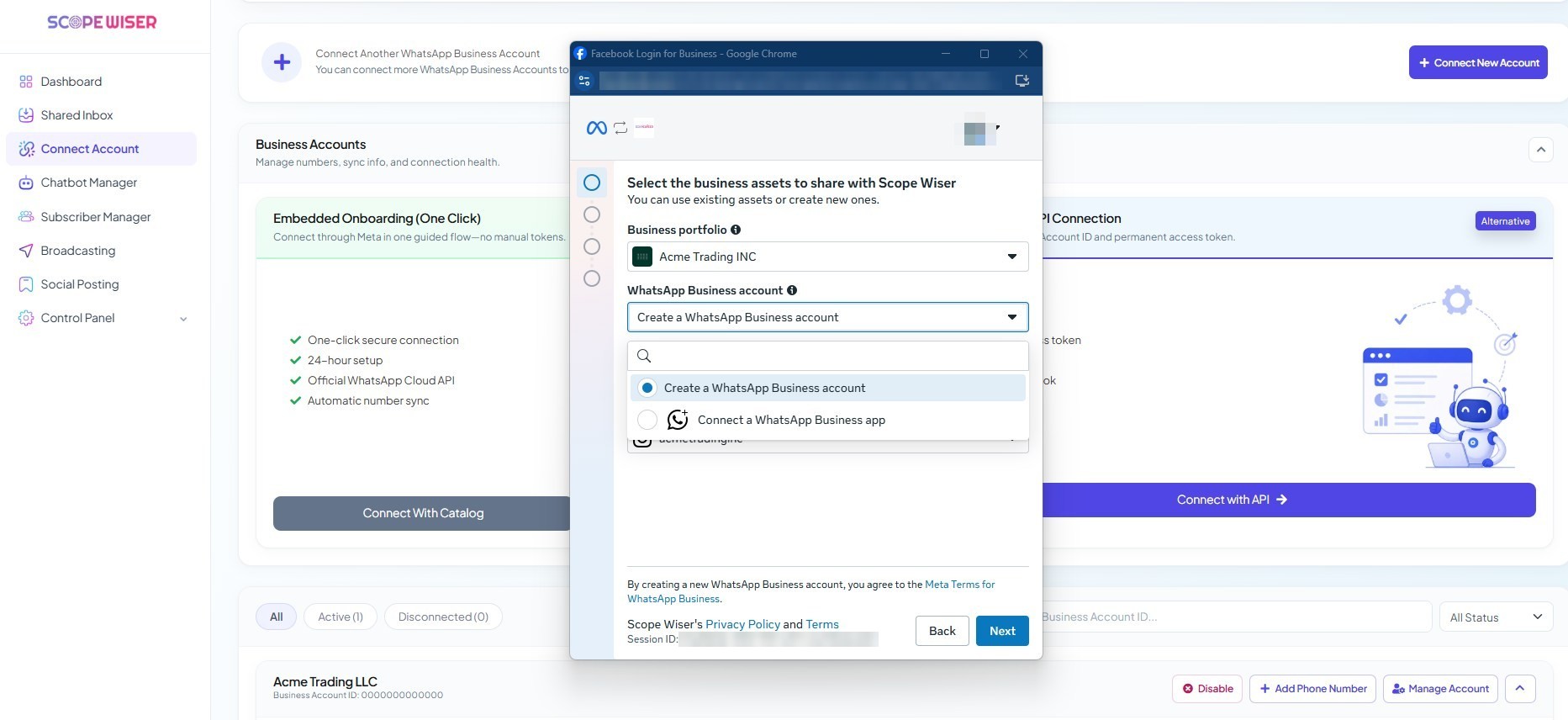
Leave Catalog and Instagram Account as they are, unless you know you need them. Click Next.
You should now see a screen asking for your phone number.
3d. Enter the phone number. Choose the country, type the number, then click Next. Next works only after you type a number.
You should now see Meta asking for a code.
3e. Enter the code. Where the code arrives depends on your situation:
Your situation | Where the code arrives | What to do |
|---|---|---|
A or C | A text message (SMS) or a voice call | Type the code into Meta's window |
B | A WhatsApp message from Meta, inside the WhatsApp Business app (not a text message) | On the phone, open the WhatsApp Business app and tap Connect to the Business Platform. Then paste the code, or scan the QR code (the square barcode) shown on your computer |
Situation B: waiting for a text message? None is coming. Look inside the WhatsApp Business app on the phone instead.
3f. Finish. Meta closes its window.
You should now see Scope Wiser again.
4. Check it worked
On the WhatsApp Integration page, scroll down to the table.
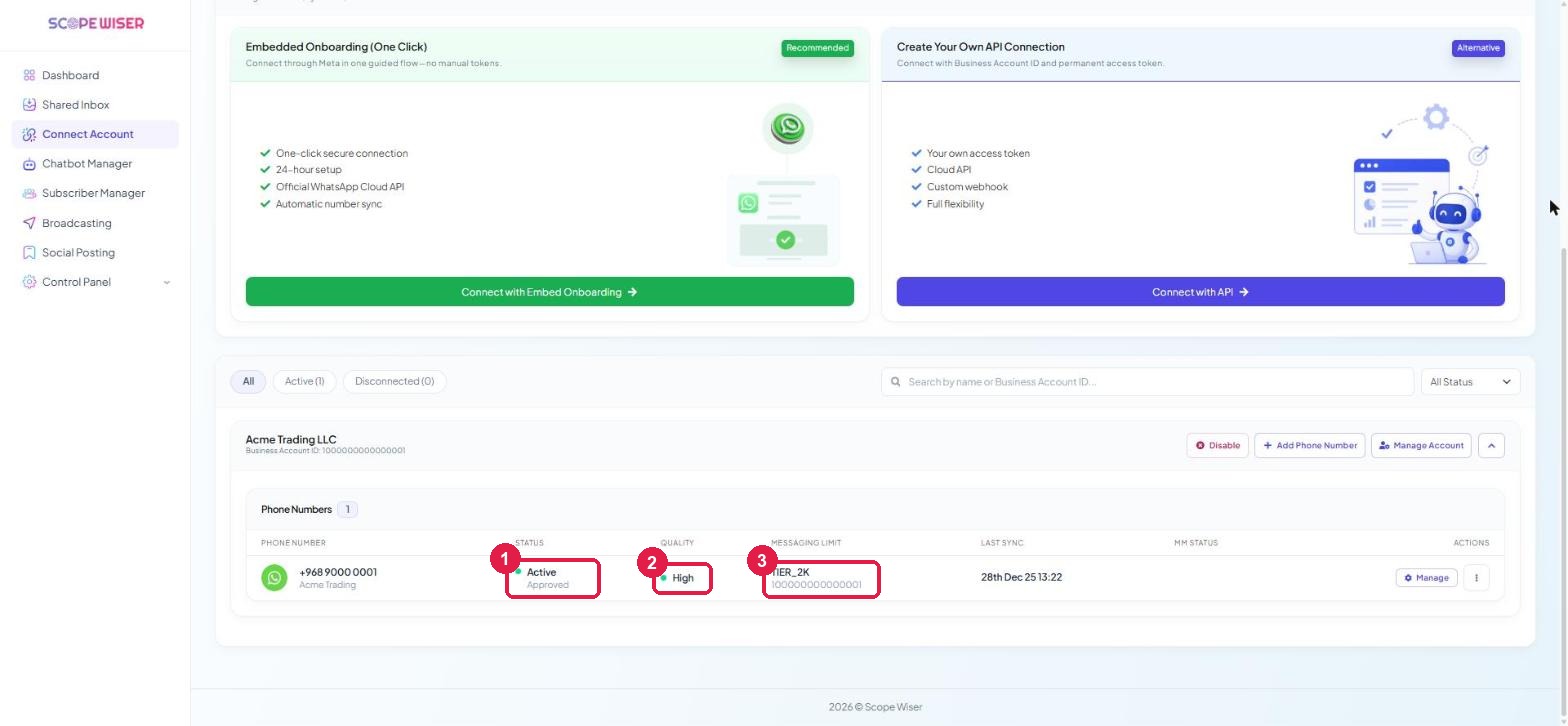
You should now see your business and phone number, with:
STATUS: Active. The connection works. Approved under it means Meta also approved your display name (the business name customers see). If it doesn't say Approved yet, that can take a while. You can carry on.
QUALITY. How customers react to your messages. It matters only once you start sending.
MESSAGING LIMIT. How many different customers you may start conversations with each day. A new account starts low. Step 4 shows how to raise it.
Situation B: the WhatsApp Business app keeps working on the phone. Your team can still reply from it.
✅ Step 3 done when…
☐ Your number appears on WhatsApp Integration with STATUS: Active
If something doesn't work
Problem | What to check |
|---|---|
"You don't have permission" | Your Meta login doesn't have Full access. Go back to Step 2, section 3. |
The code never arrives (situations A and C) | Choose the voice call option. Numbers that forward calls, and office phone systems, often lose text messages. |
"Number already registered" | The number is still on the ordinary WhatsApp app. Delete it there (see the box at the top of this page), wait a few minutes and try again. |
Meta's window is blank or shows an error | Wait a few minutes, then start again from section 2. |
Still stuck? See Fixing Channel Connection Problems, or contact our support team.
Next: Step 4: Add a Payment Method and Get Verified.