
Getting Help: What to Check and What to Send
What to check before asking for help, the details that get a support request answered first time, and which problems belong to Meta, not Scope Wiser.
What you'll do: check the four things that explain most problems, then gather the details that let your question be answered in one reply.
Time: 5–10 minutes.
1. Check these four things first
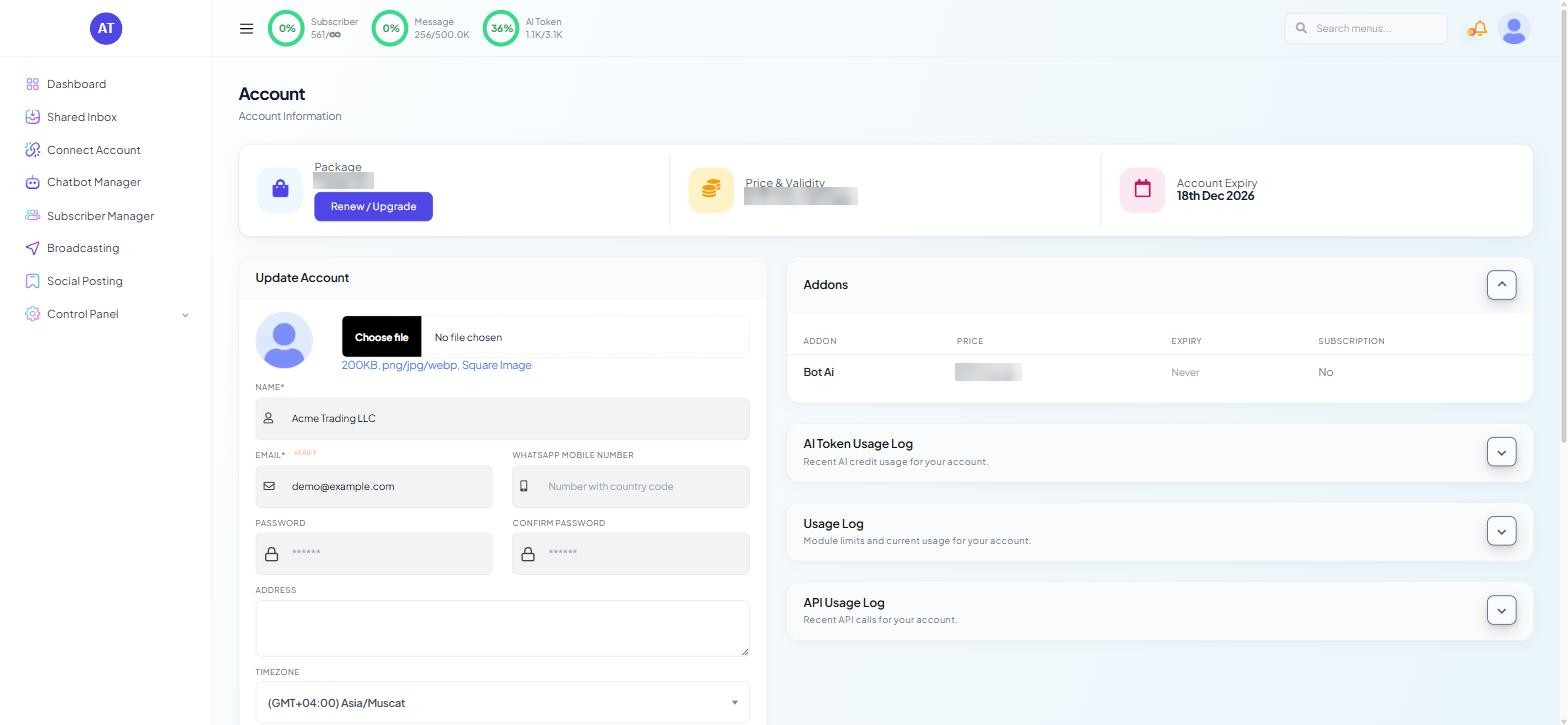
Check the usage meters
Look at the top bar of any page. It shows three meters: Subscriber, Message and AI Token, each against your allowance.
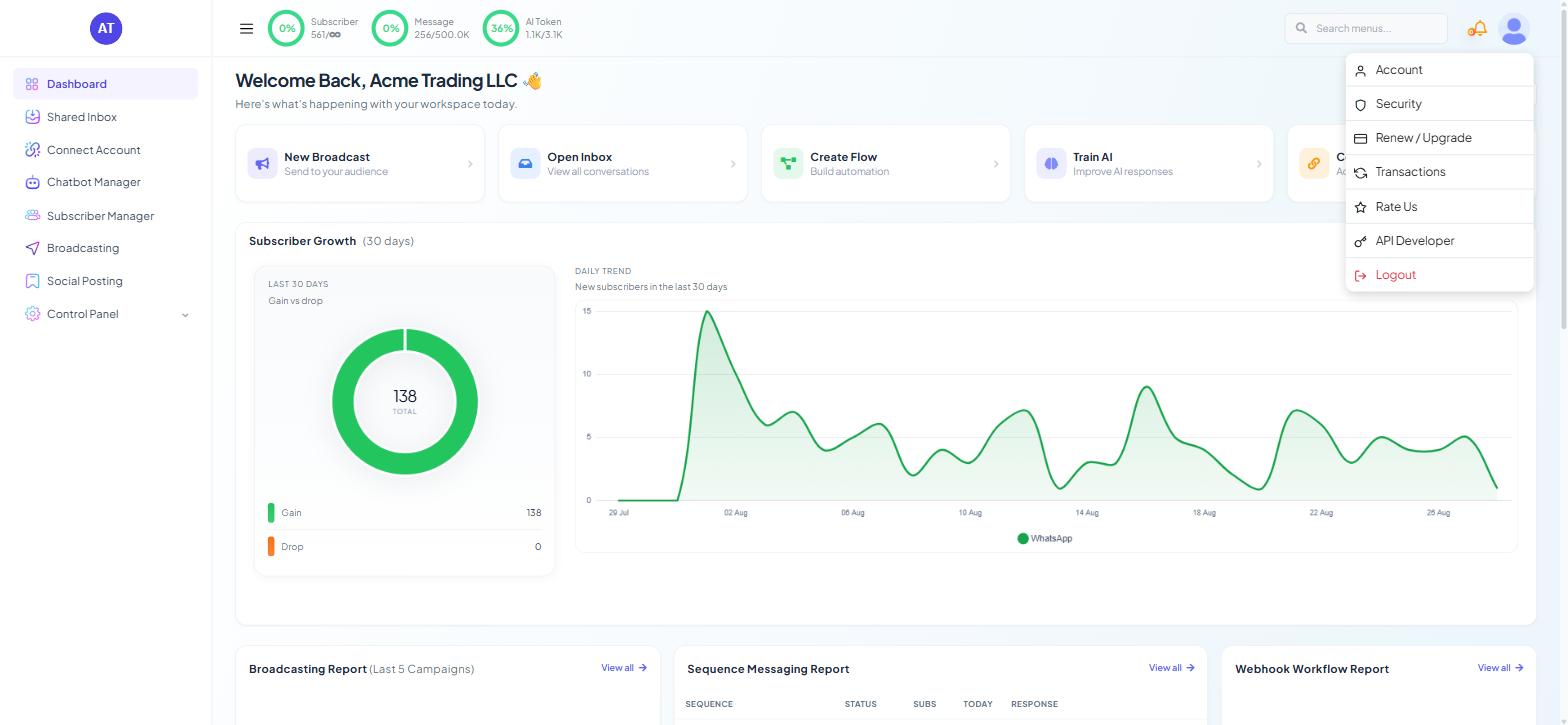
For the detail, click your avatar and choose Account.
Expand the Usage Log panel or the AI Token Usage Log.
A campaign that stopped halfway, or AI replies that went silent overnight, are far more often a full meter than a fault.
Check the channel connection
Go to Connect Account.
In the Connected Accounts table, look at STATUS and LAST SYNC for the account.
If the status is anything other than active, or LAST SYNC stopped updating when the problem started, the problem is the connection, not your flow.
Check that the change was published
Edits in the Bot Settings panel do not take effect until you press Publish Changes.
Flows in the Flow Builder are live once you press Save.
Mixing these two up is a routine cause of "the setting is not working".
Check the deletion log
If something was deleted, go to Control Panel → Settings & Integration → Data Delete Activity. It shows who did it. You only see it if your role has Control Panel access.
2. Gather this before you ask
A request that includes the following is usually answered once. One that does not turns into three rounds of questions.
☐ Which bot. The name and the phone number, Page or handle shown in the Chatbot Manager header. Copy the page address from your browser while the bot is selected.
☐ Which flow or campaign. The REFERENCE NAME and UNIQUE ID from the Keyword Replies list, or the CAMPAIGN NAME from the Broadcast Center.
☐ The exact error text or code, copied, not described. WhatsApp delivery failures carry numeric codes that identify the cause precisely.
☐ When it happened, with your timezone (set on the Account page).
☐ Who it affected: one subscriber, one campaign, or everything. If one subscriber, include their Subscriber ID from Subscriber Manager.
☐ What you expected instead, in one sentence.
☐ A screenshot of the whole window, not a crop, so the usage meters, the selected bot and the page address are all in the frame.
3. Work out whether it is Meta's problem
Some failures are Meta's, and Scope Wiser cannot move them:
Symptom | Whose problem |
|---|---|
Message template rejected or stuck pending | Meta review — see Why Message Templates Get Rejected |
WhatsApp Business account disabled | Meta Business Support, via an appeal |
Quality rating dropped to Medium or Low | Meta, driven by how recipients respond to you |
Messaging limit tier not increasing | Meta, based on your sending history |
Delivery error codes such as 131026 or 131049 | Meta's delivery rules — WhatsApp Error Code Reference explains each |
Bot not replying, flow not saving, screen not loading | Scope Wiser support |
Connection dropped or token expired | Try Connect Account → Manage and re-sync first; if that does not restore it, Scope Wiser support |
Appeal to Meta
To appeal a disabled account or a rejected template with Meta:
Fix the cause first. Make the business name in your Meta Business account (Meta also calls it Business Manager or business portfolio) match your real trading name, and make sure your website works and describes the same business.
Go to business.facebook.com/help and choose Contact support.
Explain what you corrected.
Billing or plan questions
If your issue is billing or plan related, the Billing item in the profile menu holds the payment records you will be asked for.
✅ Ready to ask when…
☐ You have checked the meters, the connection, Publish Changes / Save, and the deletion log
☐ Every item in the list in section 2 is ready
☐ You know whether the problem is Meta's or Scope Wiser's
Reference
Other things people ask about
Most account questions are answered from the profile menu. Click your avatar at the top right:
For your plan, expiry and payments, see Billing, Plan Limits & the Usage Log.
For two-factor authentication, email verification, passwords and the list of logged-in devices, see Account Security: 2FA, Passwords & Email Verification.
What to do next
If your bot has stopped answering, work through Why Your WhatsApp Bot Isn't Responding before asking. It resolves most cases in a few minutes.
For a delivery failure with a code attached, WhatsApp Error Code Reference tells you whether the fix is yours or Meta's.
Next: Why Your WhatsApp Bot Isn't Responding