
Step 9: Get a Message Template Approved
Why WhatsApp needs approved templates to message customers first, and how to create one in Scope Wiser and get it approved by Meta.
What you'll do: create your first message template and send it to Meta for approval. A template is a message Meta approves in advance. You need one to message customers first, for example in a broadcast.
Time: 10 minutes. Meta then usually approves within minutes to a few hours.
Why templates exist: the 24-hour rule
WhatsApp has one rule that shapes everything:
When a customer messages you, you can reply freely for the next 24 hours. This is called the 24-hour window.
Outside those 24 hours, or when you message someone first, you can send only a template.
So broadcasts, reminders and order updates are all templates.
Before you start
☐ Step 3 is done: your number shows Active
☐ Step 4 is done: a payment method is added in Meta
☐ Your message, written out. Keep it short and clear, and say who it's from.
1. Open Message Templates
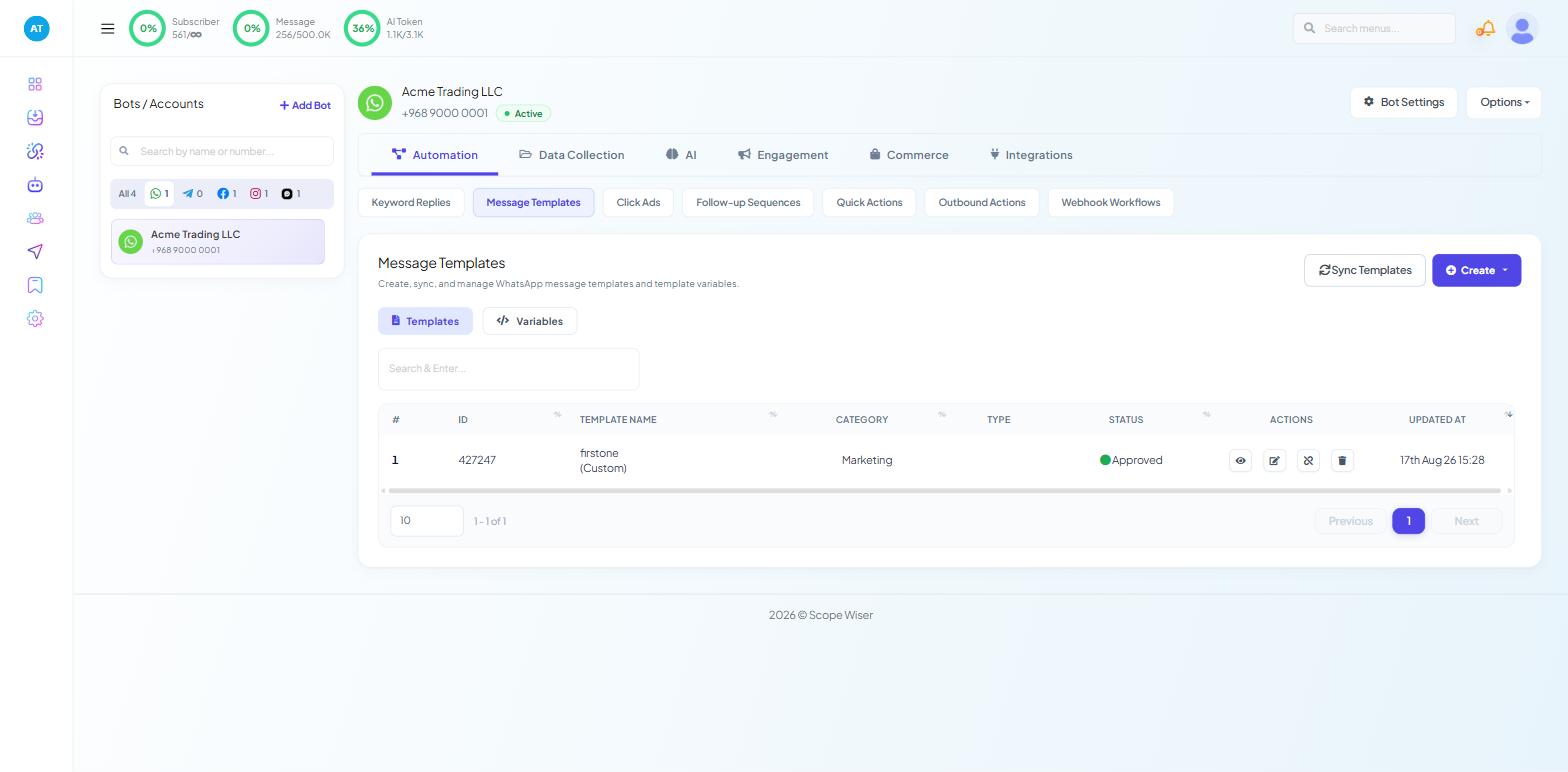
In the left menu, click Chatbot Manager and select your WhatsApp number.
Along the top, click Automation.
Click Message Templates.
You should now see your templates list (empty for now), with Sync Templates and Create above it.
2. Start a new template
Above the list, click Create.
In the menu, click General Template.
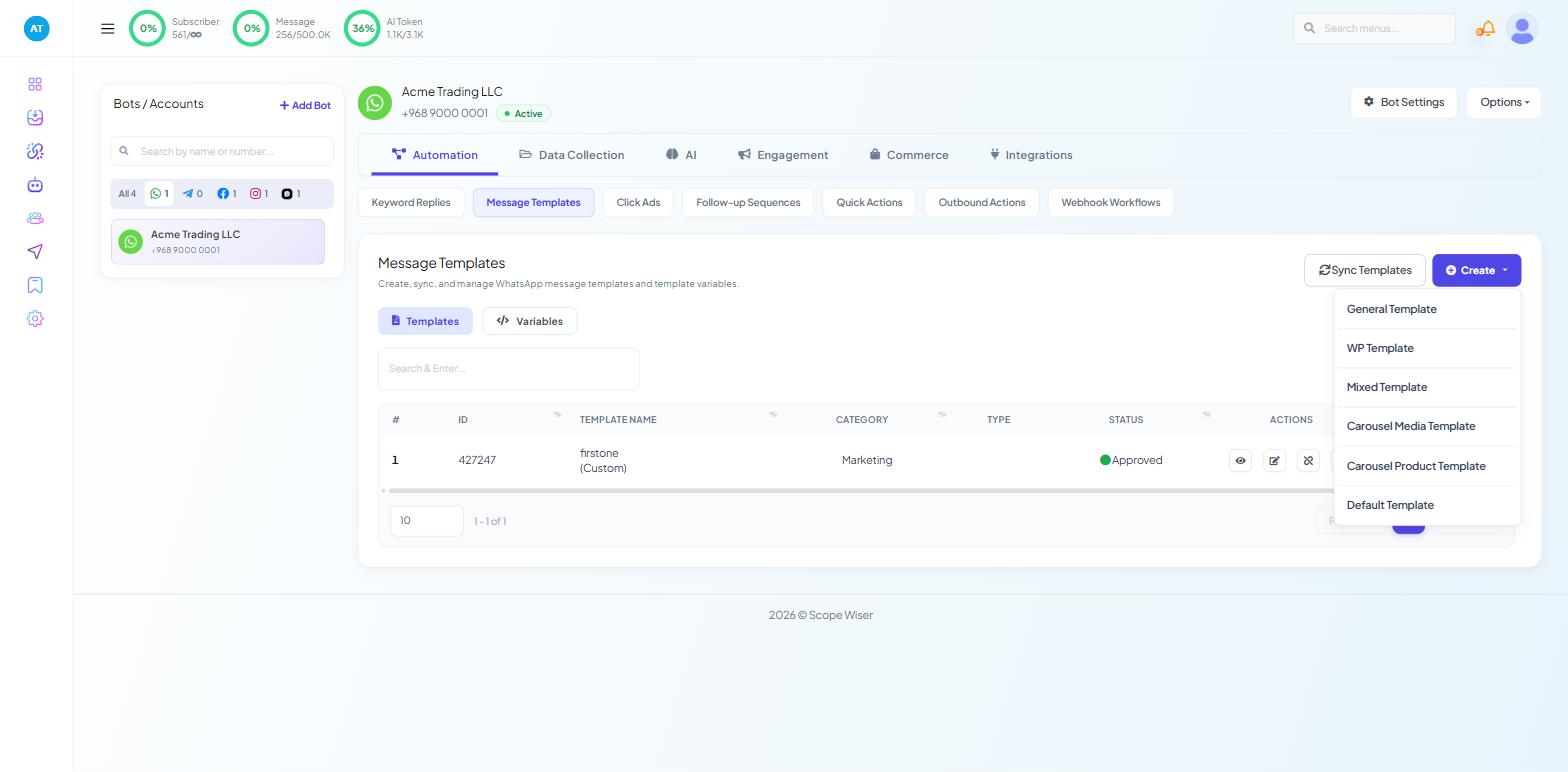
You should now see a Message Template panel, with a phone preview on the right. The preview updates as you type.
3. Fill in the template
In the Message Template panel, work down the form:
TEMPLATE NAME: for your own use. Customers never see it. Use lowercase words with underscores, for example
welcome_offer.LOCALE: the language of the message, for example English (US).
TEMPLATE CATEGORY: pick honestly:
Marketing: offers, news, invitations
Utility: order updates, appointment reminders, account messages
Auth/OTP: login codes
Promotional text filed as Utility is the most common reason for rejection.
HEADER TYPE: No Header is fine for your first one.
MESSAGE BODY: your message. Type
#to insert the customer's name. For example:Hi {name}, thanks for contacting Acme Trading! This week only, get 10% off servicing. Reply YES and we'll book you in.
FOOTER TEXT (optional): for example Reply STOP to opt out. This tells customers how to stop your messages.
BUTTON: choose Quick Reply and add a button such as YES. When the customer taps it, the 24-hour window opens and your bot can reply freely.
Check the preview, then click Save.
You should now see your template in the list. Saving sends it to Meta for review.
4. Check whether it's approved
Wait a few minutes.
Above the list, click Sync Templates.
Look at the STATUS column.
You should now see Approved with a green dot. You can now use the template.
Approval often takes minutes, sometimes a few hours. There is no guaranteed time. While you wait, go on to Step 10 and prepare your contacts.
✅ Step 9 done when…
☐ Your template shows Approved in the STATUS column
If something doesn't work
Problem | What to check |
|---|---|
The template was rejected | Usually the wrong category, text that sounds like spam, or a placeholder (like the customer's name) at the very start or end. Fix it and submit again. See Why Message Templates Get Rejected. |
I see only some template types under Create | Your role is missing a permission. An owner can switch it on under Control Panel → User Permission. |
The status hasn't changed for hours | Click Sync Templates again. Review times vary. |
Next: Step 10: Import Contacts and Send a Broadcast.