
Step 5: Set Up Your WhatsApp Profile
Add your logo, description, address, email and website to the WhatsApp profile customers see when they tap your business name. Done in Meta's WhatsApp Manager.
What you'll do: fill in what customers see when they tap your business name in WhatsApp: your logo, a short description and your contact details.
Time: 5 minutes.
Where to do this: in Meta's WhatsApp Manager, not in Scope Wiser and not on your phone. WhatsApp Manager is the part of Meta's website where you manage your WhatsApp number.
Before you start
☐ Full access to your Meta Business account (Meta also calls it Business Manager or business portfolio)
☐ Your logo as a square image, on your computer
☐ A one- or two-sentence description of what your business does
☐ Your business address, a contact email you check, and your website
1. Open your number's settings
In your browser, go to business.facebook.com and open your business.
Open WhatsApp Manager.
In the left menu, under Account tools, click Phone numbers (1).
In the list, find your number and click the gear icon (Settings) at the end of its row (2).
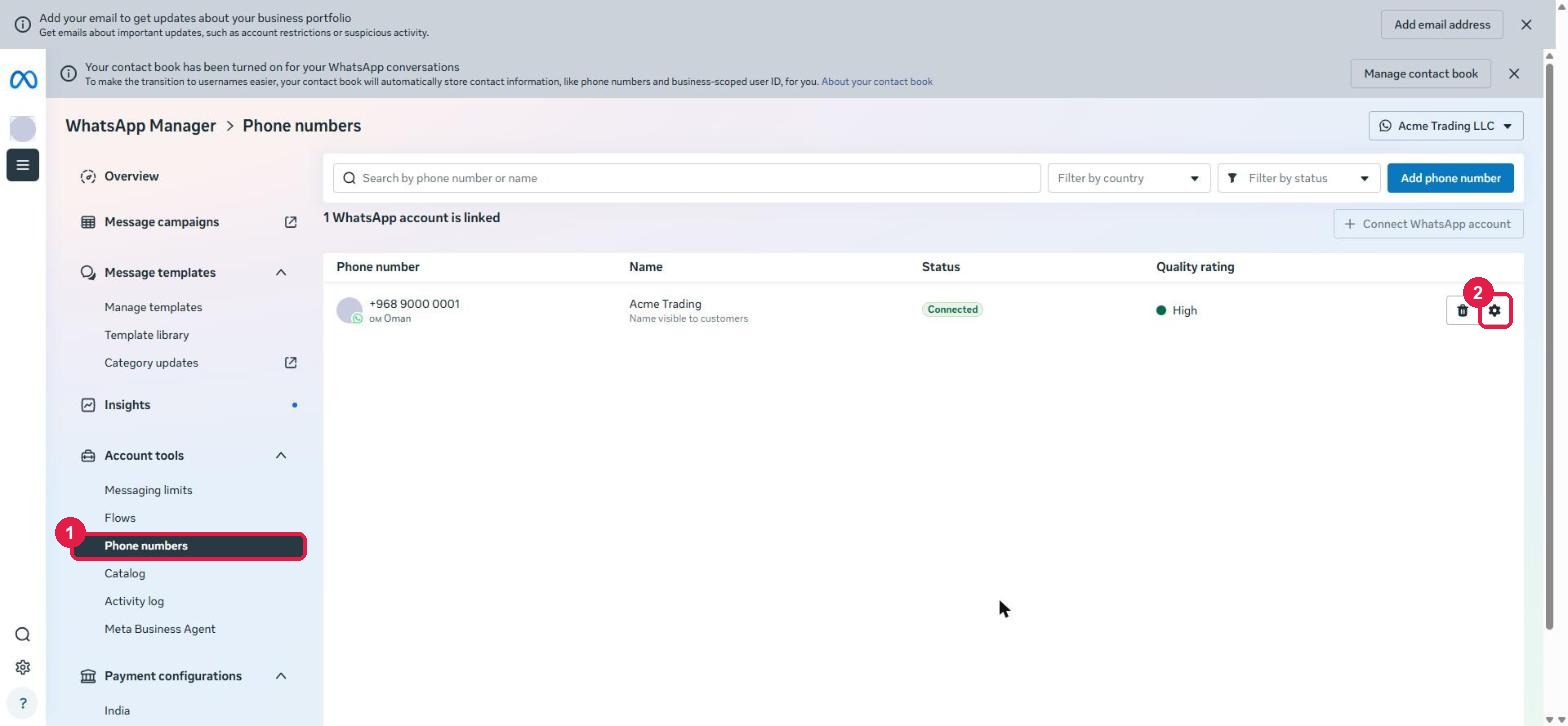
You should now see the settings for your number, with a Profile tab.
2. Add your logo
Click the Profile tab (1).
Under Profile picture (2), click Choose file and pick your logo.
Display name (3) is the business name customers see. It shows Approved once Meta approves it. To change it, click Edit. Meta reviews every change.
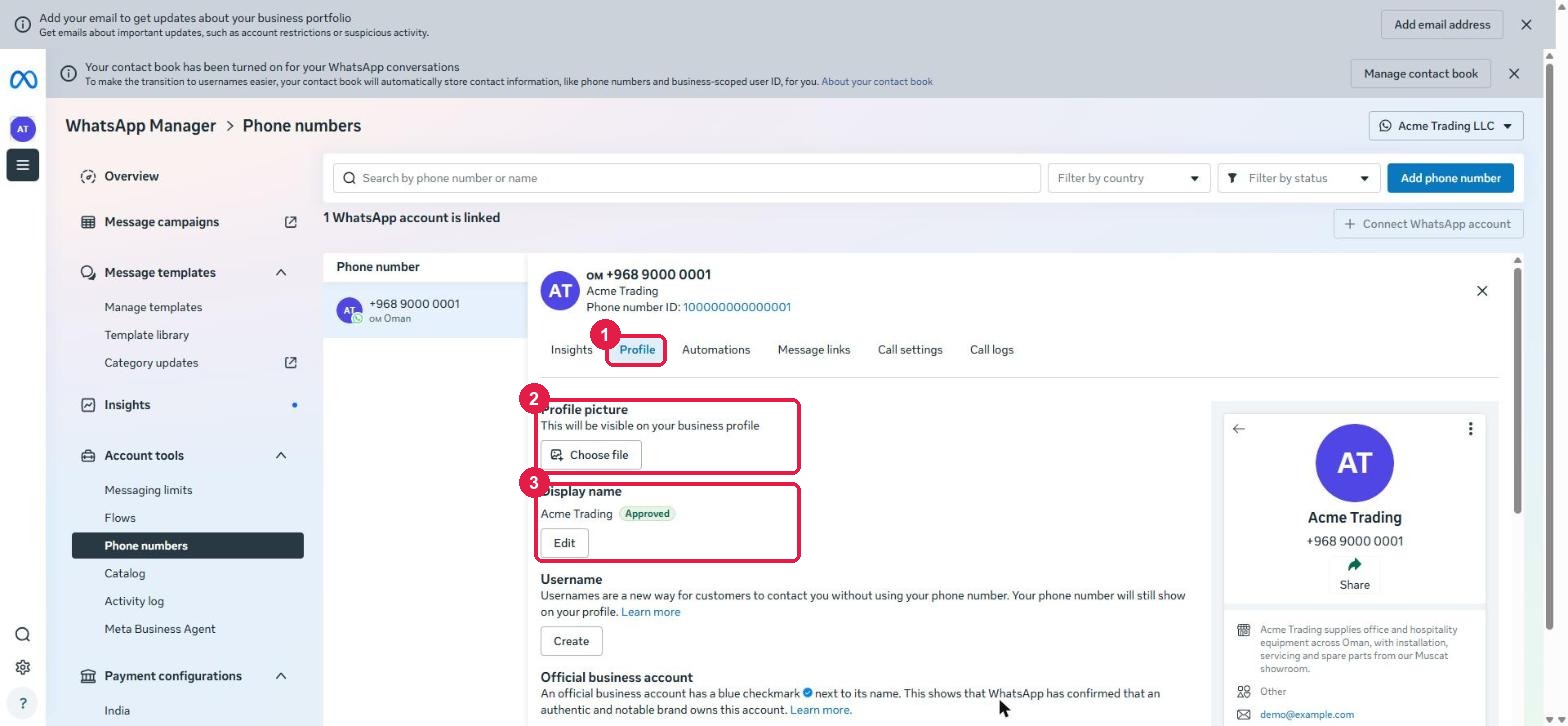
You should now see your logo in the preview on the right.
3. Fill in your business information
On the Profile tab, scroll down to Business Information:
Category (1): choose the one closest to your business.
Description (2): one or two plain sentences about what you do (up to 512 characters).
Address, Email and Website (3): fill in all three if you can.
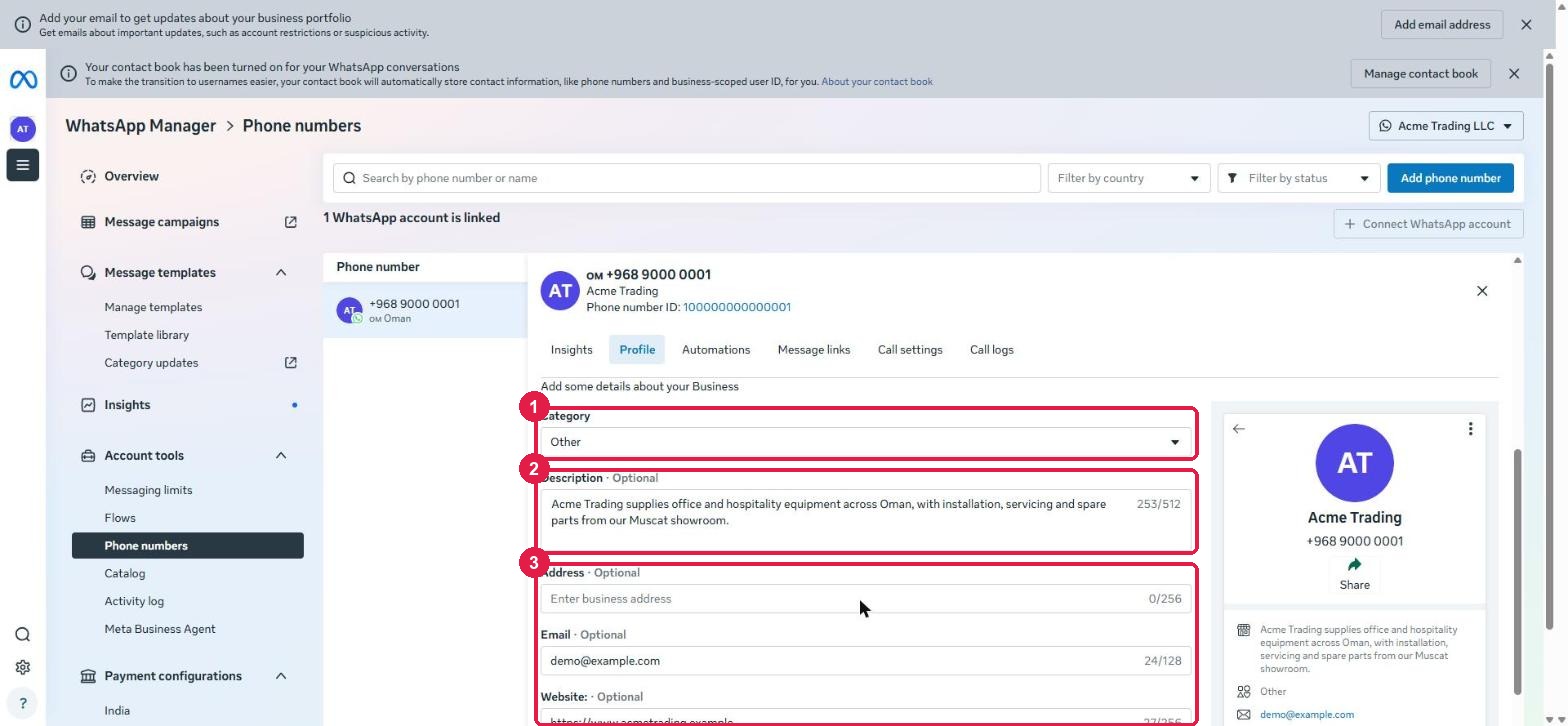
You should now see the preview on the right show your details. That is exactly what customers see.
Tip: a real address, a website and an email you answer build more trust than clever wording.
Optional: link your Facebook Page
Further down the Profile tab, Social accounts lets you connect your Facebook Page and Instagram account. You need this later for click-to-WhatsApp ads (Facebook ads that open a WhatsApp chat). You don't need it for this guide. See Your WhatsApp Business Profile and Facebook Page Link when you are ready.
✅ Step 5 done when…
☐ Your logo shows in the preview
☐ Description, address, email and website are filled in
If something doesn't work
Problem | What to check |
|---|---|
My display name was rejected | Meta accepts only names that clearly belong to your business, such as your trading name on your website. Generic words, product categories and promotional names are refused. |
I can't see the gear icon | You need Full access to your Meta Business account. See Step 2, section 3. |
Next: Step 6: Make the Bot Answer a Keyword.