
What User Input Flows Are and When to Use Them
User Input Flows ask questions inside the chat and store each answer on the subscriber. Learn where they live, how they differ from WhatsApp Flows, where the answers go, and when to use one.
A User Input Flow asks a subscriber a series of questions inside the chat and stores each answer where your automation can use it later — name, email, budget, preferred appointment slot. Asking inside the chat gets far more answers than sending people to a web form.
Where they live
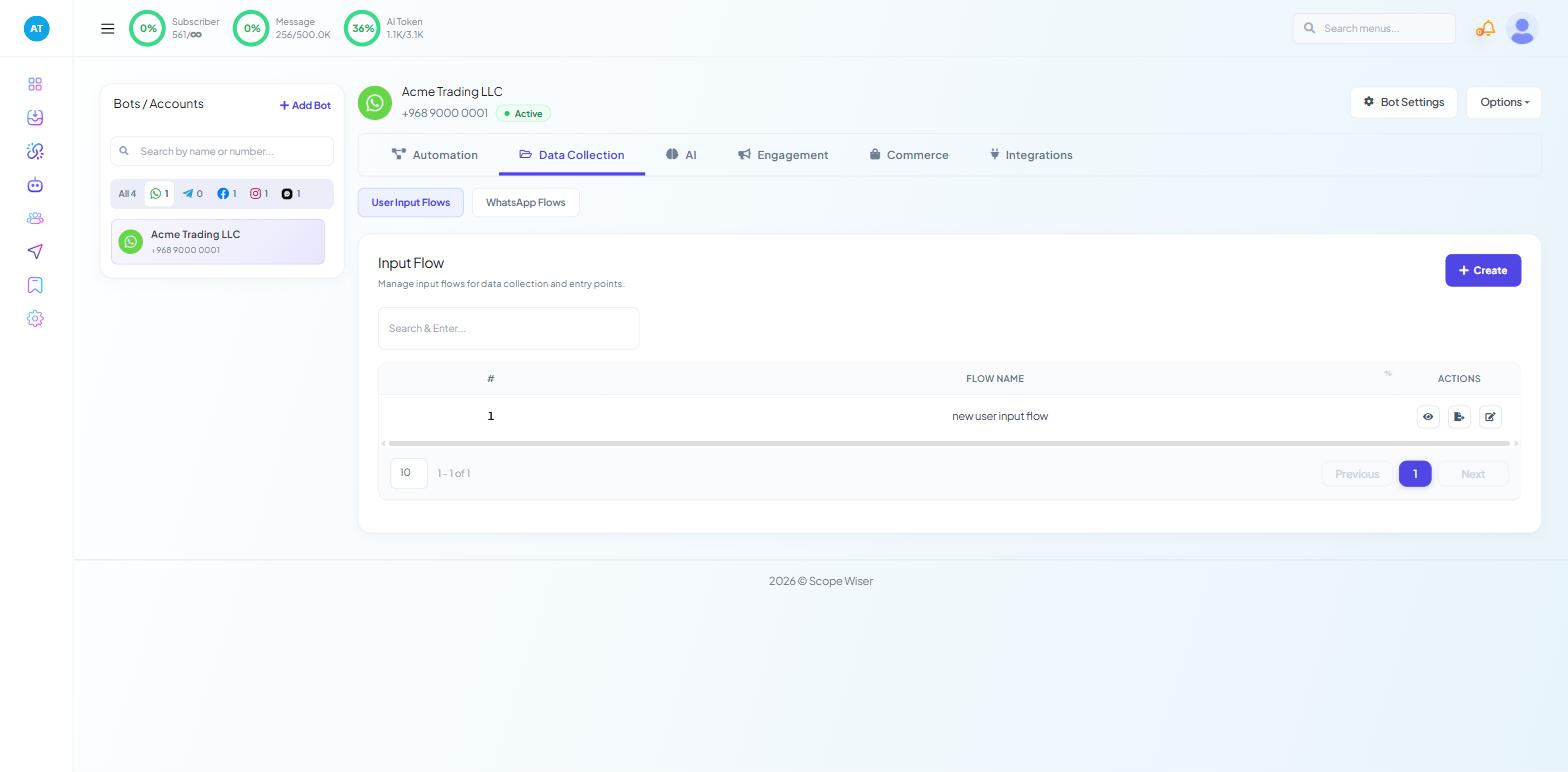
Open Chatbot Manager and select a bot.
Click the Data Collection tab. Two sub-tabs may appear: User Input Flows and WhatsApp Flows.
User Input Flows lists your flow campaigns (columns #, FLOW NAME, a date column and ACTIONS) with a "Search & Enter..." box and a + Create button. Each row has three icons: preview, export and edit.
User Input Flows work the same way on WhatsApp, Facebook, Instagram and Webchat.
User Input Flows are not WhatsApp Flows
Both collect data and both live on the same tab, but they are different features.
User Input Flows | WhatsApp Flows | |
|---|---|---|
What the customer sees | Questions arriving as chat messages, answered one at a time in the thread | A form screen rendered inside WhatsApp, with fields and a submit button |
Channels | WhatsApp, Facebook, Instagram, Webchat | WhatsApp only |
Whose feature it is | Scope Wiser's | Meta's, built into WhatsApp |
Approval | None. Save it and it runs | Created, categorised and published through Meta before it can be sent |
Built in | The Flow Builder, as a multi-question campaign | The Whatsapp Flows Form builder, or Flows Studio (Beta) for multi-screen forms |
Best at | Conversational qualification, branching on answers, anything cross-channel | Long structured forms a customer fills in one go |
WhatsApp Flows need Meta approval (see its STATUS column).
Rule: if it must work on Facebook, Instagram or Webchat, it has to be a User Input Flow. For a long WhatsApp-only form, a WhatsApp Flow is a better experience, and the two can be combined in one conversation.
What a User Input Flow is made of
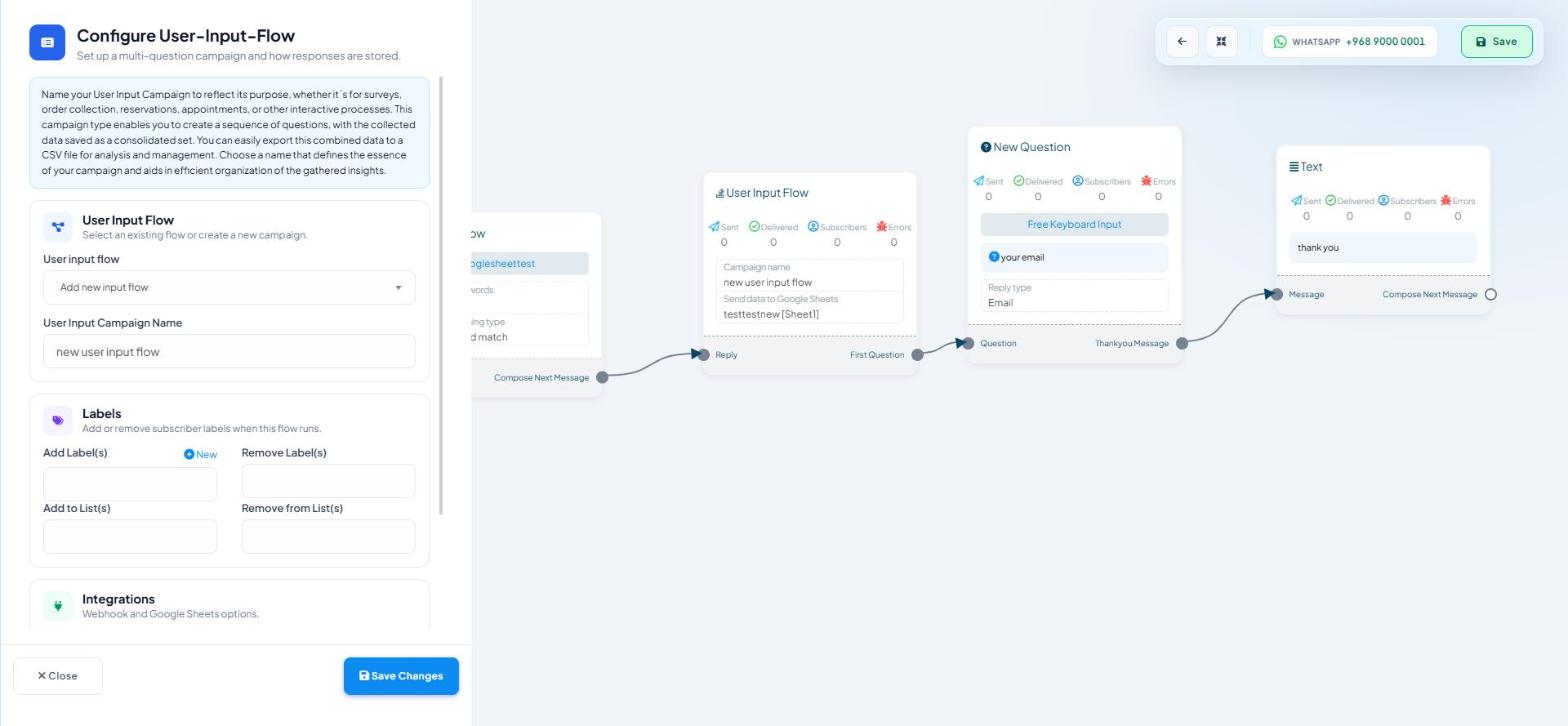
Click + Create on the User Input Flows tab, or drop a User Input Flow block onto the canvas from the Flow Builder's Data Collection palette section.
The Configure User-Input-Flow drawer opens. It has three cards — User Input Flow, Labels and Integrations — explained step by step in Building Multi-Step Forms. Forward Data to Webhook sends answers to another system (ask your developer); Sync Data to Google Sheets copies them into a spreadsheet.
On the canvas, the User Input Flow node has an incoming Reply port and an outgoing First Question port. Questions hang off First Question; the conversation continues from Reply once the answers are in.
Where the answers end up
Subscriber Manager → the contact → Input Flows tab. The question-and-answer set for that person.
Subscriber Manager → the contact → Custom Fields tab. The stored values. Anything you write as
#field_name#in a later message comes from here.The export icon on the User Input Flows list downloads the whole campaign's responses as CSV.
Because answers are stored per subscriber, a Condition block can branch on a value, a broadcast can filter on it, and a follow-up message can use the name they gave you.
When to use one
Use a User Input Flow for:
Lead qualification — budget, timeline, company size.
Appointment and booking requests — service, date, preferred time.
Support intake — order number and problem type.
Surveys and feedback — a few questions after a delivery.
Progressive profiling — two questions now, two more next time.
Think twice when:
The form is long. Split it, or use a WhatsApp Flow on WhatsApp.
The answer is a file or a photo. Use the File, Image or Video reply type (see Validation Rules for Input Fields).
The question is really a menu. Use an Interactive block with buttons instead.
You already hold the answer. Use a Condition block to skip questions whose field already has a value.
What to do next
Validation Rules for Input Fields — choosing the right reply type for each question. Building Multi-Step Forms — stringing questions together and branching on answers.