
Input Flow Reports & Data Export
Read what one subscriber answered, export a whole User Input Flow campaign as CSV, or push responses out continuously to a webhook or Google Sheet — and know which route answers which question.
To see one person's answers use Subscriber Manager; to download everyone's use the export icon on the flow.
Reading one subscriber's answers
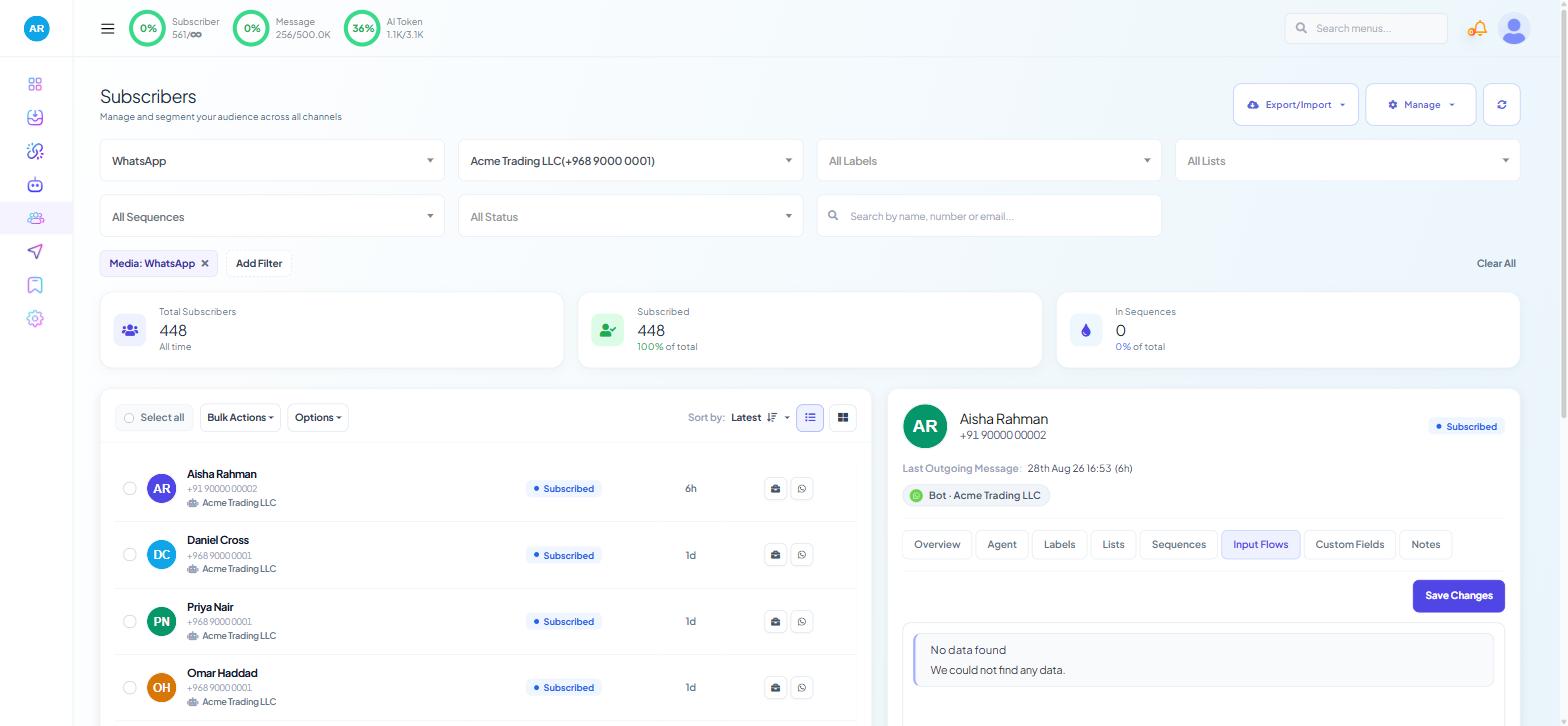
Open Subscriber Manager, find the contact — the search box takes a name, number or email — and click the row to open the detail panel.
Two of its eight tabs hold what you are after:
Input Flows — the questions this person was asked and what they replied, as a set.
Custom Fields — the same answers as stored values, which is what personalisation and broadcast targeting read.
To review a group rather than an individual, filter first. Channel, bot, label, list, sequence and status all narrow the list, and the label your flow applies on completion is usually the quickest way to isolate everyone who finished a particular form. Viewing & Filtering Subscribers covers the combinations.
Exporting a whole campaign
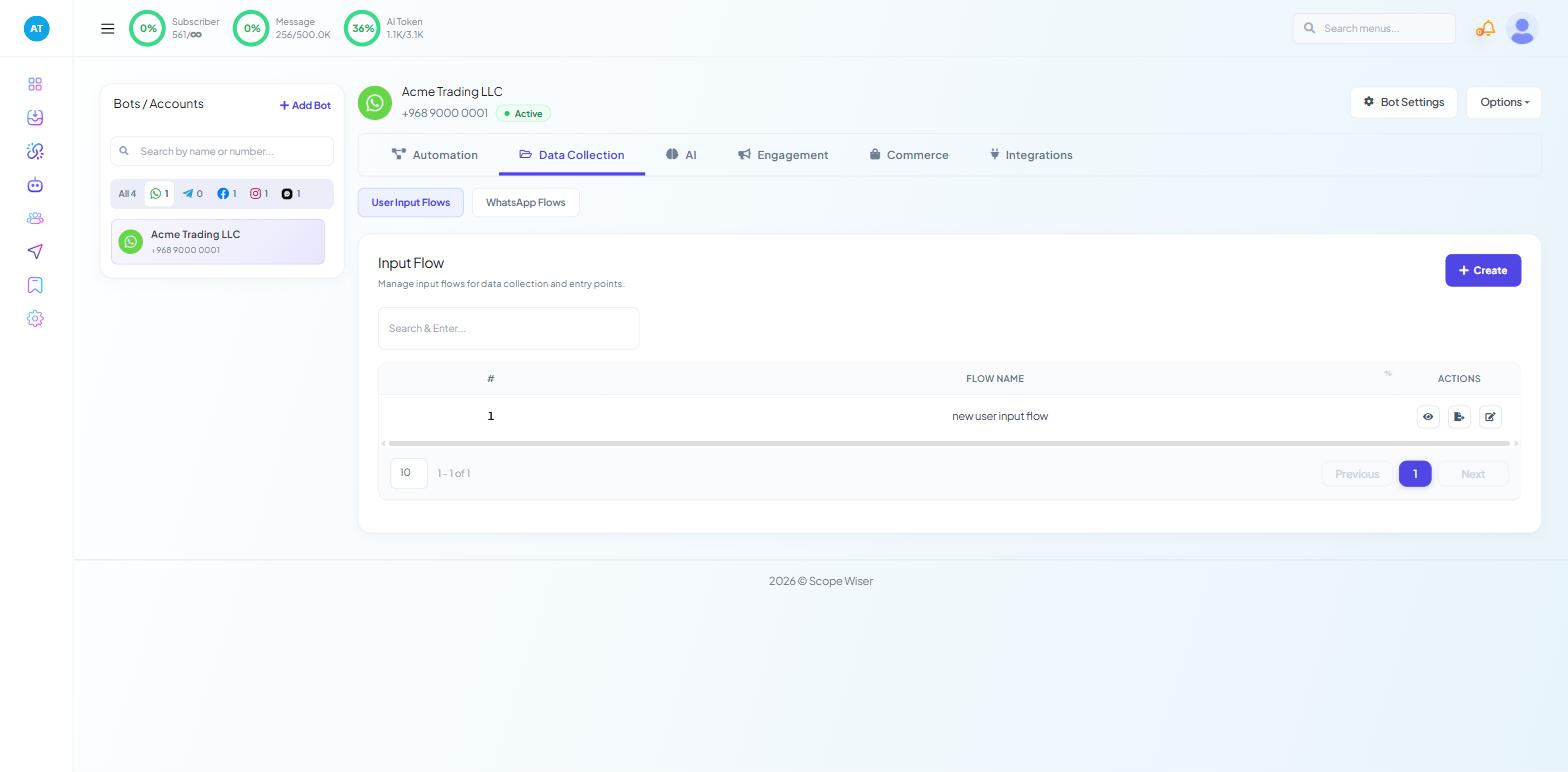
Go to Chatbot Manager, select the bot, then Data Collection → User Input Flows.
The list shows #, FLOW NAME, a sortable date column and ACTIONS, with a "Search & Enter..." box above it and a page-size selector below. The icons are, left to right: preview (eye), export (download), edit (pencil).
The export icon downloads that campaign's collected responses as a CSV file — one row per respondent, questions as columns — ready for a spreadsheet or an import into another system.
What the export will not do for you
Four limits shape how you should use it:
One campaign at a time. There is no combined export across flows. Several campaigns means several downloads, joined in the spreadsheet.
No date range. Export the campaign and filter by date in Excel or Google Sheets afterwards.
No scheduling. Nothing arrives in your inbox on a Monday morning unless you set that up yourself — see the continuous options below.
No route back in. An edited CSV cannot be re-imported to update the responses it came from. Use it to enrich a CRM or plan a campaign, not as a place to correct data.
Continuous export instead of manual
If you download the same CSV every week, configure the campaign to push instead.
Open the campaign — Data Collection → User Input Flows, then the edit icon — and look at the Integrations card on the Configure User-Input-Flow drawer, described as "Webhook and Google Sheets options."
Forward Data to Webhook (for developers) sends each answer set to your CRM automatically.
Sync Data to Google Sheets writes responses into a connected sheet, which gives your team a live view without anybody having access to Scope Wiser.
Set either one and the manual export becomes a backup rather than a routine. Configure it when you build the campaign if you can — it applies to responses collected from that point, not retrospectively.
Exporting contacts rather than answers
A third export exists and is often the one people actually want. Subscriber Manager → Export/Import → Export all as CSV takes the contacts themselves, including their stored field values, and it respects the filters you have applied. Options → Download selected as CSV does the same for rows you have ticked.
Use the campaign export when the questions and their answers are the subject. Use the subscriber export when the people are the subject and their answers are attributes — building an audience for another channel, for instance, or handing a segment to a colleague.
Habits worth keeping
Export before you change a campaign. Editing questions changes what future rows look like; a download beforehand keeps the old shape intact.
Label at collection time. A campaign's Add Label(s) setting costs nothing to configure and makes every later filter, count and audience trivial.
What to do next
Using Collected Data in Follow-Up Messages covers putting these answers back into your messaging rather than only reading them. For flows that write to a spreadsheet as part of the conversation itself, see Exporting Flow Data to Google Sheets.