
Using Collected Data in Follow-Up Messages
Put the answers a User Input Flow captured back into your messages: create custom fields, insert them into flow messages and WhatsApp templates, target broadcasts by field value, and handle blanks.
This guide shows how to put the answers a User Input Flow collected back into your messages: creating custom fields, inserting them into flow messages and templates, and targeting broadcasts by what people told you.
Everything runs on custom fields — named containers holding one value per subscriber. A User Input Flow writes to them; messages, conditions and broadcast filters read from them.
Step 1: Create the field before you collect anything
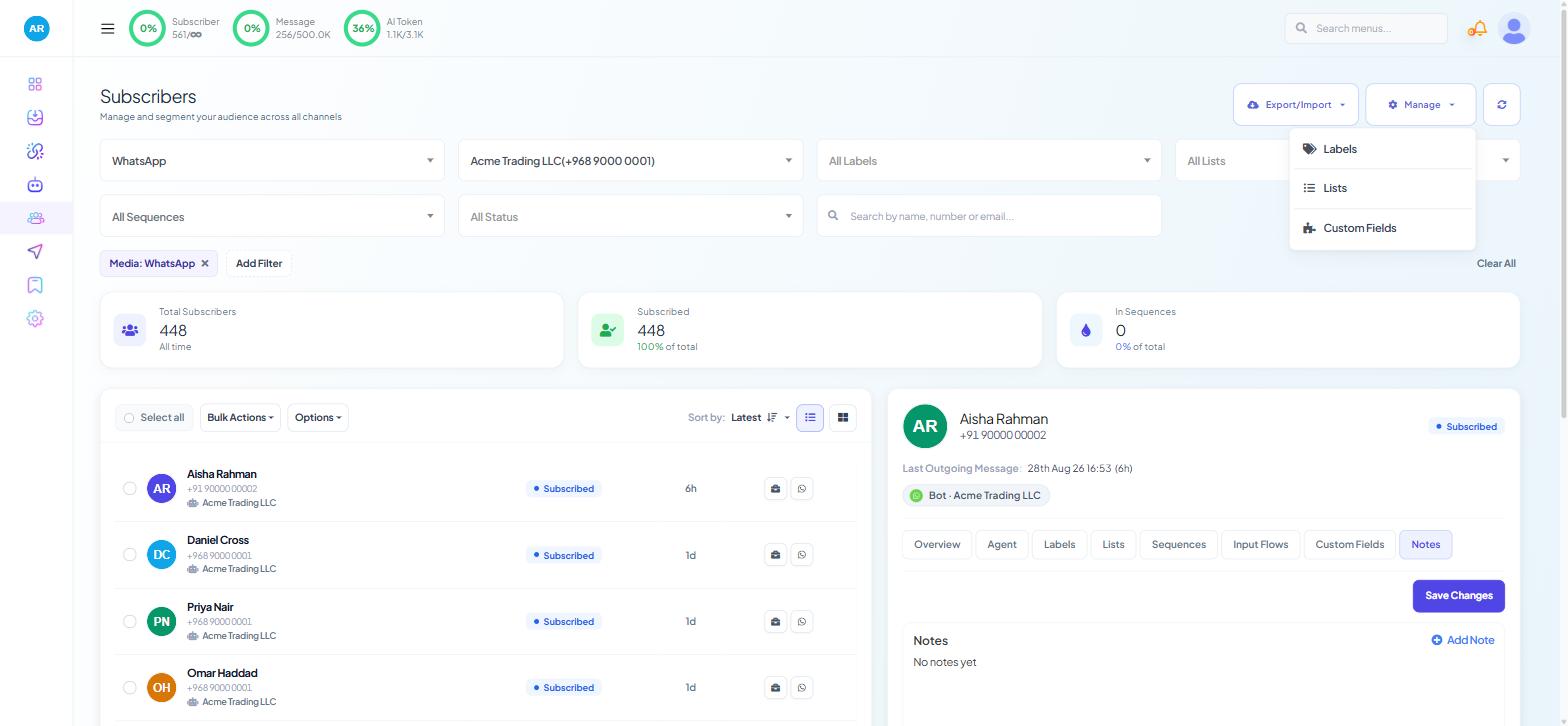
Open Subscriber Manager.
Click Manage → Custom Fields.
Create a field for each piece of information you plan to reuse.
Two habits:
Name fields in lower case with underscores —
full_name,user_email,preferred_date. A name with a space or a stray capital renders as nothing in a message.Match the field's type to the data. A date stored as text cannot be compared; a number stored as text cannot be tested with "greater than".
Step 2: Get values into the field
From a User Input Flow. Each question maps to a field. See Building Multi-Step Forms.
From a colleague, mid-conversation. In Shared Inbox, the Chat Actions rail has Assign Custom Fields with a Select Custom Field dropdown, above a Custom Fields section that reads "No custom fields assigned" until something is set.
From an import. Extra spreadsheet columns map to custom fields, so create the fields before the import runs.
The value is visible on the subscriber's Custom Fields tab in Subscriber Manager, and the question-and-answer set on the Input Flows tab beside it.
Step 3: Insert a field into a flow message
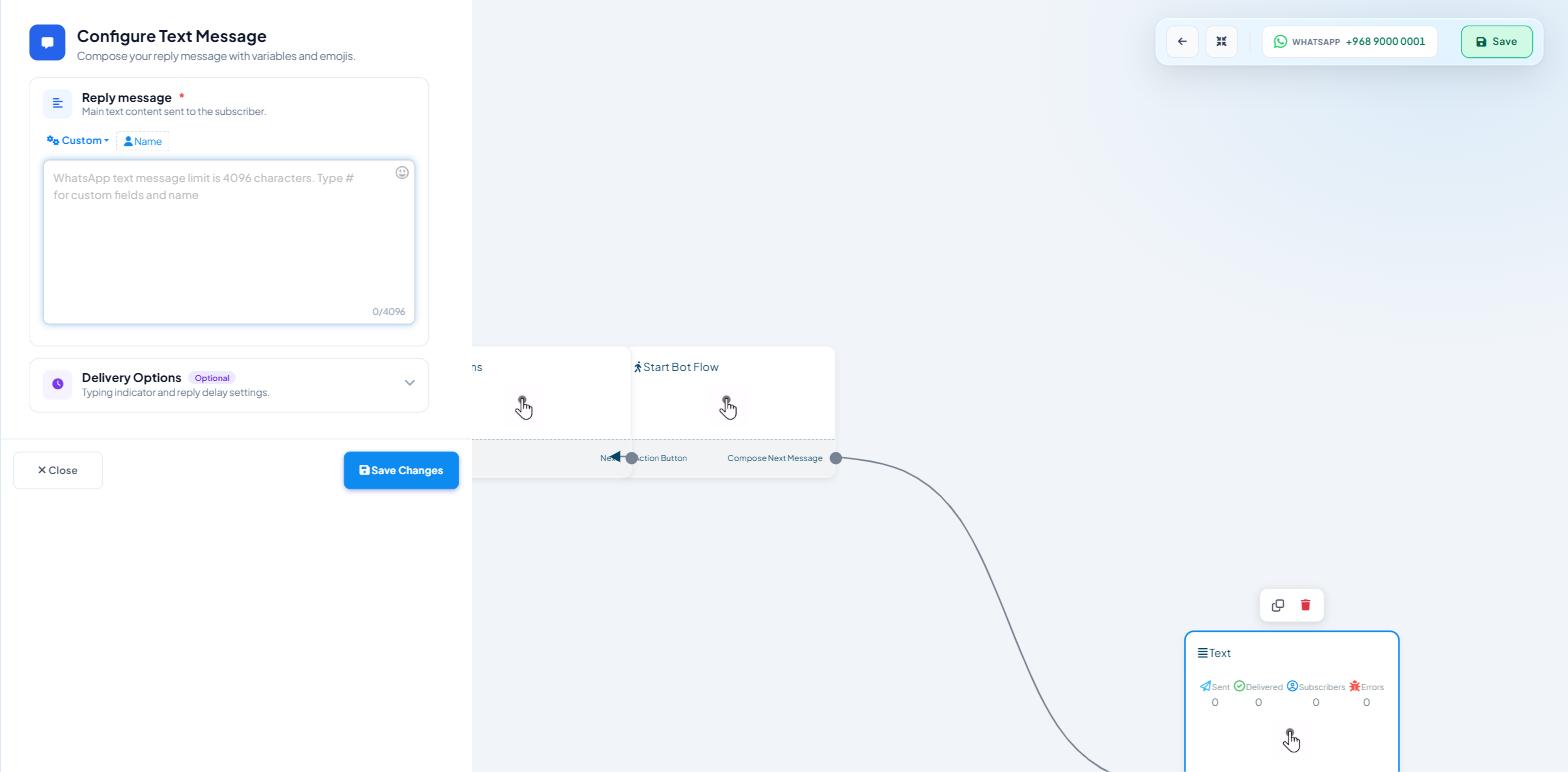
Open the flow and click the Text block. The Configure Text Message drawer opens.
Above the Reply message box, open the Custom dropdown and pick the field. Fields appear as
#full_name#; the Name button inserts the subscriber's name. Use these controls rather than typing placeholders by hand.Write the message around the placeholders, for example:
Thanks #full_name#. We have your request for #service# on #preferred_date#.
One of our team will confirm shortly.
The counter under the box tracks the 4,096-character limit; placeholders expand when sent. The same drawer holds Delivery Options — a Typing on display toggle and a Delay in reply setting with hours and minutes.
Step 4: Personalise a WhatsApp template message
Messages sent outside the 24-hour window go out as approved templates.
Open Chatbot Manager → Automation → Message Templates.
Use the body toolbar — Custom Fields, Variables, Name and AI Re-write — to insert values. Set TEMPLATE CATEGORY to Utility, Marketing or Auth/OTP.
Write the sentence so it reads well whatever the value turns out to be.
Templates need Meta's approval, and editing an approved template means resubmitting it, so get the personalisation right before you submit.
Step 5: Target a broadcast by what people told you
Open Broadcasting → + Create Campaign.
In the audience settings, choose a Custom Field and enter a Custom field contains value — for example
servicecontains installation.Watch the "Targeted subscribers: N" readout. If it collapses to almost nothing, the stored values are inconsistent — use buttons rather than free text at collection time.
Handling the blanks
Put a Condition block before any message that leads with a placeholder; route to a generic version when the field is empty.
Put placeholders mid-sentence. "We have your request for #service#" reads fine without a name; "#full_name#, your quote is ready" does not.
One well-placed detail beats four.
Test with a real subscriber
Run the flow from a test contact on the real channel and answer the questions.
Check that every placeholder resolved, that the values landed in the right fields on the contact's Custom Fields tab, and that the message still reads well with a long value.
A placeholder that arrives as #city# means no field exists under that name — usually a capital letter or an underscore in the wrong place.
What to do next
Labels, Lists & Segments — grouping people by what they answered. Input Flow Reports & Data Export — reading responses per subscriber and exporting a whole campaign.