
Labels, Lists & Segments: How Scope Wiser Groups Subscribers
Labels and Lists are two different grouping systems in Scope Wiser, and a segment is a filter combination. Learn what each one is for, where to apply it, and how broadcasts target them.
This article explains the three ways Scope Wiser groups subscribers, which one to use for what, and where to apply each one.
A label is a tag that describes something about a person: Hot Lead, Cart Abandoned, Webinar Attendee. Your flows can add and remove labels automatically.
A list is a named group you put a person into: October Expo, Newsletter, Wholesale Customers. Membership changes only when you, an agent or a User Input Flow changes it.
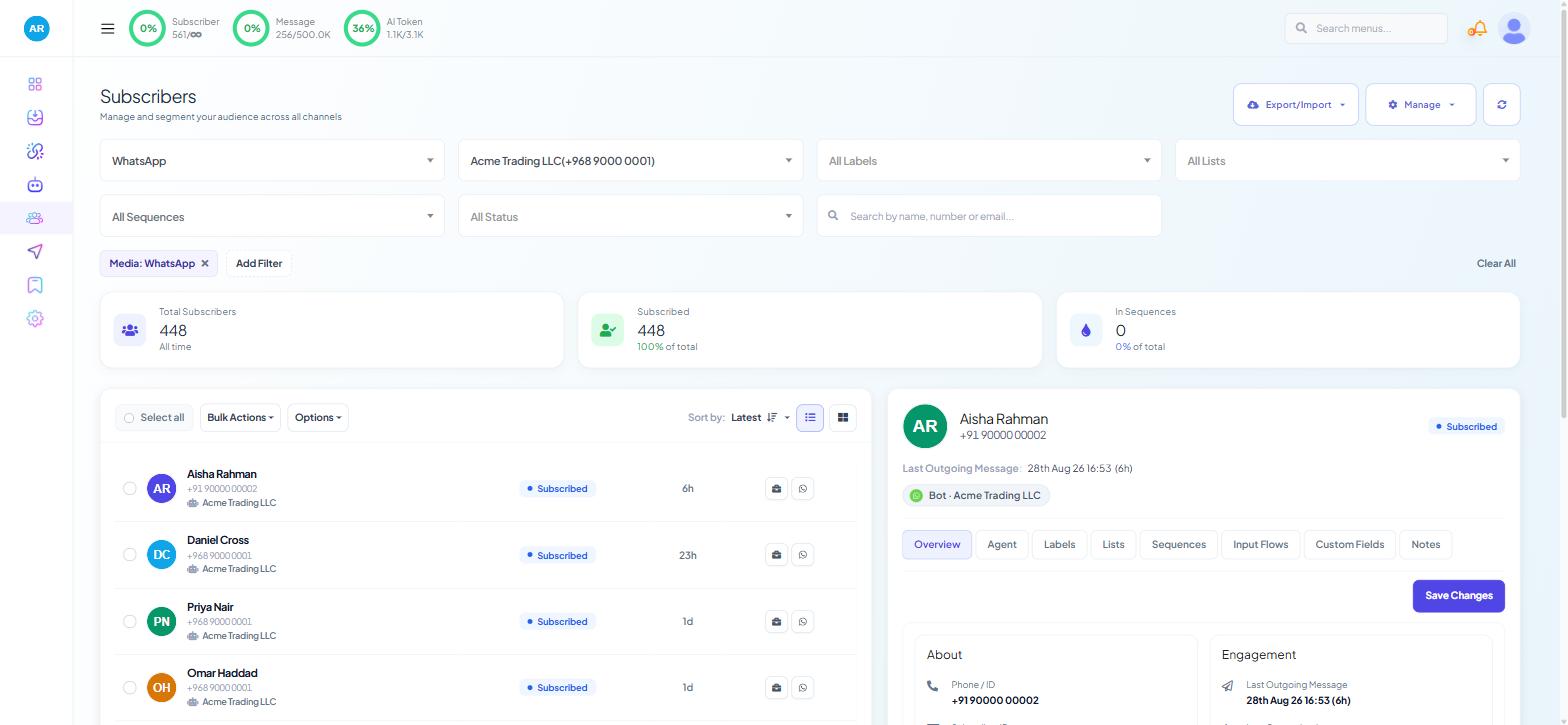
A segment is the set of filters currently applied in Subscriber Manager. It is a live view, not a saved object.
Custom fields are different again: they store a value (an email address, a budget, a city) rather than a grouping. Personalised messages read from those.
Labels
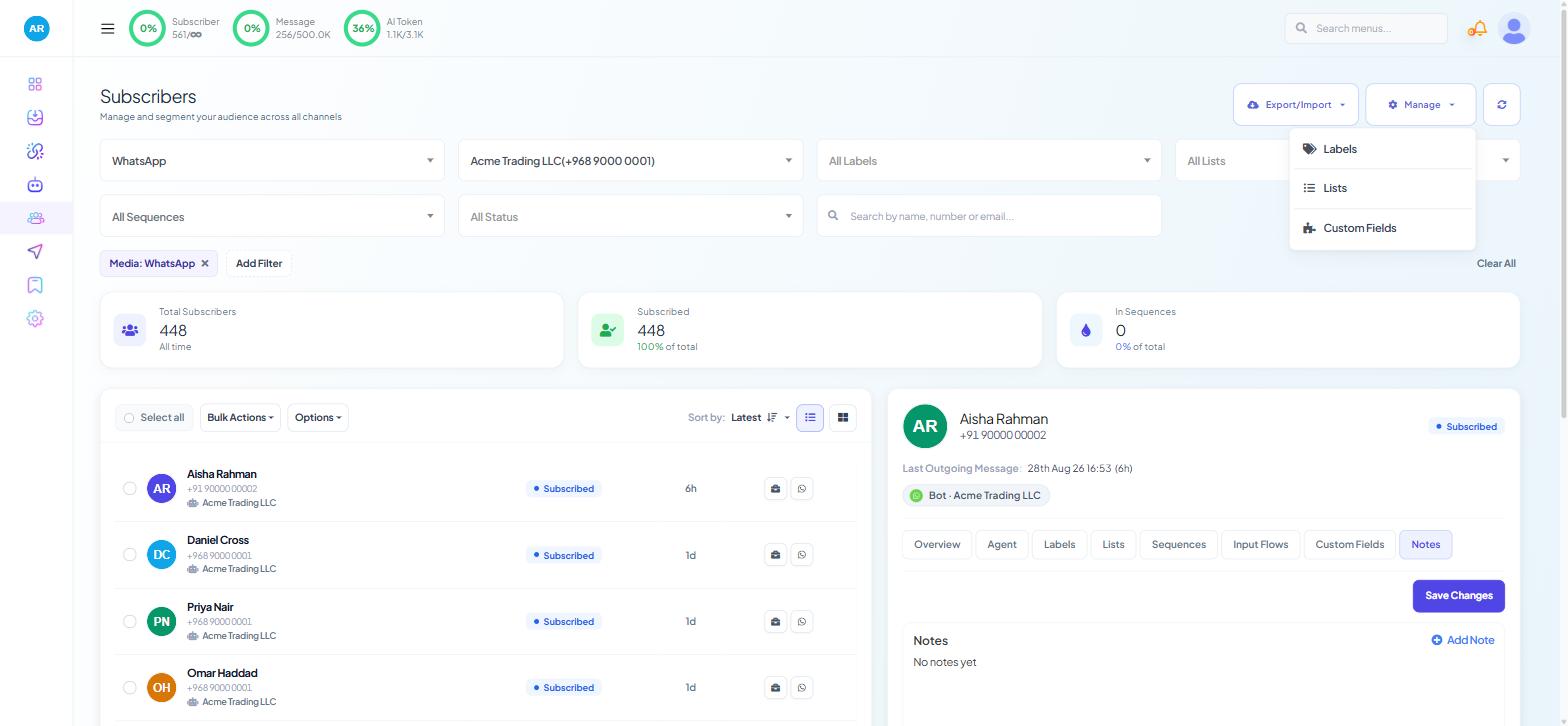
Find them under Subscriber Manager → Manage → Labels. Use labels for anything that changes with what a person does.
A label can be applied four ways.
By hand, on one contact.
Open the subscriber in Subscriber Manager.
Open the Labels tab and add the label.
Click Save Changes.
From the Shared Inbox. The Chat Actions rail has a Labels field. Type a name and press Enter to apply it. This also creates the label if it does not exist yet.
In bulk. Filter the list, then Bulk Actions → Assign Label to cover the whole filtered set, or tick rows and use Options → Assign Label. To remove a label from many people, use Options → Remove Label.
Automatically, from a flow. Three places:
Flow Builder → Flow Control → Label Assign block (WhatsApp, Facebook and Instagram). Place it after the branch you care about; the label is applied the moment a subscriber takes that path.
User Input Flow drawer → Add Label(s) / Remove Label(s) fields, applied when the flow runs (any channel). A ⊕ New control creates a label on the spot.
Webchat has no Label Assign block. Use a User Input Flow instead.
Lists
Find them under Subscriber Manager → Manage → Lists. A list answers "who did I put in this group", not "what has this person done".
Lists have their own filter (All Lists), their own tab in the subscriber detail panel, and their own bulk actions: Bulk Actions → Add to List and Bulk Actions → Remove from List. An agent can also add someone from the Shared Inbox rail, where the Lists field works the same way as the Labels field.
There is no list block in the Flow Builder. List membership is set from Subscriber Manager, from the Shared Inbox, or from a User Input Flow's Add to List(s) and Remove from List(s) fields. If a mid-conversation branch needs to write to a group, that group has to be a label.
Use lists for things a person stays in until you say otherwise: an event audience, an imported batch, a subscription to one kind of content. Use labels for things that are true today and might not be next week.
Segments
Nothing in Subscriber Manager is called a segment, and there is no "save this segment" button. A segment is the filter row — channel, bot, All Labels, All Lists, All Sequences, All Status and search — with each applied filter shown as a chip, plus Add Filter and Clear All.
For the filter combinations that do the most work, see Viewing & Filtering Subscribers.
Filters are not saved. Write down the filter combination if a colleague needs the same group.
Targeting labels and lists in a broadcast
Open Broadcasting → + Create Campaign. The audience settings on the broadcast block include:
Include label ids / Exclude label ids
Include Subscriber Lists / Exclude Subscriber Lists
A typical campaign sets Include Subscriber Lists: Newsletter and Exclude label ids: Recently Purchased — the group people joined, minus the people the message is wrong for today. Before you send, check the "Targeted subscribers: N" readout under the audience fields; a count far below what you expected means an exclusion is removing more people than you intended.
Agree label names before the team starts
Anyone can create a label by typing a name, so agree one spelling per label before the team starts.
One spelling, decided once. Write it down where your agents will see it.
Prefix by purpose.
Stage: Qualified,Source: Expo,Interest: Wholesalesort together in a dropdown and make a stray label obvious.Labels describe behaviour, lists name a group. If the name says what the person did, it is a label. If it names a group they are in, it is a list.
Prune quarterly. Filter by each label in turn; anything matching zero subscribers and used by no flow can go.
Do not put values in labels. Budget over 5k breaks the first time a budget changes. Store the figure in a custom field and branch on it with a Condition block.
What to do next
Set up your labels and lists, then read Viewing & Filtering Subscribers for the filter combinations that turn them into working segments. To apply labels automatically inside a flow, Conditions, Triggers & Branching Logic in Flow Builder covers placing a Label Assign block.