
Viewing & Filtering Subscribers
How to narrow a Scope Wiser subscriber list down to exactly the people you need: every filter explained, how the chips behave, and why a filtered list sometimes comes back empty.
This article shows how to use the filter row in Subscriber Manager to find exactly the people you need — for example everyone on WhatsApp who asked about wholesale pricing and is still subscribed.
Open Subscriber Manager from the sidebar. Everything below happens on that page.
The filter row, control by control
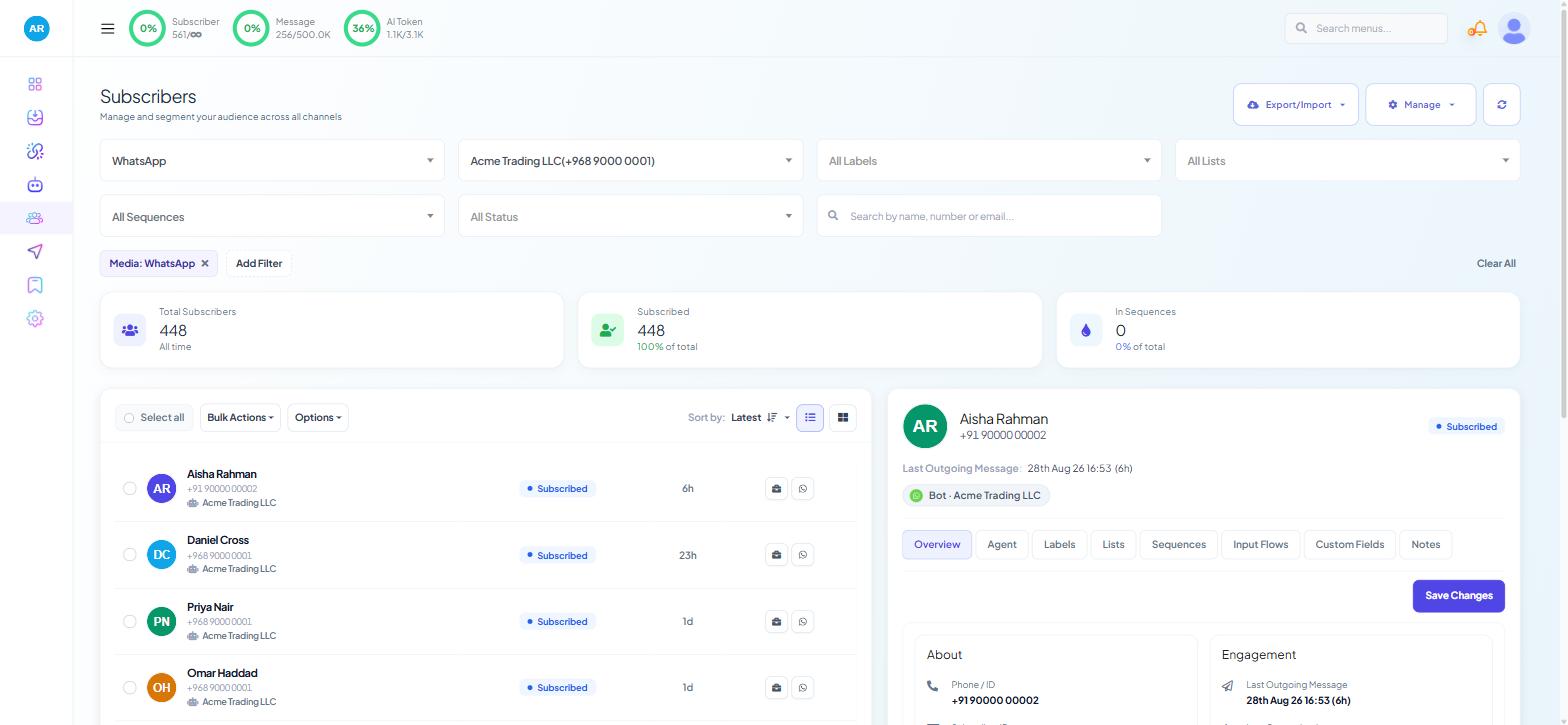
The filters sit under the page heading and combine: each one narrows what the others returned.
Channel. Pick WhatsApp, Facebook, Instagram or Webchat. Contacts do not merge across channels — someone who has messaged both your WhatsApp number and your Facebook Page is two records, with separate labels and field values.
Bot / account. Narrows to one connected bot within the chosen channel. Set this first if you run more than one; a label that exists on one bot returns nothing while another is selected.
All Labels. Filters by label. The dropdown opens with Unselect Label, which clears the filter.
All Lists. Filters by list membership, and opens with Unselect List. Lists and labels are different systems — see Labels, Lists & Segments: How Scope Wiser Groups Subscribers.
All Sequences. Filters by the follow-up sequence a contact is enrolled in, opening with Unselect Sequence. Use it to confirm a bulk sequence assignment worked.
All Status. All Status, Subscribed or Unsubscribed. Set this before any campaign work. Unsubscribed contacts stay in the database and count towards your subscriber limit, so an unfiltered export overstates your reachable audience.
Search. "Search by name, number or email...". Partial matches work: searching +968 returns every number starting that way.
Chips, Add Filter and Clear All
Every active filter appears as a chip beneath the row, next to Add Filter and Clear All.
Read the chips before you trust a count. A filter left over from earlier is the most common reason a list looks wrong. Clear All resets everything in one click.
Ordering and page size
Sort by offers Latest or Oldest. There is no date-range filter, so to find recent arrivals, sort by Latest and read down. For anything more precise, export and filter in a spreadsheet.
The page-size selector offers 10, 25, 50, 100, 500 and 1,000 rows. Raise it before you tick rows, because Select all covers only the page in front of you.
Filter combinations that do real work
Ready for a campaign. Channel WhatsApp + bot + status Subscribed + label High Intent. The people you can message, narrowed to those who showed interest.
Stalled in onboarding. Status Subscribed + sequence Welcome. Everyone still mid-sequence.
Ready for cleanup. Status Unsubscribed, no other filter. Export, review, then delete what you no longer need.
Event follow-up. List October Expo + status Subscribed. The group you enrolled, minus everyone who has since opted out.
Acting on what you filtered
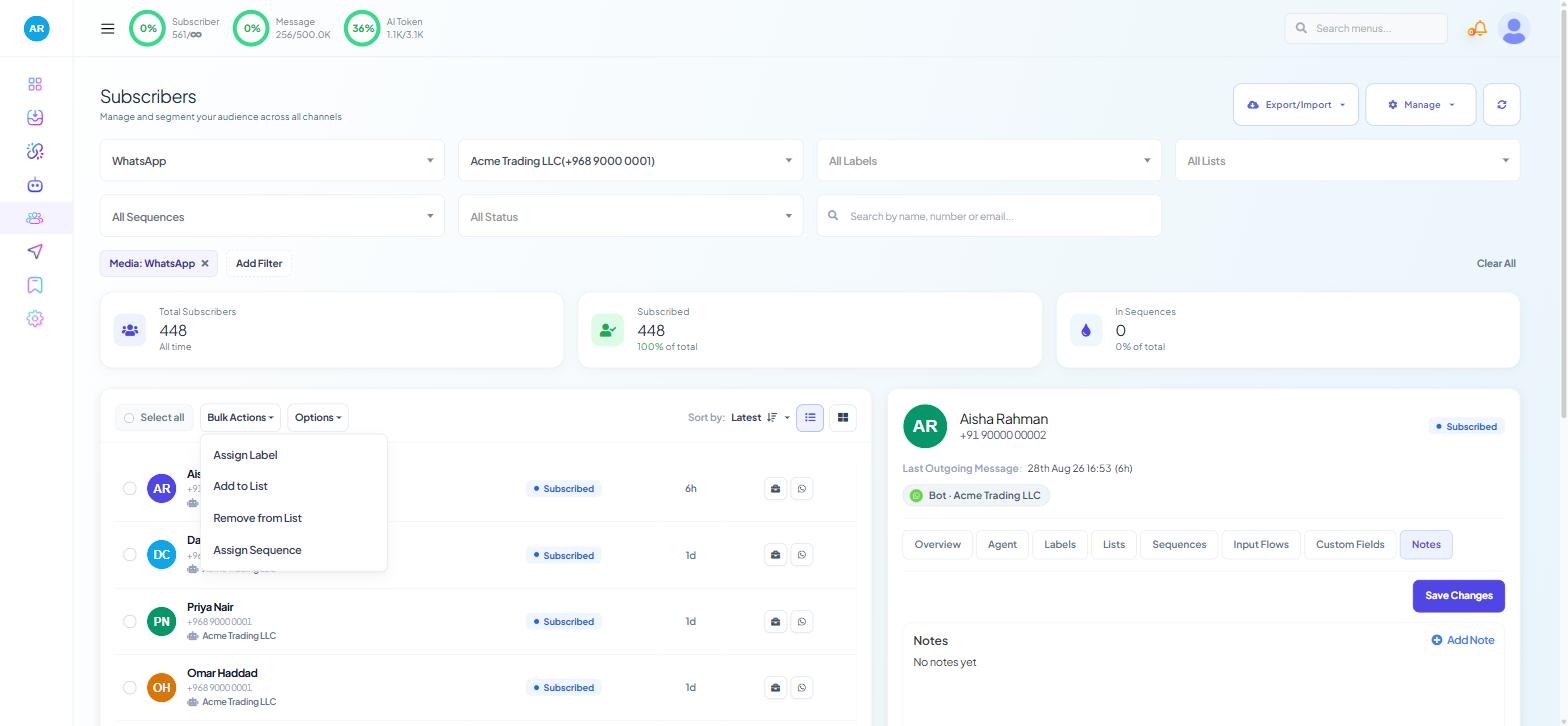
Then use Bulk Actions, Options or Export/Import — see Subscriber Manager: A Complete Overview. Check the Total Subscribers card first: it responds to the filters, so it tells you how many people a bulk action will reach.
When the list comes back empty
The wrong bot is selected. Labels, lists and sequences belong to one bot. Reset the bot selector and try again.
Status is excluding the group. Subscribed hides opted-out contacts.
Two filters do not overlap. A label applied by a WhatsApp flow never matches while the channel filter is set to Facebook.
A chip you forgot is still active. Press Clear All and rebuild the filter.
If the count is right but the people look wrong, open one record and check the Labels, Lists and Sequences tabs in the detail panel to see what the filter matched.
What to do next
Labels, Lists & Segments: How Scope Wiser Groups Subscribers makes these groups maintain themselves. Input Flow Reports & Data Export covers exporting the answers people gave rather than the contacts.